Table of Contents
A laptop can feel warm during demanding work, but sustained thermal throttling, maximum fan noise, shutdowns, burning smells, or battery swelling are not normal. Start with workload and airflow checks; open the chassis or replace thermal material only when the service manual, warranty, and your experience make it safe.
Recognize an overheating problem
- Performance drops after several minutes of load.
- Fans stay unusually loud while CPU/GPU use is modest.
- The laptop shuts down or restarts under load.
- The chassis becomes painfully hot or a temperature tool reports sustained values near the component's specified limit.
- The battery area is hot, swollen, or lifting the case.
There is no universal “safe temperature.” Compare readings from a trusted monitoring tool with the limits for the exact CPU, GPU, and laptop.
Stop immediately for battery or electrical signs
Power off, unplug, and move away from the device if it is swelling, hissing, smoking, smelling chemical/burned, or heating rapidly while idle. Do not press the case flat, puncture the battery, keep charging, or put it in a refrigerator. Contact emergency services for active fire and arrange authorized battery handling.
Check workload and software
- Open Task Manager or Activity Monitor and sort by CPU and GPU use.
- Close a runaway or unnecessary process after saving work.
- Install stable OS, app, graphics, and firmware updates from official sources.
- Scan for malware if resource use is unexplained.
- Use the manufacturer's Balanced or Quiet profile when maximum performance is unnecessary.
Do not end unfamiliar system processes randomly. Persistent load may be an update, indexing, cloud sync, or an application fault.
Restore airflow
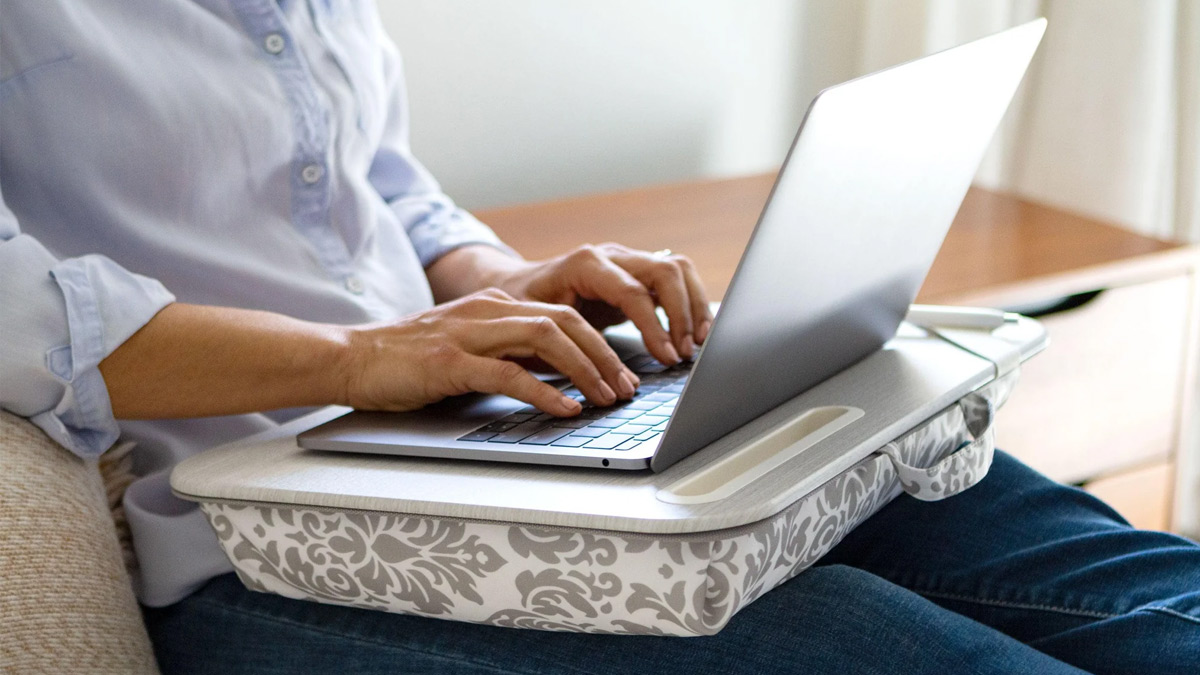
- Use the laptop on a hard, flat surface.
- Keep intake and exhaust vents clear of bedding, clothing, walls, and papers.
- Power off and remove loose exterior dust with a soft brush or electronics-safe air according to the manufacturer.
- Do not hold a fan at damaging speed with high-pressure air or push metal tools into vents.
- Use the laptop within the maker's ambient-temperature range.
Will a cooling pad help?
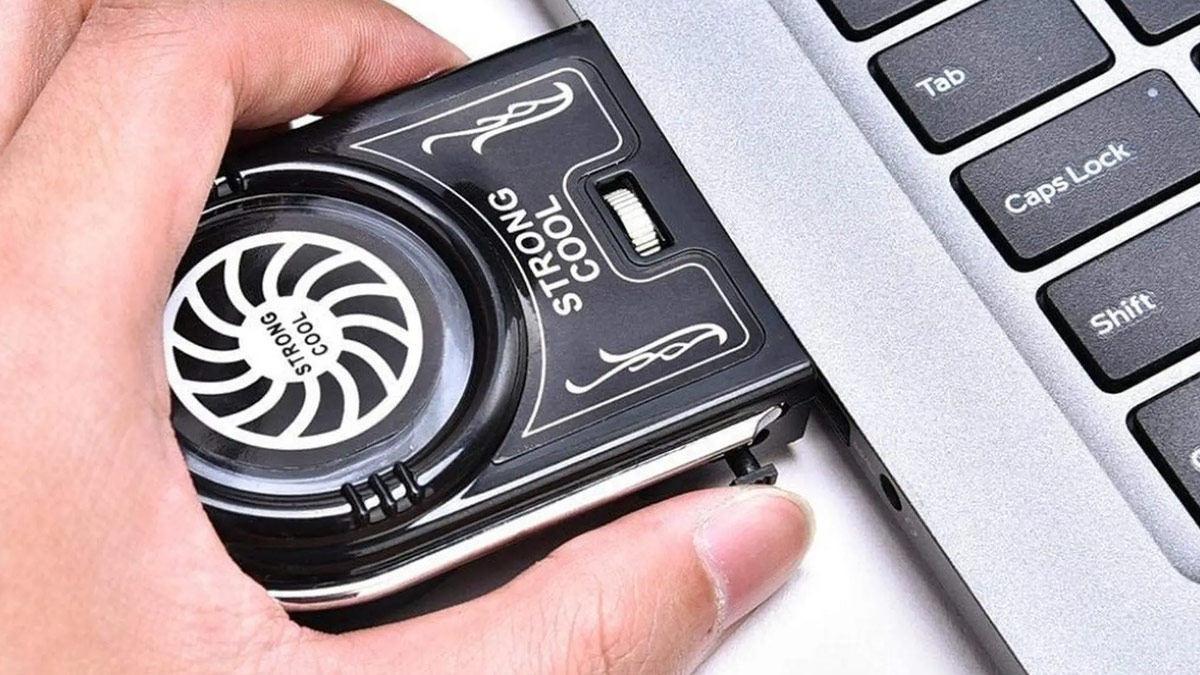
A pad can improve airflow when its fans align with the laptop's intakes, but results vary by chassis design. Raising the rear slightly on a stable stand may help too. Neither fixes a failed internal fan, blocked heatsink, damaged heat pipe, or poor heatsink contact.
Cleaning and thermal paste
Internal cleaning may require removing the battery connector, fans, heatsink, or fragile cables. Thermal paste has no universal 12- or 24-month replacement schedule; replace it when diagnostics indicate poor heat transfer or the heatsink is removed. Incorrect paste amount, missing thermal pads, uneven screw order, or liquid metal can damage the laptop. Use qualified service if uncertain.
Check fan and battery health
Run the manufacturer's hardware diagnostics. A fan error, grinding sound, fan that never spins under load, or battery-health warning needs attention. Battery wear alone does not prove it causes CPU heat, but swelling or localized battery heat requires immediate replacement by a qualified provider.
When service is needed
Seek repair for shutdowns, thermal errors, broken fans, liquid exposure, heat after a recent repair, repeated high temperatures with light workloads, or any battery warning. Back up data first if the laptop can be used safely. For measurement steps, see how to check laptop temperature; for routine maintenance, see how to clean laptop vents safely.
Prevent recurrence
Keep vents clear, review startup apps, update software, avoid leaving the laptop in a hot car, and monitor any sudden change in fan behavior. Clean based on environment and symptoms rather than an arbitrary calendar schedule.
Related Articles
 6 Potential Hardware/software Issues That Cause Laptops to Overheat10 minutes read
 Simple Changes Can Fix Noisy and Overheating Laptops8 minutes read
 The Most Effective Way to Cool Down a Laptop4 minutes read
 5 Simple Ways for Efficient Laptop Heat Dissipation9 minutes read
 Laptop Displaying a Blue Screen: Causes and Effective Solutions14 minutes read
 Causes of Laptop Overheating and 10 Quickest Ways to Fix It Explained14 minutes read
Reader Comments 0
Sign in with email or Google to join the discussion.