Table of Contents
On Ubuntu 20.04 with the GNOME desktop, you can reclaim screen space by enabling dock auto-hide or disabling the dock extension. Auto-hide is the smaller change; disabling removes the extension's dock from the session until you re-enable it.
These instructions concern the Ubuntu 20.04 GNOME interface. Other Ubuntu releases and desktop environments can place the controls elsewhere. Ubuntu Dock and the optional Dash to Panel extension are different extensions—identify the one actually drawing your panel.

Try auto-hide first
Open Settings > Appearance and look for the dock's auto-hide control. Enable it, then move the pointer away from the dock to check that it retracts. Move back to its screen edge to reveal it.
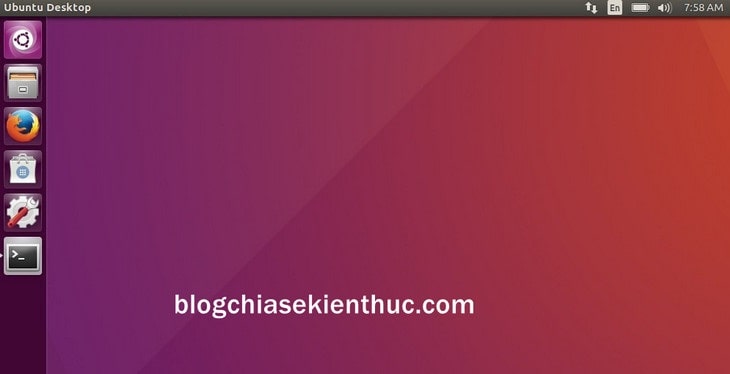
For more position and appearance options, see customizing the Ubuntu dock. Auto-hide keeps the launcher available without permanently occupying the same area.
Disable the dock using Extensions
Open the Extensions application from the launcher. If the management application is missing on Ubuntu 20.04, the relevant package is gnome-shell-extension-prefs:
sudo apt update
sudo apt install gnome-shell-extension-prefs
Review the package-manager prompt before confirming. You do not need to install unrelated shell extensions just to manage one already present.
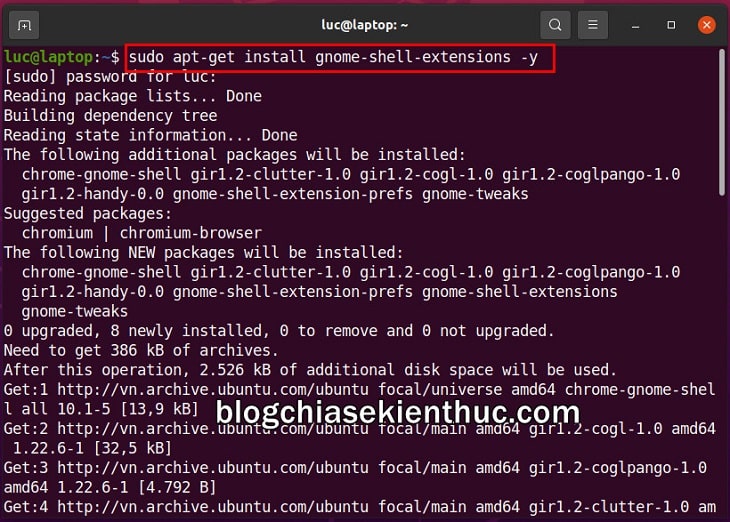
Historical package-installation screenshot; use the management package named above.
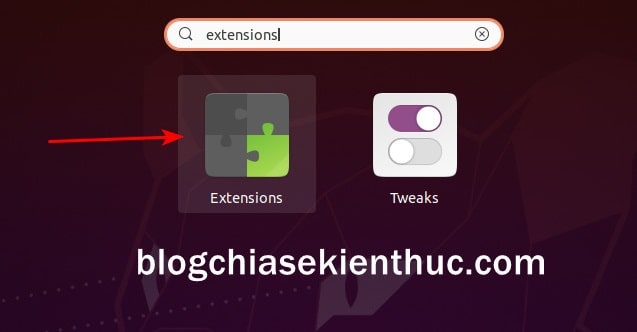
Find the extension responsible for the dock, inspect its name, and turn off its switch. If you installed Dash to Panel, it may be that extension rather than Ubuntu Dock. Avoid switching off every extension at once.
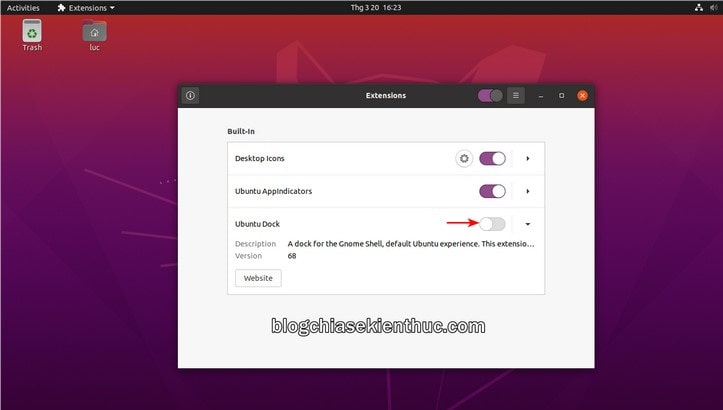
Check the desktop, then reopen Extensions and turn the same switch on to restore it. You can still launch applications by pressing the Super/Windows key and searching while the dock is disabled.
Disable the correct extension in Terminal
Open Terminal with Ctrl+Alt+T and list installed extensions:
gnome-extensions list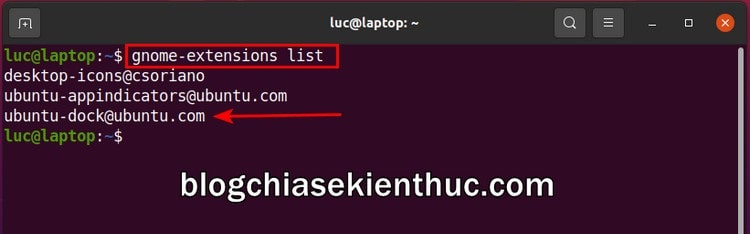
The output contains extension identifiers, also called UUIDs. Copy the exact identifier for the relevant dock extension and inspect it. In the following templates, replace EXTENSION_UUID with the actual identifier; do not enter it literally.
gnome-extensions info 'EXTENSION_UUID'
gnome-extensions disable 'EXTENSION_UUID'
Run these commands as your desktop user, without sudo. Confirm that you selected the intended extension and that the dock disappears. A command returning no output does not by itself verify the visual result.
To restore the same extension:
gnome-extensions enable 'EXTENSION_UUID'
gnome-extensions info 'EXTENSION_UUID'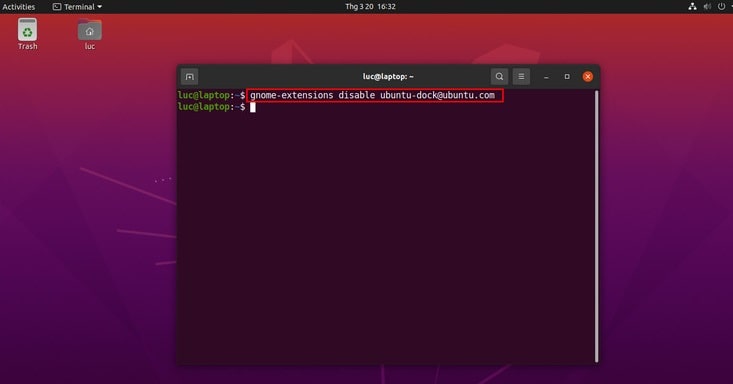
Ubuntu's gnome-extensions manual documents listing, inspecting, enabling, and disabling extensions.
If it does not work
- Confirm that you are in a GNOME session rather than KDE, Xfce, or another desktop.
- Check whether a different dock extension is enabled.
- Review the state reported by
gnome-extensions infoand any compatibility warning. - If the session requires a refresh, save your work and log out and back in.
Do not uninstall the desktop or remove broad package groups to hide a dock. Disabling an extension is different from removing packages and should not be described as deleting the operating system's desktop.
For another focused GNOME customization, see hiding desktop icons on Ubuntu 20.04.
Related Articles
 Ubuntu 20.04 will be released in early 2020 with the name Focal Fossa
 How to install GNOME on Ubuntu 20.04 LTS Focal Fossa
 How to customize the Ubuntu dock to look like macOS
 Ubuntu 20.10 'Groovy Gorilla' set a release date
 How to Disable IPv6 on Ubuntu
 Instructions to enable hidden features for dock on Mac OS
Reader Comments 0
Sign in with email or Google to join the discussion.