Table of Contents
To run Windows 10 inside Ubuntu, create a VirtualBox guest, give it suitable memory and storage, attach a Windows installation ISO, and install Windows into the virtual disk. The host remains Ubuntu; Windows runs inside the guest window.
Support note: Ordinary Windows 10 support ended on October 14, 2025. Check the lifecycle and any applicable extended-update arrangement for your edition. Use a supported guest for general online work where possible. A VM does not make an unsupported operating system or unknown software automatically safe.
Prepare the host and installation media
Install a compatible VirtualBox version on Ubuntu and confirm its kernel modules work. Obtain the Windows ISO from Microsoft or another authorized organizational source, and use a valid Windows license. Match the guest architecture to your host and VirtualBox support.
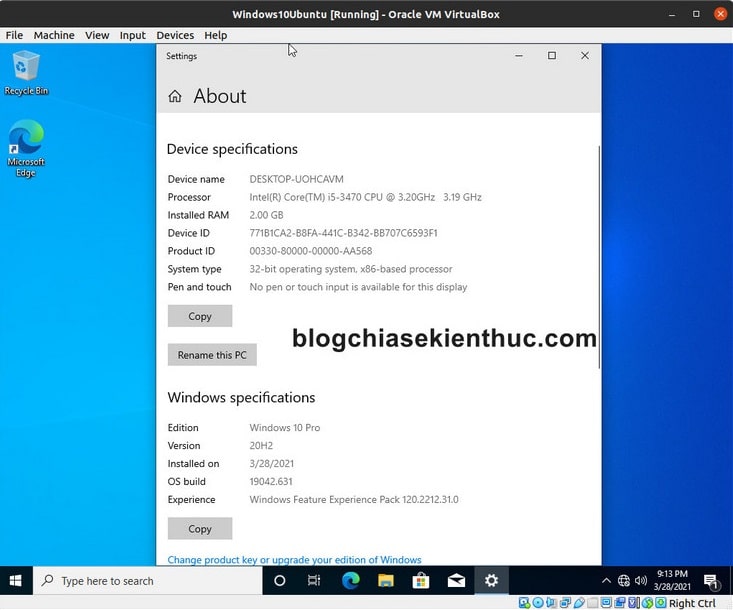
Leave enough RAM, CPU capacity, and free disk space for Ubuntu while the guest runs. The screenshots use an older VirtualBox wizard and a 32-bit example; current versions can arrange the controls differently. For host setup, see installing VirtualBox.
1. Create the guest
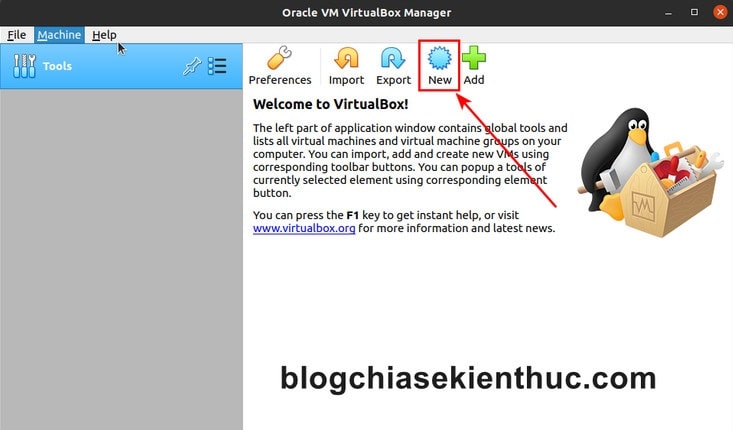
Open VirtualBox and choose New. Add registers an existing VM rather than creating a fresh one.
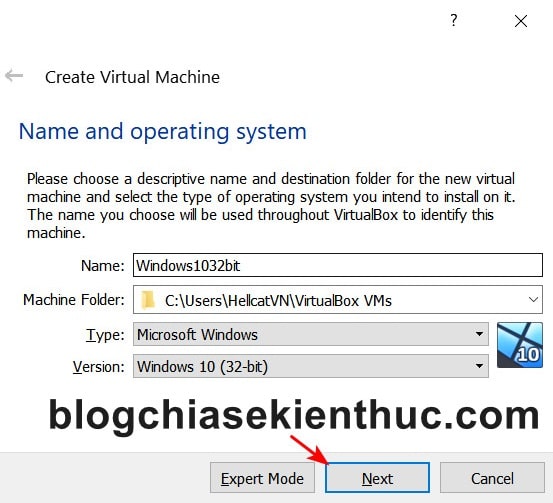
Enter a descriptive name, choose a machine folder with adequate space, and verify the Windows version and architecture. Automatic detection from a name is only a suggestion. On Ubuntu, use an appropriate Linux path rather than a Windows drive letter.
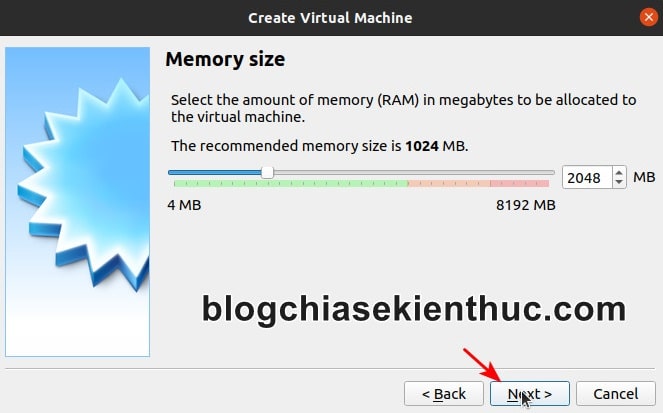
Set memory and processor allocation within the host's capacity. A 64-bit Windows desktop often needs several gigabytes of RAM for practical use, but the right amount depends on the applications. If the host is already short of memory, allocating more to the guest can make both systems slower.
2. Create the virtual disk
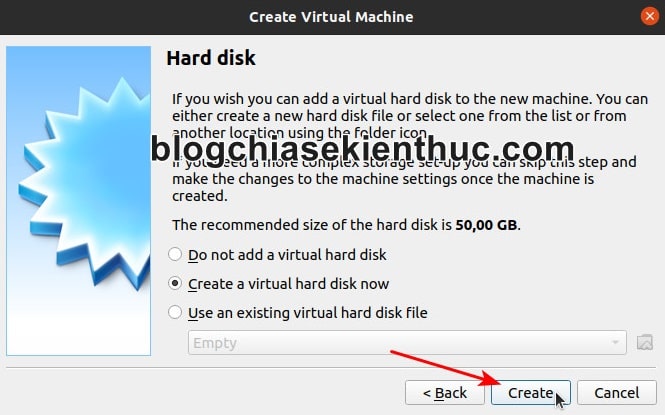
Choose a new virtual hard disk unless you deliberately intend to reuse an existing one.
VDI is a reasonable default for a VirtualBox-only setup. VMDK can be useful for particular interoperability workflows, but choosing it does not guarantee that the entire VM will run unchanged in another hypervisor.
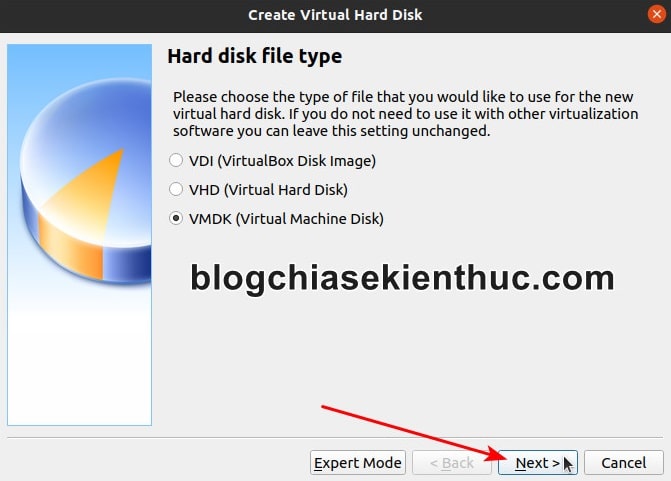
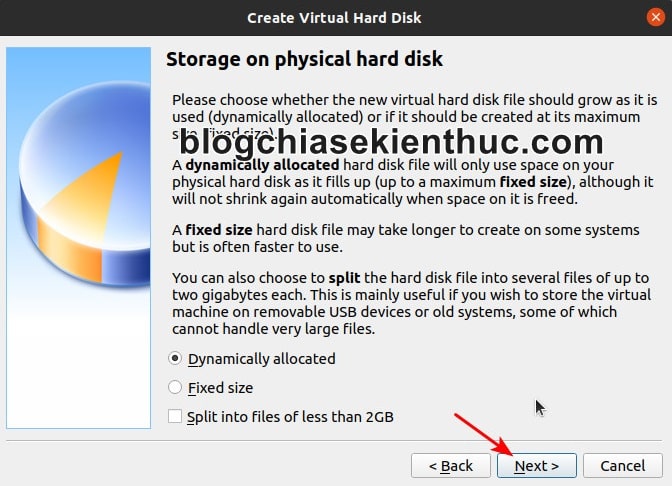
A dynamically allocated disk grows as data is written, up to its configured limit. A fixed-size disk reserves space up front. Neither choice eliminates the need to monitor free space on Ubuntu.
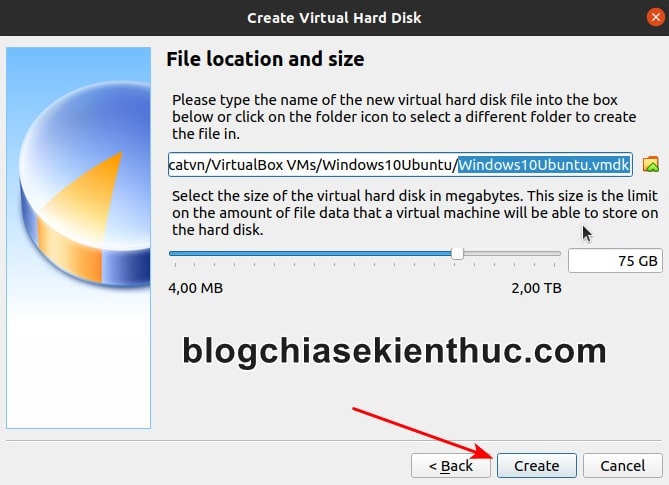
Choose enough capacity for Windows, updates, and your applications. Do not assume an old 30 GB example leaves adequate working space. Expanding a disk later can also require extending the guest partition.
3. Attach the Windows ISO
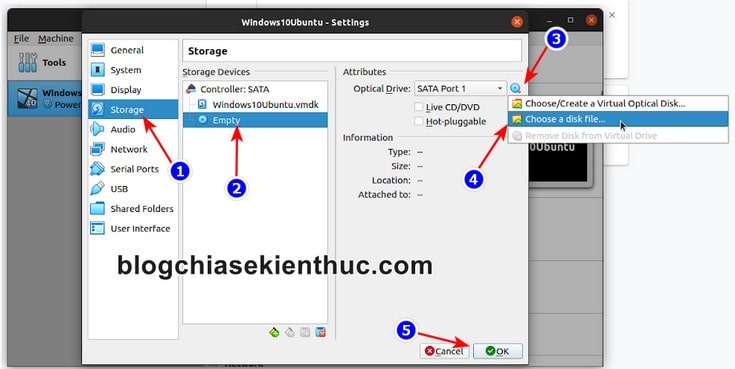
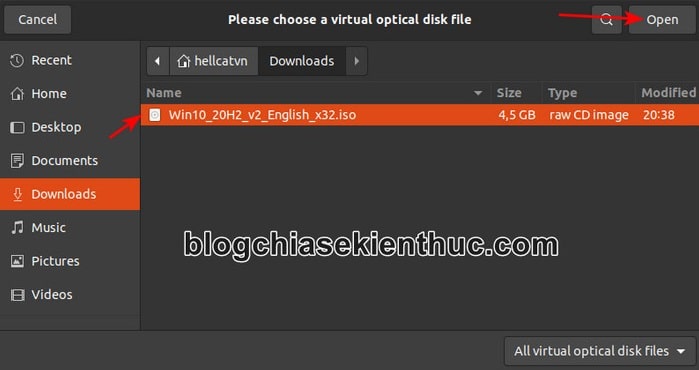
Open the VM's Settings > Storage. Select the virtual optical drive, choose a disk file, and select the Windows ISO. Some current wizards let you select it during creation and may offer unattended installation.
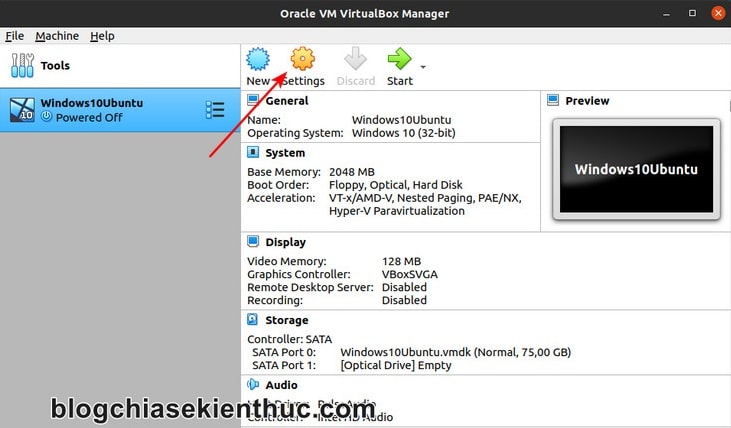
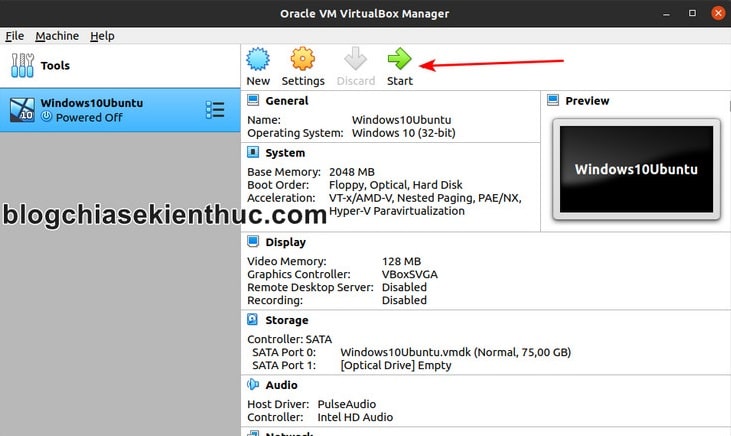
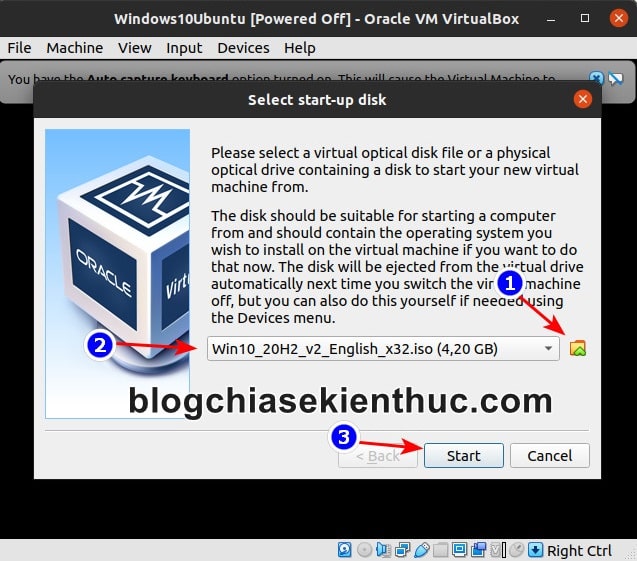
Start the VM. If the first-run dialog asks for startup media, select the intended ISO. Press a key only when the initial installer boot prompt requires it.
4. Install Windows into the virtual disk
- Choose language and keyboard settings in Windows Setup.
- Select the licensed edition and follow the activation prompts.
- For a new empty VM, choose the installation option for a clean install and select its unallocated virtual disk space.
- Let Setup create the required partitions and complete installation. Confirm that the disk shown belongs to this VM; do not attach a physical host disk for this tutorial.
- After automatic restarts, let the VM boot from its virtual hard disk rather than restarting Setup from the ISO.
- Complete the account and privacy prompts appropriate to your edition and environment.
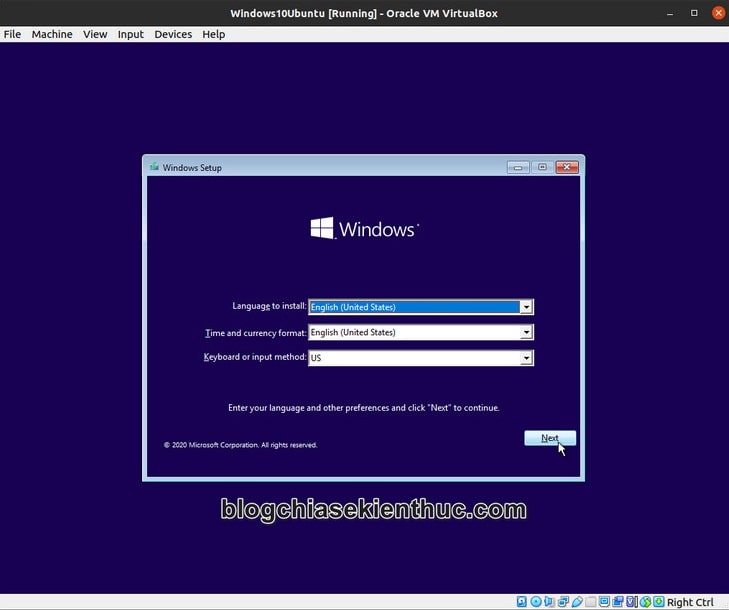
When the desktop appears, verify storage and basic operation before installing extra software.
5. Install compatible Guest Additions
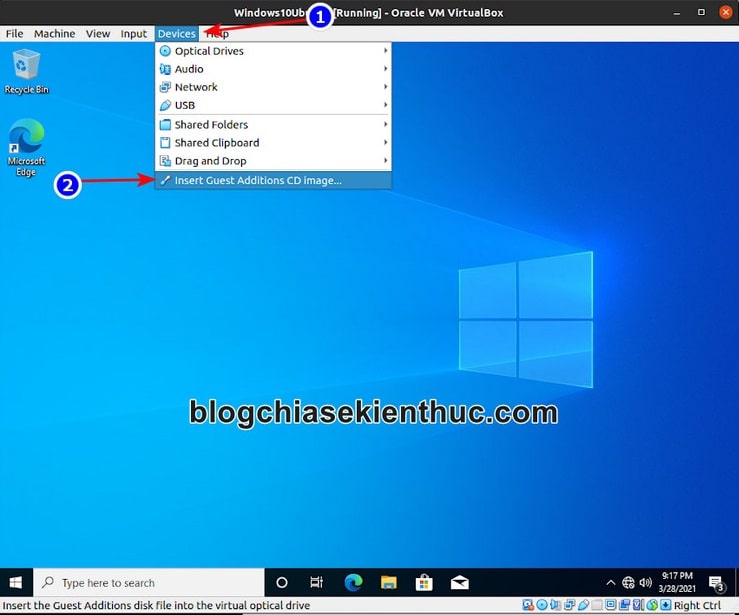
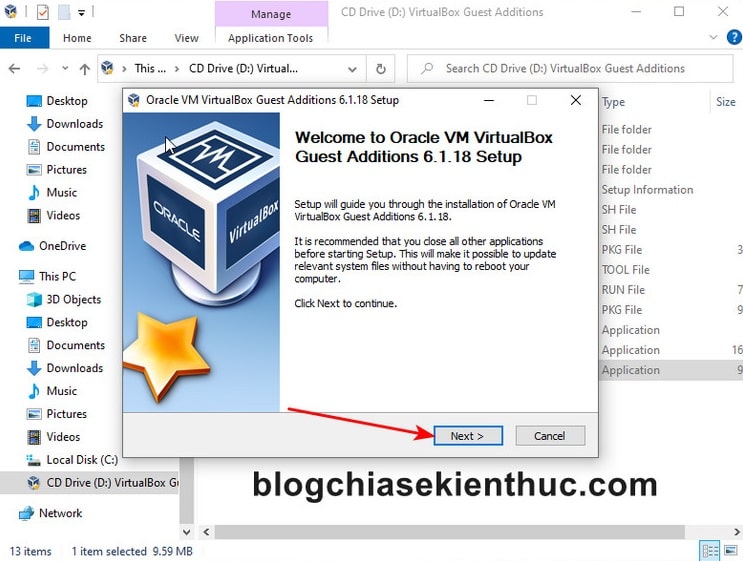
In the running VM's menu, choose Devices > Insert Guest Additions CD image. The Host key—often Right Ctrl—releases captured keyboard and pointer input; it does not shut down the VM.
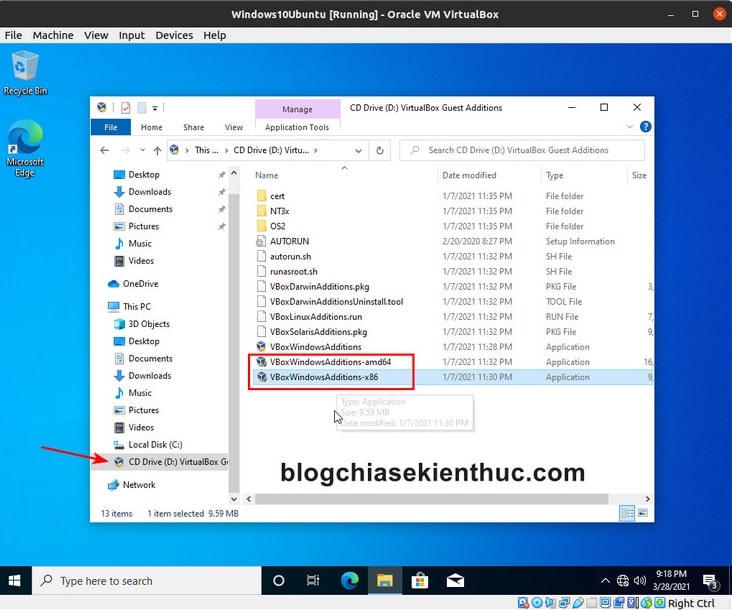
Inside Windows, open the mounted Guest Additions disc and run its Windows installer. Use the Guest Additions version supplied for your host installation and appropriate to the guest.
Review the prompts, complete the driver installation, and restart Windows when ready.
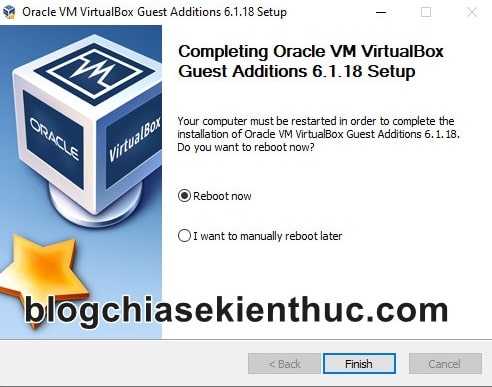
Test window resizing and display resolution. Guest Additions improves integration but does not guarantee that every application or graphics workload will perform like a physical PC.
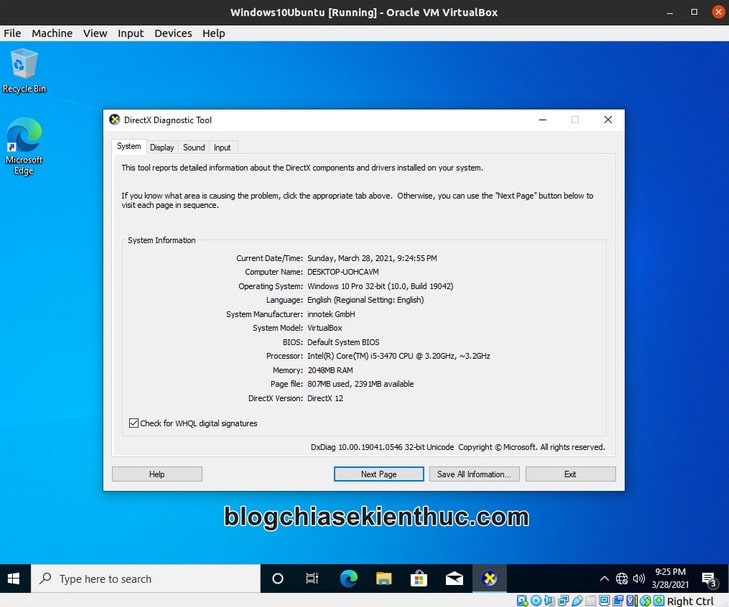
Verify and protect the setup
- Shut down Windows normally and confirm that the VM starts again.
- Check networking and the update status applicable to your Windows edition.
- Enable shared folders, clipboard, drag-and-drop, or bridged networking only when needed; they connect the guest more closely to the host or network.
- Keep backups of the VM and important files. A snapshot is useful for experiments but is not an independent backup.
For the general wizard, see creating virtual machines in VirtualBox. Consult Microsoft's Windows 10 release and support information before planning ongoing use.
Related Articles
 Installing Ubuntu in VirtualBox does not need DVD or USB
 Instructions on how to install Ubuntu on VirtualBox virtual machine
 How to Create an Ubuntu Virtual Machine with VirtualBox (Mac)
 How to create a Windows 10 virtual machine with VMware Player and VirtualBox
 Virtualbox - Download Virtualbox here.
 Use VirtualBox to install Windows 7 on Ubuntu
Reader Comments 0
Sign in with email or Google to join the discussion.