Table of Contents
If the mouse pointer will not move, use the keyboard temporarily and determine whether the mouse, its power or connection, the surface, a USB port, or the whole computer has stopped responding. Test one component at a time before replacing anything.
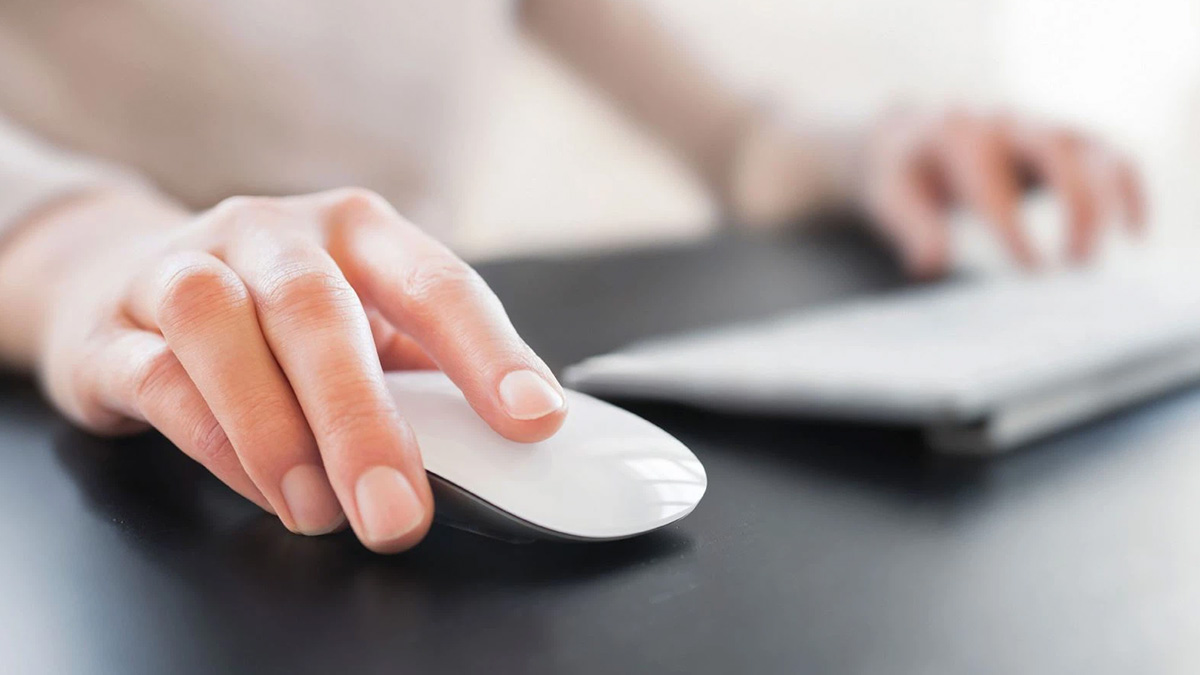
Confirm the computer is responsive
Press Ctrl + Alt + Delete or the Windows key. If the screen responds, the problem is probably limited to pointing input. Use Tab, arrow keys, Enter, and Shift+Tab to navigate. If nothing responds, follow a frozen-computer recovery guide.
Check the mouse type
Wired USB mouse
- Reconnect it directly to another USB port, bypassing hubs and docks.
- Inspect the cable and plug for damage.
- Test the mouse on another computer.
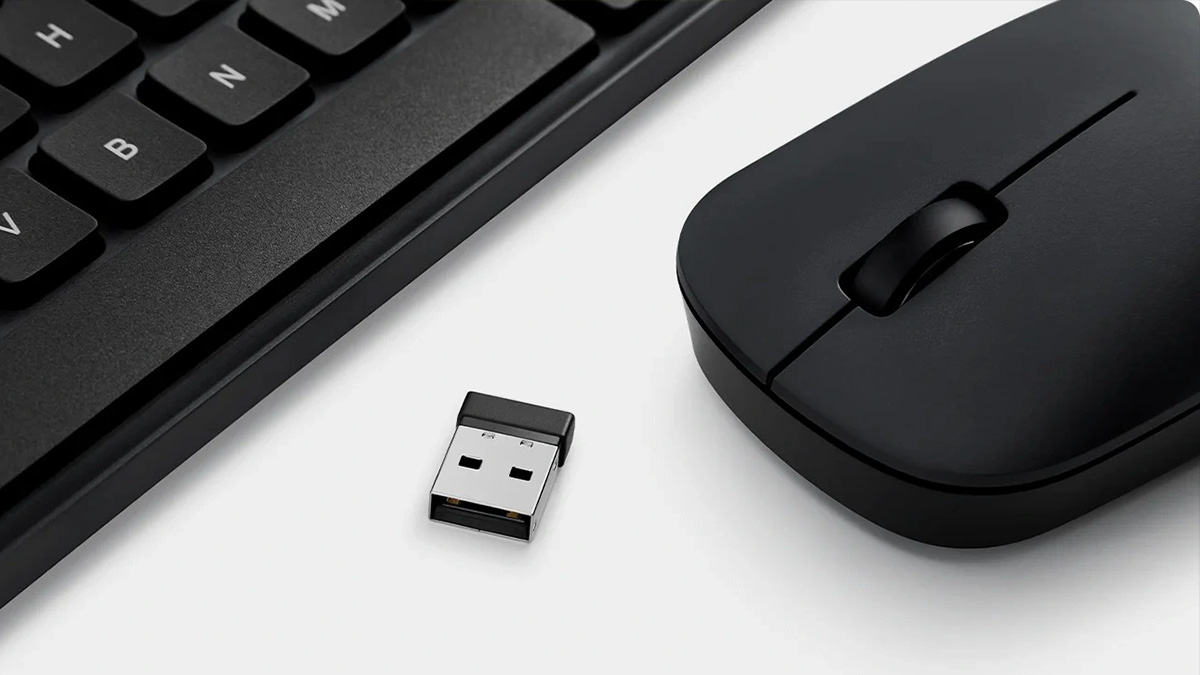
Wireless mouse with USB receiver
- Turn it on, replace or recharge the battery, and reconnect the receiver.
- Use the receiver supplied for that model; receivers are not always interchangeable.
- Move the receiver away from USB 3 drives and dense 2.4 GHz interference.
Bluetooth mouse
- Charge it and activate its pairing mode.
- Remove the old pairing in Windows and add it again.
- Confirm it is not connected to another device.
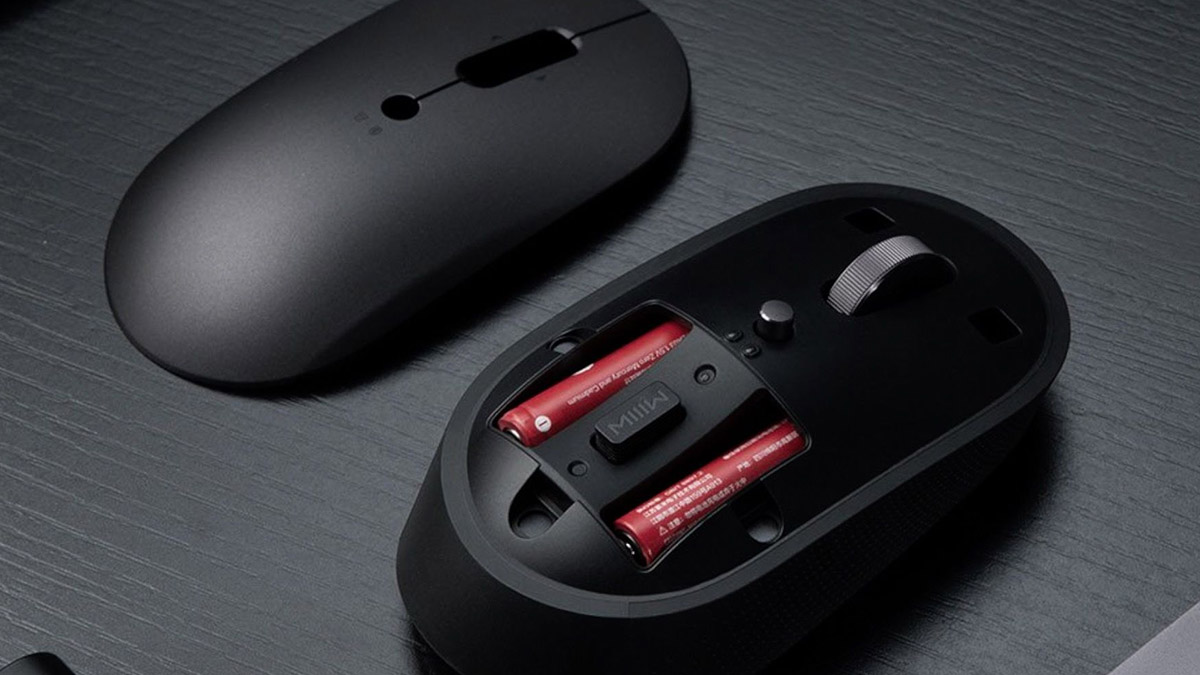
Try a suitable surface
Clean the optical sensor with a dry, lint-free cloth. Test on a matte, opaque mouse pad. Glass, mirrors, glossy patterns, and very uneven surfaces can prevent some sensors from tracking. Do not look directly into an illuminated sensor.
Inspect and clean the port
Shut the computer down and disconnect power before inspecting a damaged or dirty USB port. Remove only loose surface debris with a nonconductive tool or electronics-safe air. Do not insert metal objects or liquids. Stop using a burned, bent, wet, hot, or loose port.
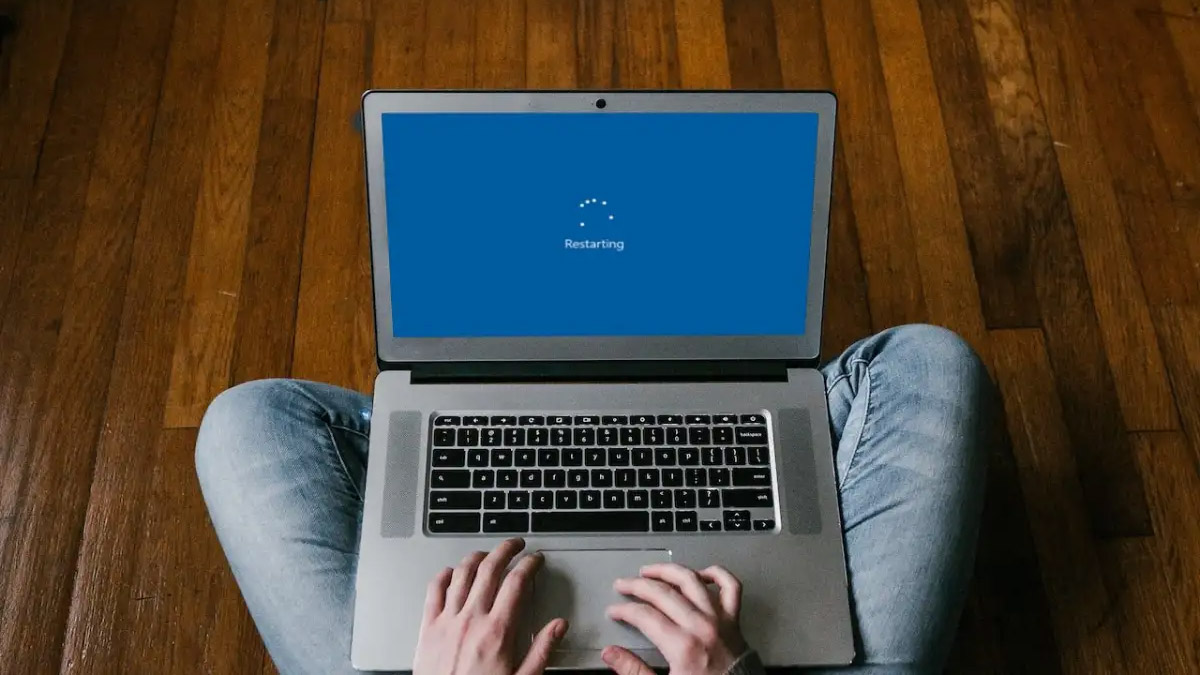
Restart and check Windows
Restart the PC using the keyboard. If the mouse still fails:
- Open Device Manager with Windows + X, then navigate with the keyboard.
- Check Mice and other pointing devices, Human Interface Devices, Bluetooth, and USB controllers for errors.
- Install stable Windows updates and the mouse or computer maker's official driver/software.
- If a recent driver caused the problem, roll it back.
- Uninstall only the affected mouse device, then restart so Windows redetects it.
Generic mice normally use Windows' built-in HID driver; a third-party “driver updater” is unnecessary.
If the pointer moves poorly
- Clean the sensor and mouse pad.
- Check battery level and wireless distance.
- Open Settings > Bluetooth & devices > Mouse and review pointer speed and scrolling.
- Disable the laptop touchpad temporarily only if palm input is interfering.
- Close unusually heavy processes and test outside the affected app.
If clicks work but movement does not
A blocked or failed sensor is more likely. If movement works but clicks fail, test button assignments and another mouse; the switch may be worn. If every mouse fails in the same ports, troubleshoot USB, Bluetooth, or Windows rather than the accessory.
When to replace or repair
Replace the mouse if it fails on multiple computers, has a broken cable, swollen battery, liquid damage, or inconsistent buttons after cleaning. Seek computer repair if multiple known-good mice fail, USB ports are physically damaged, or input also fails before Windows loads. For wireless issues, see Bluetooth pairing fixes.
Related Articles
 Computer Mouse Cannot Move Up and Down - Instructions for Fixing Errors7 minutes read
 What's Wrong With the Mouse When the Light Is on but It Can't Move?5 minutes read
 How to Fix Computer Mouse Error Cannot Move5 minutes read
 The Mouse Can Move but Cannot Click, Let's Find a Solution: Main Insights7 minutes read
 8 Things to Know When Buying a Computer Mouse12 minutes read
 Ways to Make Smart Mouse Traps with Simple Household Items6 minutes read
Reader Comments 0
Sign in with email or Google to join the discussion.