Table of Contents
AutoCAD 2021 is a legacy release. Install it only when you have a valid Autodesk entitlement and a project, plug-in or organizational requirement that specifically depends on that version. For a new deployment, Autodesk's supported current release is usually the safer choice because AutoCAD 2021 no longer receives the same update and support coverage.
This guide explains the licensed installation workflow and preserves the original 2021 installer screenshots for reference. It does not provide a crack, product key or unofficial download.
Before downloading AutoCAD 2021
Confirm access to the legacy version
Sign in to Autodesk Account and check All Products and Services. Autodesk normally exposes recent previous versions directly; versions farther back may require an active eligible plan and a request through Autodesk Assistant. The official previous-version download guide explains the current availability window.
Do not download AutoCAD 2021 from a file-sharing site. An unofficial installer may be incomplete or modified, and it will not create a legitimate license entitlement. Educational access is restricted to eligible users and educational purposes under Autodesk's current terms.
Check the system requirements
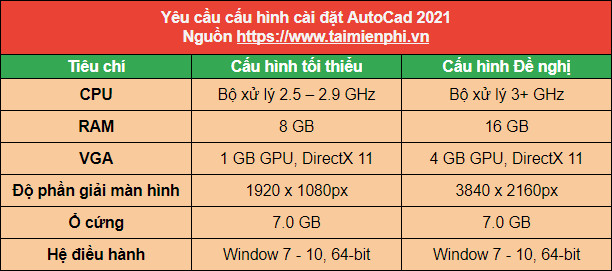
Autodesk's AutoCAD 2021 system-requirements page lists supported 64-bit Windows versions, a 2.5–2.9 GHz basic processor, 8 GB minimum RAM and 16 GB recommended RAM. Compatibility with a modern Windows build, graphics driver and security policy still needs to be tested.
- Back up custom templates, plot styles, fonts, scripts and user profiles.
- Allow more disk space than the compressed download size; setup files and temporary extraction consume additional storage.
- Install pending Windows updates and a current GPU driver where appropriate.
- Sign in with a Windows account allowed to install applications.
- Keep your Autodesk account and license details available.
Download AutoCAD 2021 from Autodesk
- Go to Autodesk Account and sign in.
- Open All Products and Services and find AutoCAD.
- If 2021 is available to your entitlement, select the version, platform and language.
- Choose the offered download method and save all required installation files.
Autodesk documents the account workflow on its software and updates page. If 2021 is not offered, do not substitute an unknown archive; ask Autodesk whether your plan is eligible or install a supported release.
Install AutoCAD 2021
1. Start and extract the installer
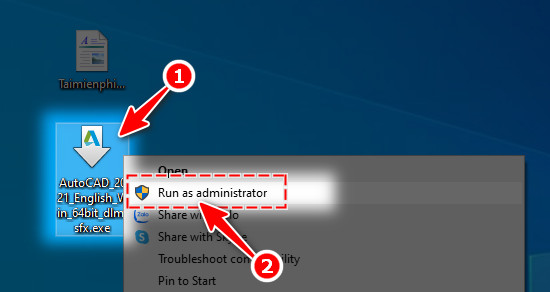
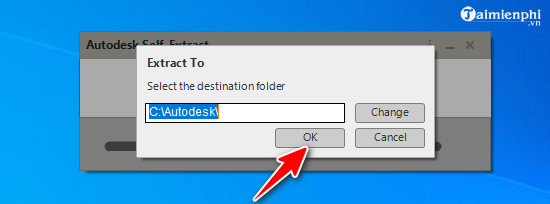
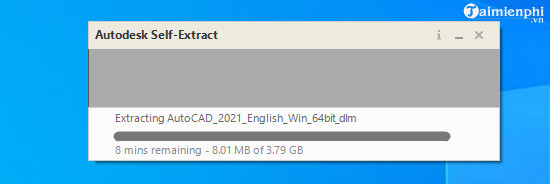
Close other applications, locate the Autodesk installer and run it with the permissions required by your organization. Some 2021 download methods use a self-extracting package. Choose a local folder with sufficient free space and wait for extraction to finish.
2. Select the installation type
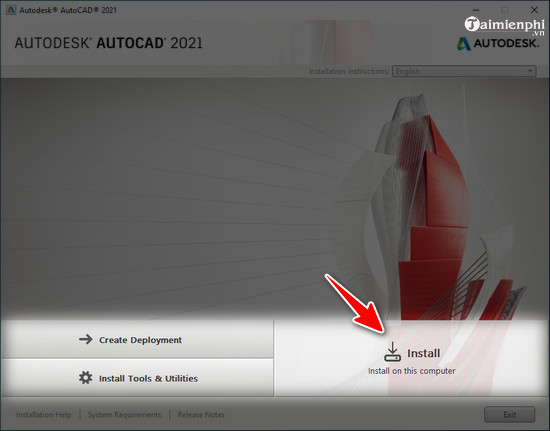
When setup opens, choose Install for a normal workstation. Create Deployment is intended for administrators preparing standardized installations, while tools and utilities are separate components.
3. Review the license and components
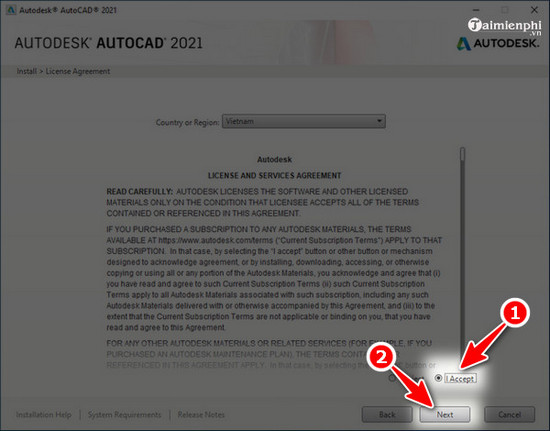
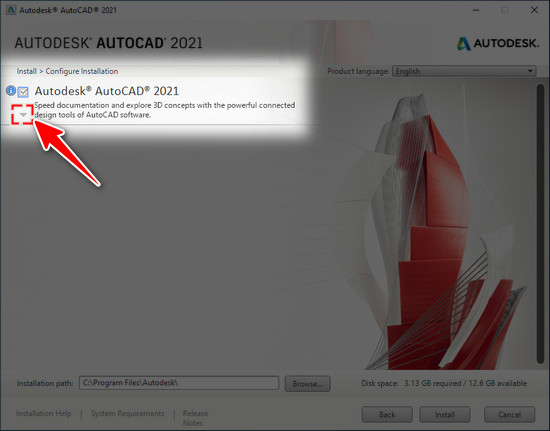
Read and accept the Autodesk agreement only if its terms apply to your use. Continue to the component screen, expand options where needed, and install only the language packs, libraries or additional tools required for your workflow.
4. Choose the folder and install
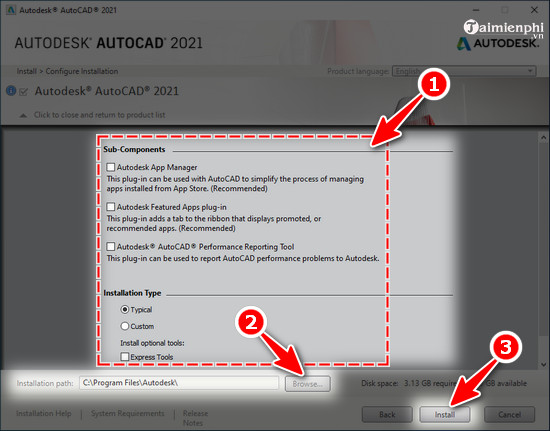
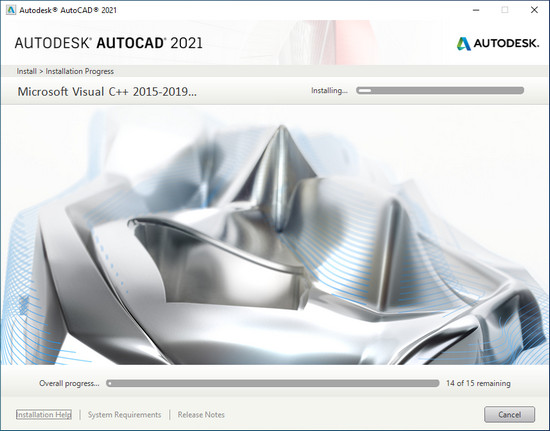
Keep the default folder unless your administrator requires another location. Select Install and leave the computer powered on while setup copies files and registers components. The original article's fixed five-to-ten-minute estimate is unreliable; installation time varies widely.
5. Launch and sign in
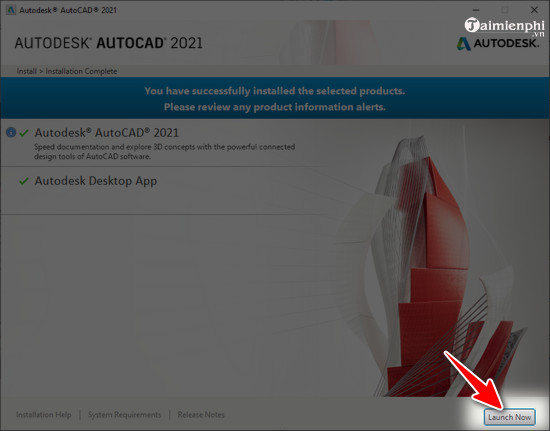
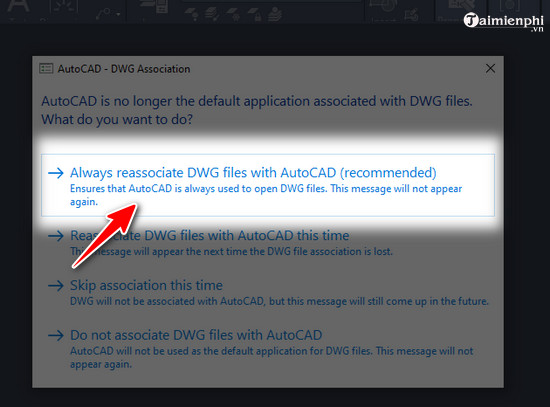
Select Launch Now after setup completes. When AutoCAD asks about DWG file association, choose whether double-clicking a DWG should open this version. If several CAD applications are installed, leaving the association unchanged may avoid disrupting an existing workflow.
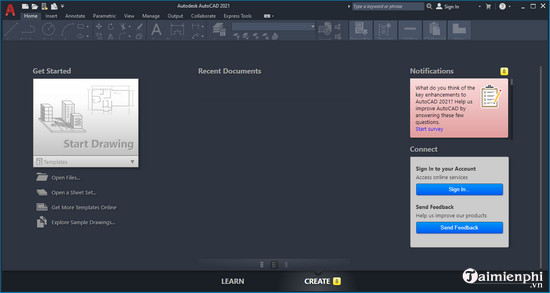
Activate by signing in with the Autodesk account assigned to the subscription, educational entitlement or organizational license. Do not enter a key found online or patch licensing files. Contact the license administrator or Autodesk Support if the account does not recognize access.
After installation
- Install all updates still offered for AutoCAD 2021 through Autodesk Account or Autodesk Access.
- Open copies of representative drawings and check fonts, external references, object enablers, plotting and custom plug-ins.
- Keep backups before migrating settings from another release.
- Test the output of any vertical toolset used by the organization.
- Do not uninstall a working newer version until the 2021 compatibility test is complete; Autodesk says different AutoCAD versions can generally coexist.
Common problems
AutoCAD 2021 is missing from the account
The version may fall outside the downloads currently exposed for your plan. Use Autodesk Assistant from the account area to ask about an eligible older release. If Autodesk cannot provide it, install a supported version and test the drawing or plug-in there.
Setup fails or rolls back
Restart Windows, clear enough temporary and installation space, run setup from a local drive, and check Autodesk's install logs. Security software or organization policies may require an administrator to approve the package.
Drawings show missing text
Obtain the required SHX or licensed font files from the drawing owner and place them in an approved support path. Do not download random font bundles. For viewing only, see ways to open DWG files without AutoCAD.
A drawing was not saved
Use AutoCAD's recovery tools and backups rather than repeatedly reopening the original. The guide to recovering unsaved AutoCAD drawings explains the recovery manager and backup copies.
If maintaining a legacy AutoCAD installation is impractical, compare AutoCAD alternatives, but verify DWG fidelity before changing a production workflow. A licensed current AutoCAD release is the default recommendation; AutoCAD 2021 should be installed only for a documented compatibility need.
Related Articles
 Installation Instructions AutoCAD 2020, 2021 License for Free4 minutes read
 Copyright Autocad 3 Years, Register Now3 minutes read
 How to Download and Install AutoCAD 20184 minutes read
 How to Install AutoCAD 2019 on a Computer5 minutes read
 AutoCAD 2018 Installation Configuration5 minutes read
 Autocad 2021: Professional Design Software6 minutes read
Reader Comments 0
Sign in with email or Google to join the discussion.