Table of Contents
AutoCAD 2018 is a legacy release. If your Autodesk license still includes access to it, download the installer from Autodesk Account and follow the setup wizard. Availability, activation and technical support depend on your license and Autodesk's product lifecycle, so do not rely on unofficial download sites.

Check compatibility before downloading
AutoCAD 2018 was designed for older versions of Windows. Before installing it on a current computer, compare your hardware and operating system with Autodesk's AutoCAD 2018 system requirements. Autodesk's original requirements vary between 32-bit and 64-bit editions, so use the official table rather than a simplified specification list.
You also need an Autodesk account and a valid entitlement for the software. If you only need to view a drawing, an installer may be unnecessary; see the available ways to open a DWG file.
Download AutoCAD 2018 from Autodesk Account
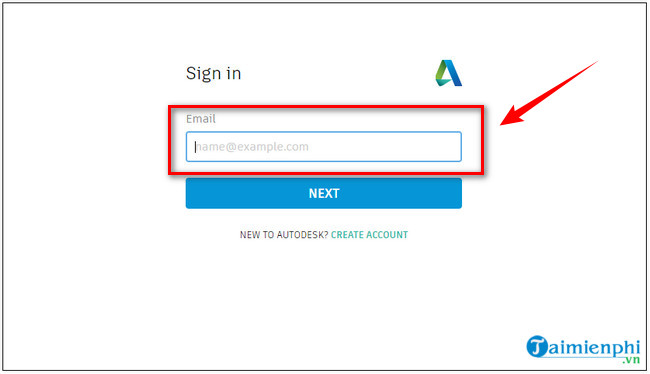
1. Sign in
Open Autodesk Account and sign in with the account associated with your license. Avoid third-party “free download” pages, modified installers and license bypass tools.
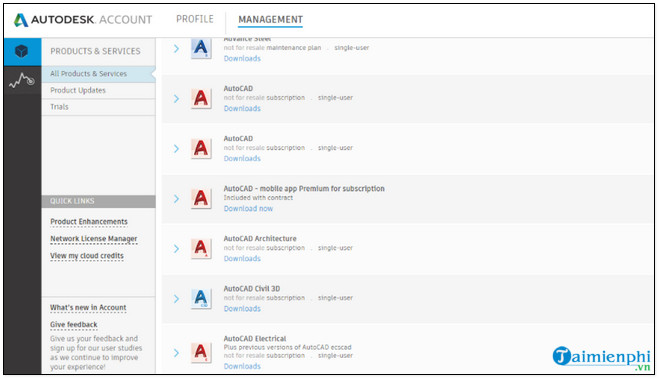
2. Locate AutoCAD
Open the products and services area, find AutoCAD and view its available downloads. The account interface has changed since these screenshots were created, but the product list remains the appropriate place to look for software included with your account.
3. Check whether version 2018 is available
Open the version selector and look for 2018. If it is not listed, your account may not include that previous version. Use a supported release offered in your account or contact Autodesk support instead of downloading an installer from an unknown source.
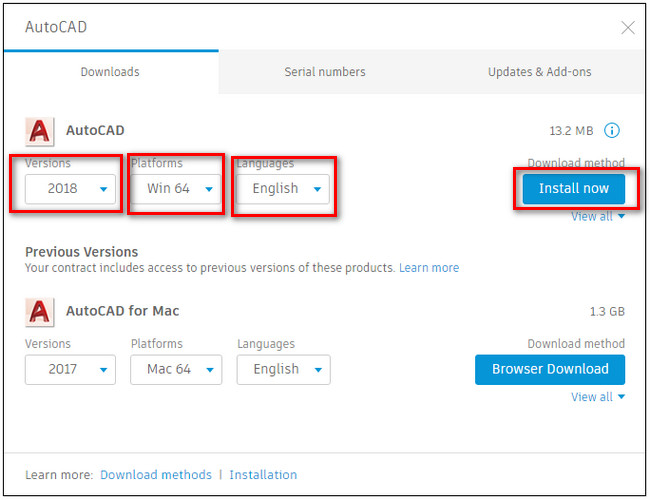
4. Choose the correct installer
If version 2018 is available, select the edition that matches your licensed product, Windows architecture and preferred language. The portal may offer a browser download or another installation method. Wait for every installer part to finish downloading before opening or extracting the package.
Install AutoCAD 2018
- Close open applications and back up important drawing files.
- Open the downloaded installer. Approve the Windows administrator prompt only if the publisher and file source are correct.
- Review the products and components included in the setup.
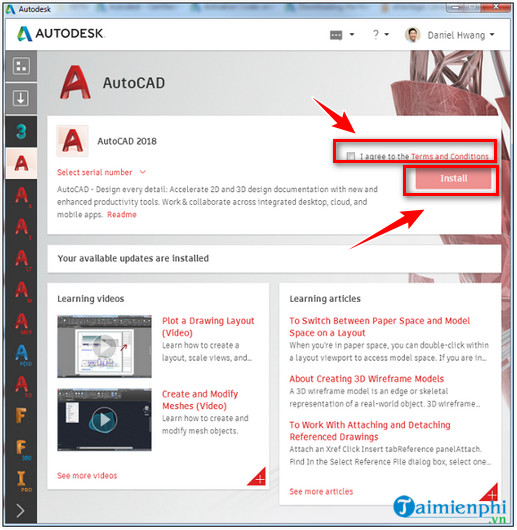
- Read the license terms and continue only if you accept them.
- Choose the installation location, then click Install.
- When setup finishes, restart Windows if prompted and complete activation using the licensing method available for your account.
About the older Autodesk desktop-app method
The screens below show an older Autodesk desktop application. If that application is already installed and still displays AutoCAD 2018 for your account, select the product and follow its download prompts. Otherwise, use Autodesk Account in a browser; do not assume the legacy app or its menu labels are still available.
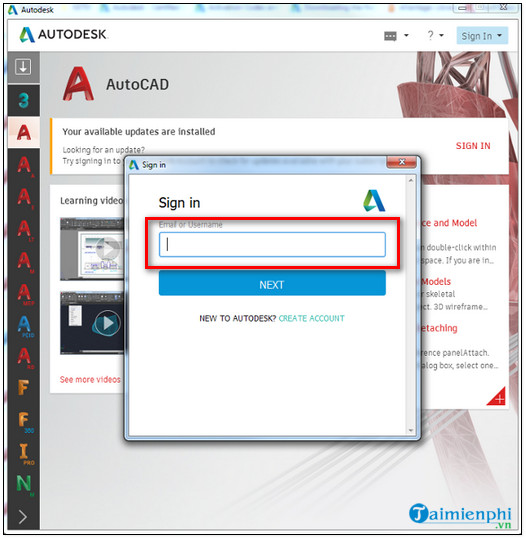
Review the terms and selected components before starting installation.
If installation fails
- Version 2018 is missing: Check that you signed in with the licensed account and review the previous-version access included with that license.
- Windows compatibility error: Verify the official system requirements. A supported AutoCAD release is generally the safer choice on a newer operating system.
- Existing Autodesk components cause a conflict: Record your license information, back up custom files and follow Autodesk's cleanup guidance before reinstalling.
- You need a different design tool: Compare other design software for engineers instead of forcing an incompatible legacy installation.
Related Articles
 Copyright Autocad 3 Years, Register Now3 minutes read
 Autocad 2021: Professional Design Software6 minutes read
 Installation Instructions AutoCAD 2020, 2021 License for Free4 minutes read
 How to Download and Install AutoCAD 2021 for Free on Your Computer4 minutes read
 AutoCAD 2018 Installation Configuration5 minutes read
 5 Best Autocad Alternatives9 minutes read
Reader Comments 0
Sign in with email or Google to join the discussion.