Table of Contents
To send a Canva design through Zalo, Gmail or Messenger, first choose the correct Canva permission, copy the share link, and paste it into the conversation. The messaging app does not control access—the Can view, Can comment or Can edit setting in Canva does. Use the most restrictive permission that still lets the recipient do what you intend.
Choose the right Canva sharing permission
| Permission | Recipient can | Use it for |
|---|---|---|
| Can view | Open and read the design | Final review, reference material or a presentation that should not be changed |
| Can comment | View and leave feedback after signing in | Proofreading and approval without changing the layout |
| Can edit | Change text, images, layout and other design content | Trusted collaborators who need to work on the same design |
Canva designs are private by default. For confidential work, add specific people by email rather than choosing Anyone with the link. A link sent in Zalo, Gmail or Messenger can be forwarded, so link access should not be treated as an identity check.
Create a share link in Canva
- Sign in to Canva and open the design you own or are allowed to edit.
- Select Share at the top of the editor.
- Choose who can access it: specific people, your team, or anyone with the link.
- Select Can view, Can comment or Can edit.
- Select Copy link.
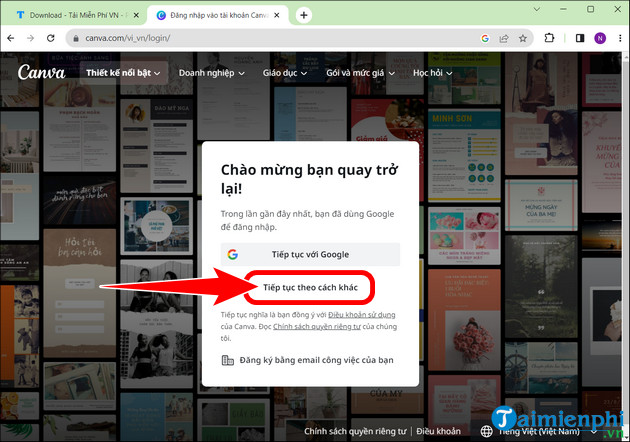
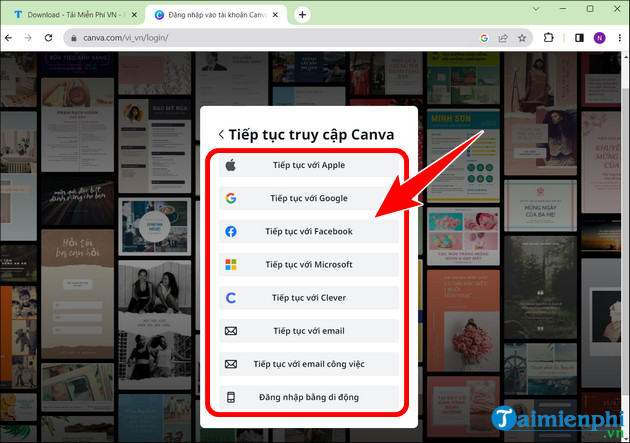
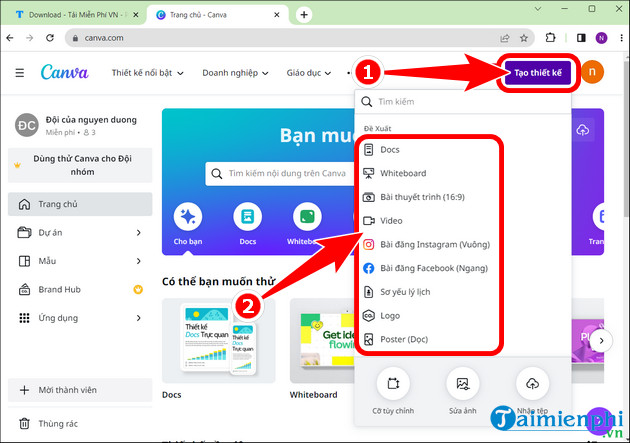
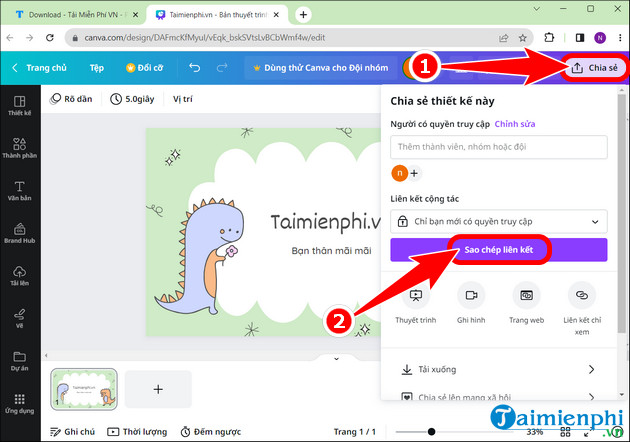
Canva's official sharing guide notes that viewing behavior and sign-in requirements depend on the chosen link type. Recipients generally need to sign in to add comments, reply or edit, even when a link lets them view anonymously.
Send the Canva link through Zalo
- Open Zalo and select the intended person or group.
- Paste the copied Canva link into the message box.
- Add a short instruction such as “Please comment on slide 4” or “View only—do not edit.”
- Check the recipient or group name, then send.
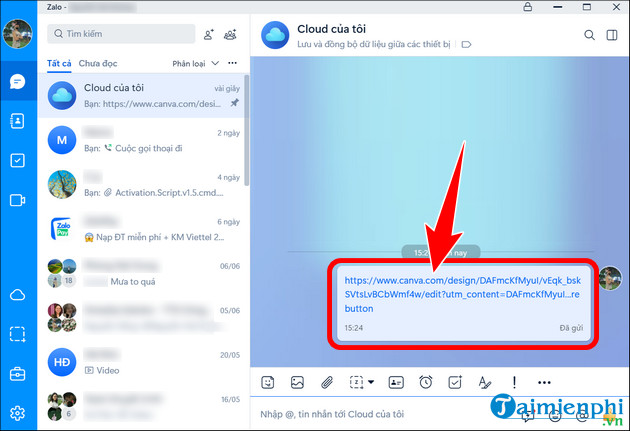
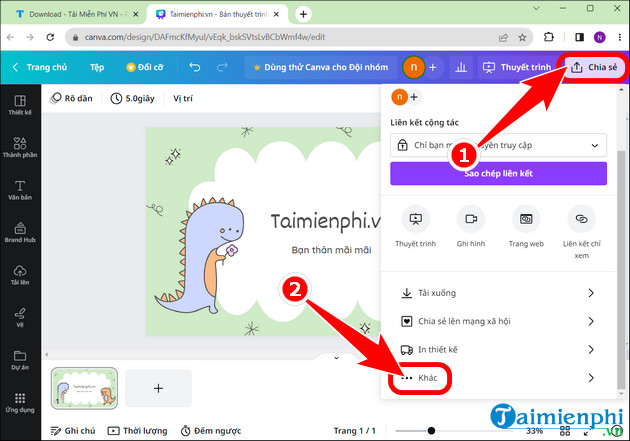
There is no need for a special Zalo integration. Copying the link is more predictable than relying on a social-sharing shortcut, and it works on both desktop and mobile. If the recipient sees Request access, return to Canva and either add their Canva account email or change the link permission.
Send the link through Gmail
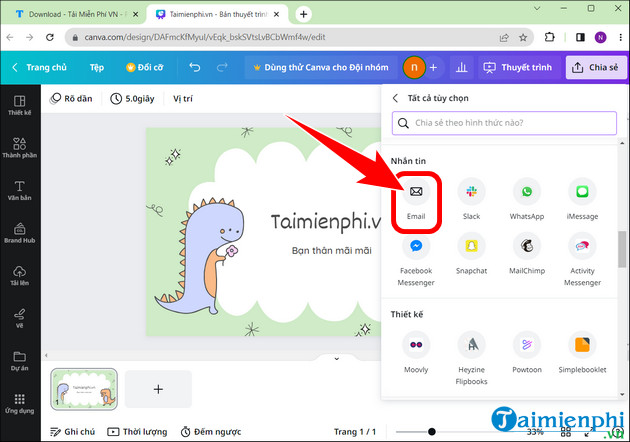
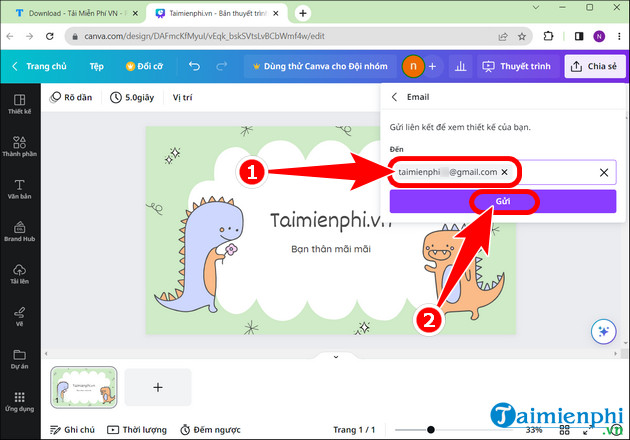
You can paste the link into a normal Gmail message or invite a person from Canva by email. A direct Canva invitation is preferable for confidential designs because access is tied to the added account.
- In Canva, select Share.
- Enter the recipient's email address and choose the permission level, then send the invitation; or copy a link and paste it into Gmail.
- In the email, describe the expected action and any deadline.
- Send a test to yourself if the design is important and the permission is uncertain.
Send the link through Messenger
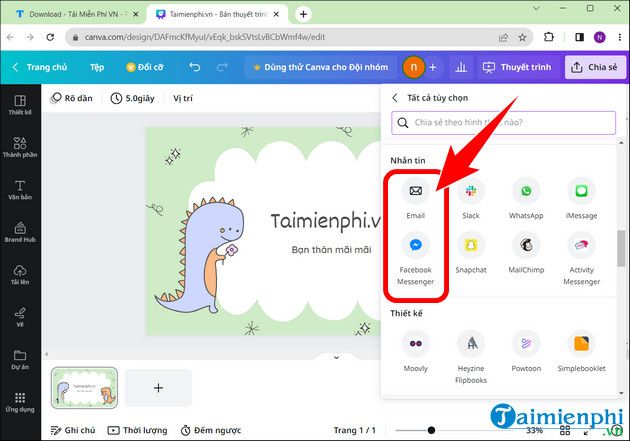
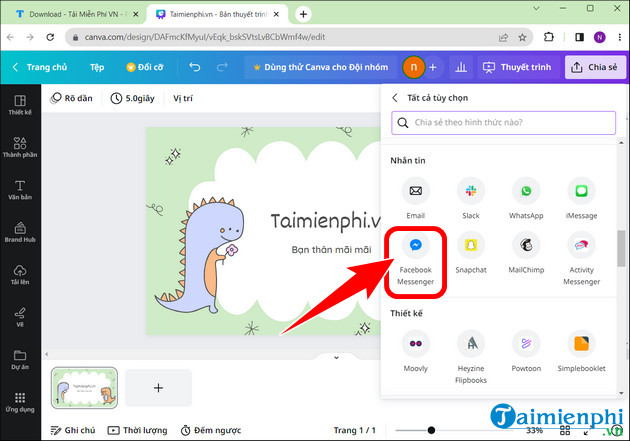
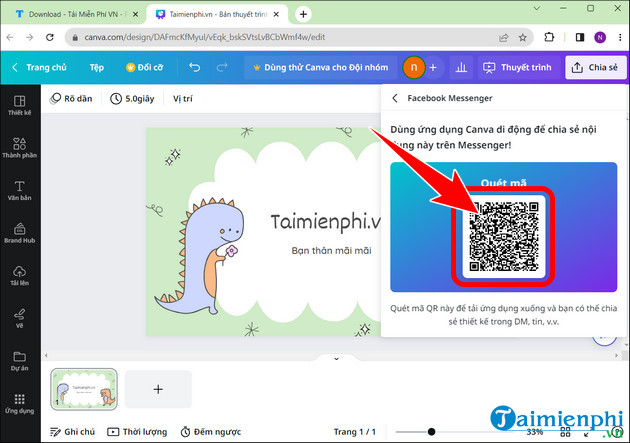
Copy the Canva share link, open the correct Facebook Messenger conversation, paste the link and send it with context. If Canva offers a Messenger shortcut, it may open another app or show a QR code on desktop; the copied-link method works even when that shortcut changes.
Protect the design after sharing
- Use Can view unless editing or commenting is actually needed.
- For sensitive material, choose Only people added can access and invite named accounts.
- Do not post an edit link in a public group or social feed.
- Remove people or change the link permission when collaboration ends.
- Create a duplicate before broad editing access if you need an untouched master.
- Check comments and version history when several people collaborate.
Canva explains these controls in its sharing-permissions documentation. Owners and permitted editors can change access later, while recipients may need to switch to the correct Canva account or team if a shared design does not open.
Fix common sharing problems
The recipient cannot open the design
Confirm that the invitation used the address attached to their Canva account. If the link is restricted to a team, they must join or switch to that team. For a public link, verify that link access was actually enabled before copying it.
The recipient can view but not edit
Open Share and change that person's permission to Can edit. Avoid giving everyone edit access merely to fix one collaborator's problem.
The wrong design or version was sent
Open the intended design, copy a fresh link and clearly label the replacement message. Revoke the old access if it exposed content that should remain private.
When collaboration is finished, you can export a presentation by following the guide to convert Canva slides to PowerPoint. For other design workflows, compare Canva alternatives or review AI tools available in Canva.
Related Articles
 Instructions for Sharing Designs on Canva3 minutes read
 How to Share Contacts on Zalo: Share Zalo Contacts5 minutes read
 Instructions on How to Share and Send GIF Images Via Zalo5 minutes read
 How to Insert Links to Images on Gmail: Insert Photos into Gmail4 minutes read
 How to Send Music, MP3 Songs Through Messenger to Listen4 minutes read
 Guide to Creating 3D Designs Using AI in Canva4 minutes read
Reader Comments 0
Sign in with email or Google to join the discussion.