Table of Contents
Learn how to install AutoCAD 2019 on a computer with clear steps, practical tips, and troubleshooting guidance for common issues.

Install, Linkdownnow com Crack Autocad 2019
If you're a designer, you're probably familiar with the various versions of AutoCAD, including AutoCAD 2019. This software consistently ranks among the most popular and widely used graphic design software today. In Vietnam, AutoCAD is also included as a course in many universities and training centers, making it indispensable whether you're new to graphic design software or looking for a professional tool for your work.
AutoCAD 2019 installation configuration
- Minimum configuration:
* Core i3 or AMD quad-core processor 3.0 GHz or higher. * 4 GB DDR4 RAM. * At least 6 GB of free HDD space. * Intel HD 6000 graphics card. * Windows 7, 8, or 10 operating system.
- Recommended configuration:
* Core i5 Coffee Lake or AMD Ryzen 1500 processor or higher (the higher the better). * 8 GB DDR4 RAM (the higher the better). * At least 6 GB of free HDD space. * GTX 10 series or Quatro graphics card. * Windows 7, 8, or 10 operating system.
Instructions for installing AutoCAD 2019 on a computer.
- Download AutoCAD 2019 32-bit version here, download AutoCAD 2019 ISO 32bit. - Download AutoCAD 2019 64-bit version here, download AutoCAD 2019 ISO 64bit.
- Download UltraISO software to your computer here, download UltraISO .
*See the UltraISO installation guide if you don't know how to install UltraISO on your computer.
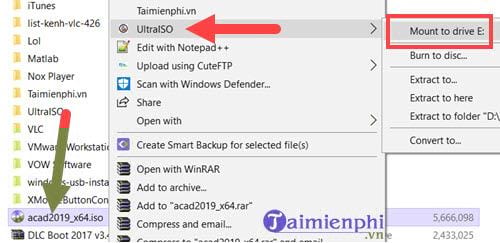
Step 1: First, install UltraISO following the instructions above. After downloading AutoCAD 2019 (the version you are using), right-click the ISO file , select UltraISO , then select Mount to drive to add the disk to the virtual drive.
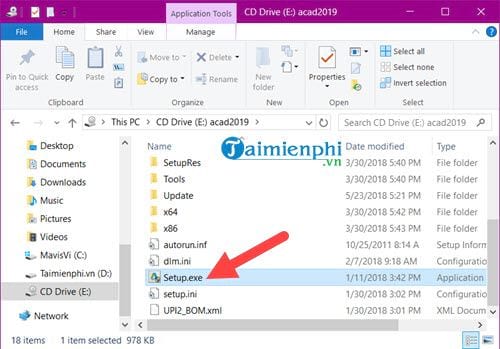
Step 2: Next, access the virtual drive and double-click the Setup. exe file to install AutoCAD 2019 on your computer.
Step 3: Installing AutoCAD 2019 on your computer is very simple; you just need to click " Install" on the AutoCAD 2019 installation interface.

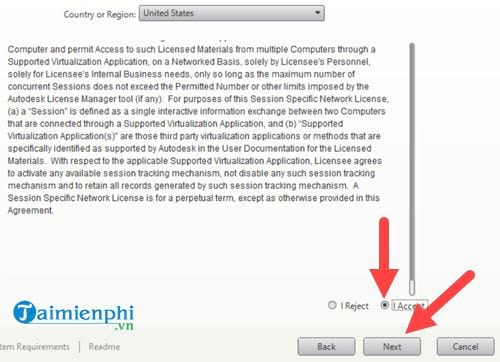
Step 4: Then agree to the terms and conditions and click Next .
Step 5: Here you can choose the installation region for AutoCAD 2019, then click Install to begin the AutoCAD 2019 installation process on your computer.
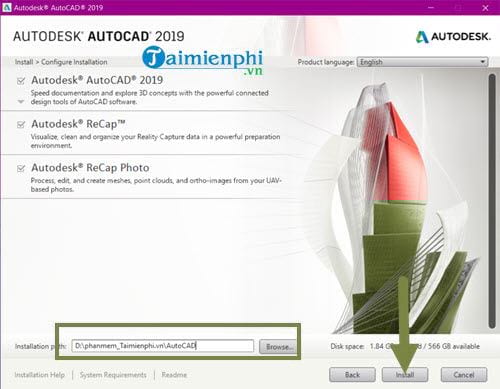
Installing AutoCAD 2019 on your PC or laptop will take about 10-15 minutes , depending on your computer's configuration, so take this time to make yourself a cup of coffee.
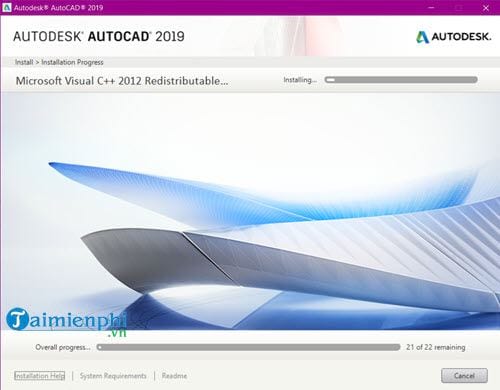
Step 6: After the AutoCAD 2019 installation process on your computer is complete, click Finish to close this window.

The system will require you to restart your computer ; this is a mandatory step after installing AutoCAD 2019.
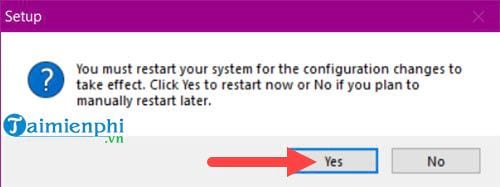
Step 7: After restarting, open the software. The first run may take a little longer.

Step 8: A selection menu will appear. If you don't already have a license for AutoCAD 2019, click " Start a Trial" to try the software.

Step 9: click Create Account to proceed with creating an account for using AutoCAD 2019.

Step 10: Fill in basic information such as full name, email address, and password, then click Create Account to proceed with creating your account.

After completing all the setup and installation steps for AutoCAD 2019 on your computer, you can now use AutoCAD 2019.

Above is a guide on installing AutoCAD 2019 on your computer. With AutoCAD 2019, TipsMake believes that readers will have many things to discover, and please let us know how this version of AutoCAD 2019 has helped you.
For those who are new to AutoCAD and have followed the instructions for installing AutoCAD 2019 on their computer In this guide,, don't forget to check out the essential AutoCAD commands. This guide shows you the basic and frequently used AutoCAD commands that new users need to know.
FAQ
How can you install AutoCAD 2019 on a computer?
Learn how to install AutoCAD 2019 on a computer with clear steps, practical tips, and troubleshooting guidance for common issues.
How do you install, Linkdownnow com Crack Autocad 2019?
If you're a designer, you're probably familiar with the various versions of AutoCAD, including AutoCAD 2019.
What should you know about autoCAD 2019 installation configuration?
- Minimum configuration: * Core i3 or AMD quad-core processor 3.0 GHz or higher. * 4 GB DDR4 RAM.
Related Articles
 Instructions for Downloading and Installing Autocad 20215 minutes read
 A Simple and Easy Guide to Downloading and Installing AutoCAD 20203 minutes read
 How to Fix Autocad Lagging, Freezing, and Slow Running7 minutes read
 5 Best Autocad Alternatives9 minutes read
 How to Fix AutoCAD Lagging Errors: Practical Guide5 minutes read
 Copyright Autocad 3 Years, Register Now3 minutes read
Reader Comments 0
Sign in with email or Google to join the discussion.