Table of Contents
Microsoft Defender Antivirus can inspect supported compressed archives during real-time and manual scans. The PowerShell preference is named DisableArchiveScanning, so its logic is easy to misread: setting it to false (or 0) enables archive scanning; setting it to true (or 1) disables it.
Before changing the setting
Open Windows Security > Virus & threat protection and confirm that Microsoft Defender Antivirus is active and its security intelligence is current. If another antivirus product is the active provider or an organization manages the PC, Defender preferences may be unavailable or controlled by policy.
Enable scanning inside archives with PowerShell
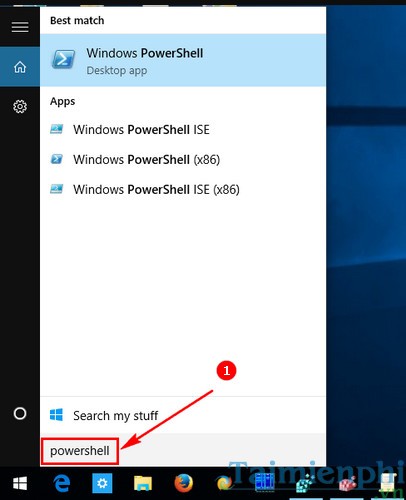
- Open Start and search for PowerShell.
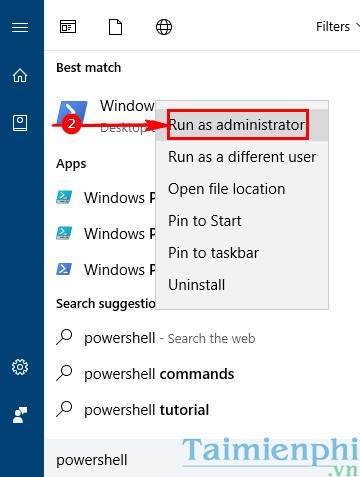
- Right-click Windows PowerShell and choose Run as administrator.
- Run:
Set-MpPreference -DisableArchiveScanning $falseThe numeric form below has the same effect because 0 means “do not disable”:
Set-MpPreference -DisableArchiveScanning 0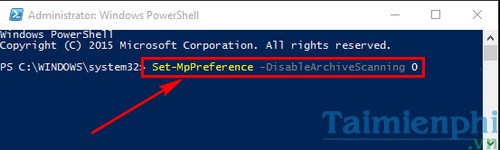
Verify the current preference
Run:
Get-MpPreference | Select-Object DisableArchiveScanningA result of False means archive scanning is enabled. If the command reports an access or policy error, do not try to bypass organizational controls; contact the administrator.
Scan a downloaded archive
After enabling the preference, you can right-click a ZIP or other supported archive in File Explorer and choose Scan with Microsoft Defender if the command is available. Alternatively, run a custom scan from elevated PowerShell, replacing the example path:
Start-MpScan -ScanType CustomScan -ScanPath "C:\Users\Name\Downloads\archive.zip"For a wider check, open Windows Security > Virus & threat protection > Scan options and choose a Quick, Full, Custom, or Offline scan. TipsMake's Microsoft Defender full-scan guide explains those choices.
Do not disable archive scanning as a routine fix
The following command turns archive inspection off:
Set-MpPreference -DisableArchiveScanning $trueThe equivalent numeric form is:
Set-MpPreference -DisableArchiveScanning 1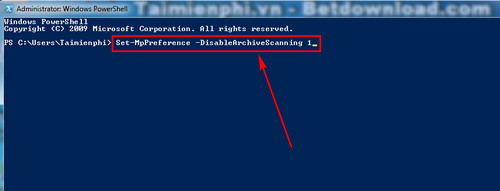
Disabling the setting reduces coverage and is rarely appropriate on a personal PC. If a large trusted archive causes a performance problem, scan it at a convenient time or investigate the specific file rather than leaving archive scanning disabled. Do not add broad exclusions merely to make scans faster.
Limits of scanning compressed files
- A password-protected or encrypted archive cannot be inspected without its password. Treat an unexpected encrypted attachment as suspicious; do not open it just to see what is inside.
- Deeply nested or damaged archives may not be fully processed. If a trusted archive must be opened, extract it to a separate folder and scan the extracted files before running anything.
- A clean result reduces risk but cannot guarantee that every file is safe. Verify the source, file type, and digital signature where applicable.
- Keep SmartScreen, real-time protection, cloud-delivered protection, and tamper protection enabled unless a documented administrative requirement says otherwise.
If malware appears persistent or returns after removal, use Microsoft Defender Offline; the Defender protection overview explains how offline scanning differs from a normal scan.
Related Articles
 Instructions for Using Windows Defender14 minutes read
 Enable // Disable Periodic Scanning Feature on Windows 105 minutes read
 How to Recover Files Deleted by Windows Defender: Step-by-Step Guide3 minutes read
 How to Stop Windows Defender from Deleting Files: Step-by-Step Guide3 minutes read
 How to Restore Files Quarantined by Windows Defender: Step-by-Step Guide4 minutes read
 How to Check If Windows Defender Generates Random Files and4 minutes read
Reader Comments 0
Sign in with email or Google to join the discussion.