Table of Contents
Live Tiles in the Windows 10 Start menu can stop updating, show old information, or appear blank. This is usually an app, account, network, or Start menu issue—not proof that a general cache is “full.” Try the reversible fixes first. Windows 11 removed Live Tiles, so these steps apply only to Windows 10.
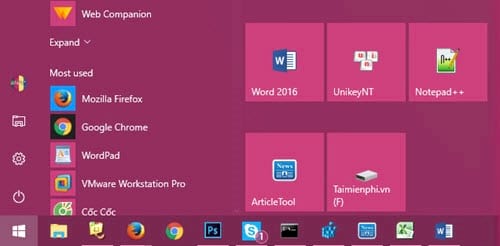
Start with safe fixes
- Check the connection and app: open the affected app directly, sign in if required, and verify that it can retrieve new information.
- Restart Windows Explorer: press Ctrl + Shift + Esc, find Windows Explorer on the Processes page, right-click it, and choose Restart.
- Toggle the tile: right-click it, choose More, turn Live Tile off, and then turn it on again if those commands are available.
- Re-pin it: unpin the tile from Start, find the app in the app list, and pin it again.
- Update the app: open Microsoft Store, go to Library, and install available updates.
Live content can also be limited by a metered connection, Battery Saver, disabled background activity, or a privacy setting. If only one tile is affected, focus on that app rather than resetting the whole Start menu.
Repair or reset the affected app
Open Settings > Apps > Apps & features, select the app, and open Advanced options. Try Terminate and Repair first. Use Reset only after noting that it can remove the app's local data and sign-in state.
For Microsoft Store-related problems, press Windows + R, run wsreset.exe, wait for Store to reopen, and then test the tile.
Legacy Live Tile cache reset
The following registry method applies to older Windows 10 builds that contain the specified StateStore key. It is not routine maintenance, and it will not help if the key is absent. Back up the key first; TipsMake's Registry Editor guide explains export and restore.
- Press Windows + R, enter
regedit, and approve the User Account Control prompt.
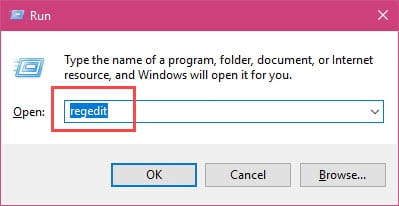
- Navigate to:
HKEY_CURRENT_USER\Software\Microsoft\Windows\CurrentVersion\ImmersiveShell\StateStore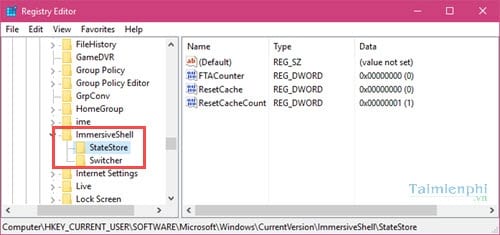
- Select StateStore, choose File > Export, and save a backup of the selected branch.
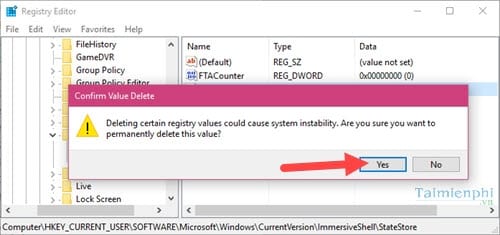
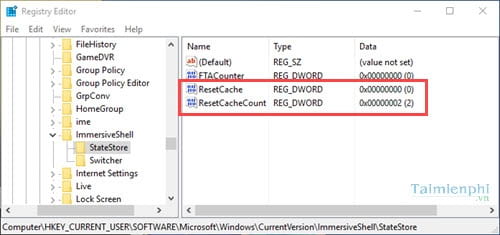
- Look for a DWORD value named ResetCache. Older instructions deleted it before recreating it, as shown below, but deletion is unnecessary when the value already has the correct DWORD type.
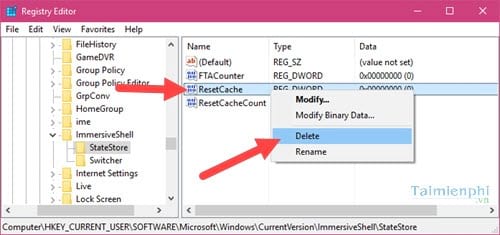
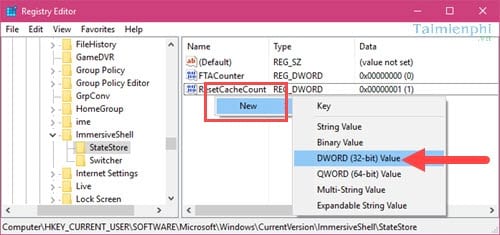
- If ResetCache is missing, right-click a blank area and choose New > DWORD (32-bit) Value, then name it ResetCache. Use a DWORD even on 64-bit Windows.
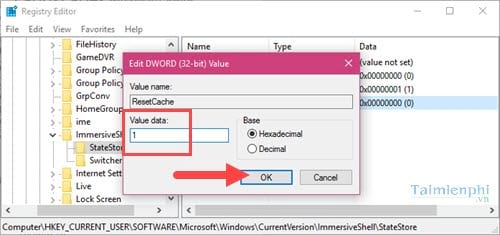
- Open ResetCache, set its value data to 1, and select OK. This requests a reset; it does not mean the current cache contains one unit of data.
Restart Explorer and verify the reset
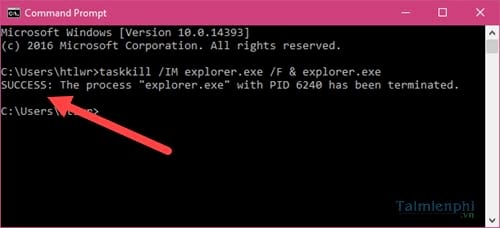
The safest route is Task Manager: select Windows Explorer > Restart. The older command-line method shown in the screenshots stops and starts Explorer:
taskkill /IM explorer.exe /F & start explorer.exeThe taskbar and desktop disappear briefly while Explorer is stopped.
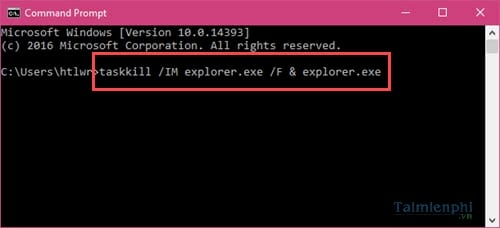
After Explorer restarts, close the console and test the tiles.
On compatible builds, Windows changes ResetCache back to 0 and may increment ResetCacheCount.
If tiles are still broken
Create a temporary local user account and test Start there. If it works, the original profile or its app registrations are the likely cause. If Start itself will not open, repair Windows system files and review recent updates rather than repeatedly editing the registry. Do not use registry cleaners or delete unrelated Start menu keys.




Reader Comments 0
Sign in with email or Google to join the discussion.