Table of Contents
The most effective way to speed up Windows 10 is to identify the bottleneck before changing settings. A slow sign-in, constant disk activity, high memory use, overheating, and a single frozen app have different causes. Measure the problem, make one change at a time, and compare the result.
Match the symptom to the likely cause
| Symptom | Check first |
|---|---|
| Slow before the sign-in screen | External devices, firmware, drive health, boot configuration |
| Long wait after signing in | Startup apps and background services |
| Disk stays near 100% | Low free space, updates, indexing, drive health, insufficient memory |
| Memory remains near full | Browser tabs, large apps, leaks, RAM capacity |
| CPU is high at idle | Updates, scans, runaway process, malware, cooling |
| Everything slows under load | Thermal throttling, power mode, aging hardware |
Press Ctrl + Shift + Esc and use Task Manager to sort the Processes page by CPU, Memory, Disk, and Network. Observe the PC while the slowdown occurs; do not end an unfamiliar system process solely because it appears near the top. TipsMake's Windows performance tools guide explains deeper monitoring.
1. Restart and complete pending updates
A real restart clears stuck processes and completes many updates; shutting the lid or using sleep does not. Save work, choose Start > Power > Restart, then check Task Manager again. Install current device drivers from Windows Update or the computer manufacturer, especially for storage, graphics, chipset, and networking. Avoid generic driver-updater utilities.
2. Disable unnecessary startup apps
Open Task Manager, select Startup or Startup apps, sort by startup impact, and disable nonessential programs. Keep security software, accessibility tools, encryption utilities, and hardware controls you need. Disabling an entry does not uninstall it.
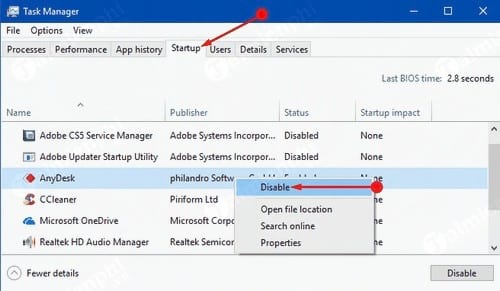
Restart and compare sign-in time. If a needed feature disappears, re-enable the relevant entry.
3. Free storage safely
Low free space can slow updates, caching, and virtual memory. Open Settings > System > Storage to review temporary files and enable Storage Sense. You can also search for Disk Cleanup, select the Windows drive, and choose Clean up system files.
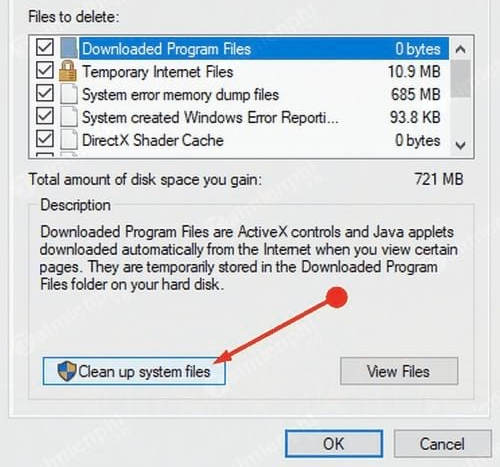
Review every category before deletion. Do not remove Downloads or previous Windows installation files if you still need them. The temporary-file cleanup guide explains what each method removes.
4. Uninstall software you no longer use
Open Settings > Apps > Apps & features, select an unwanted application, and choose Uninstall. Use the program's own uninstaller for security suites, VPNs, drivers, or complex tools. Do not use registry cleaners or “RAM boosters.”
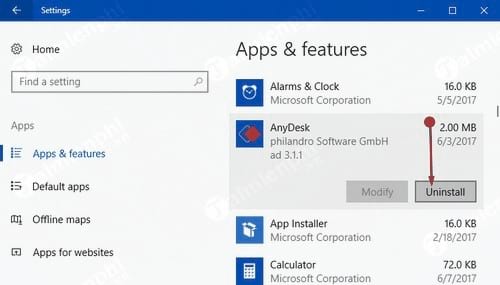
Merely having an app installed does not always slow Windows; prioritize software that runs at startup, stays in the background, injects browser extensions, or consumes significant storage.
5. Scan for malware and repair Windows files
Open Windows Security > Virus & threat protection and run a Quick scan. Use a Full or Microsoft Defender Offline scan when symptoms or detections justify it. Then open an elevated Command Prompt and run:
DISM /Online /Cleanup-Image /RestoreHealth
sfc /scannow
These tools repair Windows components; they do not fix failing hardware or every application problem.
6. Reduce visual effects on older hardware
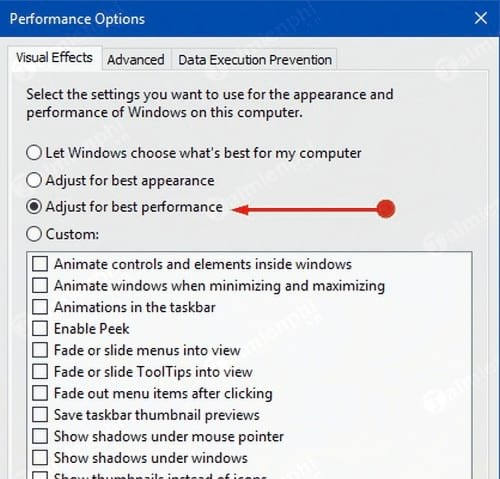
Search Start for View advanced system settings. Under Performance, select Settings.
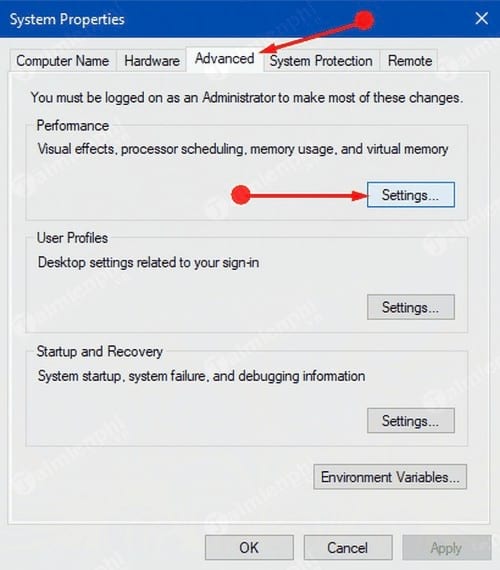
On Visual Effects, try Adjust for best performance, or use Custom and keep readability features such as smooth screen fonts and thumbnail previews.
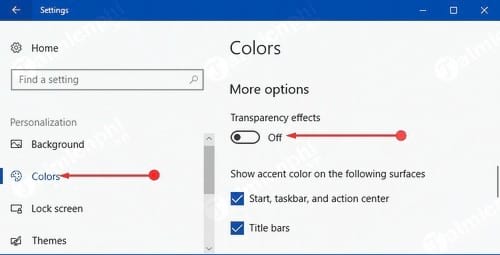
To turn off transparency, open Settings > Personalization > Colors and disable Transparency effects.
These changes can make a low-end or remotely accessed PC feel more responsive, but they rarely solve severe slowness on their own.
7. Reduce suggestions and background noise
Open Settings > System > Notifications & actions and turn off Windows tips and suggestions if you do not want them.
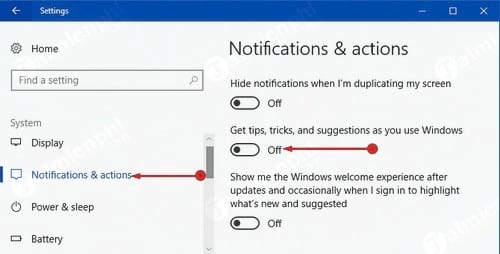
This is mainly a distraction and privacy preference; expect only a small performance difference. Review background permissions per app instead of disabling services indiscriminately.
8. Use built-in maintenance selectively
Older Windows 10 builds expose Control Panel > Troubleshooting > System and Security > System Maintenance.
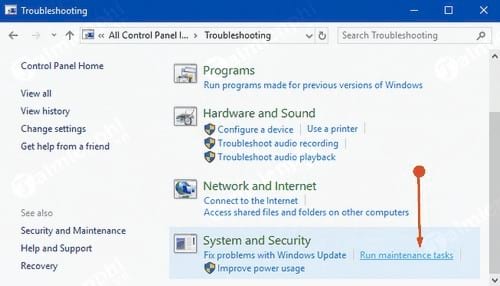
If it is unavailable, use the specific troubleshooters under Windows Settings. A maintenance troubleshooter cannot diagnose all performance problems; Task Manager, drive health, update history, and Event Viewer usually provide more direct evidence.
9. Choose an appropriate power mode
On a laptop, select the battery icon and choose a balanced or better-performance mode when plugged in. On a desktop, open Control Panel > Power Options and use Balanced unless a sustained workload has a documented reason for High performance. Higher performance can increase power use, heat, and fan noise; it does not repair a slow or overheating PC.
10. Change the boot-menu timeout only if you see that menu
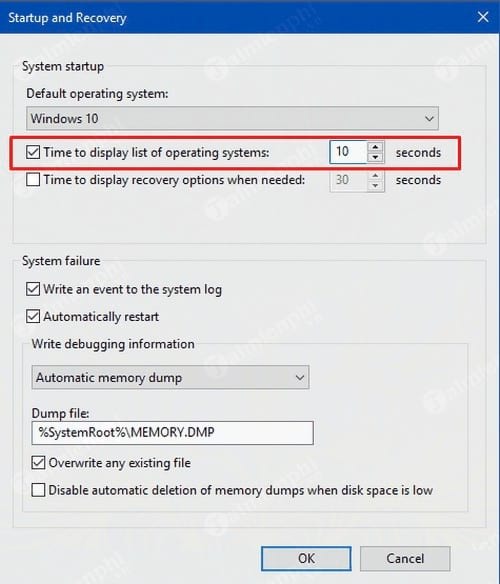
The boot-menu timeout affects only PCs that pause to offer multiple operating systems or recovery choices. It does not make Windows itself run faster. Search for View advanced system settings, open Startup and Recovery > Settings, and first confirm that the correct default operating system is selected.
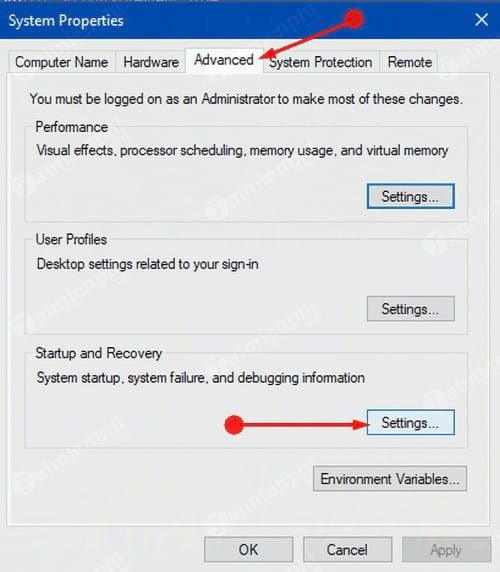
If you genuinely use a boot menu, reduce Time to display list of operating systems to a value that still allows a safe selection. Do not set it so low that recovery becomes difficult.
When hardware is the real limit
If the Windows drive is a healthy mechanical hard disk and disk activity is the bottleneck, an SSD is usually the most noticeable general upgrade. Add compatible RAM when Task Manager shows sustained memory pressure and paging during normal work. Clean blocked vents and verify temperatures when performance falls after several minutes of load.
Back up important files before replacing storage or troubleshooting a drive with warnings. For a broader decision tree covering browsers, heat, RAM, drives, and malware, use the slow-computer diagnostic guide.
Related Articles
 Speed up Computers: 8 Simple Ways to Speed up Windows 76 minutes read
 How to Speed up Your Computer, Improve Windows Performance6 minutes read
 How to Enable Ultimate Performance to Speed Up and Improve Your PC's Performance4 minutes read
 Disable Ntfs File Compression to Speed up Windows Computers4 minutes read
 12 Tips to Speed up Your Computer Comprehensively9 minutes read
 Increase Computer Gaming Performance - Speed up Your Computer to Improve5 minutes read
Reader Comments 0
Sign in with email or Google to join the discussion.