Table of Contents
The Clear Browsing Data dialog box on Chrome has a completely new interface. In Chrome, the clear browsing data dialog box is a built-in feature that allows you to delete your browsing history, cached files and cookies, download history, etc. Here are instructions for enabling the new clear data interface on Chrome.
How to enable the new clear data interface on Chrome
Step 1:
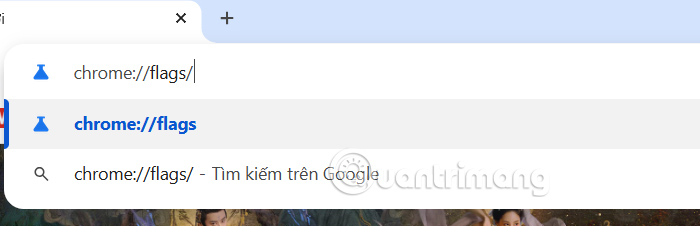
Type chrome://flags/ into the address bar on your browser and press Enter to access.
Step 2:
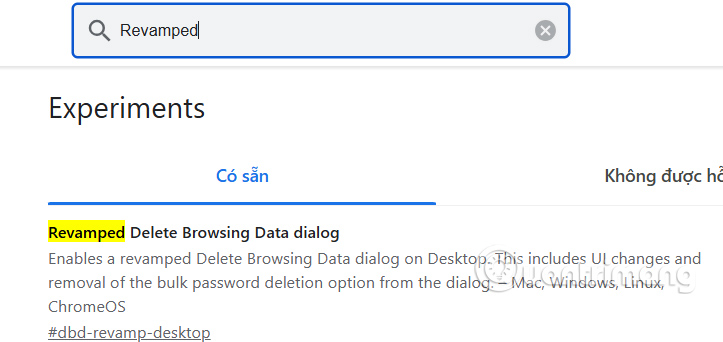
Users type Revamped keyword in the search bar and will see the Revamped Delete Browsing Data dialog flag displayed below. Or you can quickly access it via the URL chrome://flags/#dbd-revamp-desktop.
Step 3:
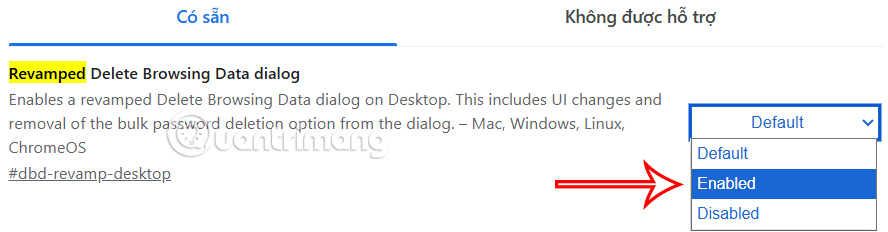
Now you switch to Enabled mode for the Revamped Delete Browsing Data dialog flag.
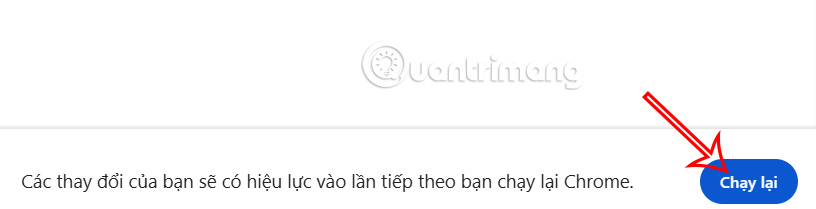
Finally, click Restart for the changes to be applied.
Press CTRL + SHIFT + DELETE keys at the same time, you will see the Delete Browsing Data dialog box with the new user interface. If you want to return to the old interface, just return to Disabled for the Revamped Delete Browsing Data dialog flag.
Final Thoughts
Following the steps in order and checking version-specific settings should make it easier to Enable the New Data Deletion Interface on Chrome. If an option looks different, verify the device, app, or operating-system version before changing additional settings.
FAQ
What is the best way to Enable the New Data Deletion Interface on Chrome?
Start with the requirements described in the article and follow the steps in order. The Clear Browsing Data dialog box on Chrome has a completely new interface. In Chrome, the clear browsing data dialog box is a built-in feature that allows you to delete your browsing history, cached files and cookies, download history, etc.
What should you know about How to enable the new clear data interface on Chrome?
Type chrome://flags/ into the address bar on your browser and press Enter to access.
What should you do if the instructions do not match your screen?
Check the device, software version, account permissions, and regional settings. Interfaces can change after updates, so use the closest matching option and consult the official support documentation when necessary.
Related Articles
 Instructions on How to Delete Urls Automatically Suggested in Chrome5 minutes read
 Trick to Automatically Delete Data When Closing Chrome, Firefox5 minutes read
 How to Enable the New Interface for PDF File Readers in Chrome3 minutes read
 Don't Trust Data Erasure Services Until You Read This!9 minutes read
 Warning: Chrome 79 for Android Has Data Deletion Errors, Users3 minutes read
 How to Open an AMP Website on Chrome: AMP Browser Extension4 minutes read
Reader Comments 0
Sign in with email or Google to join the discussion.