What you will learn
- Separate browser privacy, local history and security controls.
- Review Safe Browsing without turning protection off.
- Remove stale site permissions and extensions.
- Understand what private browsing does and does not hide.
What you need
- A current desktop browser.
- Access to browser settings and extension management.
Separate privacy controls from security controls
Chrome explains that privacy choices vary by user and include sign-in, Safe Browsing, ad privacy, browsing history and incognito behavior.
Standard and Enhanced Safe Browsing protect against phishing, malware, abusive sites and unsafe downloads, while “No protection” is explicitly not recommended.
Blocking every cookie can break sign-in and payments; allowing every permission can expose location, microphone and camera unnecessarily. The goal is least privilege with safe defaults, not a setting that promises total anonymity.
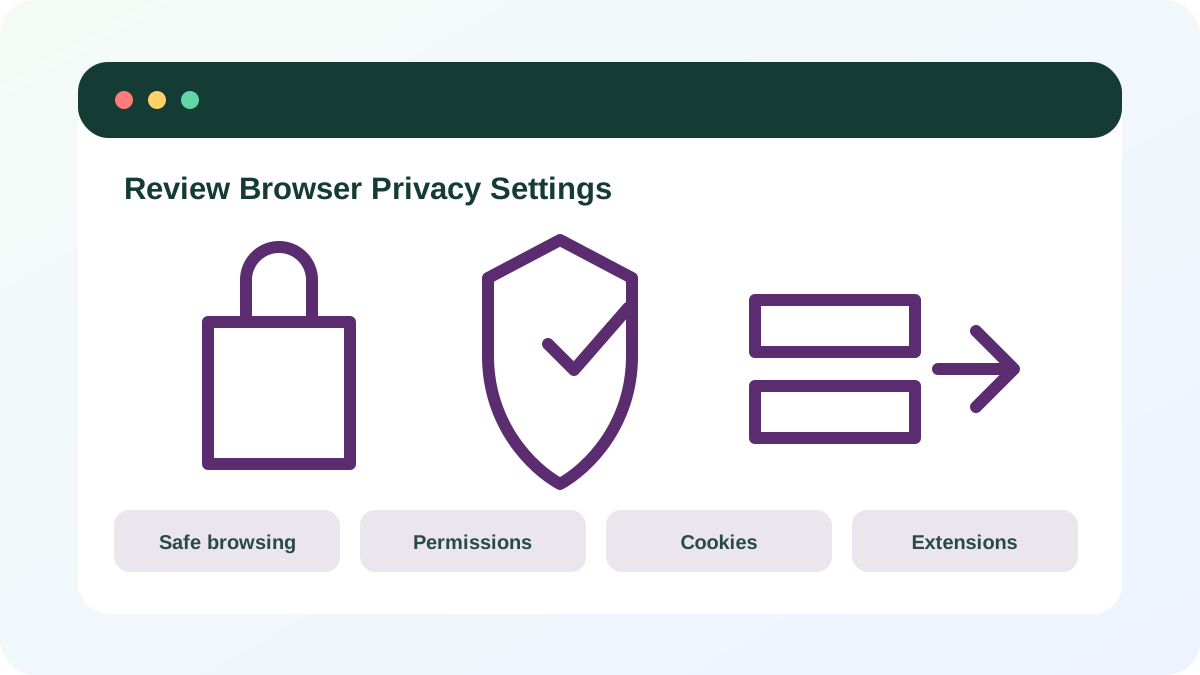
Keep protective warnings enabled
Review Safe Browsing or equivalent protection and choose the level whose data-sharing tradeoff you understand. Keep automatic browser updates on. Do not disable download or certificate warnings to access a page. A padlock or HTTPS connection protects the connection, not the legitimacy of the operator.
- 1
Open Privacy and security settings.
- 2
Confirm Safe Browsing or equivalent protection is enabled.
- 3
Enable secure-connection warnings when supported.
- 4
Review saved passwords and compromised-password alerts.
- 5
Confirm browser updates are automatic.
Review site data and permissions
Remove persistent camera, microphone, location, notification, clipboard and file-system permissions from sites that no longer need them. Prefer “Allow this time” when a one-time permission is available. Notifications from unknown sites are a common source of fake antivirus and delivery alerts.
- 1
Open Site settings or Permissions.
- 2
Review camera and microphone access.
- 3
Review location and notification permissions.
- 4
Remove unknown or unused sites.
- 5
Reset permissions for sites with confusing behavior.
- 6
Clear selected site data rather than deleting everything blindly.
Reduce extension and account exposure
Extensions can read page content depending on their permissions. Keep only those you actively use, verify publisher and update source, and remove extensions that request broad access without a clear need. Review browser sync because it can copy history, passwords, tabs or extensions to other signed-in devices.
- 1
Open the extensions page.
- 2
Remove unused or unknown extensions.
- 3
Review “read and change data” permissions.
- 4
Check which data types synchronize to the browser account.
- 5
Sign out old browser sessions or devices.
- Safe Browsing remains enabled.
- Stale permissions and extensions were removed.
- You understand what sync and private browsing expose.
Complete a 15-minute browser privacy review
Review one browser profile without deleting data indiscriminately.
- 1
Confirm update and Safe Browsing status.
- 2
Remove two unused site permissions.
- 3
Review notification permissions.
- 4
Remove one unused extension.
- 5
Review sync categories and signed-in devices.
- 6
Write one setting you intentionally kept and why.
Common mistakes to avoid
- Turning off Safe Browsing in the name of privacy.
- Assuming HTTPS proves a site is legitimate.
- Treating incognito as anonymous browsing.
- Keeping extensions with broad permissions after they are no longer used.
Key takeaways
- Privacy and security controls solve different problems.
- Least-privilege permissions reduce exposure.
- Private browsing limits local history, not network visibility.
Frequently asked questions
Should I block all cookies?
That may reduce some tracking but can break essential site functions. Use browser controls, clear selected site data and review third-party-cookie options based on your needs.
Does Enhanced Safe Browsing send more data?
Yes. It provides stronger real-time protection with additional data sharing. Review the browser explanation and choose knowingly rather than disabling protection entirely.
Sources and further reading
- Understand privacy in ChromeGoogle Chrome Help
- Choose your Safe Browsing protection levelGoogle Chrome Help
- Change site settings permissionsGoogle Chrome Help
Ready to continue?
Mark the lesson complete so your Learning Path progress stays current on this device.