Table of Contents
To clear a browser's cached images and files, press Ctrl+Shift+Delete on Windows or Linux, or Command+Shift+Delete on macOS, choose a time range, select only the cache option, and confirm. This shortcut opens the browsing-data dialog in Chrome, Edge, Firefox, Opera, and many other desktop browsers.
Clearing the cache makes the browser download fresh copies of page resources. It can fix stale images, broken styling, or a site that still shows an older version. It does not normally delete bookmarks, downloaded files, saved passwords, or cookies unless you select those separate data types.
Try a hard refresh before clearing everything
If only one page looks outdated, reload it while bypassing cached content:
- Windows or Linux: press Ctrl+Shift+R or Ctrl+F5.
- macOS: press Command+Shift+R in most browsers.
A hard refresh is faster and less disruptive than deleting the entire cache. If the problem persists across several pages or returns after a reload, continue with the browser-specific steps below.

Before you clear browser data
Read every selected checkbox. Browser dialogs often place cache beside cookies, history, passwords, autofill data, and site permissions. Clearing cookies signs you out of many sites; clearing passwords can remove locally stored credentials. To troubleshoot cached content, select Cached images and files (or the equivalent) and leave unrelated categories unchecked.
Choose the shortest useful time range first, such as the last hour or 24 hours. Use All time only when the issue is old, widespread, or the shorter range did not help.
Clear the cache in Google Chrome
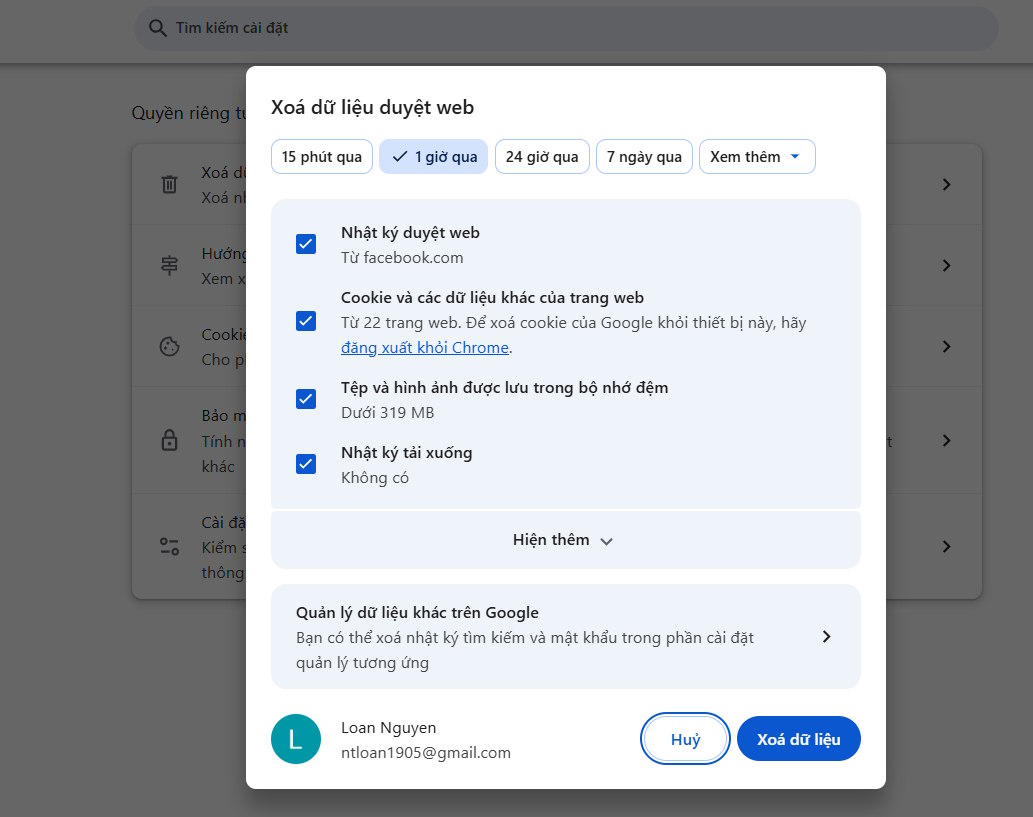
- Open Chrome and select the three-dot menu.
- Choose Delete browsing data. You can also open the dialog with Ctrl+Shift+Delete or Command+Shift+Delete.
- Select a Time range.
- Check Cached images and files.
- Clear other boxes unless you intentionally want to remove those data types.
- Select Delete data.
Chrome may use labels such as Delete browsing data or Clear browsing data depending on the version and platform. Google's official browsing-data guide explains what each category removes.
Clear the cache in Microsoft Edge
- Select Settings and more (the three-dot menu) and open Settings.
- Go to Privacy, search, and services.
- Under Clear browsing data, select Choose what to clear.
- Choose a time range and select Cached images and files.
- Leave Cookies, Passwords, and other categories unchecked unless you also want to remove them.
- Select Clear now.
The keyboard shortcut Ctrl+Shift+Delete on Windows or Command+Shift+Delete on Mac opens this dialog directly. Microsoft's Edge data-removal instructions describe local and synced data separately.
Clear the cache in Mozilla Firefox
- Open the menu button and choose Settings.
- Select Privacy & Security.
- Find the Cookies and Site Data or Browsing Data section, then select Clear Data or Clear browsing data.
- Select Temporary cached files and pages or Cached Web Content, depending on the Firefox version.
- Clear any cookies option if you want to remain signed in, then confirm.
Firefox can also clear selected data when it closes. Configure that only if you understand the effect, because repeatedly deleting the cache can make first page loads slower. Mozilla maintains the current steps in its Firefox cache guide.
Clear the cache in Safari on Mac
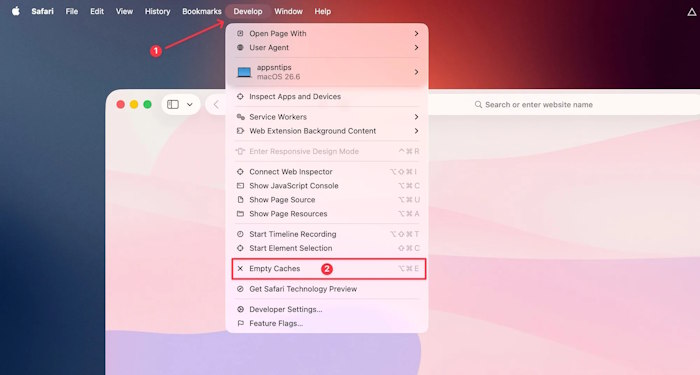
For a cache-only command, enable Safari's developer features:
- Open Safari > Settings > Advanced.
- Enable Show features for web developers or the similarly named Develop-menu option.
- Close Settings, open the Develop menu, and choose Empty Caches.
If you instead use Safari > Settings > Privacy > Manage Website Data, you are managing cookies and other site storage as well as cached data. Removing website data may sign you out or reset site preferences.
Clear the cache in Opera
- Open Opera and press Ctrl+Shift+Delete on Windows or Linux, or Command+Shift+Delete on Mac.
- Choose a time range.
- Select Cached images and files.
- Deselect cookies, passwords, and history if you do not want to remove them.
- Select Delete data.
Opera is Chromium-based, so the choices are similar to Chrome, although menu names and placement may differ between releases.
What clearing the cache can and cannot fix
| Symptom | Is clearing the cache useful? |
|---|---|
| Old logo, image, CSS, or JavaScript still appears | Often; try a hard refresh first |
| A page works in a private window but not a normal window | Possibly; cached files, cookies, or an extension may be involved |
| A 404 Not Found response | Usually no; the address or server resource is normally the issue |
| A 502 Bad Gateway response | Usually no; it is typically a server or proxy problem |
| Forgotten password or account lockout | No; clearing cache does not recover credentials |
| Low disk space | It may free some space, but it is not a substitute for storage cleanup |
If an HTTP/2-related page error is the actual problem, use the targeted checks in TipsMake's ERR_HTTP2_PROTOCOL_ERROR guide rather than assuming the cache is always responsible.
If the website still does not work
- Restart the browser and test the page in a private or incognito window.
- Disable extensions temporarily, especially content blockers or security extensions.
- Clear cookies for the affected site only if sign-in or stored site state appears to be the problem.
- Check the URL and test another network or device.
- Update the browser, then restart the computer if several sites are affected.
After clearing cached files, the first visit to a site may be slower because images, scripts, and styles must be downloaded again. Later visits should return to normal.
Related Articles
 What Is RAM Cache?6 minutes read
 Instructions for Clearing Microsoft Edge Browser Cache4 minutes read
 How to Clear Cache on Mac: Practical Guide6 minutes read
 How to Clear System and Internet Cache on Mac: Clear Instructions7 minutes read
 Menu: How to Clear the Cache on a Mac5 minutes read
 How to Clear the DNS Cache Buffer in Google Chrome4 minutes read
Reader Comments 0
Sign in with email or Google to join the discussion.