Table of Contents
Using the free online tool PDFgear will help you quickly create PDF forms that others can fill out, or edit the form content.
Using the free online tool PDFgear helps you quickly create PDF forms that others can fill out, or edit the content of the form. There are many online tools that turn PDFs into forms without the need for a paid tool like Adobe Acrobat. Here is a guide to creating PDF forms with PDFgear for free.
How to Create PDF Forms Using PDFgear for Free
Step 1:
First, you access the PDFgear website at the link below.
- Visit PDFgear page to create PDF form
Step 2:
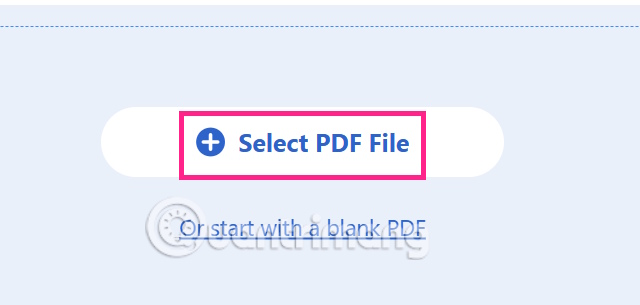
At the website interface, you Upload the PDF file To create the form.
Step 3:
Switch to the new interface, users look up at the top toolbar and select The content they want to insert into the PDF file .
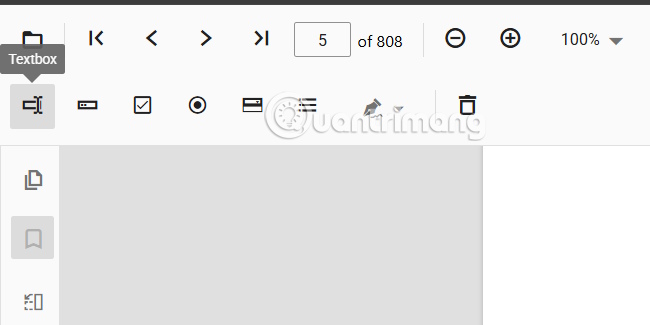
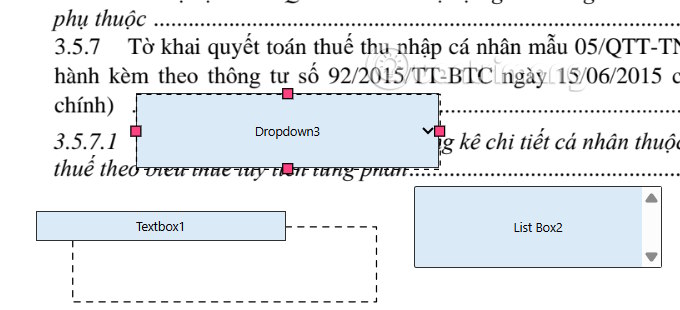
Then you just need To move the content field into the PDF file And select the position to insert it.
Step 4:
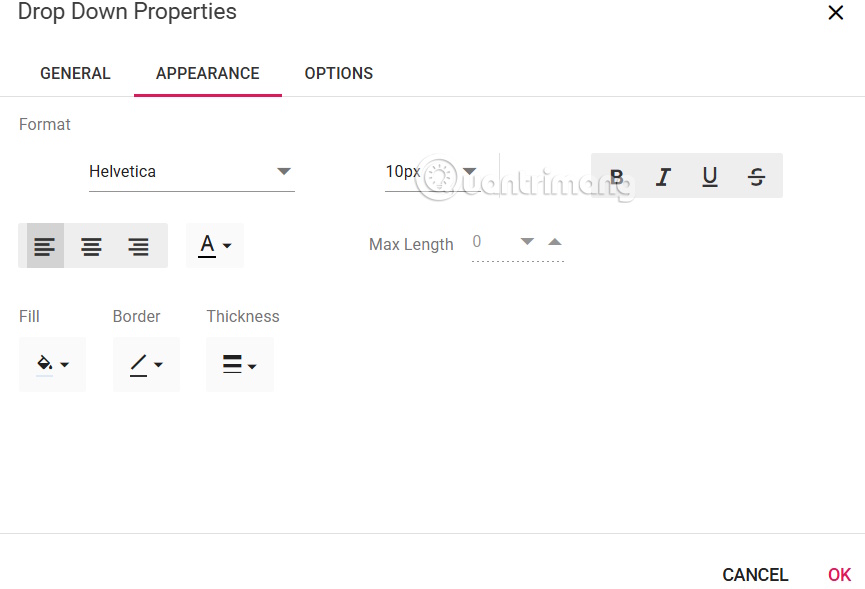
Double-click on the inserted content field to bring up an interface for you to add properties to this field.
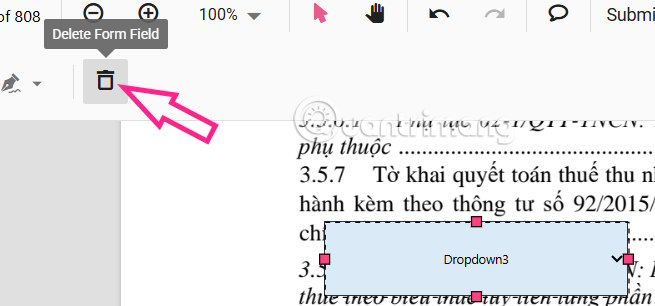
To delete any added Form field, click to select it and then click on The trash icon Above to delete it.
Step 4:
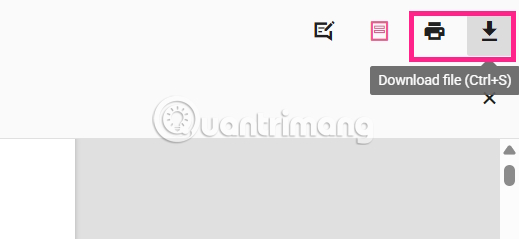
When you're done adding form fields, Click the Download File button In the upper right corner to download the file.
Or you can click the print icon to print the document immediately.
FAQ
How do you create PDF forms with pdfgear for free: step-by-step guide?
In practical terms, using the free online tool PDFgear will help you quickly create PDF forms that others can fill out, or edit the form content.
What should you check before getting started?
Review the requirements, compatible device or software version, and any warnings described in the guide before making changes.
What should you do if the steps do not work?
Repeat the steps in order, confirm that your app or system is up to date, and review the troubleshooting details provided above.
Related Articles
 Learn About Pdfgear: a Free Tool to Read, Edit, Convert and Sign Pdfs7 minutes read
 How to Add Branches or Nested Questions in Google Forms4 minutes read
 How to Fill in PDF Files on iPhone Using PDFgear4 minutes read
 How to Using Microsoft Forms7 minutes read
 How to Create Data Entry Forms in Excel7 minutes read
 Create Forms (Forms) in Access 201613 minutes read
Reader Comments 0
Sign in with email or Google to join the discussion.