Table of Contents
“Edit a PDF” can mean changing its text, adding comments, filling a form, rearranging pages, or correcting a scan. Choose a tool for the specific task: Google Docs or Word can convert text into an editable document, while a PDF editor is better for annotations, forms, signatures, and page operations.
Before editing
- Keep the original PDF unchanged.
- Confirm that you have permission to alter the document.
- Use an approved local tool for confidential files.
- Do not edit a digitally signed PDF without understanding that changes can invalidate its signature.
- Check whether the PDF contains selectable text or scanned page images.
Method 1: Convert the PDF with Google Docs
This cloud workflow is useful for mostly textual PDFs when some layout loss is acceptable.
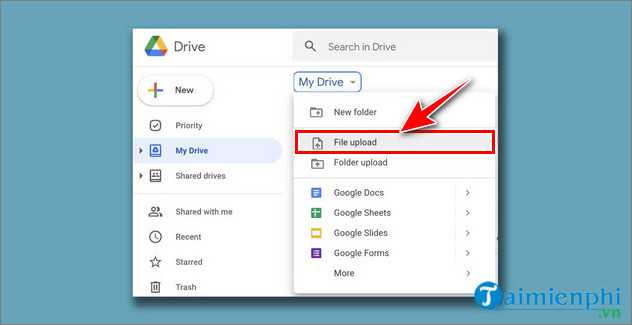
- In Google Drive, select New > File upload and choose the PDF.
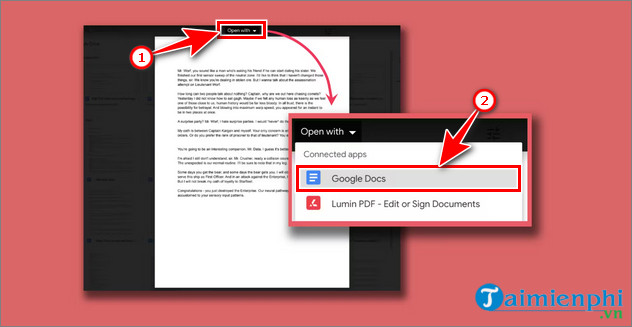
- Right-click the uploaded PDF and choose Open with > Google Docs.
- Edit the converted text in Google Docs. Rebuild headings, lists, and tables as needed.
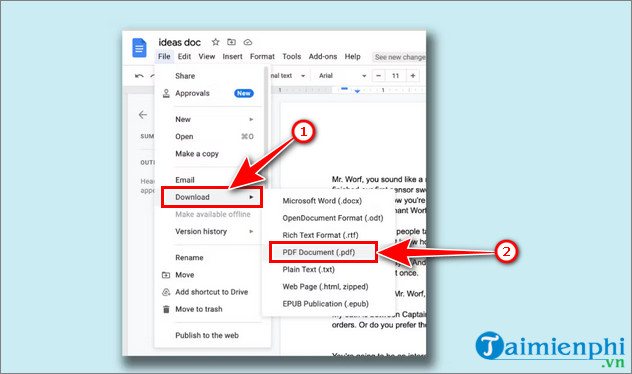
- Choose File > Download > PDF Document (.pdf) to create a new PDF.
Google Docs may change fonts, columns, images, page breaks, headers, and footnotes. The file is uploaded to Google, so verify that this is an approved location before using the method.
Method 2: Copy permitted text into Word
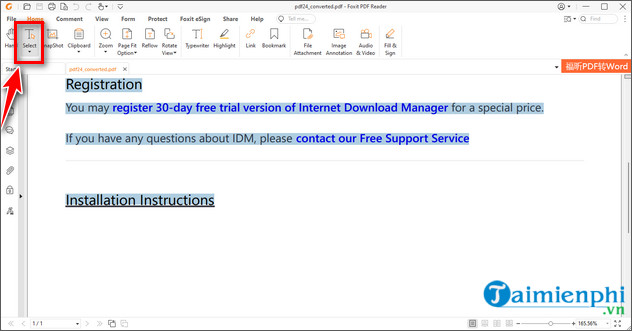
Foxit PDF Reader can select and copy text, but copying into Word is not the same as directly editing the PDF.
- Open the PDF in Foxit Reader, select the required text, and copy it.
- Paste into Word. Use Keep Text Only when source formatting creates unwanted line breaks or fonts.
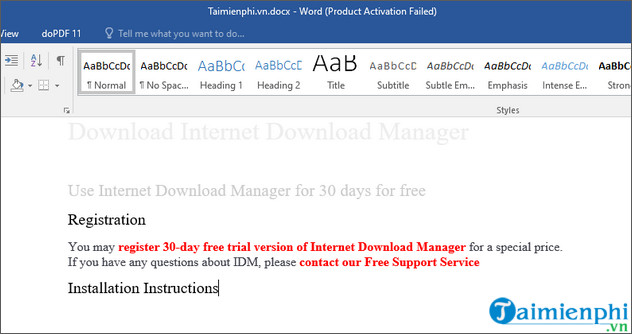
- Edit and format the document.
- In current Word versions, choose File > Save As or Export and select PDF.
The legacy screenshots below show doPDF as an alternative PDF printer. A separate printer utility is usually unnecessary when Word can save directly to PDF.
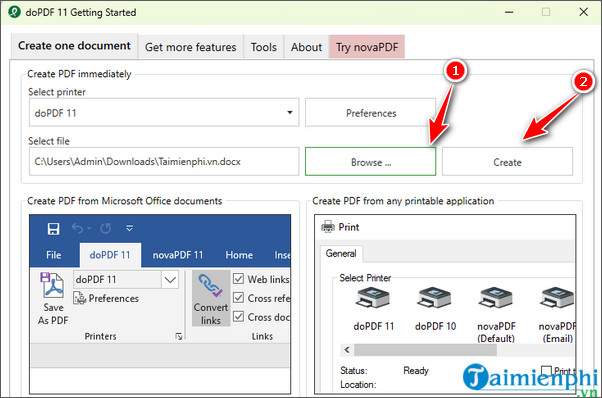
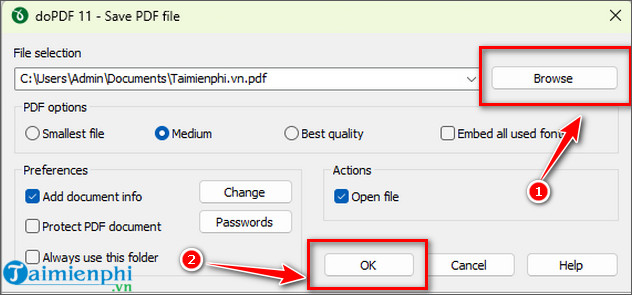
Copying is suitable for short passages. For the permissions and paste details, see how to copy PDF content into Word. TipsMake's Foxit Reader installation guide explains how to obtain the viewer safely.
Method 3: Use a dedicated PDF editor
A PDF editor is the better choice when you need to add comments, fill fields, sign, redact, merge, split, rotate, or reorder pages. Full text editing and OCR may depend on the application or plan.
TipsMake's PDFgear overview describes a desktop tool with text editing, page management, conversion, and OCR. Download PDF software only from its verified publisher.
Scanned PDFs need OCR
If the page behaves like one image, run optical character recognition before attempting to edit text. Select the correct language, then compare the recognized output with the scan. OCR commonly misreads names, numbers, punctuation, accented characters, columns, and handwriting.
What free PDF readers can edit
A reader usually supports comments, highlights, form filling, and signatures, but it may not let you replace existing text or images. Check the product's current feature list rather than assuming “Reader” includes full editing.
Final quality check
- Compare the edited PDF with the original page by page.
- Verify names, dates, totals, links, and page order.
- Check tables, images, headers, footnotes, and forms.
- Confirm that confidential information is removed with a true redaction tool, not a black rectangle.
- Test text selection and reading order if accessibility matters.
- Save the edited result under a new filename.
Related Articles
 How to Edit PDF Files on Your Computer Simply and Easily6 minutes read
 Instructions for Editing PDF Documents Online for Free: Pdfescape6 minutes read
 How to Edit PDF Files19 minutes read
 How to Edit Dll Files5 minutes read
 Pdfio. Co - Service of Creating, Protecting, Converting PDF,.4 minutes read
 How to Create and Edit ISO Files with Ultraiso5 minutes read
Reader Comments 0
Sign in with email or Google to join the discussion.