Table of Contents
Skywork can generate a presentation from a topic or uploaded material and let you revise the deck before downloading it. The key is to provide a clear brief, check the generated content against your source, and inspect the exported file rather than relying only on the online preview.
The screenshots below illustrate the workflow in an earlier interface. Button labels, available formats, and plan limits may differ in your account.
1. Open Skywork and choose Slides
Visit Skywork and sign in using a method offered on the site. The example shows a Google account, but use the options available to you.

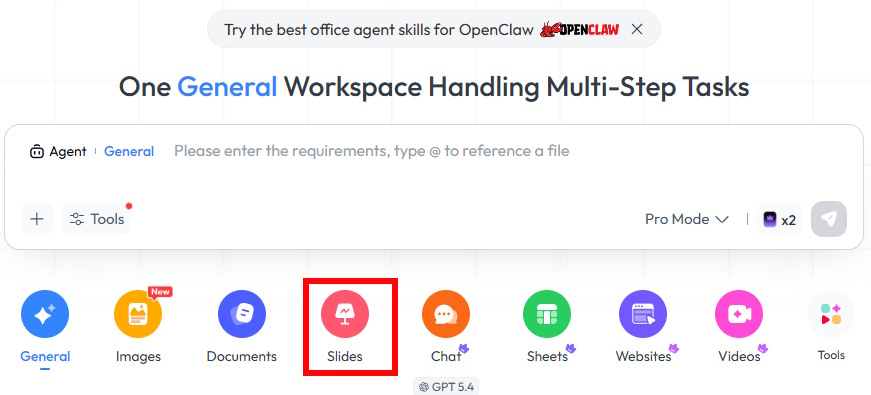
Select Slides to begin a presentation task. Choose the presentation workflow before entering your instructions so the requested output is clear.
2. Provide a topic or source document
Enter the topic, audience, language, and purpose of the presentation. If you already have lesson notes or a report, attach the permitted source file and tell Skywork to use it as the factual basis.
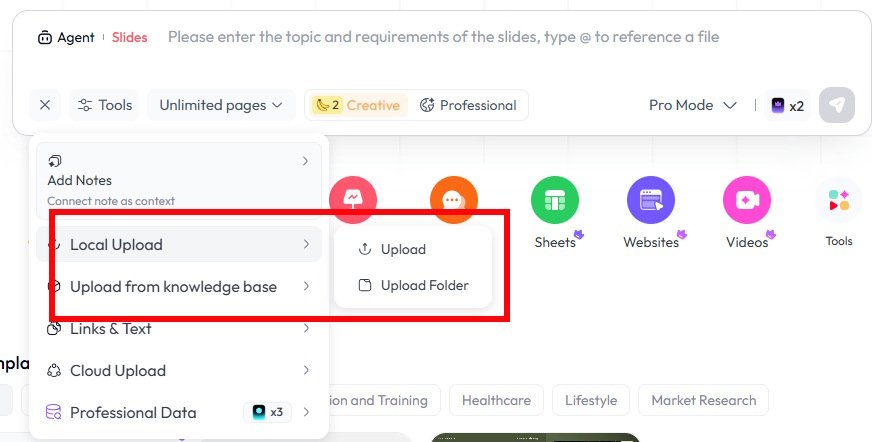
For a classroom presentation, keep the grade level consistent. For example, use this prompt for a Grade 7 lesson rather than mixing Grade 7 content with Grade 9 requirements:
Create an 8-slide presentation in English for Grade 7 students using the uploaded history notes.
Use only historical claims supported by the notes. If information is missing or unclear, flag it rather than inventing it.
Use a clear title and 3 or 4 short points per content slide.
Keep dates and names consistent with the source.
Use readable text, simple layouts, and relevant illustrations.
Do not present an AI-generated illustration as an authentic historical image.
Change the subject and output language as needed. For a Vietnamese-language deck, explicitly request Vietnamese and check that the selected font displays all diacritics correctly.
3. Set the slide count and generate a draft
Choose a slide count if the interface provides that control, or include the count in the prompt. Submit the request and review any outline or clarification presented before generation.
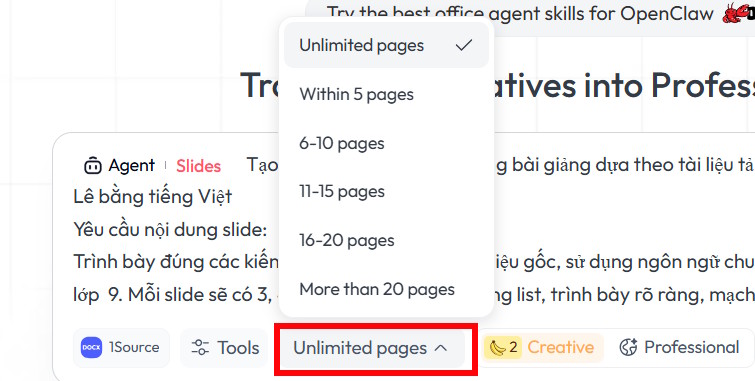
Check the sequence before polishing the design: does each slide contribute a distinct point, and does the deck cover the source without introducing unsupported claims? Remove repetitive slides and split any slide that is too dense.
4. Open the editor
When the deck is ready, select Edit or the equivalent editing control.
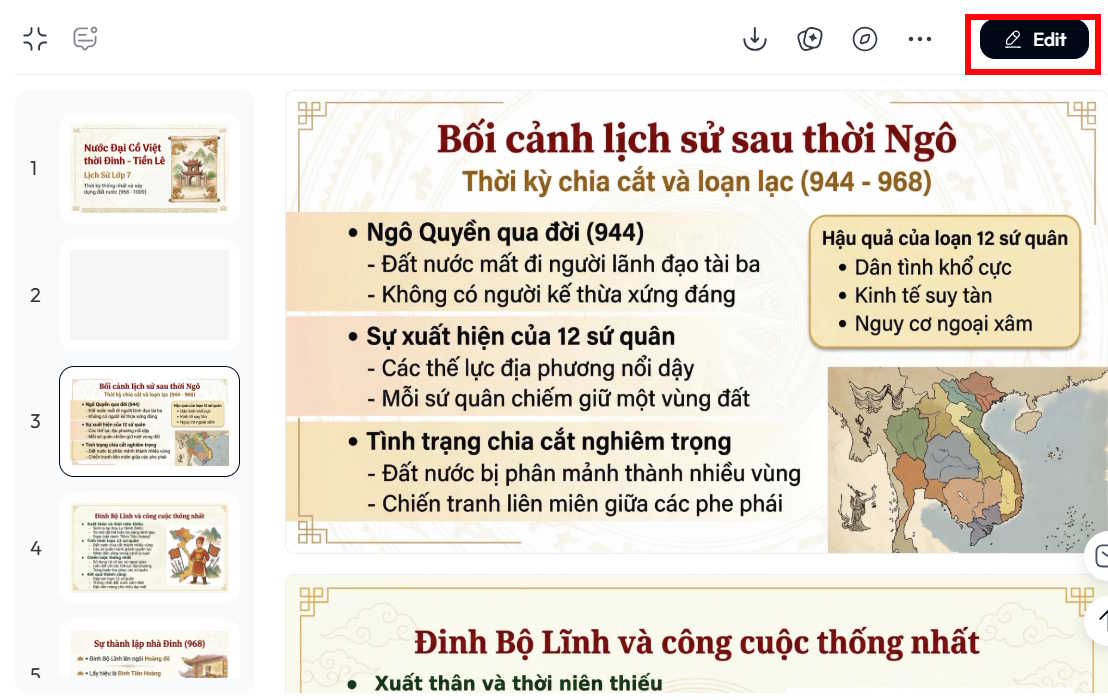
If the interface asks you to confirm entry into editing mode, read the message and continue when it matches the action you want.
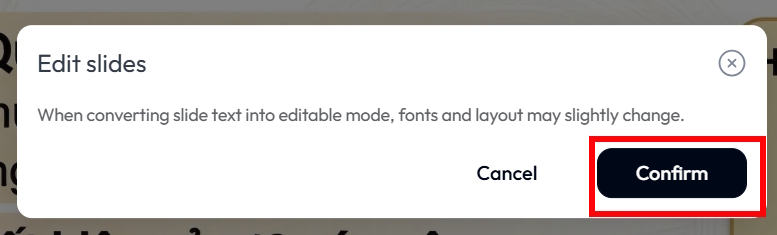
Edit the text directly where supported. Correct names, dates, punctuation, and unclear wording before making decorative changes. Keep one main idea per slide and move supporting detail into notes or a separate handout when appropriate.
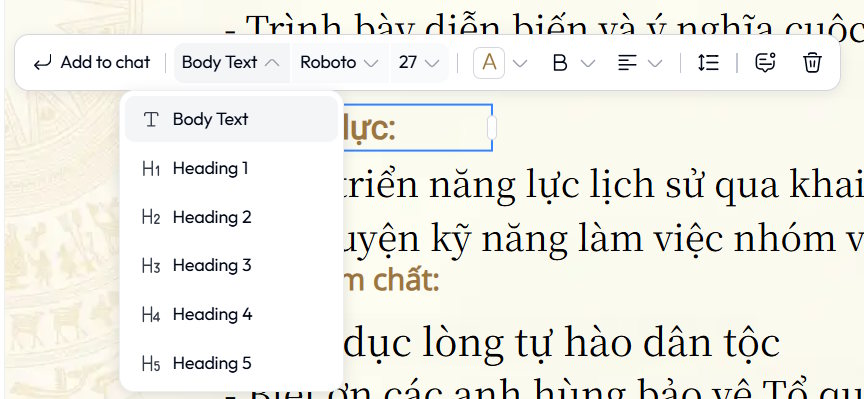
5. Adjust fonts and images
Use the available formatting controls to make heading sizes, body text, and spacing consistent. Replace a font if characters are missing or text no longer fits its box. Do not solve overcrowding by making the text too small to read.
For Vietnamese text exported to PowerPoint, see how to fix Vietnamese font errors in PowerPoint. Test on the computer you will present from, since fonts can render differently there.
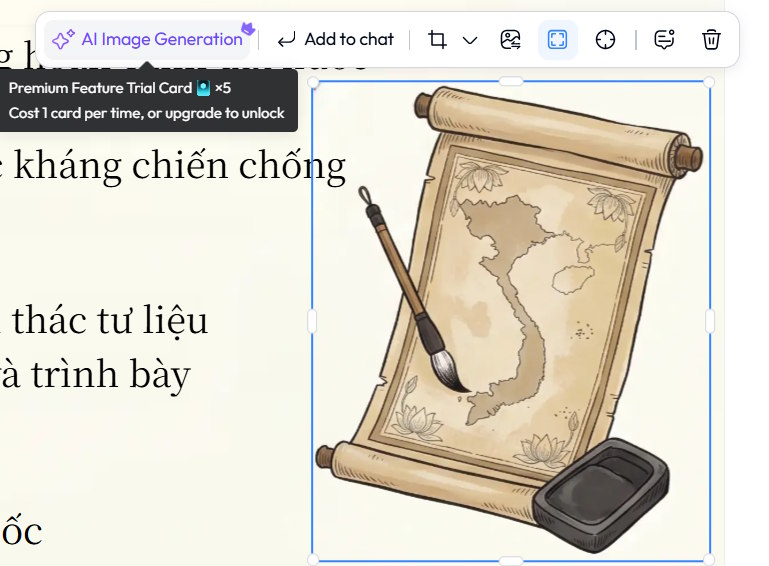
Review each illustration for relevance and accuracy. Crop or replace an image that distracts from the point, and check labels inside generated graphics. Image-generation options may depend on your account; inspect the current controls and any credit notice before using them.
6. Save and export
Save the revised deck, then open Download or the available export menu.
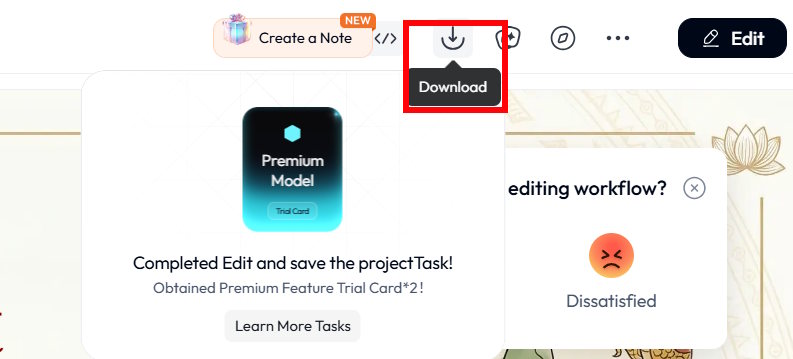
Choose a format suited to the next step. If PPTX is offered, it is appropriate when you need further editing in PowerPoint. An HTML export is a different format and should not be assumed to behave like an editable PowerPoint file.
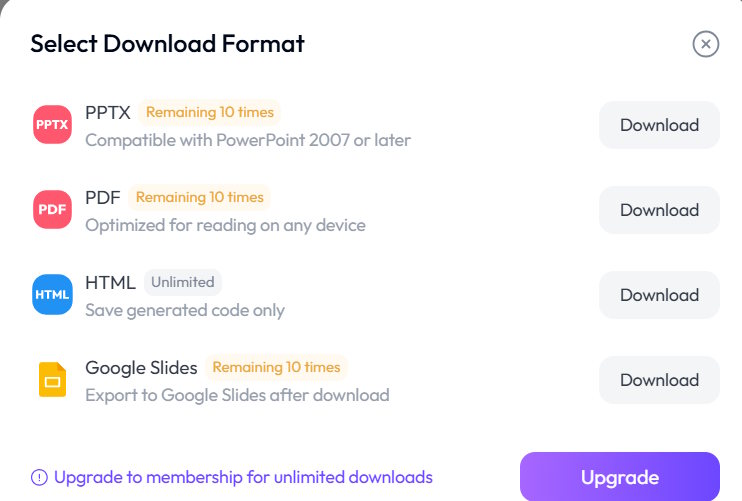
Check the limits shown in your account. Do not assume an earlier free-plan allowance or unlimited HTML downloads still applies.
Before presenting
- Open the downloaded file in the actual presentation app.
- Check every slide for clipped text, missing characters, and shifted images.
- Compare factual statements and numbers with the source material.
- Test links and any media you intend to use.
- Run through the deck at presentation size to check readability.
If you are comparing another generation workflow, TipsMake also explains creating presentation slides with Kimi AI. Whichever tool produces the first draft, keep the same content and export checks.
Related Articles
 How to Create Presentation Slides on ChatGPT5 minutes read
 Guide to Creating Lecture Slides Using Brisk AI5 minutes read
 How to Create Voiceovers for Lecture Slides3 minutes read
 Instructions for Creating Word Cloud in Google Slides: Key Facts4 minutes read
 How to Create Slides Using Faces App AI4 minutes read
 Instructions for Creating QR Codes in Google Slides: Main Insights5 minutes read
Reader Comments 0
Sign in with email or Google to join the discussion.