Table of Contents
NotebookLM can use a supported YouTube video as a source for summaries and teaching-material drafts. It does not automatically create a complete, classroom-ready lesson plan: the teacher must verify the source, define the learning objective and check every generated activity against the video transcript.
Import and check the video source
Choose a video that you are permitted to use and that has accessible captions. NotebookLM works from the transcript rather than interpreting every visual detail, so a video that depends heavily on diagrams or demonstrations may need additional notes or source documents.
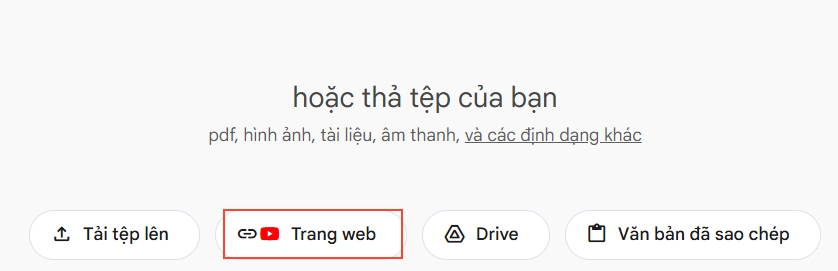
Open NotebookLM, create a new notebook, add a website or YouTube source, paste the video URL, and confirm the import. Labels in the interface may change as the product is updated.
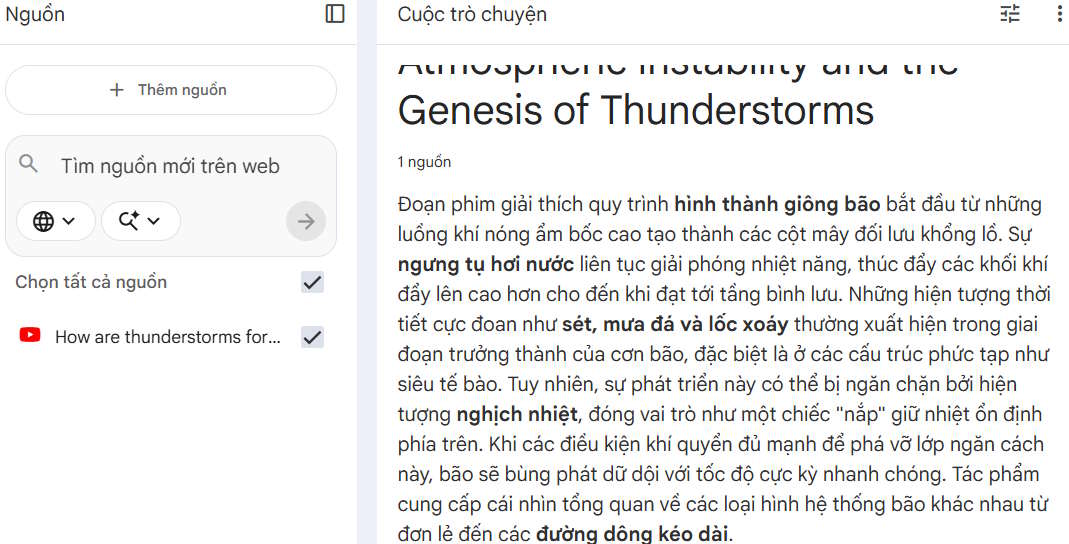
Read the source summary and open the cited passages. Check names, dates, terminology and the sequence of ideas against the original video. If the transcript contains captioning errors, do not carry them into student materials.
Create a listening activity with Audio Overview
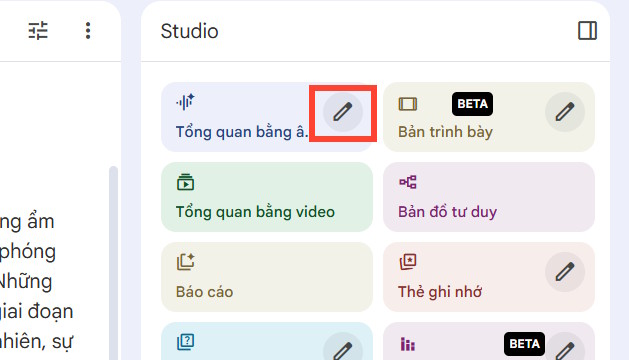
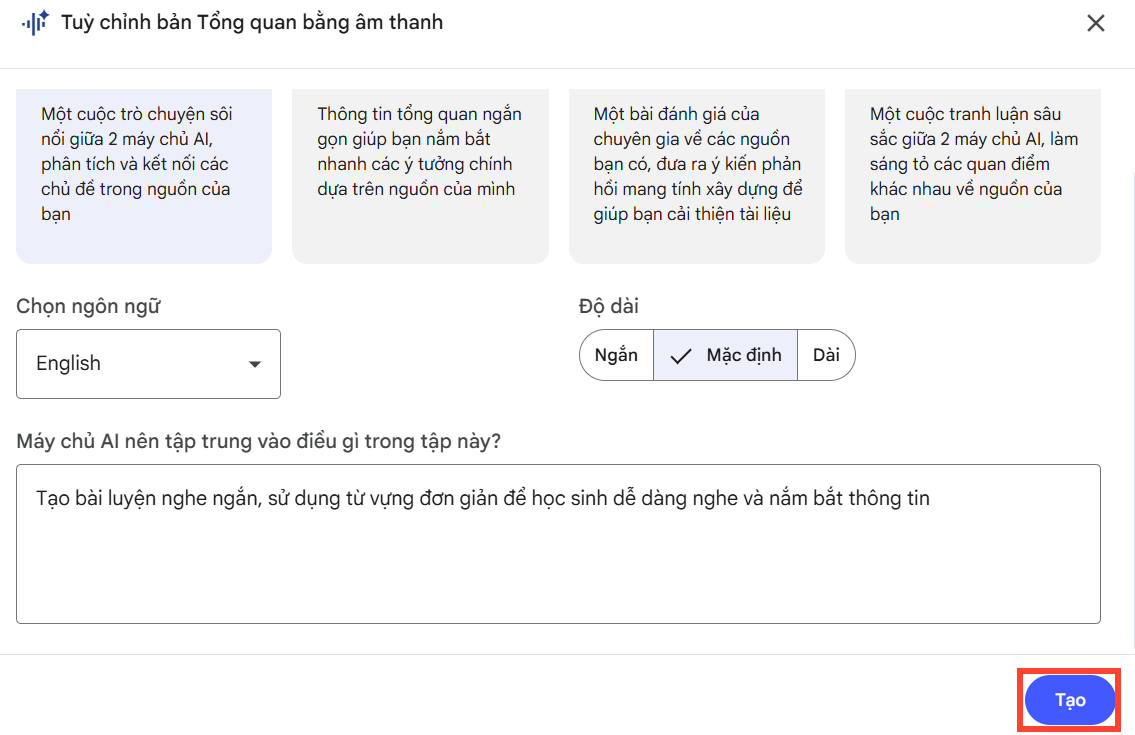
Open the customization control for Audio Overview in the Studio area. Select an available length and describe the learner level, target skill and limits. The original Vietnamese instruction asks for a short listening exercise with simple vocabulary:
Tạo bài luyện nghe ngắn, sử dụng từ vựng đơn giản để học sinh dễ dàng nghe và nắm bắt thông tinA more precise request would add the age or language level, duration, required vocabulary and number of comprehension questions. Avoid asking the audio to introduce facts that are not supported by the selected source.
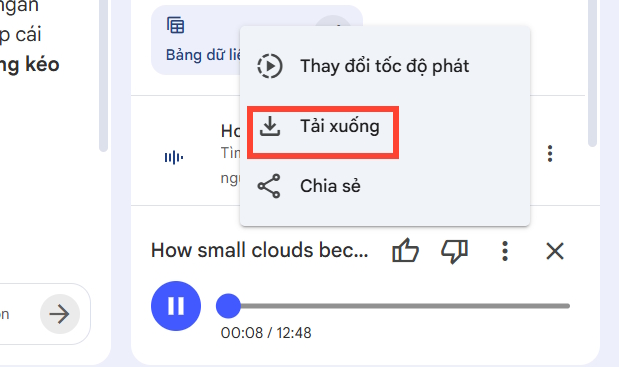
Generate the audio, listen to it in full and compare important claims with the source. If a download option is available for your account and the intended use complies with the source license and school policy, use the three-dot menu to save the audio.
Create a reading passage and questions
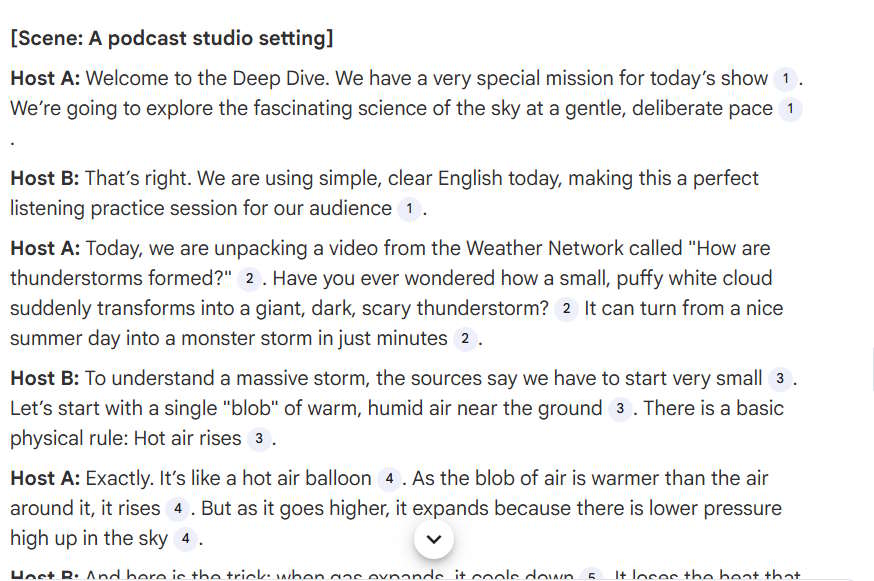
You do not need to transcribe the generated audio back into text to create a reading activity. Ask NotebookLM to produce a source-grounded passage directly from the imported video transcript. Specify the desired length and learner level, then request questions separately so you can review the passage first.
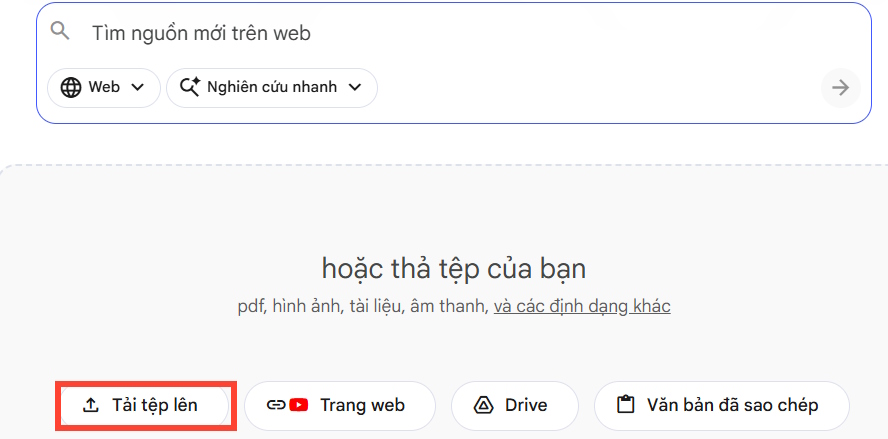
Example prompt:
Using only the selected video source, write a 300-word English reading passage for B1 learners. Preserve the key scientific sequence, define essential terms in context, and cite the source passages. Then create 5 comprehension questions and a separate answer key.Check that every answer is supported by the passage, that distractors are plausible but clearly wrong, and that the questions test comprehension rather than isolated trivia.
Build a useful vocabulary list
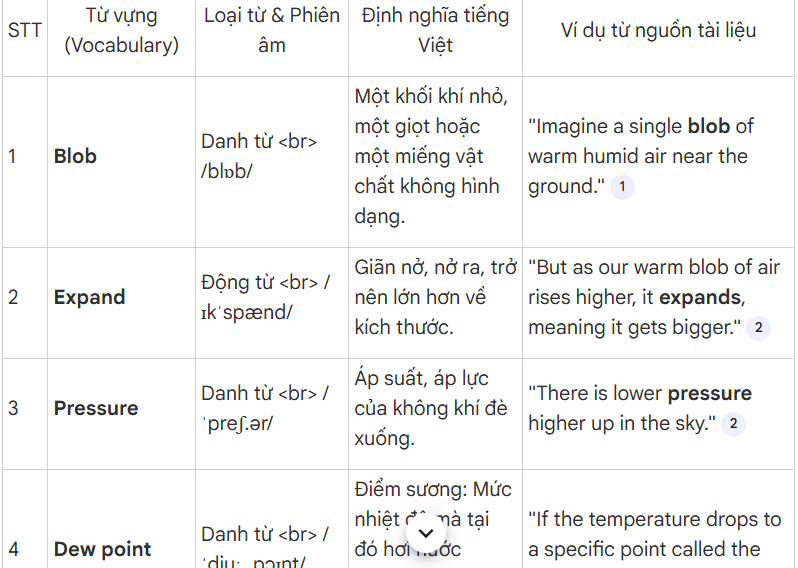
Ask for vocabulary that is both present in the source and appropriate for the lesson objective. A practical list can include the term, part of speech, pronunciation, a concise meaning in the lesson context and a source-grounded example sentence. For bilingual classes, add the translation only after checking it.
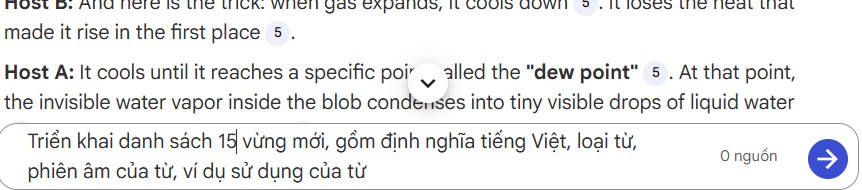
Remove words students already know and words that appear only incidentally. Then use the remaining terms in a matching task, gap-fill exercise or short speaking prompt.
Turn the drafts into a lesson
- State one measurable learning objective.
- Choose only the generated materials that support that objective.
- Add timing, teacher instructions and an answer key.
- Check accessibility, reading level and cultural context.
- Test every link and media file before class.
- Do not upload private student data or copyrighted material without authorization.
For a broader look at the product, see new NotebookLM features. The guide to AI tools for high-school and university students also helps compare NotebookLM with tools designed for other learning tasks.
NotebookLM is most useful here as a source-grounded drafting assistant. The final lesson still depends on the teacher's subject knowledge, learning goals and review of the original video.
Related Articles
 Guide to Converting Videos into Lectures Using NotebookLM4 minutes read
 Guide to Creating Lesson Plans Using NotebookLM4 minutes read
 Instructions on Converting Lessons into Videos on NotebookLM4 minutes read
 Create AI-Integrated Lesson Plans on NotebookLM3 minutes read
 Prompt Template for Building Lesson Objectives in NotebookLM4 minutes read
 Guide to Building AI-integrated Lesson Plans4 minutes read
Reader Comments 0
Sign in with email or Google to join the discussion.