Table of Contents
NotebookLM can use the transcript of a public, captioned YouTube video as a source for lesson planning. Teachers can turn that source into a summary, questions, vocabulary, and an Audio Overview—but every generated item should be checked against the video and the needs of the class.
NotebookLM imports transcript text, not every visual detail in the video. Choose material whose diagrams, demonstrations, and on-screen labels are not essential to understanding, or add separate notes that describe them.
1. Add the YouTube video as a source
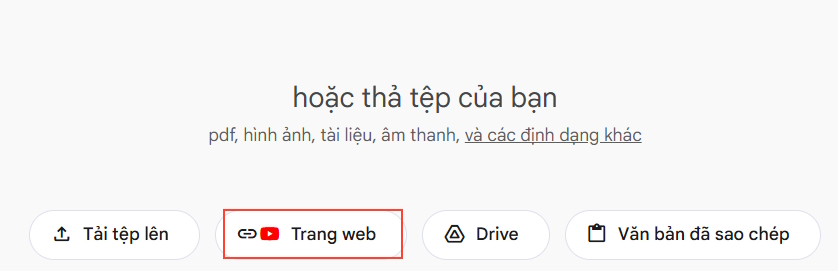
Create a new notebook, choose Add source, select YouTube, and paste the public video URL. The video generally needs usable captions. If NotebookLM cannot import it, try another video or add a legally obtained transcript as copied text.
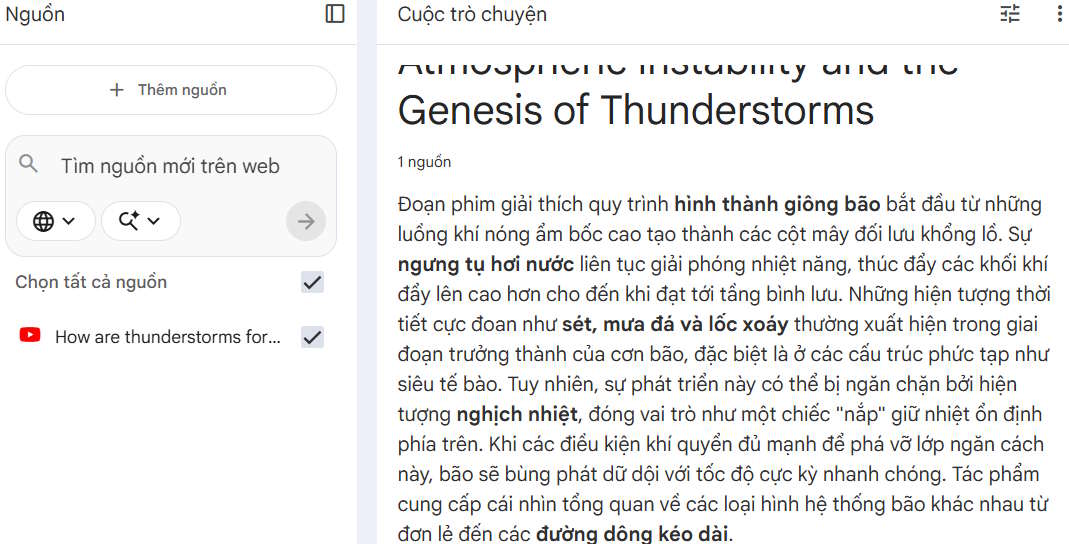
Review the generated source summary and open its citations. Confirm the main ideas against the original video before creating teaching materials.
2. Create a lesson brief
Ask for a plan that matches a specific age, subject, duration, and learning objective. For example:
Using only this video transcript, create a 40-minute lesson brief for
intermediate English learners aged 13–14.
Include:
- two measurable learning objectives;
- prerequisite vocabulary;
- before-, during-, and after-viewing activities;
- five comprehension questions with cited answers;
- one misconception the teacher should address.
Mark anything that depends on visuals not present in the transcript.
Adjust the plan to your curriculum rather than accepting the first response as a finished lesson.
3. Create a listening activity with Audio Overview
In Studio, open the customization control for Audio Overview when available.

Request a short review at the students' level and specify the concepts it should emphasize. Audio Overviews are generated discussions, not exact recordings of the source, so they can rephrase or omit details.
Create a short review in simple English for intermediate learners.
Focus on how thunderstorms form and define the five required terms.
Avoid adding facts that are not supported by the selected source.
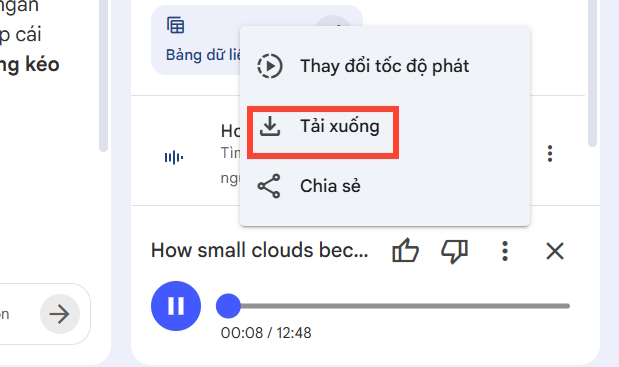
Listen to the entire result before assigning it. Use the three-dot menu to download it only if that option is available and classroom use complies with your school's and the source's policies.
4. Build transcript-based reading and questions
You do not need to convert the generated audio back into text. Ask NotebookLM to create a classroom reading directly from the original video source, which keeps citations connected to the transcript.

Rewrite the source as a 350-word reading passage at CEFR B1 level.
Preserve the scientific meaning. After the passage, add:
- 4 multiple-choice questions;
- 3 short-answer questions;
- an answer key with source citations.
Check that simplification has not changed cause-and-effect relationships or introduced a factual error.
5. Generate a useful vocabulary list
Ask for terms that are important to understanding the source, not every unfamiliar word. Specify the target language and required fields.

Select 12 essential terms from the source.
For each, provide:
- word and part of speech;
- IPA pronunciation;
- concise Vietnamese meaning;
- one new English example sentence at B1 level;
- the source passage where the term appears.
Flag any pronunciation or translation that needs teacher review.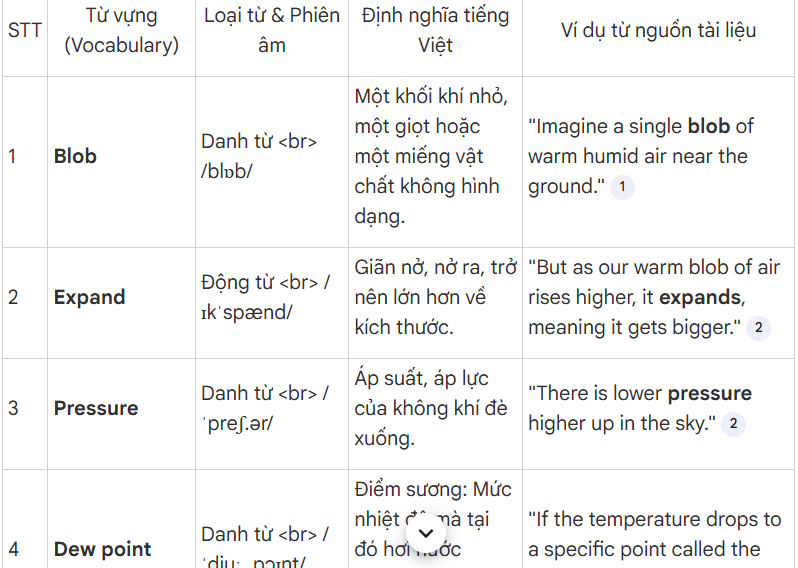
Classroom quality check
- Watch the original video and verify captions, terminology, and visuals.
- Confirm that every answer is supported by the source.
- Remove generated questions with ambiguous or culturally dependent answers.
- Check reading level, pronunciation, translation, and accessibility.
- Provide captions or a transcript for generated audio.
- Follow copyright rules; a summary does not grant permission to redistribute the video or transcript.
NotebookLM is most useful as a source-grounded drafting tool. The teacher remains responsible for accuracy, pedagogy, accessibility, and the final classroom materials.
Related Articles
 Instructions on Converting Lessons into Videos on NotebookLM4 minutes read
 Instructions on Converting Videos into Lesson Plans Using NotebookLM4 minutes read
 How to Transforming Videos into Engaging Interactive Lectures4 minutes read
 How to Write 'Viral' YouTube Subtitles Using the Free NotebookLM Tool7 minutes read
 How to Share NotebookLM Publicly6 minutes read
 NotebookLM: User Guide with Practical Examples16 minutes read
Reader Comments 0
Sign in with email or Google to join the discussion.