Table of Contents
This guide provides a clear, practical overview of instructions for accessing chromebook's clipboard manager, with useful context, important details, and straightforward takeaways for everyday readers.
So what is clipboard manager? Quite simply, without this, your computer will remember each copied item, then those items will be overwritten (replaced) with the next item you copied. The clipboard manager stores several copied items so you can go back, access, and use many of them at the same time. Therefore, if you know how to access and manage the clipboard, you can fully make the most of and promote the ability to copy - paste data.
In the case of a Chromebook, the clipboard manager saves the last 5 items you copied, including text, links, photos, and more. You can access anytime to view these 5 items and choose one to paste when needed.
Note that the clipboard manager can be opened anywhere on your Chromebook. However, To paste something, you'll have to be in a position where you can accept the content you paste. For example, when you want to paste a piece of text, you must be on a text field.
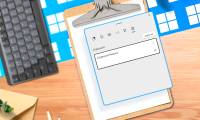
Now, to access clipboard, just press Search / Launcher + v .
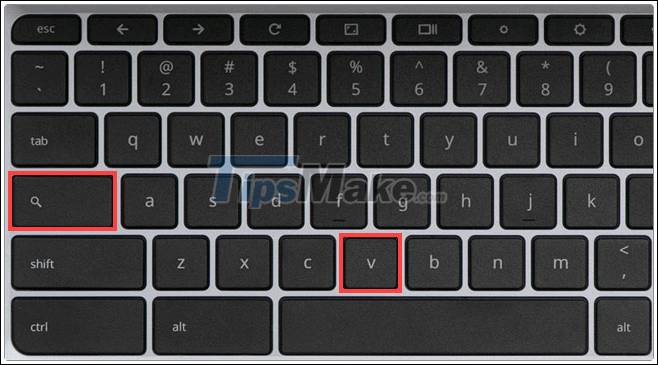
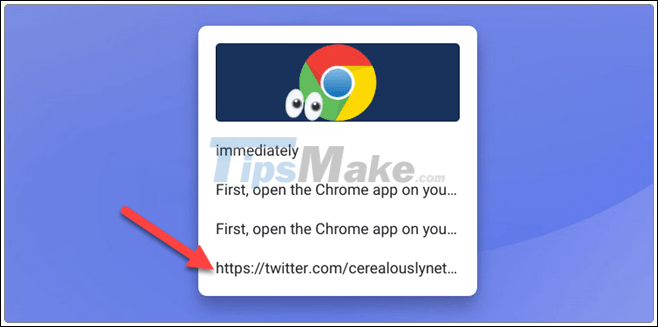
This will immediately bring up the clipboard manager on the screen. Select any item in the list to paste them.
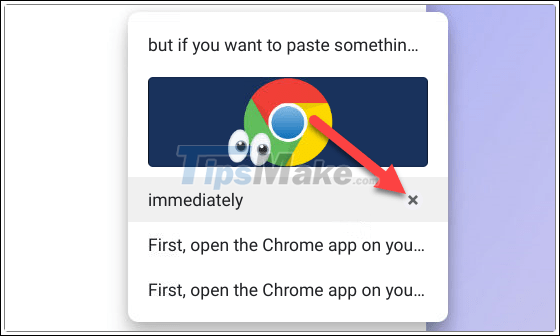
To remove an item from the clipboard manager, simply hover over it - or press and hold - and click the ' X ' icon .
There are a few additional things to keep in mind. Clipboard manager access shortcuts will only work if the Search / Launcher key is set to default. For example, this feature won't work if you've turned the Search key to a Caps Lock button.
Another thing to note is that the clipboard is not kept forever. When you sign out or power off your Chromebook, the clipboard is also wiped clean.
Key Takeaways
Use the information above as a practical reference for instructions for accessing chromebook's clipboard manager. Review each step carefully, confirm any requirements, and choose the option that best fits your situation.
FAQ
What does this guide explain about Instructions for Accessing Chromebook's Clipboard Manager?
It explains the main concepts, practical considerations, and useful steps related to instructions for accessing chromebook's clipboard manager without requiring advanced knowledge.
Who can benefit from learning about Instructions for Accessing Chromebook's Clipboard Manager?
This information is useful for readers who want a clear overview, practical guidance, and reliable steps related to instructions for accessing chromebook's clipboard manager.
What should I check before applying this information?
Review the requirements, confirm that your device, software, or situation matches the instructions, and back up important data before making major changes.
Related Articles
 5 Best Clipboard Managers for Chromebooks8 minutes read
 How to Use Clipboard Manager on Windows 119 minutes read
 Clipboard History: How to Delete the Clipboard on Windows 106 minutes read
 How to Use the Clipboard Master to Save Files and Documents to the6 minutes read
 How to Sync Windows 11 Clipboard Across Multiple Computers3 minutes read
 How to Clear Clipboard History on Windows 113 minutes read
Reader Comments 0
Sign in with email or Google to join the discussion.