Table of Contents
For current versions of Google Chrome, install uBlock Origin Lite (uBOL) from the Chrome Web Store. It is the official Manifest V3 content blocker from uBlock Origin developer Raymond Hill. The original uBlock Origin interface shown in this article's older screenshots may still appear in some browser installations, but Chrome users should expect uBO Lite's simpler controls.
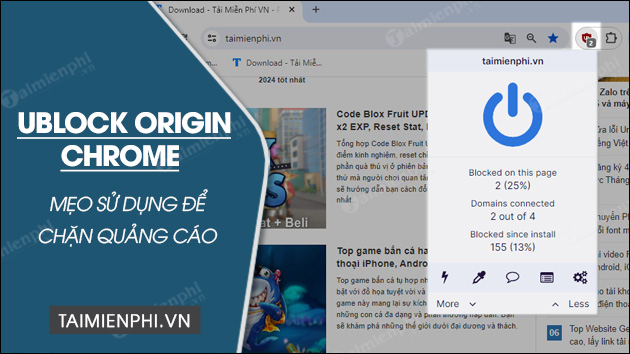
uBlock Origin or uBlock Origin Lite?
The names are similar, but the extensions are not identical:
- uBlock Origin (uBO) is the full extension. It remains available for Firefox and some other browsers, but it uses the older Manifest V2 extension system.
- uBlock Origin Lite (uBOL) is designed for Chrome's Manifest V3 system. It uses browser-managed rules and has fewer advanced capabilities than the full version.
The developer explains the transition in the official uBlock Origin documentation. uBO Lite does not automatically replace uBlock Origin, so install it deliberately rather than accepting a similarly named extension from an unknown publisher.
Install the official extension in Chrome
- Open the official uBlock Origin Lite Chrome Web Store page.
- Confirm that the extension is named uBlock Origin Lite and the provider is Raymond Hill (gorhill).
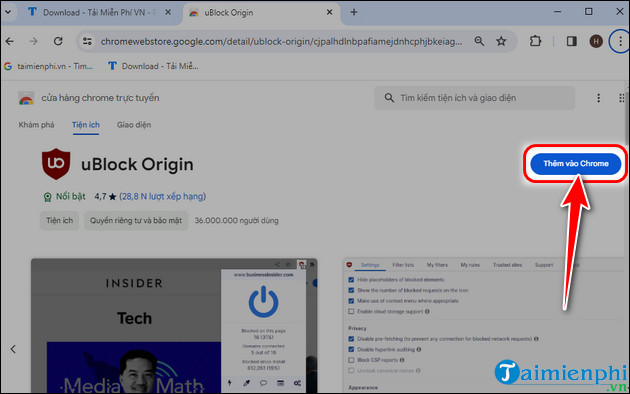
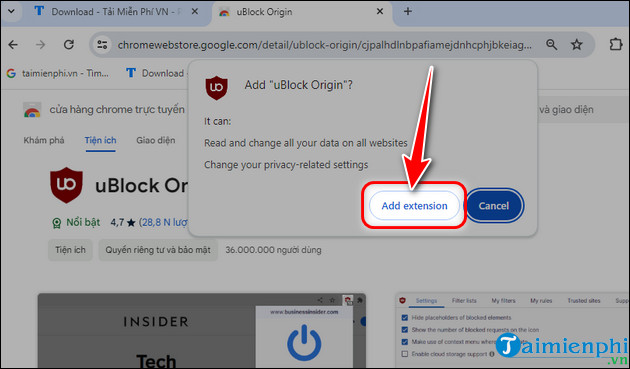
- Select Add to Chrome, review the permission prompt, and choose Add extension.
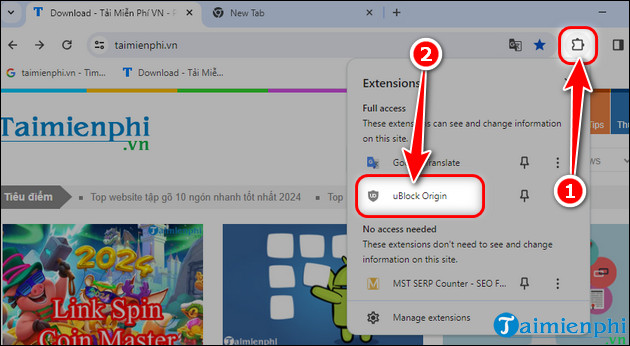
- Open Chrome's Extensions menu—the puzzle-piece icon—and pin uBlock Origin Lite if you want its button to remain visible.
- Reload any tabs that were open before installation.
The next two screenshots show the same installation flow in an older Chrome release.
Open the controls and check filtering
Select the Extensions button, then choose uBlock Origin Lite. The popup shows whether filtering is active for the current page and provides access to its settings.
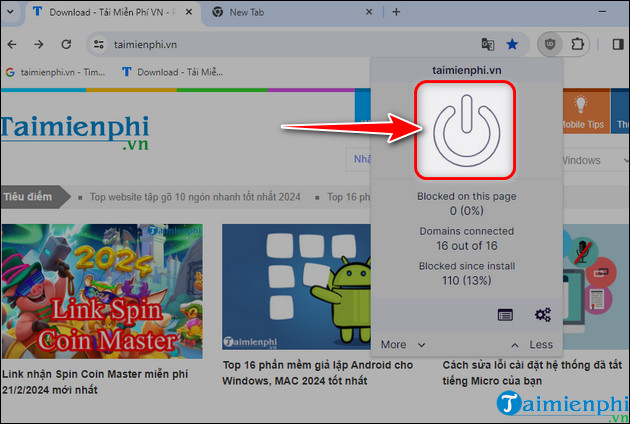
In the older full uBlock Origin interface below, the large power button controls filtering for the current site. Clicking it does not start the extension; it normally toggles filtering off or back on for that site. Reload the page after changing the setting.
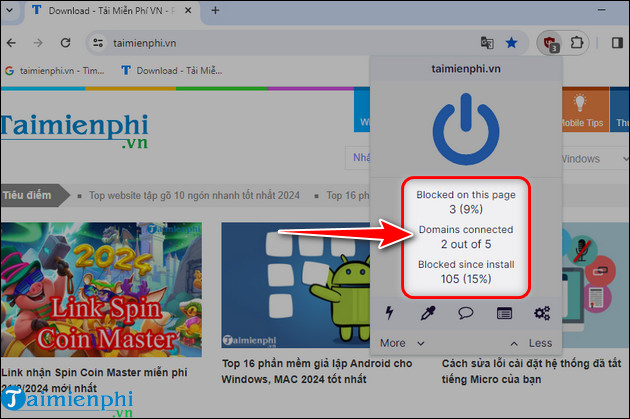
The request counters in the legacy popup are diagnostic information, not a score. A higher number does not necessarily mean better protection, and a blocker cannot make every site risk-free.
Choose a filtering mode in uBlock Origin Lite
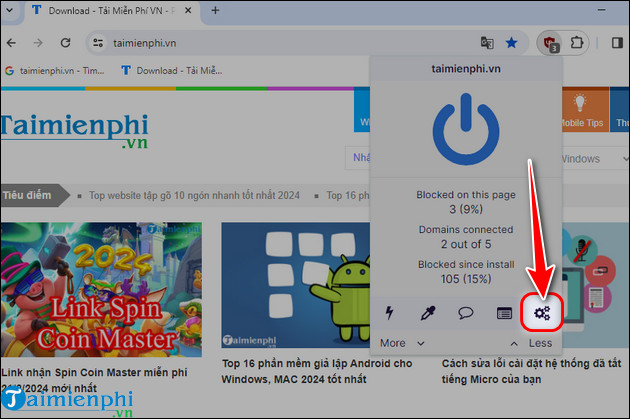
uBO Lite starts with a default ruleset that includes the project's built-in lists, EasyList, EasyPrivacy, and Peter Lowe's ad and tracking server list. Open the extension popup and select the gear icon to view available rulesets and filtering options.
- Begin with the default or basic configuration.
- Grant broader site access only if a stronger filtering mode requires it and you understand the permission.
- Enable a regional list when it matches the language of the sites you visit.
- Avoid enabling every list. Overlapping or aggressive rules can hide menus, video players, sign-in forms, payment controls, and consent dialogs.
uBO Lite is more declarative than the full extension. It does not include the same My filters, My rules, logger, or dynamic-filtering workflow shown in some older uBlock Origin tutorials.
What the older uBlock Origin dashboard shows
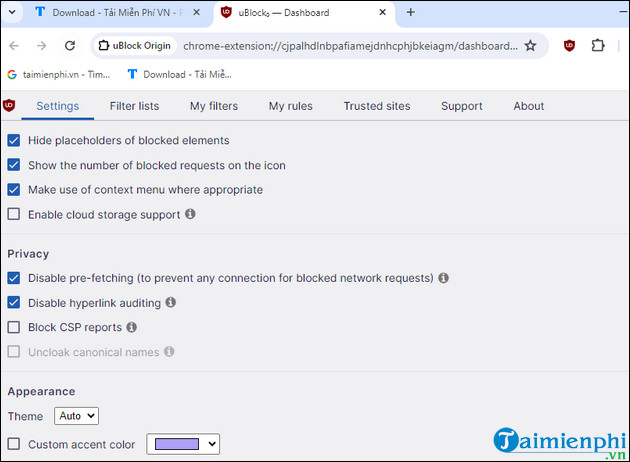
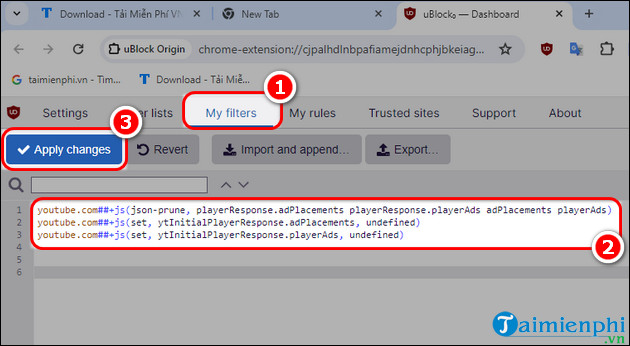
The screenshots below document the full extension's legacy Chrome dashboard. They are still useful for Firefox or another supported browser running full uBlock Origin, but the Chrome uBO Lite settings page is different.
- Settings changes general behavior.
- Filter lists enables maintained rulesets.
- My filters stores manually written static rules.
- My rules stores advanced dynamic-filtering rules.
- Trusted sites lists sites where filtering is disabled.
Leave advanced settings alone unless you know how a rule affects network and page-element filtering. The original version of this guide suggested pasting several YouTube scriptlet rules into My filters. Those rules are not included here because site-specific workarounds become obsolete quickly, can break playback, and are not compatible with uBO Lite's rule model.
Allow one site when something breaks
- Open the affected site and select the uBO Lite icon.
- Lower or disable filtering for that site only.
- Reload the page and test the missing feature.
- If the page works, restore the default mode and remove any optional list you recently enabled before making a permanent exception.
Use site exceptions narrowly. Disabling filtering on one trusted site is preferable to removing the extension or turning it off everywhere.
Troubleshoot uBO Lite in Chrome
- No ads are blocked: confirm the extension is enabled at
chrome://extensions, then reload the tab. - The icon is missing: open the Extensions menu and pin uBO Lite.
- A page is incomplete: restore the default mode, disable extra rulesets, and test again.
- Chrome says the extension is unsupported: verify that you installed uBlock Origin Lite, not an obsolete copy of the Manifest V2 extension.
- Only one site has a problem: check that site's permission or exception instead of resetting the entire extension.
- Another blocker is installed: test with only one content blocker enabled; overlapping filters make problems harder to diagnose.
Content blockers reduce many ads and tracking requests, but they do not replace Chrome updates, Safe Browsing, cautious downloads, or security software. They also do not remove advertising from unrelated desktop or mobile apps.
Other ways to reduce intrusive web content
If uBO Lite's Manifest V3 limits do not suit your needs, a browser with integrated blocking may be simpler. Compare the options in our guide to browsers with built-in ad blocking. You can also review our selection of open-source browser extensions before adding more tools.
Related Articles
 How to Use Ublock Origin Block Ads on Edge Chromium4 minutes read
 Google Warns uBlock Origin Will Soon Be Disabled on Chrome: What You Need to Know5 minutes read
 How to Enable UBlock Origin and Manifest V2 Extensions on Chrome3 minutes read
 4 Best Browser Extensions to Block Email Trackers6 minutes read
 How to Block Any Website on Chrome, Safari or Other Browsers9 minutes read
 How to Block Ads When Surfing the Web7 minutes read
Reader Comments 0
Sign in with email or Google to join the discussion.