Table of Contents
The IF function in Excel is a frequently used conditional function. Here's what you need to know about the IF statement in Excel .
The IF function in Excel is a fundamental Excel function widely used in Excel spreadsheets for statistical analysis. The IF function checks a condition and returns a value if the condition is met, or a different value if the condition is not met. This article will guide you on how to use the IF function in Excel.
1. The IF function formula in Excel
The IF function in Excel has the following syntax:
IF (logical_test, [value_if_true], [value_if_false]).
In there:
- Logical_test: Conditional expression.
- Value if true: The value returned if the condition is true.
- Value if false: The value returned if the condition is false.
Notes on the IF function in Excel:
- If value_if_true is omitted in the IF formula, the IF function will return 0 if the primary condition is met.
- If value_if_false is omitted, the IF function will return FALSE.
- If you want Excel formulas to display logical values like TRUE or FALSE when a certain condition is met, you must type TRUE in the value_if_true parameter box. The value_if_false box can be filled with FALSE or left blank.
2. Examples of using the IF function in Excel
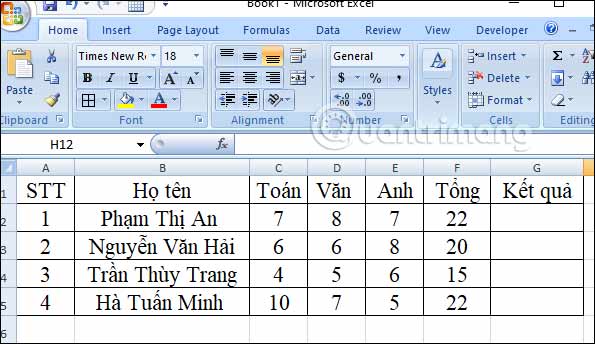
We will work with the student's score sheet below, showing the total score for 3 subjects, and require entering the pass or fail result according to each condition.
2.1. Basic IF function
Example 1:
According to this table , students who achieve a total score of 20 points or more in the three major subjects will pass; students who score below 20 points will fail .
We will have the formula =If(F2>20,'Pass','Fail') and then press Enter to display the result.
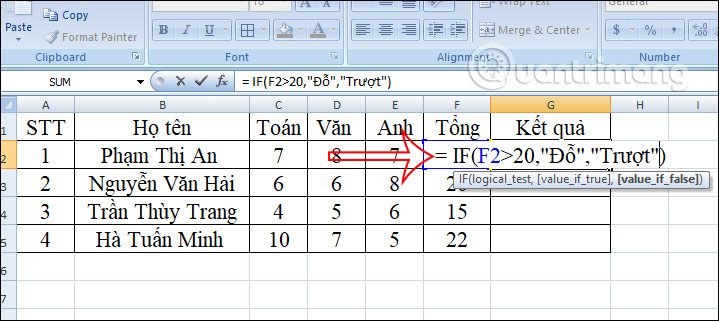
At this point, you will see the result box displaying "Pass". We just need to fill the result from the first box into the remaining boxes.
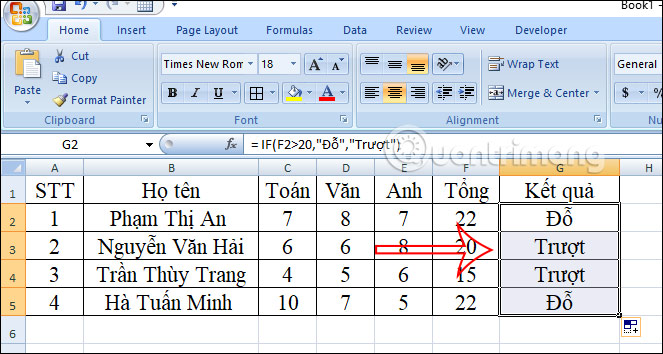
Example 2:
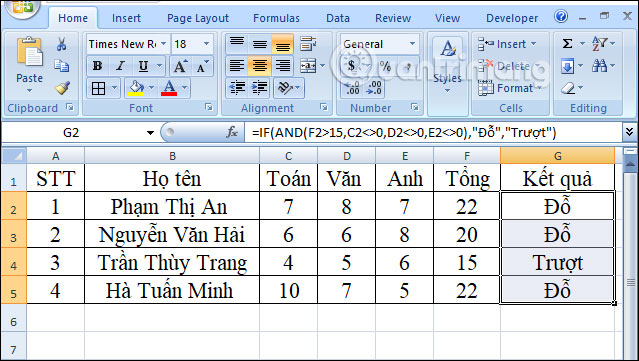
Also in the statistics table, if the student's total score is greater than 15 points and no score is below 0 points, then the result is classified as passing .
We enter the formula below and then press the Enter button to execute it.
= If(And(F2>15,C2<>0,D2<>0,E2<>0),'Đỗ','Trượt')
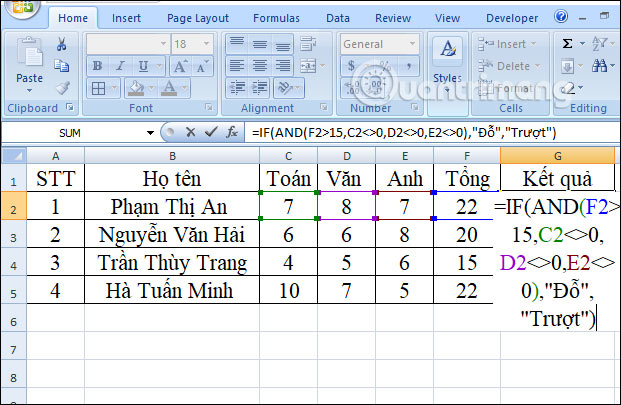
Immediately afterwards, you will see the result displayed in the cell where you entered the formula. We just need to drag the first result cell down to the remaining cells to fill in the pass or miss.
2.2 Nested IF Functions
Example 1: IF & AND functions in Excel
Nested IF functions, or combined AND functions, are used when you need to consider multiple conditions simultaneously to get a result. In such cases, you need to combine multiple IF functions within a single formula.
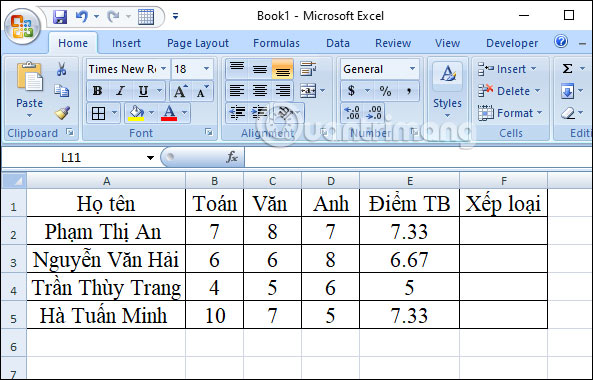
In the data table below, we will classify students based on their average scores in three subjects, with the following conditions:
- A GPA of 8.5 or higher will result in an excellent academic performance.
- If the average grade is greater than or equal to 6.5 and less than 8.5, the student is considered to have a "good" academic performance.
- If the average grade is greater than or equal to 5 and less than 6.5, the student is classified as having average academic performance.
- Otherwise, if the average grade is less than 5, the student is considered to have poor academic performance.
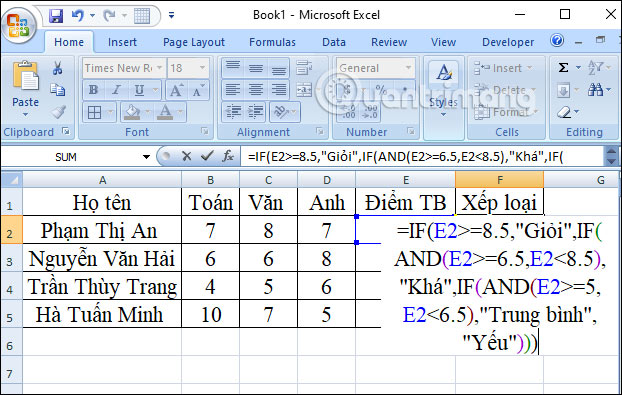
We will have the formula as shown below, then press Enter.
=IF(E2>=8.5,"Giỏi",IF(AND(E2>=6.5,E2<8.5),"Khá",IF(AND(E2>=5,E2<6.5),"Trung bình","Yếu")))
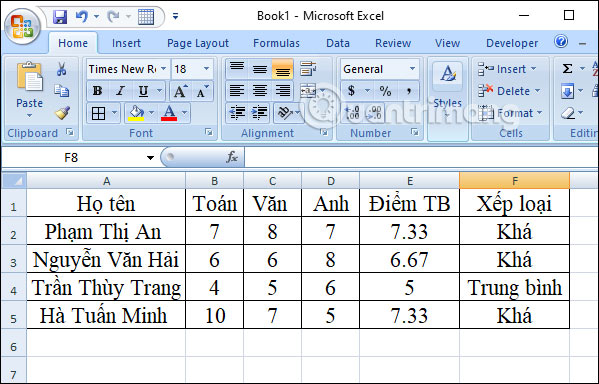
You will immediately receive the ranking results. We just need to drag the first result cell down to the remaining cells.
Example 2: IF & OR functions in Excel
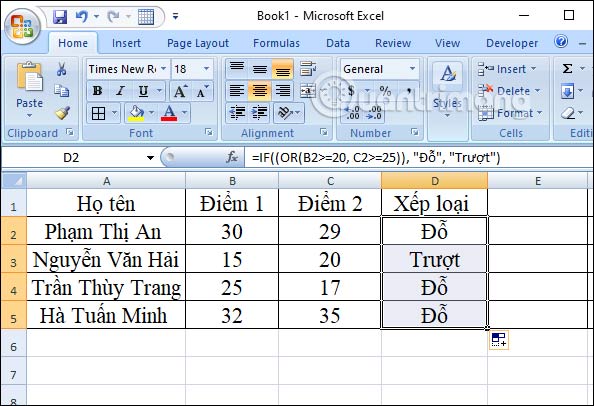
We have the example table below with two columns showing student scores and a pass or fail rating based on whether the student's score 1 is greater than or equal to 20 or score 2 is equal to or greater than 25 .
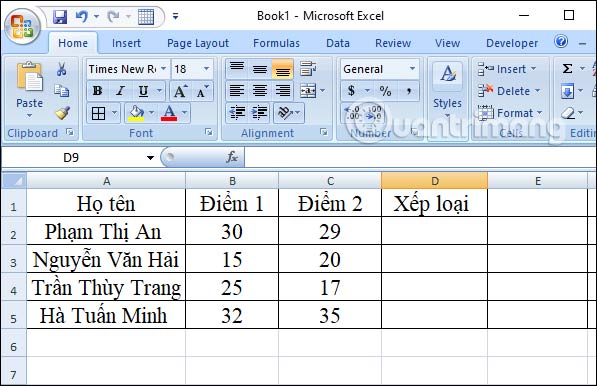
We have the formula below, then press Enter.
=IF((OR(B2>=20, C2>=25)), 'Đỗ','Trượt')
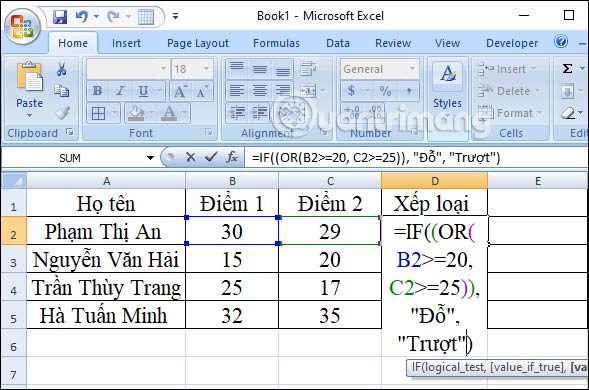
The result will show you the ranking of the first student, and you just need to scroll down to the box below.
Example 3: Combining IF and OR functions in Excel
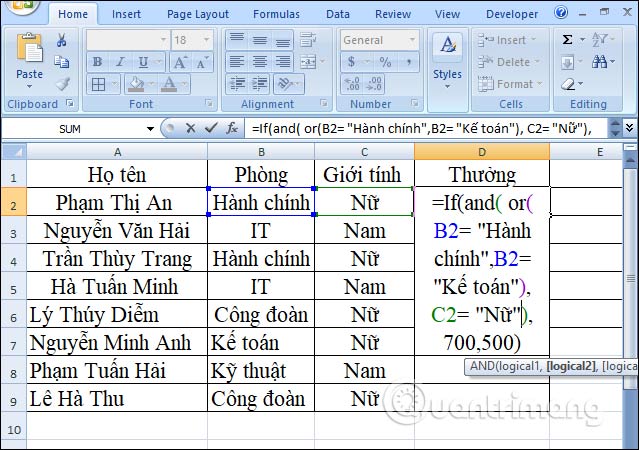
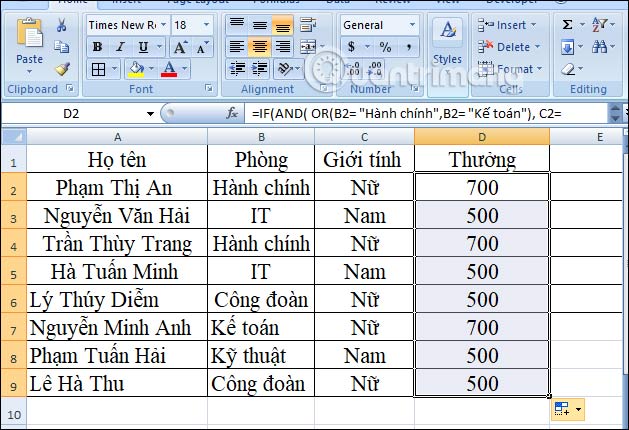
We have the employee table below with the requirement to fill in different bonus levels. If a female employee works in the Administration or Accounting department, she will receive a bonus of 700,000 VND ; in other cases, the bonus will be 500,000 VND .
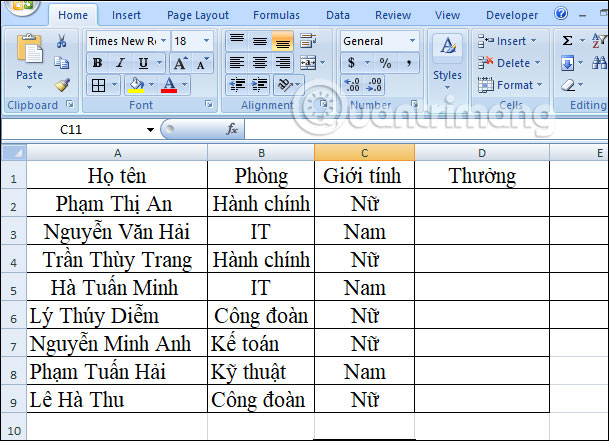
We will have the formula as shown below, then press Enter.
=If(and(or(B2= 'Hành chính',B2= 'Kế toán'), C2= 'Nữ'), 700,500)
As a result, you will immediately receive the bonus amount for each employee according to the requirements we have outlined.
How to fix IF function errors in Microsoft Excel
In some cases, the error you encounter is often due to incorrect use of the IF function, which may originate from the formula or the cell reference.
The first thing you should do is ensure that the function is written correctly, including punctuation. Additionally, problems can also arise from nested functions with IF statements. The key here is to thoroughly understand the function you are using to avoid writing it incorrectly or entering invalid values.
Here are four common mistakes when using the IF function:
| Error | Describe |
| #DIV/0! | Your formula is trying to divide a value by 0. |
| #VALUE! | You entered the wrong data type into the formula. For example, the formula should contain numbers, but you used text. |
| #REF! | The cell references or formula cells have been moved. The references in the formulas no longer exist. |
| #NAME? | You entered the wrong function name in the formula. |
You just need to identify where the error is when using the IF function in Excel , and you can easily fix it.
Related Articles
 How to Use Lookup Function in Excel: Lookup Excel Function7 minutes read
 LOOKUP Function Searches in Excel: Syntax, Examples, and5 minutes read
 How to Use the LOOKUP Function in Excel?: Step-by-Step Guide5 minutes read
 How to Use the Search Function in Excel: Search Excel Function5 minutes read
 3 Excel Functions to Help Build Lookup Formulas Extremely Quickly9 minutes read
 How to Combine Vlookup Function with Left Function6 minutes read
Reader Comments 0
Sign in with email or Google to join the discussion.