Table of Contents
If you're new to PowerPoint , you'll need to learn the basics of working with text. In this lesson, you'll learn how to cut, copy, paste, and format text.
How to select text
Before you can move or arrange text, you need to select it.
Click next to the text you want to select, hover your mouse over it, then release the mouse button. The text will be selected.
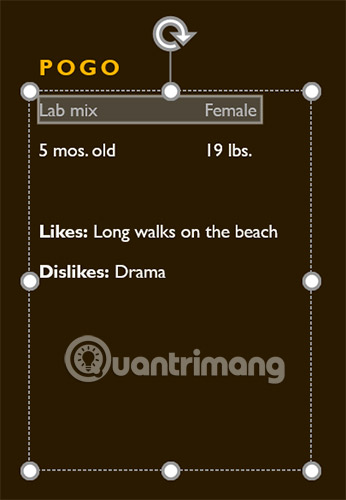
Copy and move text
PowerPoint allows you to copy text already on a slide and paste it elsewhere, which can save you time. If you want to move the text, you can cut and paste or drag and drop it.
How to copy and paste text
1. Select the text you want to copy, then click the Copy command on the Home tab.
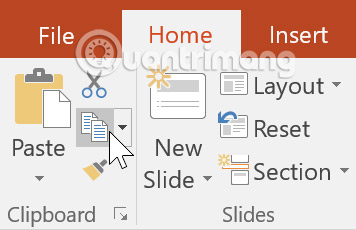
2. Place the cursor where you want the text to appear.
3. Click the Paste command on the Home tab.
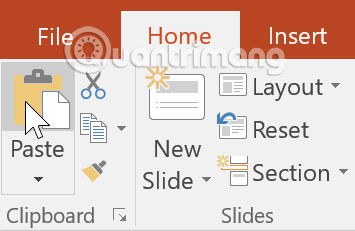
4. The copied text will appear.
How to cut and paste text
1. Select the text you want to move, then click the Cut command.
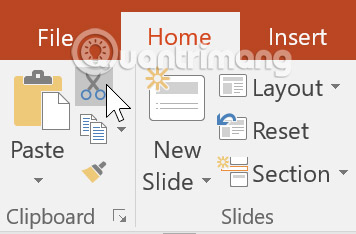
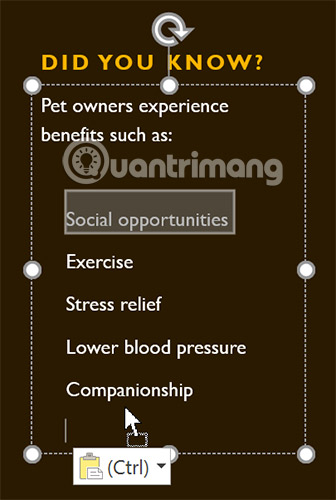
2. Place the cursor where you want the text to appear, then click the Paste command.
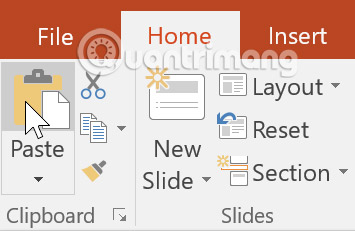
3. The text will appear in the new location.
You can access the cut, copy, and paste commands using keyboard shortcuts. Press Ctrl + X to cut, Ctrl + C to copy, and Ctrl + V to paste.
How to drag and drop text
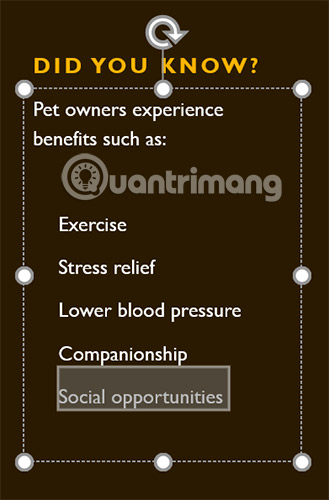
1. Select the text you want to move, then click and drag the text to the desired location.
2. The text will appear in the new location.
Format and align text
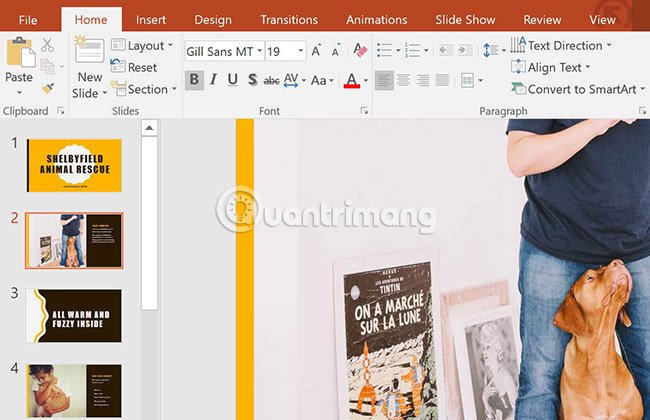
Formatted text can draw the audience's attention to specific parts of a presentation and highlight important information. In PowerPoint, you have several options to adjust your text, including size and color. You can also adjust and change the text alignment to alter how it appears on the slide.
Click the buttons in the interaction below to learn about the different commands in the Font and Paragraph groups.
Practice!
1. Open the sample practice presentation .
2. Select slide 4.
3. Use the cut and paste or drag and drop command to move the text ' Lower blood pressure between Companionship and Social opportunities '.
4. Select the list of benefits and add italic text effects.
5. Select the text ' Did you Know? ', remove the bold effect, and resize it to 36pt.
6. When you're finished, your slide will look like this:

See more:
- Creating and opening presentations in PowerPoint 2016
- How to save a presentation in PowerPoint 2016
- Basic information about slides in PowerPoint 2016
Related Articles
 How to Work with Text in PowerPoint 20164 minutes read
 MS PowerPoint 2007 - Lesson 5: Format Text in PowerPoint9 minutes read
 PowerPoint 2019 (Part 5): Working with Text: Explained4 minutes read
 How to Add Alt Text to an Object in PowerPoint4 minutes read
 How to Center the Cell in the PowerPoint Table5 minutes read
 How to Put a Picture Behind Text in PowerPoint8 minutes read
Reader Comments 0
Sign in with email or Google to join the discussion.