Table of Contents
When working on long presentations, finding a specific word or phrase can be a difficult and time-consuming task. PowerPoint can automatically search your presentation content using its Find feature and allows you to quickly change words or phrases using its Replace feature .
How to find text
1. From the Home tab, click the Find command.

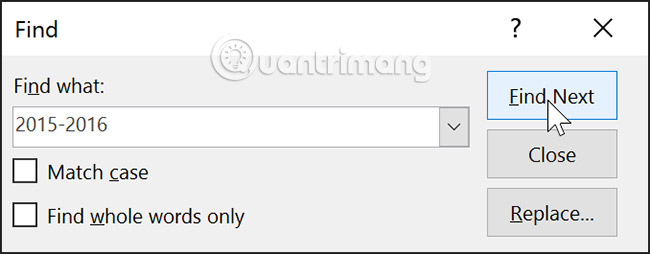
2. A dialog box will appear. Enter the text you want to search for in the " Find what:" field , then click " Find Next".
3. If the text is found, it will be highlighted in bold.
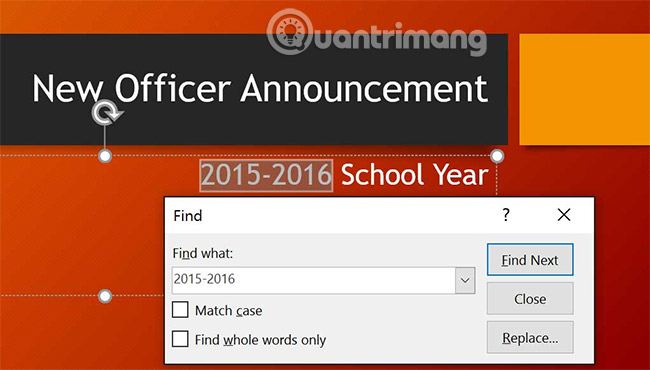
You can also access the Find command by pressing Ctrl + F on your keyboard.
How to replace text
Sometimes, you might find that you've made a mistake multiple times throughout your presentation—such as misspelling someone's name—or you need to change a specific word or phrase to something else. You can use the Replace feature to make these corrections quickly.
1. From the Home tab, click the Replace command.

2. A dialog box will appear. Enter the text you want to search for in the " Find what:" field.
3. Enter the text you want to replace with in the Replace with: field , then click Find Next.
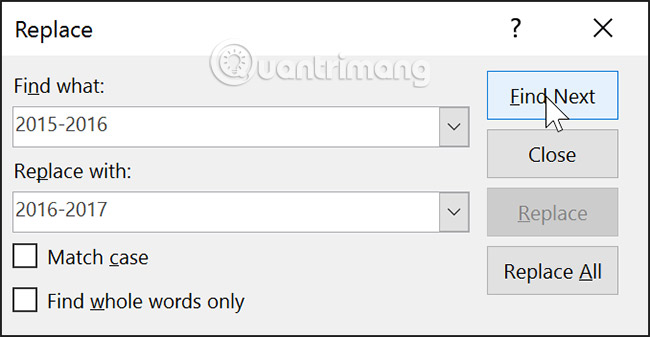
4. If the text is found, it will be highlighted. Review the text to make sure you want to replace it.
5. If you want to replace, choose one of the replacement options. The Replace feature will replace a specific instance in the text, and Replace All will replace all instances found. In this example, we will use the Replace option.
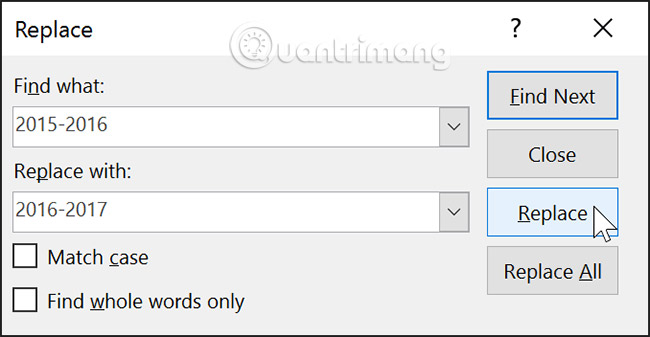
6. The selected text will be replaced.
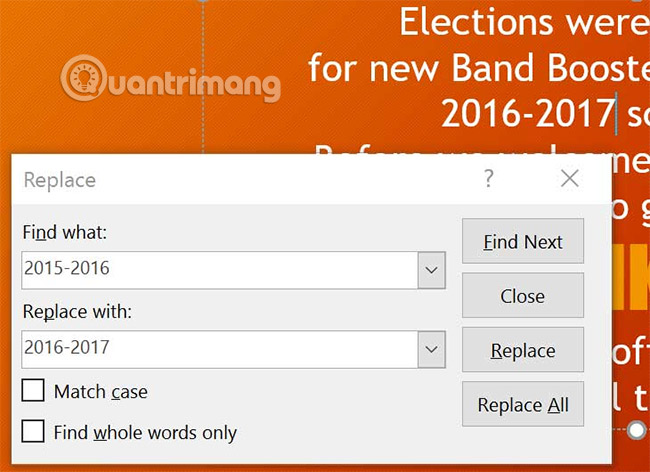
7. PowerPoint will move to the next instance found in the presentation text. When you have finished replacing the text, click Close to exit the dialog box.
When it comes to using the Replace All feature, it's important to remember that it may find matches you didn't anticipate and may not actually want changed. Only use this option if you are absolutely certain it won't replace any words or phrases you didn't intend to replace.
Practice!
1. Open the sample presentation .
2. There is a typo in the presentation. Fundraising is misspelled as Funraising. Use the Find feature to locate the misspelled word Funraising and use the Replace feature to replace it with the correct word Fundraising.
3. Use the Find feature to find out which month the election was held. Hint: Search for the word " elections".
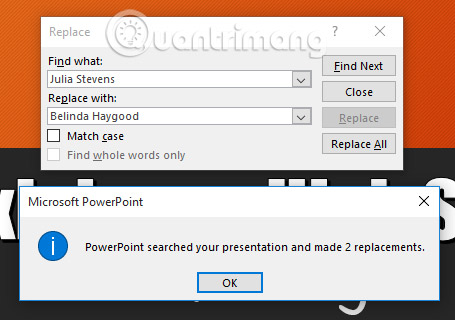
4. Assume the original fund president has resigned and been replaced. Use the Find and Replace All feature to change Julia Stevens to Belinda Haygood.
5. When you're finished, your presentation will have this dialog box:
See more:
- Managing slides in PowerPoint 2016
- Applying transition effects in PowerPoint 2016
- Applying themes in PowerPoint 2016
Related Articles
 PowerPoint 2019 (Part 9): Using Find && Replace4 minutes read
 Use the Find & Replace Feature in PowerPoint 20164 minutes read
 Tutorial for Word 2016 (Part 5): Use Find and Replace5 minutes read
 Excel 2019 (Part 9): the Find && Replace Feature5 minutes read
 50 Alternative Slideshow Applications for PowerPoint10 minutes read
 This Hidden Feature of Google Docs Makes Find & Replace Much More Powerful: Explained7 minutes read
Reader Comments 0
Sign in with email or Google to join the discussion.