Table of Contents
Claude's Gmail connector lets you ask questions about messages in your connected account and summarize email threads. It is most useful when you specify a date range, a sender or project, and the information you need. Treat the result as a starting point for review, because a summary can miss context or misinterpret a request.
Connect Gmail to Claude
Anthropic's Google Workspace connector documentation lists Gmail access for all Claude users. Team and Enterprise users may need an organization owner to enable the connector first. Check your account's available connectors rather than assuming that a paid plan is always required.
- Open Claude and go to Customize > Connectors. Older screenshots may show this under Settings.
- Browse the connector directory and find Gmail.
- Select the connection option and choose the Google account whose messages you want to use.
- Read the requested permissions before approving access. For a work account, follow your organization's data policy.
- Return to the conversation and ask Claude to find a specific, non-sensitive message as a connection check.
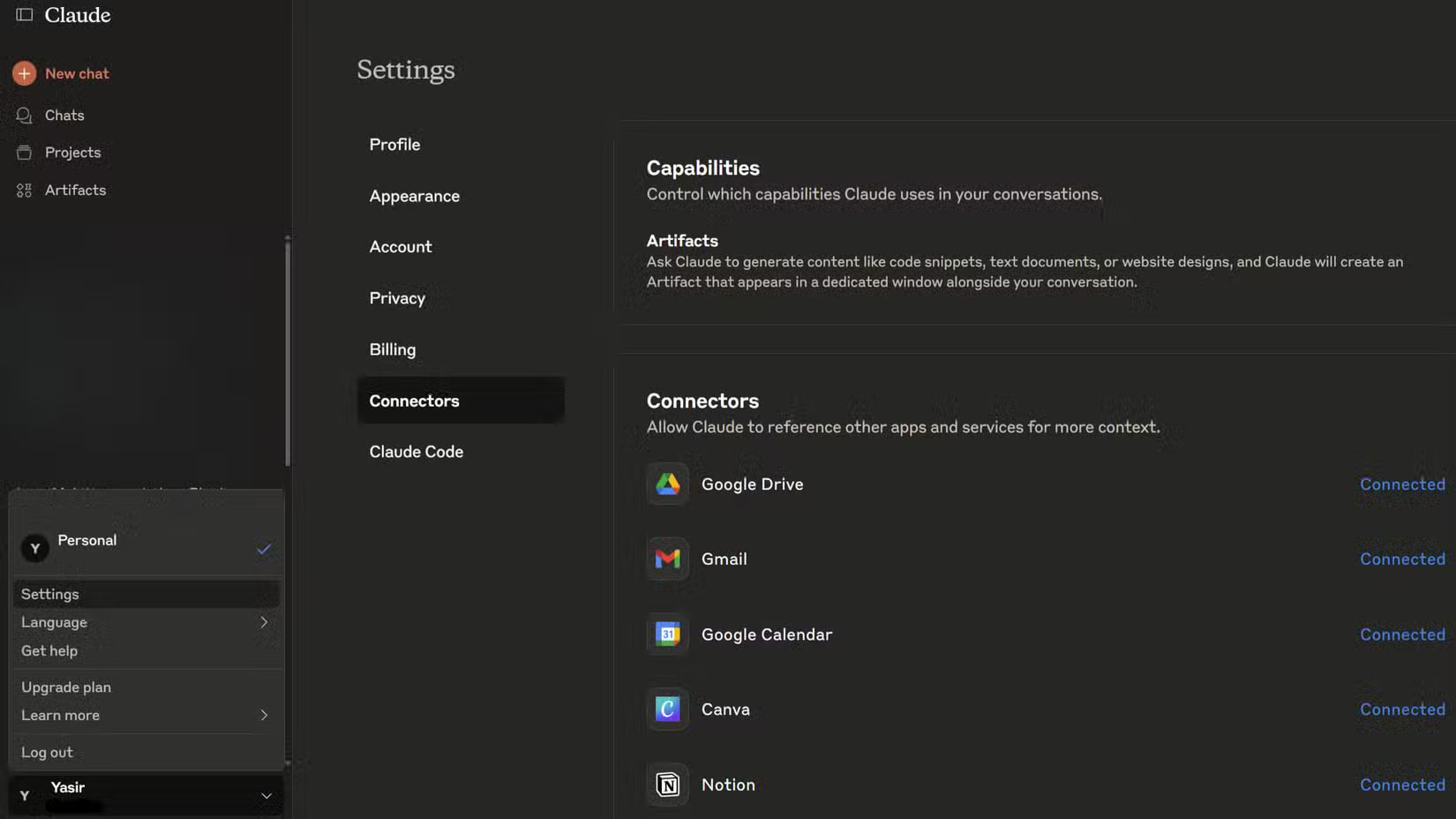
The labels in the interface can change. See Anthropic's connector setup instructions if the menu differs from the screenshot. You should authenticate through Google's sign-in flow; never paste your Gmail password into a chat.
Ask for messages that need a response
A useful request defines both the search scope and the expected output. For example:
Review Gmail messages received in the last seven days. List messages that appear to require my reply, with sender, subject, requested action, any stated deadline and a link to the original. Distinguish explicit requests from your inferences. Do not send or change anything.
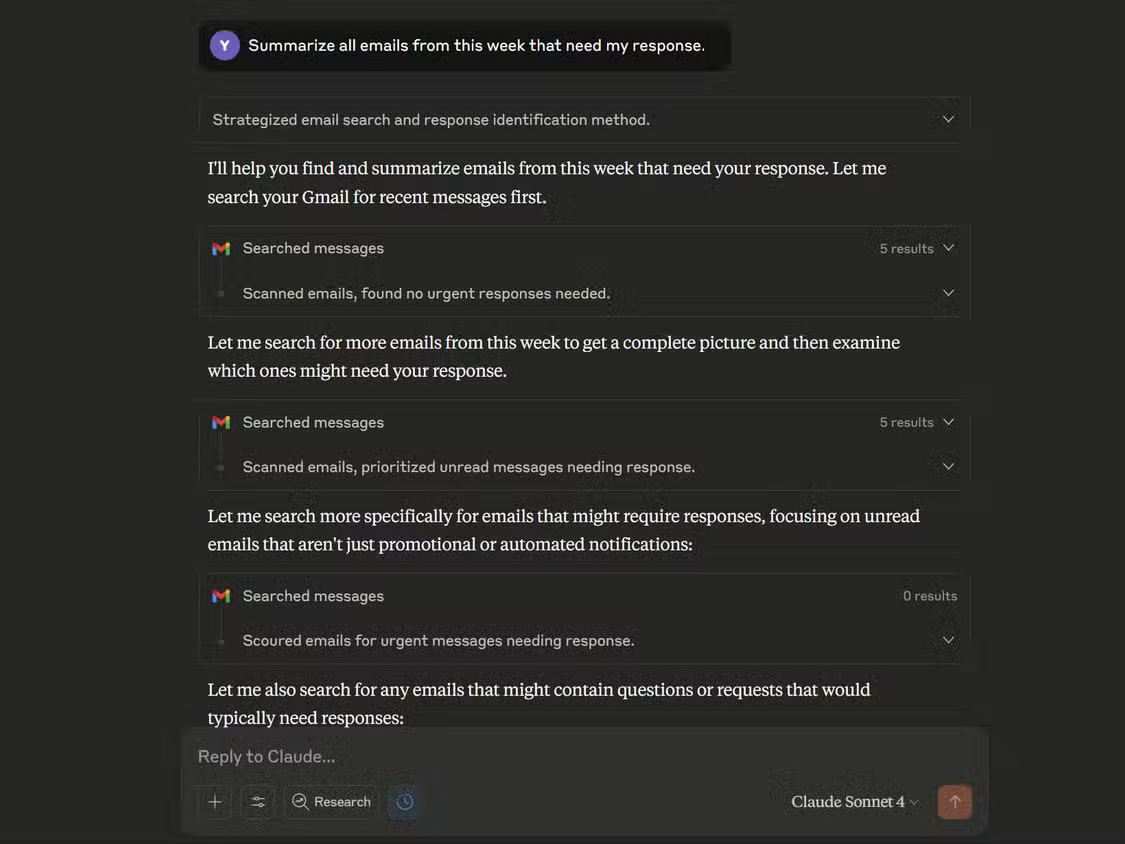
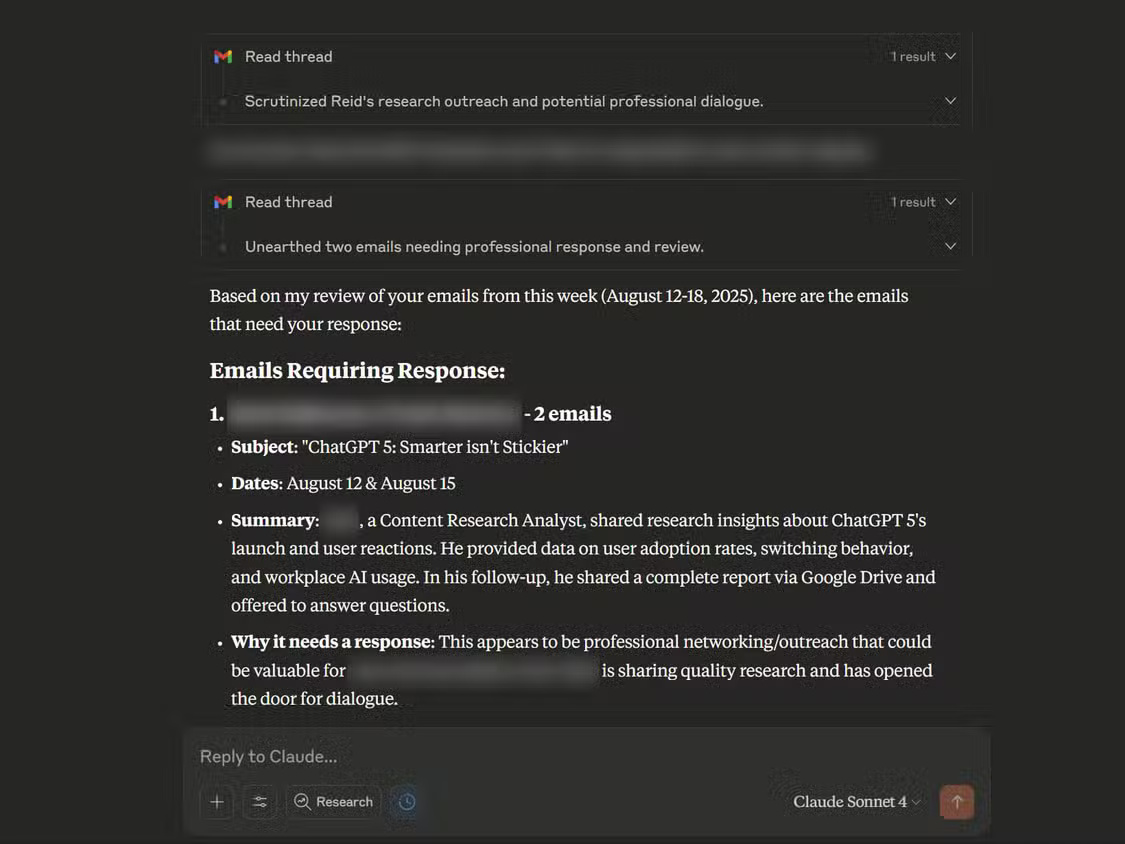
Do not assume a response list is exhaustive. Open each cited message, check the latest reply in its thread, and verify that the request is still outstanding. Automated security notices and transaction messages can matter too; excluding them by default may hide something you need to address.
Summarize a busy inbox or a long thread
For an overview, ask: “Group the emails received in the last 48 hours by topic. Separate project updates, requests, account notices and promotions. Include source links and flag anything you could not classify confidently.”
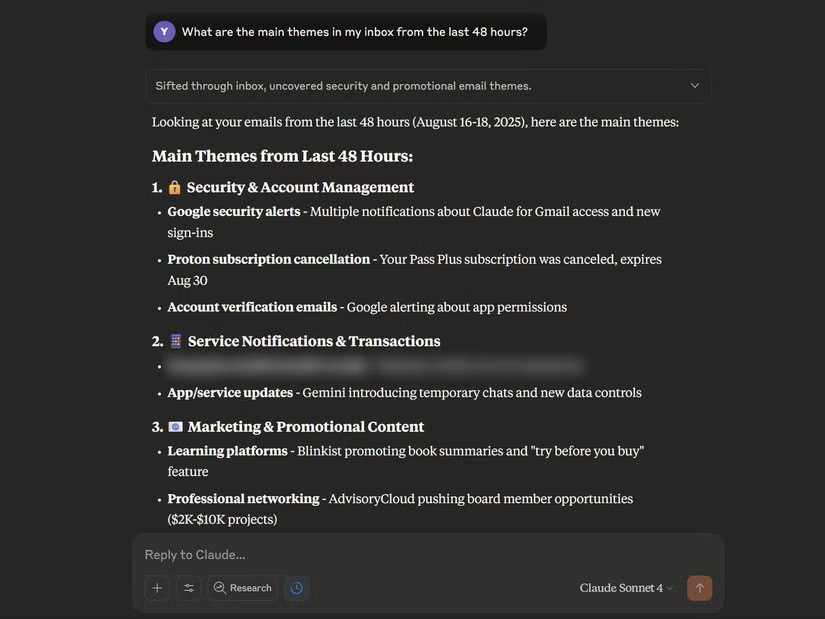
For a particular conversation, name its subject or participants and ask for decisions, open questions and next steps. Require Claude to distinguish a proposal from an agreed decision and to retain relevant dates. This is more useful than asking for a general summary of an entire inbox.
Look for overlooked messages without relying on a guarantee
Try a bounded request such as: “Find messages about the recruitment process from the last two weeks that I have not replied to. Show the message date, sender, next step and original link. If you cannot determine whether I replied, say so.”
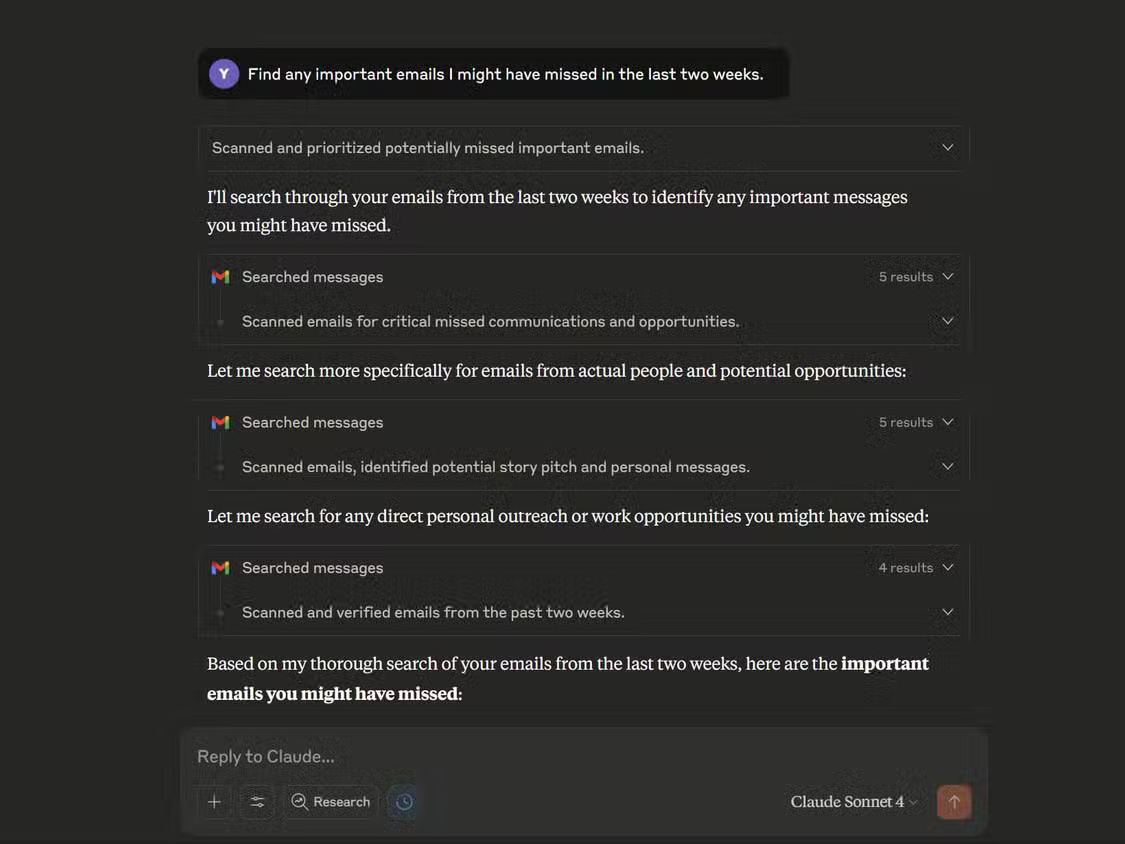
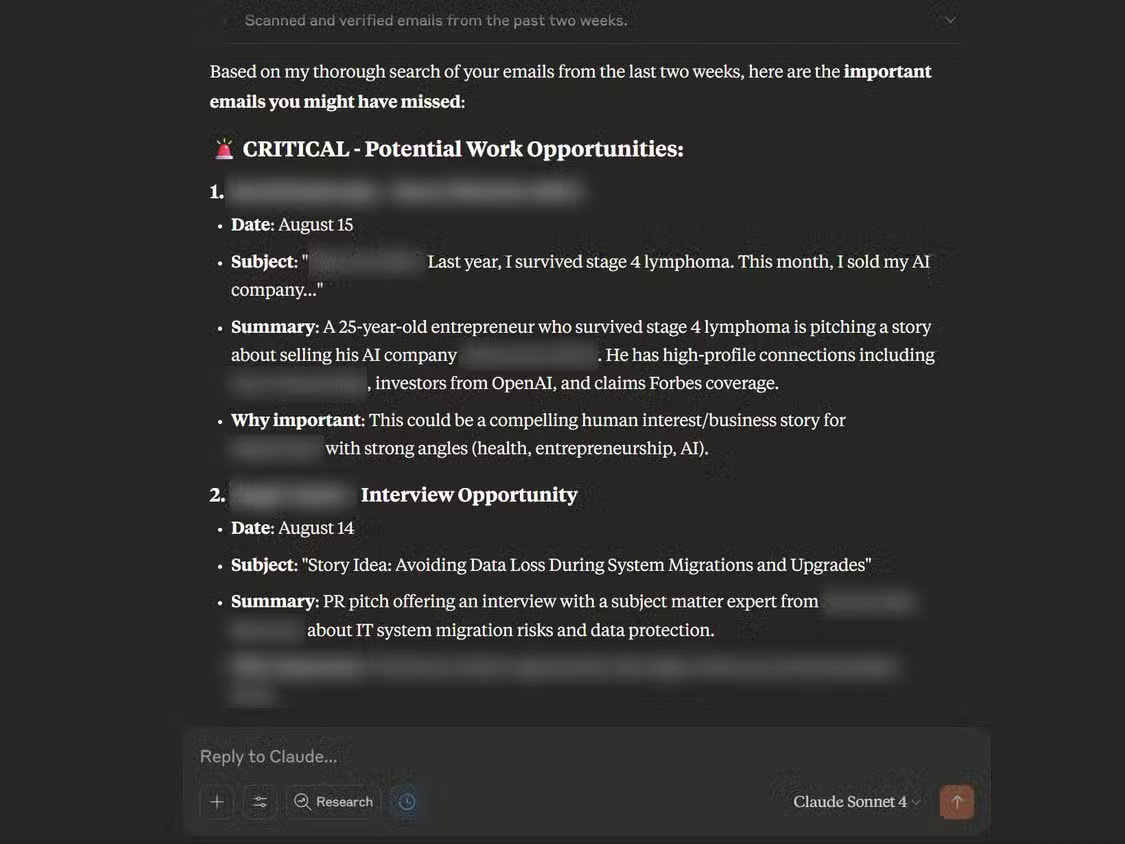
The screenshots illustrate example results, not proof that every important email will be found. If a known message is missing, narrow the request to its sender, subject or date and compare with Gmail's own search tools.
Check privacy, permissions and the final result
- Confirm that you connected the intended account, especially if you use both personal and work Gmail.
- Check citations, names, dates and deadlines in the source messages before replying or scheduling work.
- Use a read-and-summarize request when you do not want messages sent or mailbox changes made. Review any action approval separately.
- Do not assume attachments were read: Anthropic lists attachment metadata, rather than attachment contents, for the Gmail connector.
- Review connector access periodically and disconnect services you no longer need. Disconnecting access and deleting previously retrieved chat data are separate concerns.
AI assistance works best alongside a manageable inbox. Use searches, Gmail filters and labels, and a repeatable review routine to check what was retrieved, rather than treating “nothing urgent found” as confirmation that nothing needs attention.
Related Articles
 How to Use the Summarize Feature on macOS - Summarize Text Content5 minutes read
 How to Use Macar Summarize Feature5 minutes read
 How to Use the Connectors Feature in Claude AI12 minutes read
 How to Scheduling Sending Emails and Delaying Sending Emails in7 minutes read
 Instructions for Snoozing Emails in Gmail: Main Insights6 minutes read
 Additional Connectors and Expansion Devices for Computers5 minutes read
Reader Comments 0
Sign in with email or Google to join the discussion.