Table of Contents
There are two ways to summarize text on a Mac. Current Macs with Apple Intelligence can use Writing Tools to create a summary, key points, a list, or a table. Some older macOS versions also include a non-AI Summarize service that you can enable in Keyboard settings.
Method 1: Use Apple Intelligence Writing Tools
Writing Tools is the most flexible option when Apple Intelligence is available and enabled on your Mac. It works with selected text in many Apple and third-party apps.
- Select the passage you want to summarize.
- Control-click the selection and choose Writing Tools or Show Writing Tools. In apps such as Notes and Mail, you may also see a Writing Tools button in the toolbar.
- Choose the output you need:
- Summary for a short overview;
- Key Points for the main ideas;
- List for structured items; or
- Table for information that fits rows and columns.
- Review the result, then click Copy. In an editable document, you may also be able to replace the selected text.
Apple Intelligence is not available on every Mac or in every language and region. Apple's Writing Tools guide explains availability and the current controls. For a broader look at the feature set, see these useful Apple Intelligence features.
Summarize a webpage in Safari
On a compatible Mac, open the webpage in Safari, click the Page Menu button in the address bar, and choose Summarize. You can also select only the relevant passage and use Writing Tools. Apple's Safari summary instructions cover both options.
Method 2: Enable the legacy Summarize service
The older Summarize service is useful on macOS versions that include it. The screenshots below show the older System Preferences interface; current menus may look different.
- Open System Settings > Keyboard > Keyboard Shortcuts > Services. On an older Mac, open System Preferences > Keyboard > Shortcuts > Services.
- Expand the Text section and select Summarize. If desired, assign a keyboard shortcut that does not conflict with another app.
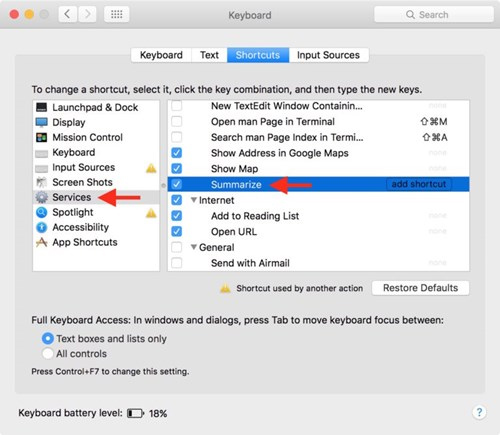
If Summarize does not appear in the Services list, that service is not available in your current macOS installation. Use Writing Tools or the destination app's own summary feature instead.
Use the Summarize service
- In a compatible app, select the text you want to condense. The service works with selected text, not an entire scanned document that has no selectable text layer.
- Control-click the selection and choose Services > Summarize. You can also open the app's menu in the menu bar, choose Services, and select Summarize.
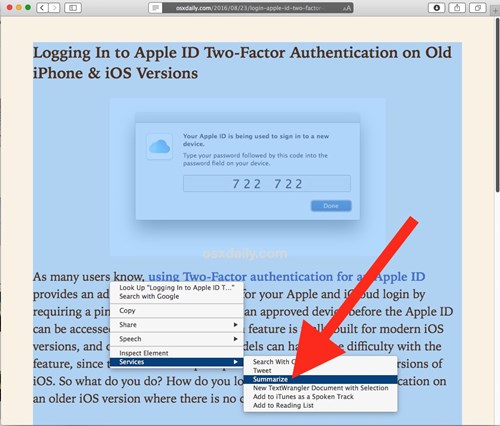
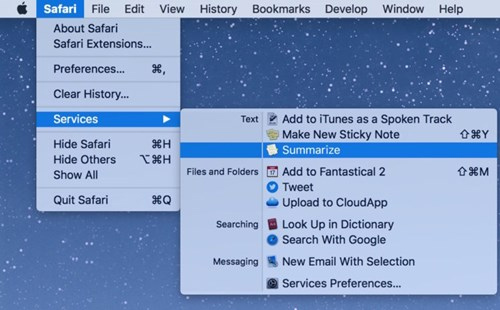
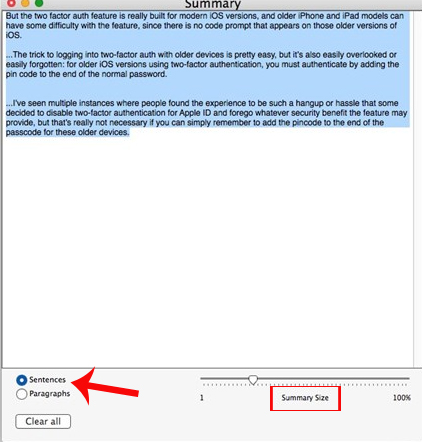
- In the Summary window, choose Sentences or Paragraphs.
- Adjust the Summary Size slider. A lower setting produces a shorter result; a higher setting retains more of the source.
- Select and copy the summary into the document where you want to keep it.
macOS only shows a service when it is relevant to the selected content and current app. Apple's Services settings guide explains why enabled services may not appear everywhere.
Get a more useful summary
- Select a complete section with enough context rather than a few isolated sentences.
- Remove navigation labels, advertisements, and unrelated sidebar text before summarizing a webpage.
- Use Key Points for decisions and action items; use Summary for continuous prose.
- Keep the source open while reviewing names, numbers, qualifications, and conclusions.
- Do not treat an automatic summary as a substitute for the original in legal, medical, financial, or safety-critical material.
If you also use an iPhone, the process is similar; see how to use Apple Intelligence Writing Tools on iPhone.
Related Articles
 How to Use Macar Summarize Feature5 minutes read
 How to Write Text by Voice on macOS3 minutes read
 How to Bring Preview Feature on macOS to Windows 105 minutes read
 macOS 13 Ventura: New Features, Supported Devices, and Release Date6 minutes read
 How Do You Summarize Content Directly Using Notion AI: Explained3 minutes read
 How to Copy Uncopyable Text Content: Clear Instructions15 minutes read
Reader Comments 0
Sign in with email or Google to join the discussion.