Table of Contents
Claude Connectors let Claude retrieve information from supported apps and, when permitted, take actions in those services. To add one, open the connector directory from a chat or go to Customize > Connectors, review its capabilities, select Connect or Install, and complete the service's authorization flow.
A connector does not automatically give Claude unlimited access. It inherits the account's permissions in the connected service, and organizations can narrow access further by allowing, requiring approval for, or blocking specific tool actions.
What are Claude Connectors?
Connectors link Claude to external apps and data sources. Depending on the integration, Claude may be able to search files, summarize messages, read project records, create tasks, or update information. Examples in Anthropic's documentation include Google Drive, Slack, and Linear.
The official Anthropic connector guide says web connectors are available across Claude, Cowork, desktop, and mobile, while desktop extensions run in Claude Desktop. Individual connector availability and capabilities can vary by platform, account, workspace policy, and rollout.
How to browse the Connectors Directory
Option 1: Start from a conversation
- Open a Claude conversation.
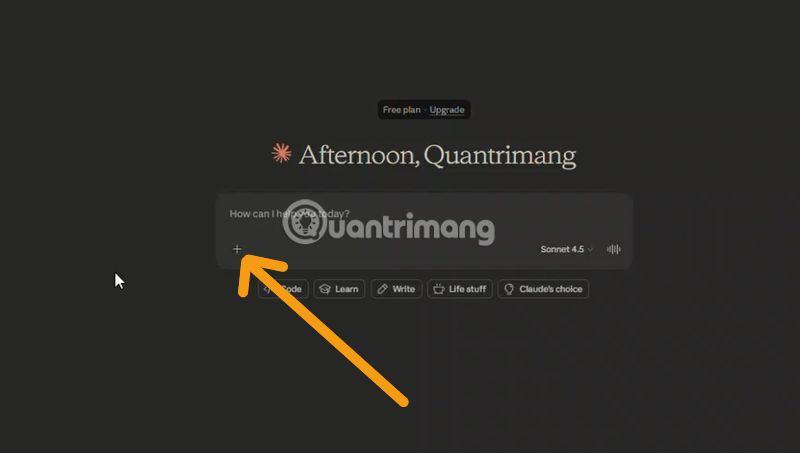
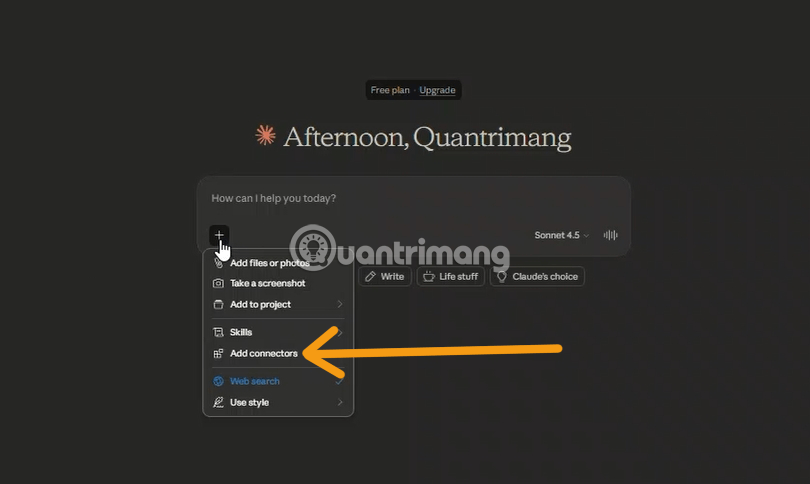
- Click the + button in the lower-left corner, or type /.
- Open Connectors.
- Select Manage connectors.
- Click the + button beside Connectors to open the directory.
Option 2: Start from settings
- Open Customize.
- Select Connectors.
- Click the + button beside Connectors.
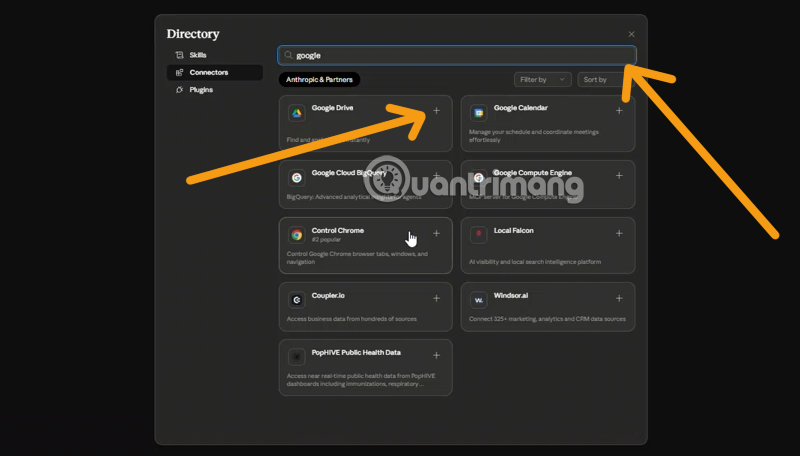
- Browse by category, scroll through the list, or search for a service.
Open a connector's detail page before installing it. The directory describes intended use cases, platform availability, and whether the connector has read or write capabilities.
How to connect a service to Claude
1. Select the connector
Choose the app from the directory and read its description. Confirm that the publisher, domain, and requested capabilities match the service you intended to connect.
2. Review permissions
Check whether the connector can only read data or can also create, edit, send, or delete information. A connector cannot exceed the permissions held by the authenticated account, but it may still have broad access within that account.
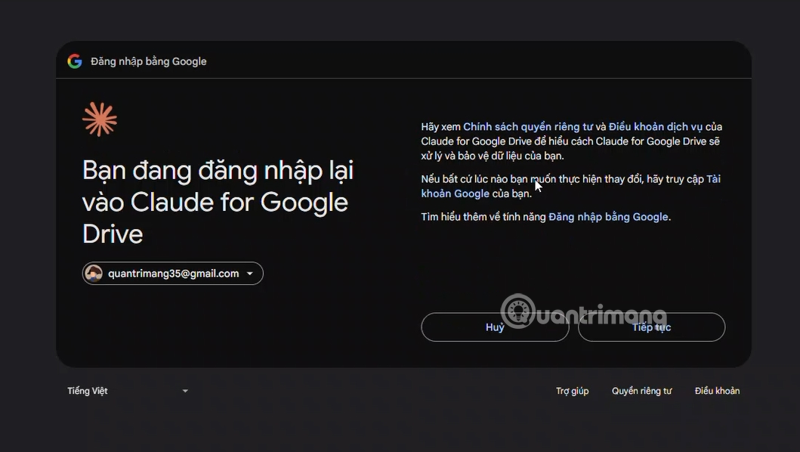
3. Authenticate with the service
Click Connect or Install, then follow the provider's authorization prompts. Sign in to the correct personal or work account and approve only the requested scopes that are necessary for the workflow.
Authorization methods vary. Many services use an account-consent flow, while a custom remote MCP connector may use OAuth, a token, or another method configured by the server owner. Do not paste a password or unrestricted API key into a chat message.
4. Confirm and manage the connection
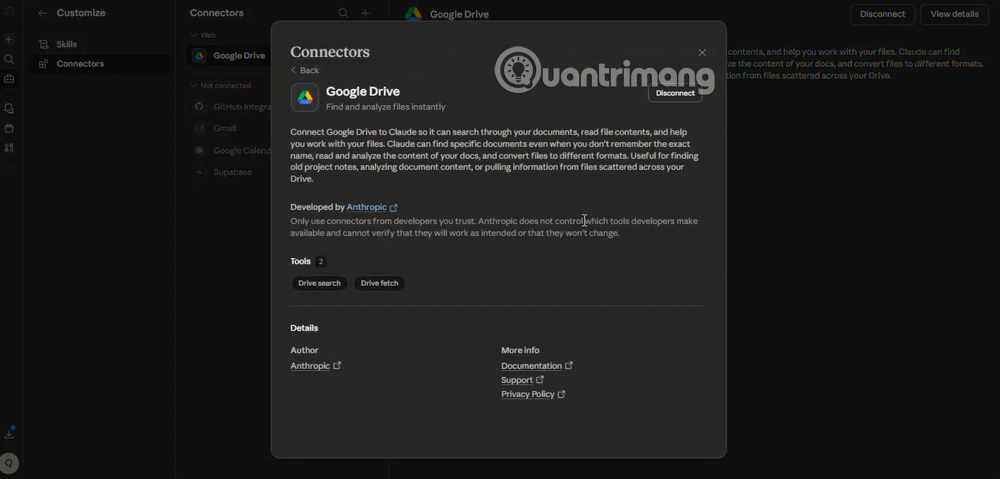
After authorization, return to Customize > Connectors to confirm that the service appears. From this page, you can review its settings, inspect permissions, reconnect it, or disconnect it.
How to use a connector in a conversation
- Open the conversation where the service is needed.
- Click + or type /.
- Open Connectors.
- Turn on the services you want available for that conversation.
- Ask for a specific, verifiable task and name the intended data source when ambiguity is possible.
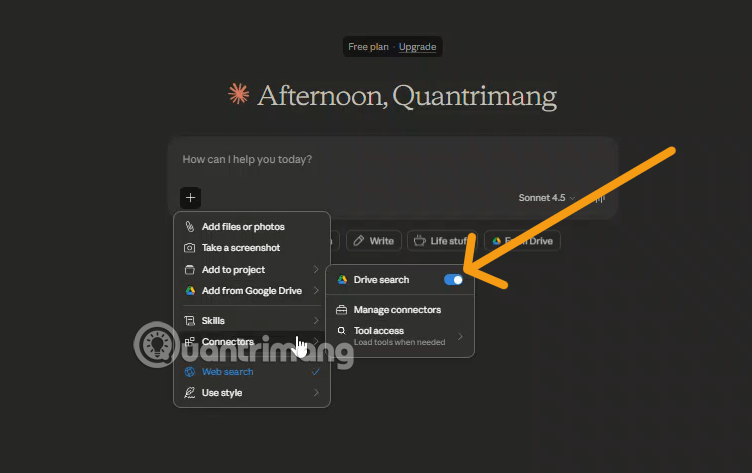
Once enabled, Claude may suggest a connected app when it fits the request. You do not always need to name the service, but doing so can prevent the wrong source from being selected when several connectors contain similar information.
Practical examples
- Google Drive: “Find the approved PDF files for the Q4 report in the Finance folder and summarize the dates and owners.”
- Linear: “Draft a new issue for the iOS login bug using these reproduction steps. Show me the issue fields before creating it.”
- Slack: “Prepare a message for the engineering channel announcing the 3 p.m. meeting. Do not send it until I approve the draft.”
These prompts define the source, scope, expected output, and approval boundary. That is safer than asking Claude to “handle the project” without constraints.
Read, write, and approval controls
Team and Enterprise owners can restrict actions across the organization. In Customize > Connectors, an administrator can open a connector's tool permissions and classify an action as:
- Always allow: Claude can use the action without a separate approval prompt.
- Needs approval: The user must confirm before the action runs.
- Blocked: Claude cannot use the action.
These controls narrow access; they do not grant extra rights in the source system. A user who cannot open a document or change a record in the original app cannot gain that permission through Claude.
Choose how connector tools load
When many connectors are active, their tool descriptions consume conversation context. Open the Connectors menu and choose a tool-access mode:
- Auto: Claude selects relevant tools automatically. This is the practical default for most users.
- On demand: Tools load when the request calls for them. This can preserve context when many connectors are installed.
Use on-demand loading if irrelevant tools make selection less predictable or a workspace has a large connector collection.
How to add a custom remote MCP connector
A custom connector can link Claude to a service that exposes a compatible remote Model Context Protocol server. Availability and limits depend on the account and workspace configuration.
- Go to Customize > Connectors.
- Click the + button beside Connectors.
- Select Add custom connector.
- Enter a recognizable name and the exact MCP server URL supplied by the service owner.
- Complete the configured authentication process.
- Review available tools and test with a read-only request first.
Do not add an unknown MCP endpoint merely because a website provides a URL. A remote server can expose powerful tools, so verify its operator, privacy policy, authentication method, source code or audit record, and requested permissions. TipsMake's overview of AI agent frameworks provides more context on tools and orchestration.
Connectors, skills, and plugins are different
| Component | Purpose |
|---|---|
| Connector | Provides access to an external service and its tools |
| Skill | Defines instructions or a repeatable procedure |
| Plugin | Packages skills, connectors, and related configuration for a role or workflow |
For example, a finance plugin might include a variance-analysis skill and a connector to an approved data warehouse. TipsMake's Claude Cowork overview explains how complete work tasks can combine files, browser access, and connected tools.
Security checklist
- Connect only services required for a current workflow.
- Use an account with the minimum necessary source-system permissions.
- Prefer read-only access until a write action is genuinely needed.
- Require approval before sending, publishing, deleting, purchasing, or changing records.
- Verify the destination, audience, and final content before an external action.
- Review connected services regularly and remove unused access.
- Follow organizational policy for confidential, regulated, or customer data.
- Treat data returned by a connector as potentially untrusted input.
Troubleshooting connector problems
- The connector is missing: Check platform and plan availability, then ask a workspace owner whether it is enabled.
- Authentication fails: Confirm the account, popup settings, organization consent policy, and redirect domain.
- A file or record is unavailable: Verify that the authenticated user can open it in the source service.
- An action is blocked: Review tool permissions and source-system roles; organization restrictions cannot be overridden by an individual user.
- Claude chooses the wrong source: Name the connector, folder, channel, project, and desired time range explicitly.
- Too many tools appear: Disable unused connectors or switch tool access to on demand.
The bottom line
Claude Connectors are most useful when access is narrow, prompts are specific, and consequential actions require review. Start with one trusted connector and a read-only task, verify the retrieved information, then add write capabilities only when the workflow and approval rules are clear.
Related Articles
 How to Use Claude's Connectors Feature to Summarize Emails7 minutes read
 Tips for Using Project in Claude Effectively to Create a Personal AI Space8 minutes read
 Claude AI Registration Guide and How to Use Claude AI6 minutes read
 Claude AI User Guide: a Comprehensive Guide for 20268 minutes read
 How to Use Claude to Code and Debug Code6 minutes read
 What Is the Claude Code: Clear Explanation7 minutes read
Reader Comments 0
Sign in with email or Google to join the discussion.