Table of Contents
This updated guide explains how to take advantage of gmail's incredibly powerful search bar with clear steps, practical tips, and useful context. If you only use Gmail 's search bar to look up a name or subject line, you're missing out. it is packed with features that can do more than you think.
Why the Gmail Search Bar Deserves a Higher Rating?
Most Gmail users stick to the basics. They type in a name, subject, or vague keyword and scroll through the results, hoping to find the right email. This trial-and-error approach works, but it is slow and often frustrating. What most people do not realize is that Gmail's search engine is much more sophisticated than it appears.
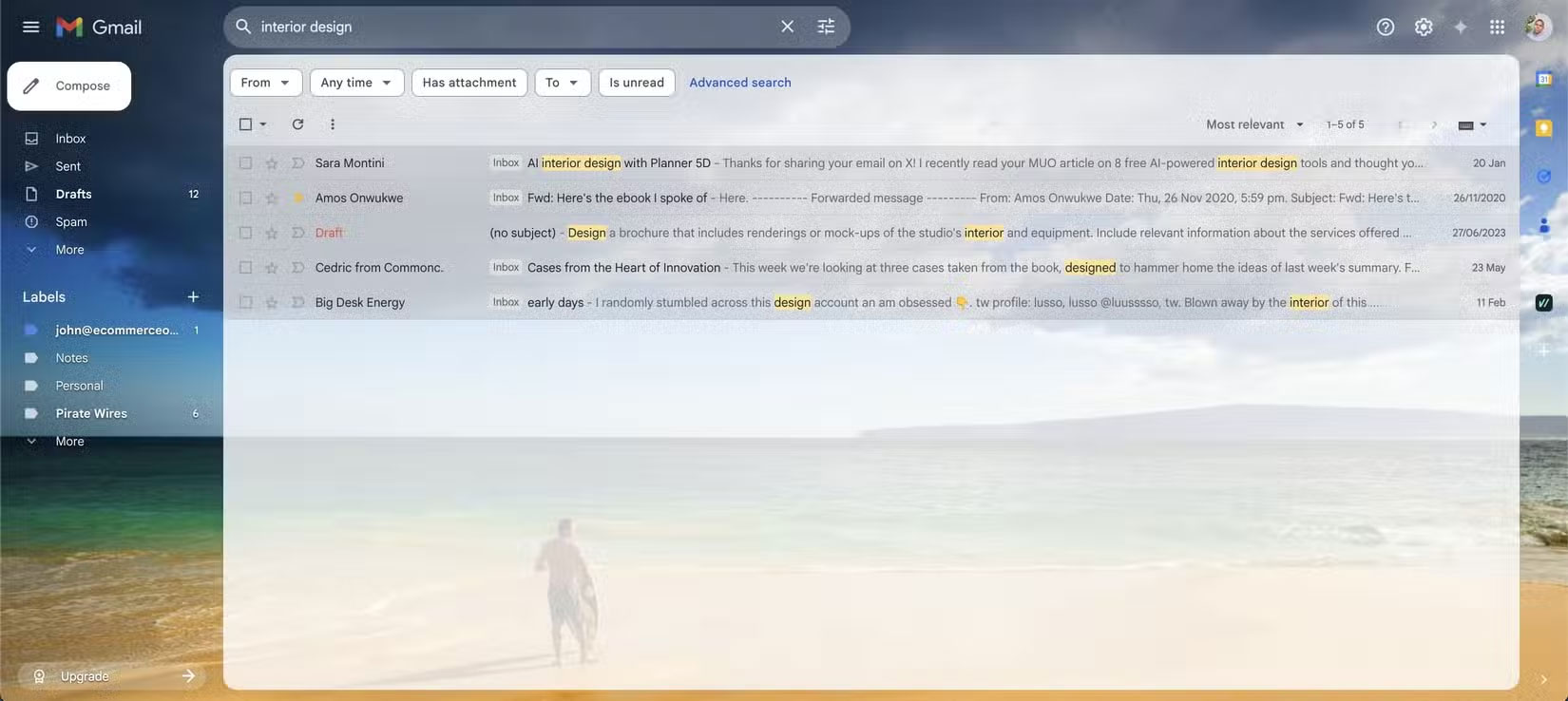
Think of it as your personal Google for email. Just like you can search the web with exact phrases or commands, Gmail offers advanced search operators that let you hone in on exactly what you're looking for. It understands context, filters, time ranges, file types, senders, and more. This is especially helpful if you have an inbox filled with thousands of emails from years ago.
for instance, let's say you're trying to find a contract your boss sent you in June. Instead of scrolling through old emails, you could type:
from:boss@example.com after:2024/06/01 before:2024/07/01 filename:pdf.In seconds, Gmail will filter your inbox to show only emails from your boss in June that contain PDF files. Faster, more accurate, and more efficient than searching manually.
Daily Search Tips to Save You Time
You do not need to memorize dozens of commands to get results. Even a few search operators can make a big difference in your daily routine.
Try has:attachment to find all emails with attachments. Add filename:pdf or filename:xlsx to filter by file type. Include the sender, like from:client@example.com , and you've just pulled up every document your client has ever sent without having to search manually.
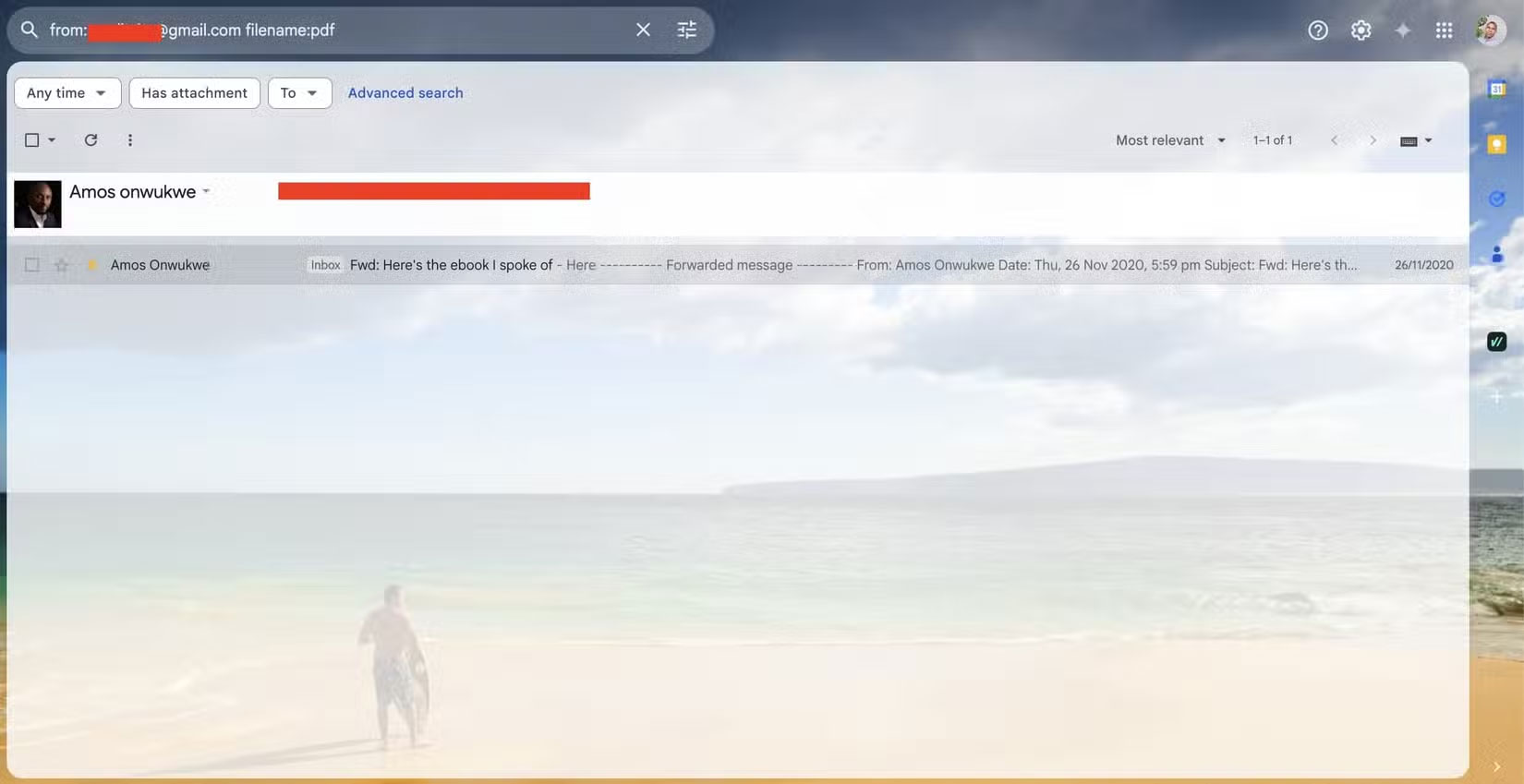
Date searches are just as powerful. Use after: and before: with dates formatted as YYYY/MM/DD. Searching after:2025/01/01 before:2025/02/01 will show all messages received in January. This is extremely useful for narrowing your search to specific projects, events, or deadlines.
If you organize your inbox with labels, use them in label: searches. for instance, label:work contract will show all messages tagged as "work" that contain the word "contract".
You can use quotation marks to search for exact phrases. Typing "meeting agenda" ensures you only see emails that contain those exact words in that order. No more wading through unrelated mentions of "meeting" or "agenda."
How to Combine Operators for Better Results
In most cases, a single search operator is enough to get accurate results. Still, combining multiple search operators helps you focus on exactly what you're looking for with high precision.
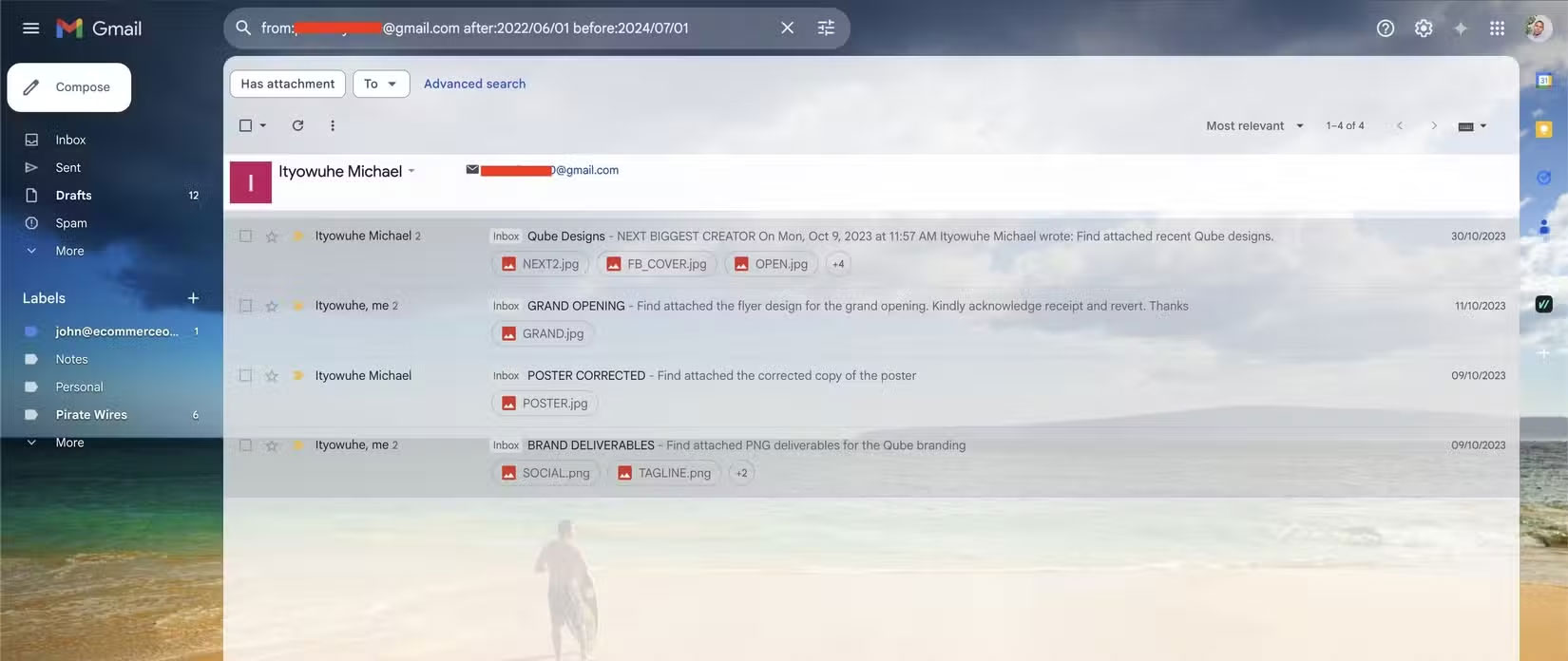
Imagine you are trying to find spreadsheets from a colleague named Amos sent in the first half of April. You could use:
from:amos@example.com after:2024/04/01 before:2024/04/16 filename:xlsxThat query will only return emails from Amos during that specific time period that contain Excel files.
to search for emails from multiple people, you can use OR like this:
from:alex@example.com OR from:rachel@example.comYou can exclude specific senders using the minus sign. for instance, -from:news@example.com will filter out emails from that address.
Want to find unread messages with a specific subject from your manager? Try:
subject:update from:manager@example.com is:unreadThe more you experiment, the more you'll understand how different search operators interact. And since Gmail gives you results instantly, you can adjust your queries as needed without having to wait.
FAQ
What should I prepare before I take advantage of gmail's incredibly powerful search bar?
Review the requirements and options in the guide first. Having the correct device, app version, account access, or materials ready helps prevent avoidable errors.
How long does it take to take advantage of gmail's incredibly powerful search bar?
The time depends on the task and your setup. Most basic steps can be completed quickly, while downloads, updates, scans, or troubleshooting may take longer.
What should I do if the steps do not work?
Repeat the instructions in order, confirm that your software or device is supported, and check permissions, connectivity, and available updates before trying again.
Related Articles
 Phishing Takes Advantage of Google Search's Site Redirection Feature3 minutes read
 The 5 Best Gmail Add-ons That Will Save You Hours Every Week6 minutes read
 Some Basic Concepts to Know About Search Engine Optimization22 minutes read
 Download Spybot Search & Destroy 2.8.68.09 minutes read
 How to Use Google Bard for Google Search3 minutes read
 How to Search in Mail on a Mac5 minutes read
Reader Comments 0
Sign in with email or Google to join the discussion.