Table of Contents
Google Sheets’ AI function can draft text, summarize comments, and suggest categories from a specified range. Use it for language tasks that benefit from review; keep ordinary formulas for calculations and exact transformations.
Availability and basic syntax
Generation requires an eligible Google Workspace or Google AI plan, or access through the relevant experimental program. Administrator and language settings can affect availability. The syntax is =AI("prompt", optional_range). Enter the formula and use the generation control shown by Sheets. Provide the relevant cells explicitly rather than assuming the function reads the whole workbook.
See Google’s current AI-function documentation for limits. The examples below use commas as argument separators; spreadsheet locale can affect syntax.
5. You can brainstorm directly in a cell
Use a specific prompt to draft a short post from source material in A1. Treat the result as a draft and verify any factual or promotional claims.
For example, inserting the following prompt into a cell will give you ideas that take into account the context of the data in cell A1:
=AI("Generate a tweet giving a behind-the-scenes look at our product design", A1)
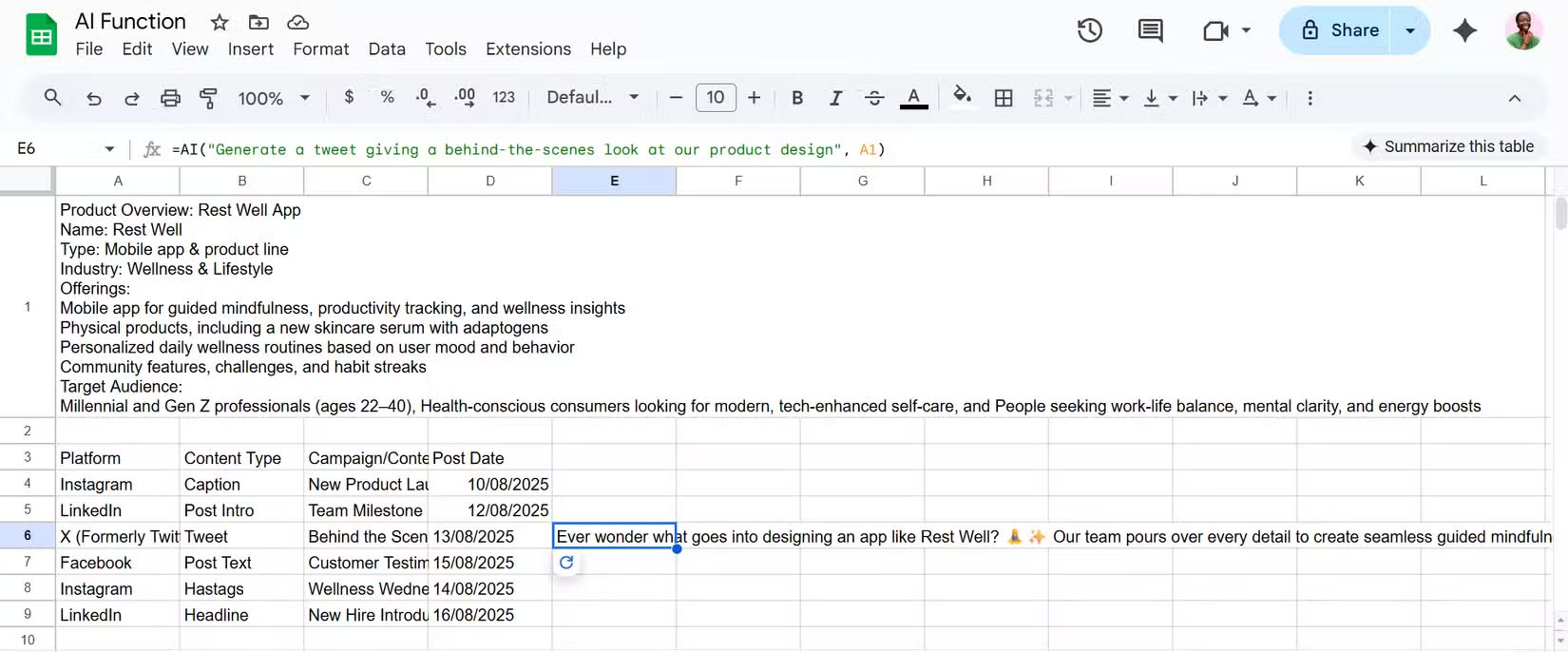
This function can be used to brainstorm ideas for newsletter headlines, short bios, email intros, and even Instagram captions , all right in a spreadsheet.
While the AI function is limited to filling in individual cells, it integrates with the autofill feature, so the same idea can be applied to an entire spreadsheet by dragging the cursor down the cells. You won't have to repeat the process manually.
4. Grasp the main idea without reading each row and column
Let's say you have a column of customer feedback or answers from an open-ended questionnaire. Instead of reading each row, you can use an AI function to extract the key message:
=AI("Summarize this comment in one sentence without adding facts", A5)
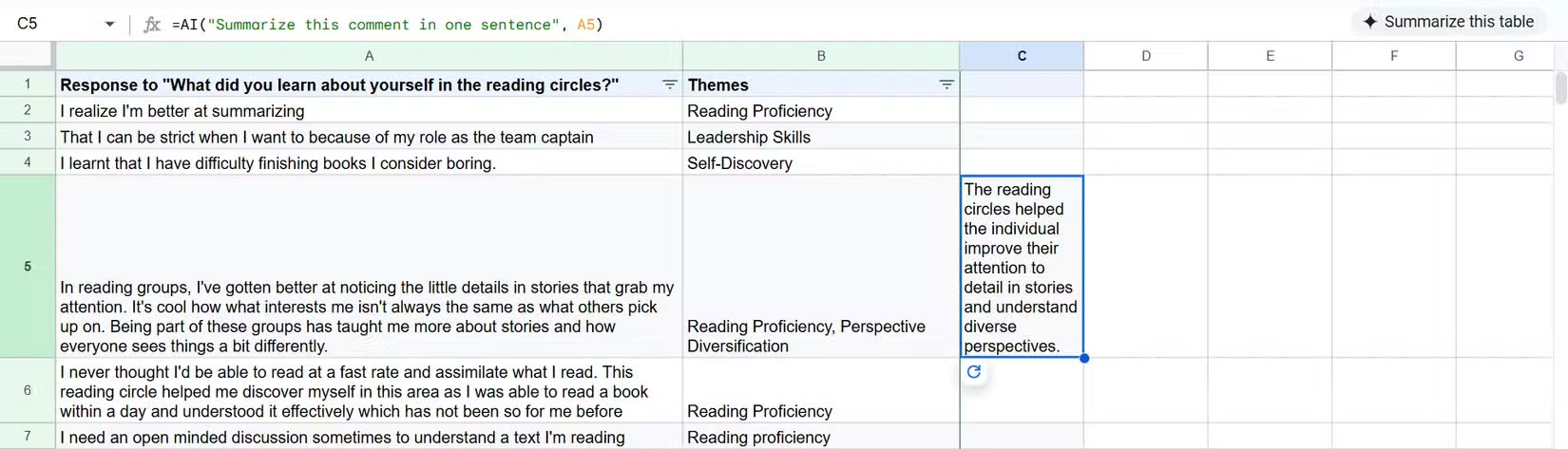
You can even turn long content into bullet points with prompt like this:
=AI("List the main themes in these responses", A2:A145)
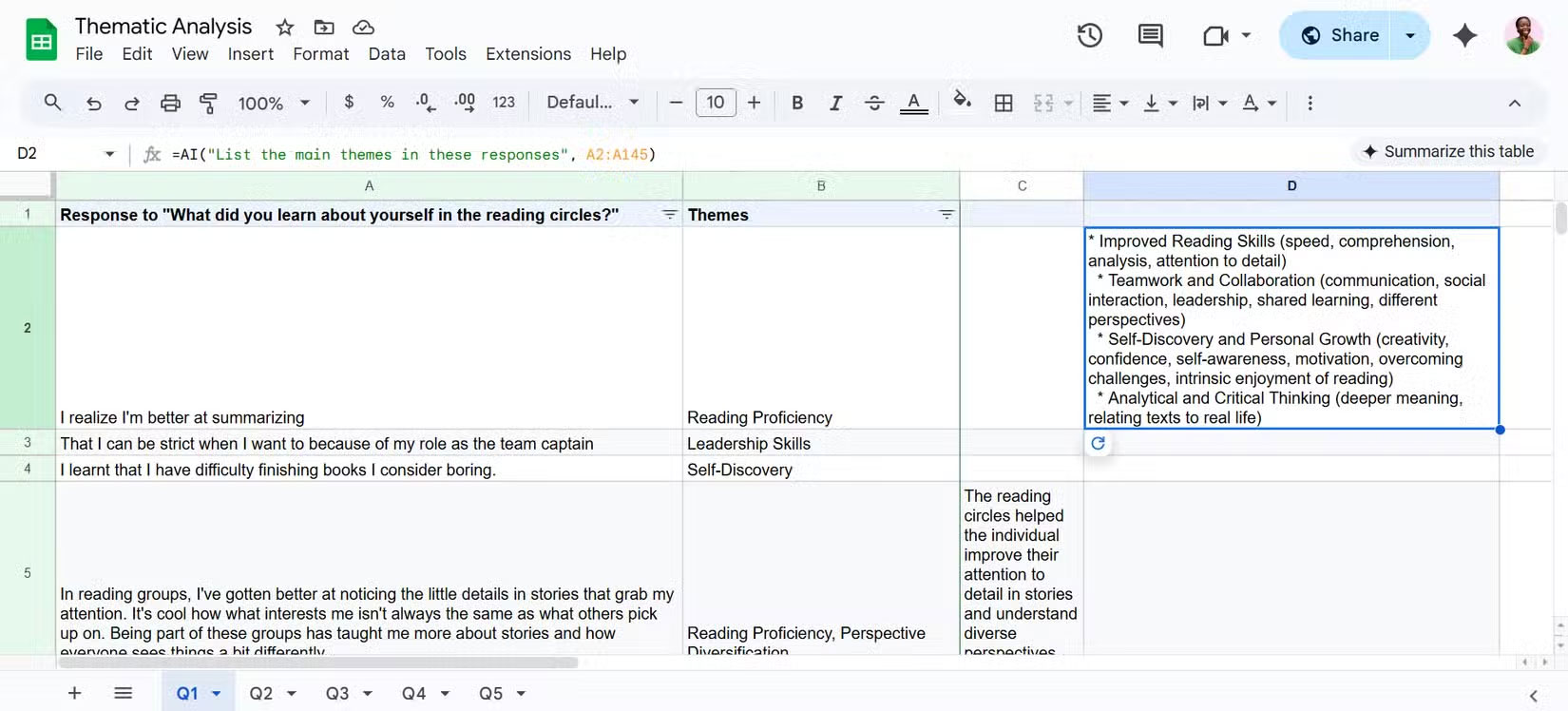
Previously, people would copy content into a document or run it through a third-party summary program. Now, content is saved right in a spreadsheet. This saves a lot of time for things like performance reviews or questionnaire analysis.
3. Easily extract the details you really need
Extracting specific details used to be one of the most annoying parts of spreadsheets. Want to just get the domain from an email address? You'd probably have to write a complicated REGEXEXTRACT formula, even better than what you'd have to write if you were using a formula that's several versions older.
=REGEXEXTRACT(A2, "@(.*)")Just want to get the job title from a full sentence? That's even harder.
Now you just need to ask questions like this:
=AI("Extract the job title stated in this sentence. Return Not stated if absent.", B2)Check every extracted detail against the source. Names and addresses can be ambiguous, and an AI response may infer information that is not stated. Require an explicit fallback such as “Not stated.”

You can try using prompts like this when analyzing feedback:
=AI("Return the main complaint explicitly stated in this review, or None if absent.", C2)This function is most useful when dealing with unstructured text data. Traditional spreadsheet functions struggle with natural language, but AI often handles it with ease.
2. Choose AI only when the task needs language interpretation
From a cell, you can now type in a specific prompt describing what you want to do, and the AI engine will handle the complexities behind the scenes. Imagine you want to categorize your expenses. AI can suggest a draft category, but real expense classification depends on your rules and context. Review each result before using it in accounting:
=AI("Categorize this expense as business or personal", A2)Let's say you need to format text in a spreadsheet consistently:
=PROPER(B2)The same goes for splitting names, combining columns, rewriting text, or translating to another language. For predictable text operations, a normal formula is easier to reproduce and audit. PROPER capitalizes each word; it is not a complete editorial title-case rule and can alter acronyms.
This makes spreadsheets much more accessible, especially if you're more comfortable writing in English than formula syntax. In some ways, it makes Google Sheets feel like Gemini but with rows and columns.
1. Arrange the cells and understand the mood at the same time
When you have a lot of responses or open-ended answers, Google Sheets' AI function can help you sort through them and understand the tone behind them. Define the permitted output labels and a fallback for unclear cases. Combining sentiment and topic classification can obscure mixed feedback, so inspect examples before processing many rows:
=AI("Classify this review as Price, Delivery, Quality, Mixed, or Unclear. Return only one label and do not infer missing facts.", B2)This way, you'll capture how people feel and exactly what they're talking about, without having to write conditional logic or linking formulas.
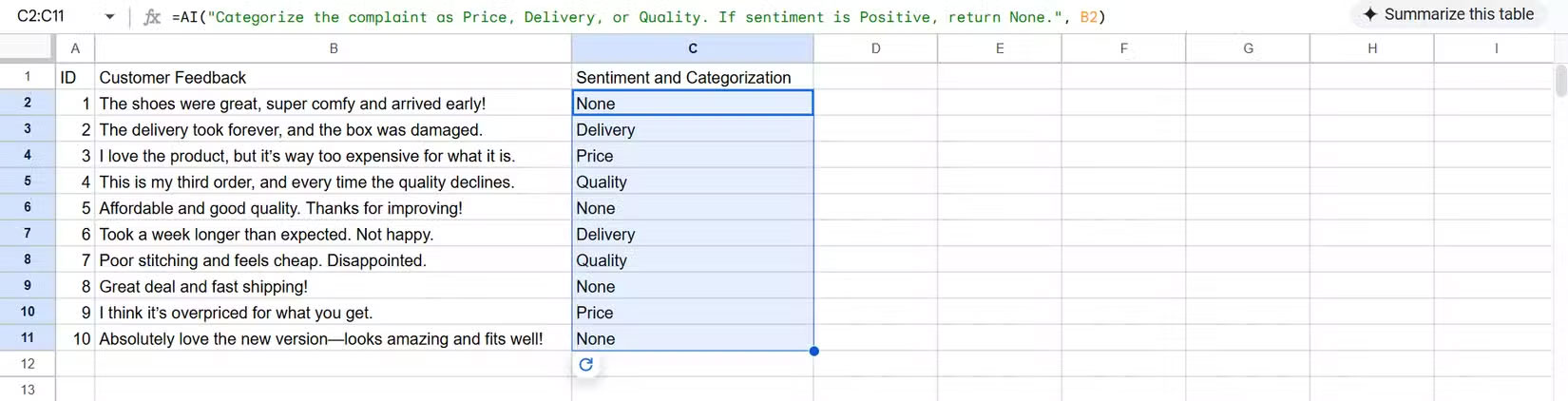
You can also create smart tags based on context, such as neighborhood, group, or product line. Use this function when sorting testimonials, survey responses, or reviews in the app store.
Validate a small sample before filling more rows
Keep the source column unchanged and put outputs in a separate column. Test clear, mixed, blank, and ambiguous examples. Check whether copied formulas reference the intended rows and review generated outputs before relying on them. Filling formulas is separate from completing generation.
AI output is text and may be inaccurate. It does not replace arithmetic, a verified data-cleaning rule, or human review of consequential classifications. Check your organization’s data policy before supplying personal or confidential material.
For foundations, see Google Sheets basics. For repeatable transformations, custom functions may be more appropriate.






Reader Comments 0
Sign in with email or Google to join the discussion.