Table of Contents
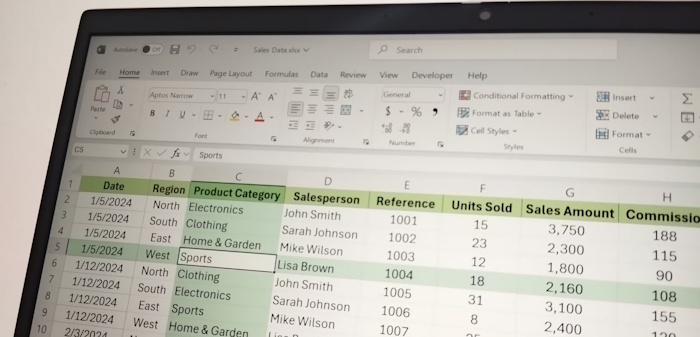
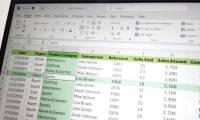
Excel's Focus Cell highlights the row and column of the active cell, making it easier to follow a value across a large worksheet. Turn it on from View > Focus Cell, then move between cells to keep the visual guide aligned with your selection.
Turn Focus Cell on or off
- Open a worksheet and select a cell.
- On the View tab, select Focus Cell.
- Click another cell or use the arrow keys. The horizontal and vertical highlights follow the active cell.
- Select Focus Cell again to turn it off.
The guide forms a row-and-column crosshair, not a diagonal line. It is a navigation aid, not a command to fill every cell in the row or column with permanent formatting.
Choose a highlight color
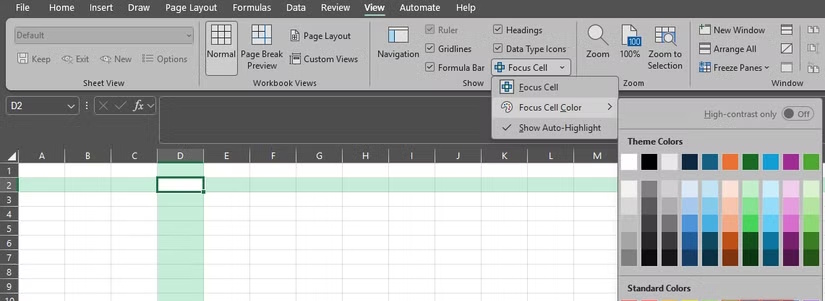
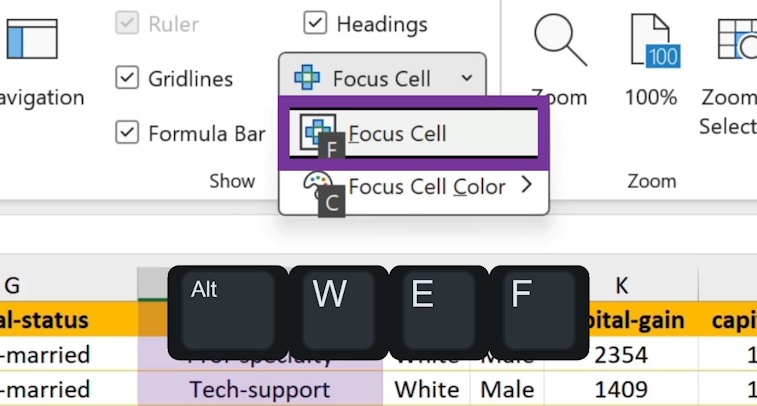
Open the Focus Cell dropdown and choose a color that is easy to distinguish from your worksheet's existing formatting. For the English Windows ribbon, press Alt, W, E, F in sequence to toggle the feature. Use the ribbon's displayed KeyTips if your language or interface differs.
Where available, right-click the command and choose Add to Quick Access Toolbar to keep it accessible from other tabs.
Use it with selections and Find
Focus Cell follows the active cell, not the mouse pointer. Hovering over a different cell does not move it. In a selected range, press Tab to move forward through cells or Shift+Tab to move backward. On Windows, Ctrl+period (.) cycles the active cell through the corners of a selection.
The Show Auto-Highlight option in the Focus Cell dropdown controls its automatic appearance during Find & Replace. This can help you locate a match after Excel moves to it. Check the actual matched value and address before editing; a highlight does not validate the data.
If the button is missing or behaves differently
Check your Excel edition, platform, and update channel, then install the updates available to your organization. Microsoft announced Focus Cell for supported Windows, Mac, and web versions; that does not mean every older or perpetual edition includes it.
Older previews had restrictions with frozen panes. Microsoft's availability announcement was updated to confirm Freeze Panes support, so do not assume that limitation still applies to an updated supported build.
If the highlight temporarily disappears when another application has focus, return to Excel and select a cell. If you cannot use Focus Cell, Freeze Panes can still keep headings visible while scrolling. It serves a different purpose and can be useful alongside the row-and-column guide.
For other ways to navigate and organize a worksheet, see useful Excel features for everyday work.


Reader Comments 0
Sign in with email or Google to join the discussion.