Table of Contents
On a supported iPhone, touch and hold a clearly visible subject in Photos until its outline appears, then choose Copy or Share. This lifts the person, pet, or object from its background without changing the original photo.
Photo cutouts require iOS 16 or later on iPhone XS, iPhone XR, or a later model. Running iOS 16 alone does not make every older iPhone compatible. The screenshots below show the iOS 16 workflow; later versions can offer additional commands.
Copy a subject into another app
- Open the photo full-screen in Photos.
- Touch and hold the subject until the outline appears.

Release your finger and choose Copy.

Open an app that accepts images, such as Notes, Mail, or Messages. Touch and hold in its editing area and choose Paste. Review the inserted cutout before sending or sharing it.

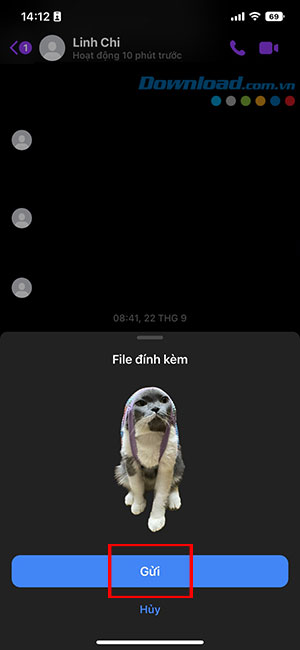
Drag a cutout into another app
- Open the source photo and hold the subject until it lifts.
- Keep that finger on the cutout and start dragging.
- With another finger, return to the Home Screen or switch apps, then open the destination document.
- Move the cutout over an area that accepts images and release it.
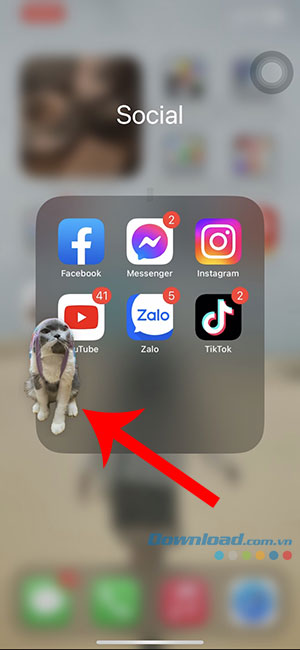
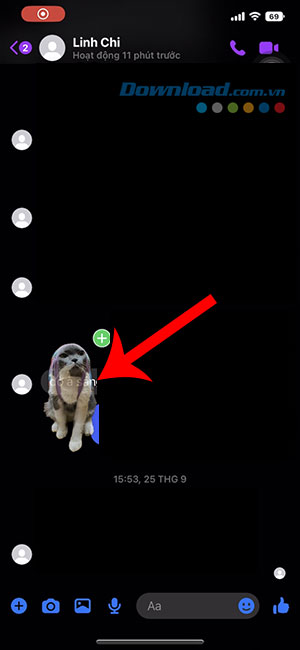

The destination determines what happens next. A note may insert an image; an editor may create an object or layer. Dragging into an unsupported area may do nothing, so use Copy and Paste or Share as a fallback.

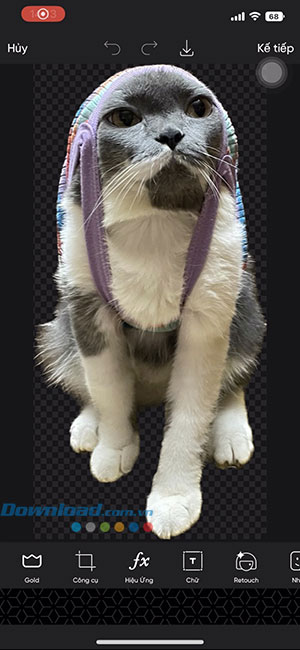
Share or reuse the cutout
Choose Share from the subject menu to use an available destination such as Mail or AirDrop. Copying a cutout does not by itself paste it onto another photo in the iOS 16 Photos editor. To make a composite, use an image editor that supports adding images or layers.
On supported later versions, a reusable sticker is another option. See making stickers from iPhone photos and combining images on iPhone for those separate workflows.
If the outline or Paste option is missing
- Confirm the iPhone model and iOS version support photo cutouts.
- Try a sharp image with a distinct subject and less overlap with the background.
- Press the subject itself, rather than an empty part of the picture.
- If copying works but pasting fails, try an image-compatible destination such as a new note.
- Inspect the edges before using the result; automatic selection can miss hair, fine details, or overlapping objects.
Apple's photo-cutout instructions list the supported models and sharing options.
Related Articles
 How to delete the photo background without Photoshop using Remove.gb
 The divine tool separates the photo background with just a click of the mouse that is available on Photoshop CC
 Tips to remove redundant people and replace them with any object on a simple image on your phone
 Instructions for deleting objects in photos on iOS 18
 How to delete objects and objects in Photoshop
 How to change objects in photos with Canva AI very quickly
Reader Comments 0
Sign in with email or Google to join the discussion.