Table of Contents
Excel’s built-in tools can make everyday spreadsheets easier to maintain without requiring complex formulas. These seven features address different jobs: exploring numbers, keeping entries consistent, cleaning text, summarizing data, repeating imports, navigating large sheets, and working backward from a target.

The paths and shortcuts below mainly describe desktop Excel for Windows. Feature availability and menus differ on Mac, the web, and older releases.
1. Quick Analysis: preview totals and visual summaries
Select a populated range and click the Quick Analysis button near its lower-right corner, or press Ctrl+Q in supported Windows versions. The menu offers categories such as Formatting, Charts, Totals, Tables, and Sparklines.
For a small sales list, preview a total or a color scale before applying it. The tool works from the cells you select; it does not understand a business measure such as “profit” unless that information is actually present. Include clear headers and check the selected range.
2. Data Validation: make entries consistent
Use a list when several people should choose the same spelling for a category, such as Chicken, Vegetarian, or Fish.
- Put the allowed choices in a short range of cells.
- Select the cells where users will enter responses.
- Open Data > Data Validation and choose List under Allow.
- Set Source to the range containing the choices and enable the in-cell drop-down.
- Configure the Error Alert, using the Stop style if you want to reject invalid typed entries.
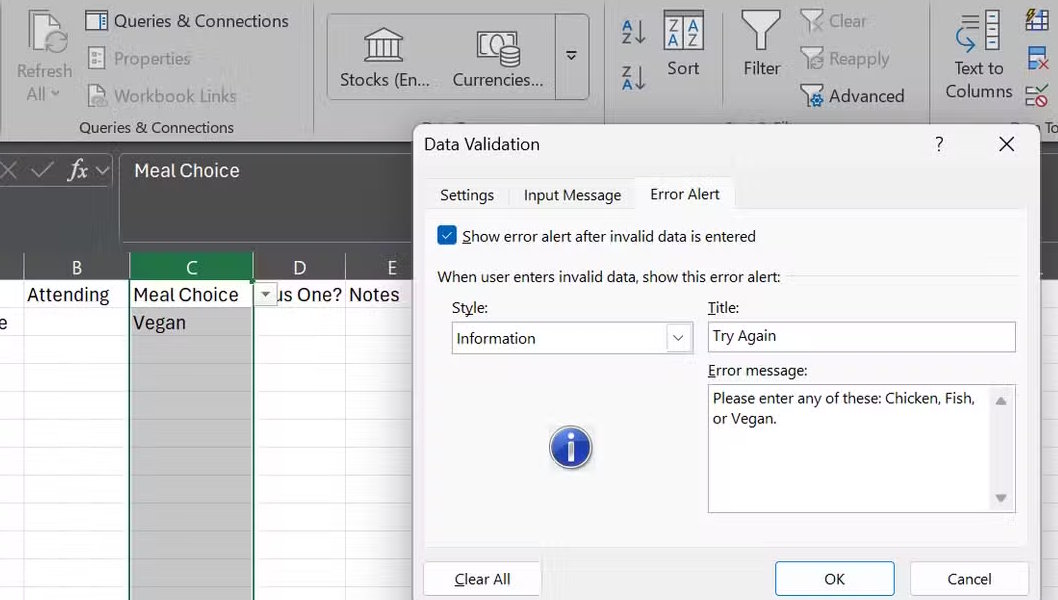
Validation helps with data entry but is not a security boundary, and pasted or imported data still needs checking. See the fuller Excel drop-down list instructions.
3. Flash Fill: transform text from examples
If column A contains full names and column B should contain a particular part of each name, type the desired result beside the first entry. Add another example if needed, then select the destination area and use Data > Flash Fill or Ctrl+E.
Flash Fill is useful for extracting email domains, combining text, or reshaping consistent codes. Inspect unusual rows: compound surnames, missing separators, or inconsistent formats can break an inferred pattern. Its output is static text, so changing the source later does not update the results as a formula would.
4. PivotTables: summarize a structured list
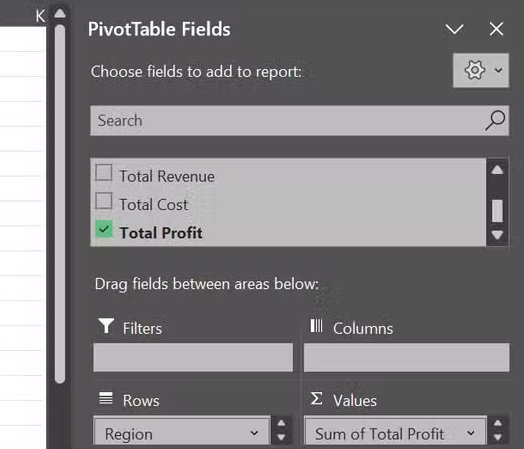
Give each data column a unique header and keep one record per row. Select the data, choose Insert > PivotTable, and place the result on a new sheet. For sales by region, put Region in Rows and Sales in Values.
Check whether the Values field is using Sum or Count: numbers stored as text can lead to an unexpected summary. Refresh the PivotTable when source data changes and confirm that its source includes newly added records.
5. Power Query: repeat data-cleaning work
Use the Data > Get Data or From Table/Range commands where available to import data into Power Query. Remove unnecessary columns, set data types, filter rows, and load the result back to Excel.
The query saves transformation steps for refresh, making it useful for recurring reports with a consistent structure. Refresh can still fail if source paths, permissions, or column names change. Inspect the output rather than treating a saved query as a guarantee of clean data.
6. Freeze Panes: keep labels visible
Use View > Freeze Panes > Freeze Top Row for a single header row. To keep both rows and columns visible, select the cell below the rows and to the right of the columns you want to retain, then choose Freeze Panes.
For example, selecting B2 freezes row 1 and column A. This changes scrolling behavior, not printed page headers.
7. Goal Seek: find one input for a target result
Goal Seek adjusts one input cell until a dependent formula reaches the value you specify. For a simple example, enter 20 in A1, 5 in B1, and =A1*B1 in C1.
- Choose Data > What-If Analysis > Goal Seek.
- Set Set cell to C1, To value to 150, and By changing cell to A1.
- Run it and inspect the proposed result before accepting.
This example should propose 30 for A1. Goal Seek handles one changing input; it does not solve every constrained or multi-variable problem. See Excel What-If Analysis examples for more context.




Reader Comments 0
Sign in with email or Google to join the discussion.