Table of Contents
YouTube ReVanced 18.19.35 is an old, version-specific build and should not be treated as the latest release. YouTube and the ReVanced patch set change frequently, so a tutorial that tells everyone to download one fixed YouTube APK will become unreliable. ReVanced Manager is also an Android tool; claims that the same APK works on iPhone or iPad are incorrect.
If an older patched app still works, there is no universal upgrade file that is safe for every phone. Check the official project’s supported versions and announcements, then decide whether to rebuild the app with current tools or return to the official YouTube app.
Why the old 18.19.35 instructions no longer work reliably
The number 18.19.35 refers to an older YouTube app release, not a permanent ReVanced version. A patched installation depends on a compatible base app, the current patch bundle, the signing key, and—for some non-root setups—a compatible Google-services component. A mismatch can cause patch failures, install conflicts, login loops, or playback errors.
YouTube can also change its service independently of the Android app. Reinstalling the same old package is therefore not a reliable fix for buffering or unavailable-video messages. Check official ReVanced announcements before assuming the phone or Google account is at fault.
Check your installation before changing anything
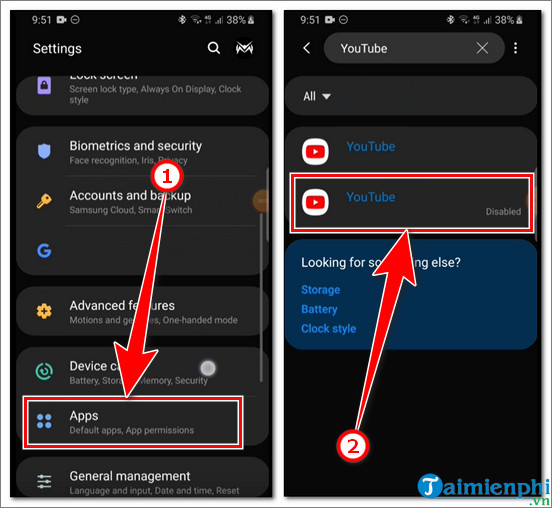
- Open Android Settings > Apps and select the patched YouTube app.
- Record its version, package name, and installation source if Android shows one.
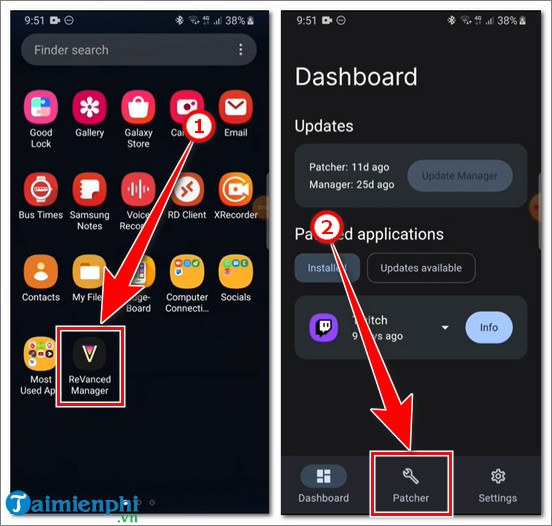
- Open ReVanced Manager and record its version and the patch information it reports.
- Confirm that you still have the signing key or manager data used for the existing build. A new signature may prevent an in-place update.
- Back up local information you care about. YouTube subscriptions, playlists, and history normally belong to the signed-in account, but app-only settings may be lost.
If you cannot identify where the installed APK came from, treat it as untrusted. Do not enter a Google password into it merely to test whether sign-in still works.
A safer update approach
This article does not provide a pre-patched YouTube APK. The ReVanced project identifies revanced.app and its linked GitHub repositories as its official sources. Counterfeit sites often copy the project’s name and interface.
- Remove unknown download links. Do not update from a file-hosting page, social-media post, or site that advertises a ready-made “Premium APK.”
- Use the official project documentation. Install ReVanced Manager only from the project’s website or its verified GitHub releases. Compare the package and release information before opening the file.
- Follow the version recommended by the current patch set. Do not assume 18.19.35—or the newest YouTube release in Google Play—is compatible.
- Review the selected patches. Apply only features you understand. More patches create more opportunities for conflicts.
- Keep Android protections enabled. Google recommends leaving Play Protect on. Stop if the package source, requested permissions, or signing behavior is not what you expected.
- Test before signing in. Confirm that the app opens and plays public content. If sign-in requires an unfamiliar compatibility package, verify that component through the project’s current documentation first.
The interface and supported workflow can change, so the project’s ReVanced Manager repository is a better reference than fixed screenshots from 2023. For a broader security discussion, see ReVanced risks and account-error troubleshooting.
What to do when an update will not install
“App not installed” or signature conflict
Android will not install an update over an app signed with a different key. If the new package is trustworthy but uses a different signature, you may need to uninstall the old patched app first. This deletes its local settings, so do not proceed until you understand what will be lost.
Patching fails or the YouTube version is unsupported
Use the base-app version recommended by the current patch information. Update ReVanced Manager and refresh its patch data. A random APK labelled “latest” may be too new, too old, split into an unsupported bundle, or altered by its distributor.
Login loops or no account appears
Do not repeatedly install different “MicroG” or GmsCore packages from search results. Verify the currently supported component through official ReVanced documentation. Remove conflicting old components before installing a verified replacement, and review Google Account security if credentials were entered into an untrusted app.
Videos stop after an update
Check official announcements for a known service-side issue. Clear only the patched app’s cache first; clearing all data removes its settings and account session. If there is no supported fix, use the official YouTube app while waiting.
When the official YouTube app is the better choice
A patched client requires ongoing maintenance and can stop working without warning. The official YouTube app receives updates through Google Play, uses Google’s normal account flow, and has predictable support. YouTube Premium provides supported ad-free viewing, background play, and offline features where available.
Use the official app for work accounts, payment-enabled accounts, children’s profiles, or any device containing sensitive data. The convenience of an unofficial patch is not worth exposing an important Google account to a package whose origin you cannot verify.
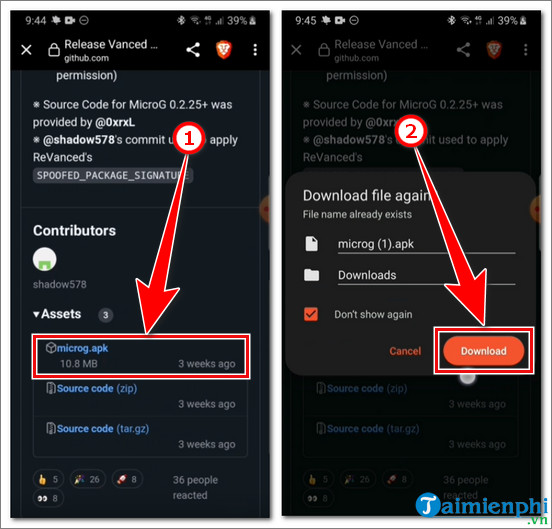
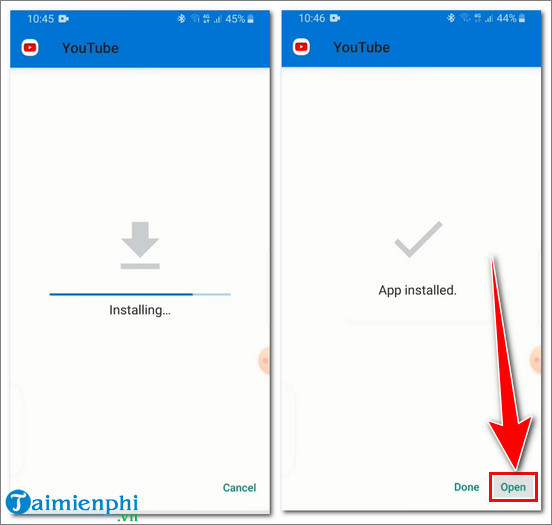
Legacy screenshots from the 18.19.35 workflow
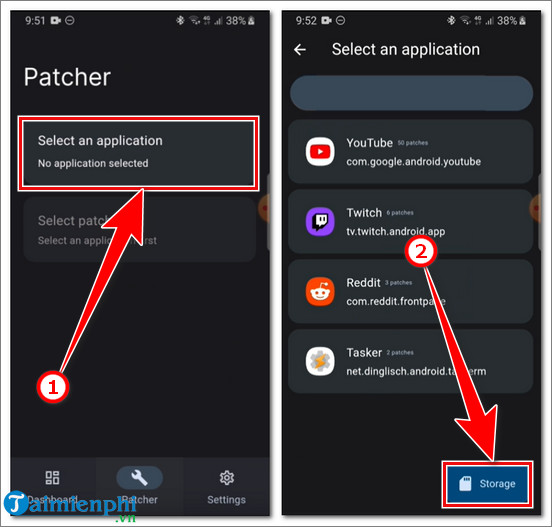
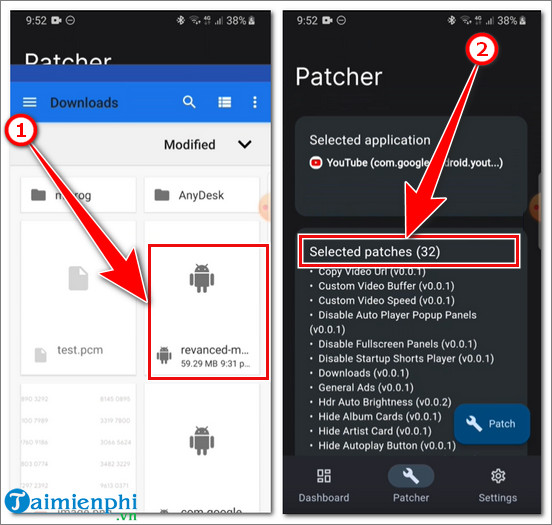
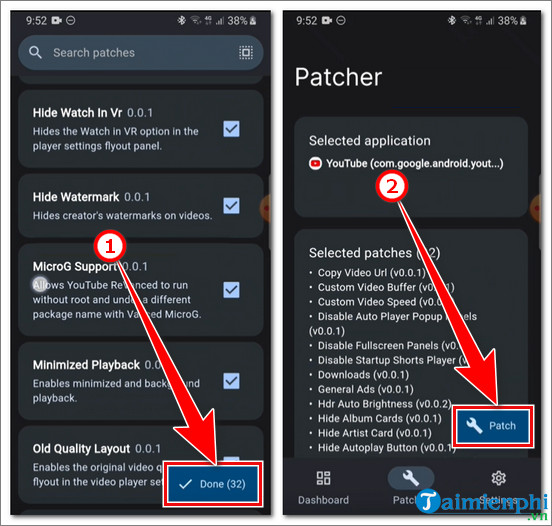
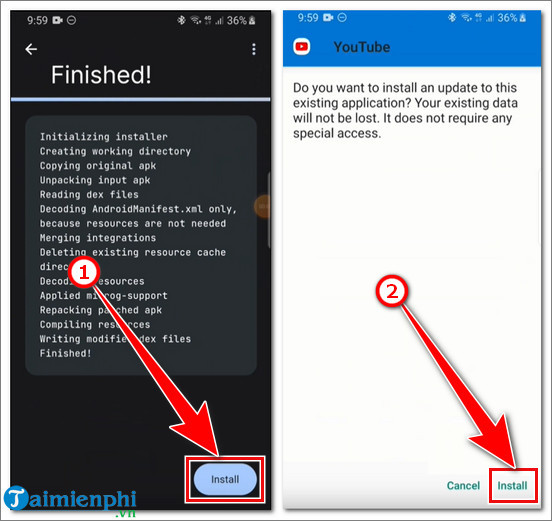
These images are preserved from the original article for historical identification. They show an older Manager interface and a version-specific workflow; current labels, supported versions, and steps may differ.
Related Articles
 How to Download and Use YouTube Revanced Without Account Errors5 minutes read
 How to Download Videos from YouTube to Your Phone Quickly4 minutes read
 YouTube Live Gets a Major Update, Introducing Dual-format Streaming5 minutes read
 How to Update Video Card Drivers Very Quickly and Easily: Complete Guide9 minutes read
 2 Ways to Replay, Replay YouTube Videos Automatically7 minutes read
 How to Download YouTube Videos on a MacBook Quickly4 minutes read
Reader Comments 0
Sign in with email or Google to join the discussion.