Table of Contents
YouTube does not provide a free setting that switches off every ad. The supported ad-free option is an eligible YouTube paid membership. My Ad Center can change how ads are personalized, and YouTube lets you block or report individual ads, but those controls do not reduce the total number of ads you see.
The original version of this article confused video annotations with advertising and used outdated browser-extension screens. Unchecking an annotation setting never removed pre-roll or mid-roll ads. Use the current options below according to the problem you want to solve.
Ways to manage YouTube ads
| Goal | Best option | Limitation |
|---|---|---|
| Remove ads from most videos | YouTube Premium | Paid membership; creator promotions within videos can remain. |
| Remove ads from many non-music videos | Premium Lite, where offered | Ads may still appear on music, Shorts, search, and browsing surfaces. |
| Stop one ad from appearing again | Use Block ad when available | Does not block other ads and requires personalized-ad controls. |
| Flag a deceptive or inappropriate ad | Use Report ad | Google reviews the report; it is not an instant platform-wide removal. |
| Reduce use of account activity for ads | Turn off personalized ads in My Ad Center | You will still see contextual or non-personalized ads. |
Option 1: Use YouTube Premium or Premium Lite
YouTube Premium is the straightforward choice for viewers who want supported ad-free playback across the official app, website, and compatible TVs. It also includes background play and offline downloads where available. Premium Lite costs less in supported markets but has a narrower ad-free experience and may not cover music or every part of YouTube.
- Open YouTube and sign in to the Google account you want to use.
- Select your profile picture, then choose Purchases and memberships.
- Review the plans offered in your country, the renewal price, and any family or student eligibility rules.
- Subscribe only through YouTube, Google Play, or Apple’s in-app purchase flow—not through a site selling a discounted account.
For a plan comparison and common limitations, read What is YouTube Premium? If your main goal is screen-off listening rather than ad removal, compare the options in our guide to YouTube background play and picture-in-picture.
Option 2: Turn off personalized ads
Disabling personalization changes the data Google uses to select ads; it does not turn advertising off. When personalization is disabled, ads may instead be based on general factors such as the video topic, time of day, or approximate location.
- Visit My Ad Center while signed in to your Google account.
- Select the control for Personalized ads and turn it off.
- Open Manage Privacy if you also want to control whether YouTube History or activity on sites and apps can be used for ad personalization.
- Review the confirmation carefully. Pausing ad personalization is different from deleting activity already saved to the account.
You can also request fewer ads about supported sensitive topics. Google describes the current controls in its My Ad Center guide.
Option 3: Block or report a specific ad
When an ad is playing, select the More or Info icon. If Block ad is available, use it to stop that particular advertisement from being shown to you. This choice does not remove all advertising.
Choose Report ad when the ad appears deceptive, dangerous, inappropriate, or otherwise violates Google’s advertising rules. Add accurate details rather than reporting an ad solely because it repeats frequently. YouTube’s current instructions are in Ads on videos you watch.
If the concern is content rather than advertising, use YouTube’s reporting and family controls. Our guide to limiting inappropriate YouTube videos explains what Restricted Mode, supervised accounts, and YouTube Kids can and cannot do.
What to know about browser ad blockers
Content-blocking extensions can filter requests in a browser, but YouTube says blocking its ads violates the service’s terms and may prompt viewers to allow ads or subscribe. An extension can also stop working when YouTube changes its player or delivery system.
If you install any browser extension for another legitimate purpose, use the browser’s official extension store and check:
- the exact publisher name and official website;
- permissions such as “read and change all data on websites”;
- recent reviews and the extension’s update history;
- whether ownership or the privacy policy has changed; and
- whether the requested access is proportionate to the feature.
Remove extensions you no longer use. A popular name and high install count are not substitutes for reviewing permissions.
If Premium users still see ads
- Confirm that YouTube shows the Premium logo and that you are signed in to the account with the active membership.
- Update the YouTube app, then close and reopen it.
- Check whether the message is a sponsorship or product placement inserted by the creator; YouTube Premium does not remove material recorded into the video.
- On a TV, verify that the correct account profile is selected.
- Contact YouTube support through the paid-membership help page if standard YouTube ads continue.
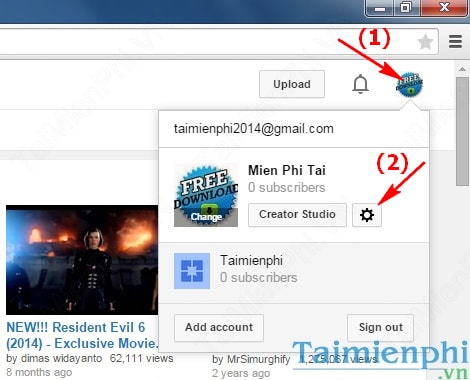
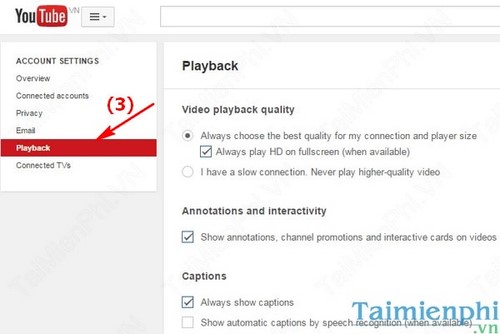
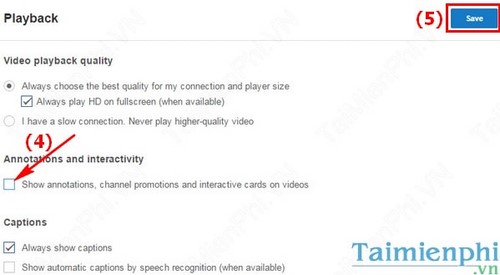
Legacy screenshots from the old instructions
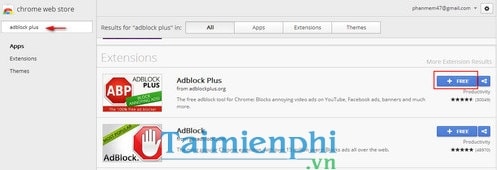
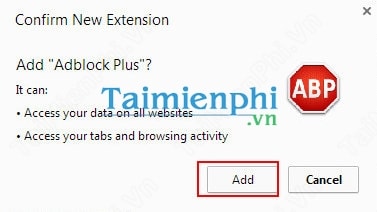
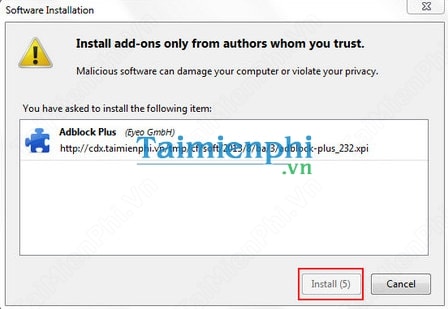
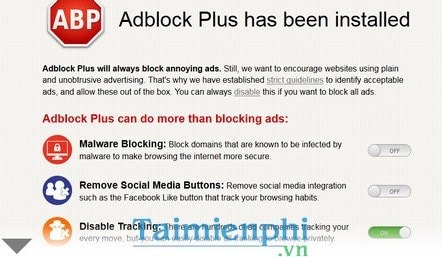
These images are preserved for historical reference. They show an old Chrome/Firefox extension interface and a retired YouTube annotations setting; the buttons and claims should not be used as current instructions.
Related Articles
 Guide 3 Ways to Block Ads on YouTube Videos: Turn Off Video Ads4 minutes read
 How to Add Effects, Turn on Dark Mode, Remove Ads and Delete Black5 minutes read
 How to Block YouTube: Complete Guide14 minutes read
 How to Block YouTube Channels: What Actually Works14 minutes read
 How to Block YouTube Shorts3 minutes read
 How to Block Ads, Turn Off YouTube Ads on iPhone5 minutes read
Reader Comments 0
Sign in with email or Google to join the discussion.