Table of Contents
Below, Free Download will guide you on how to download YouTube videos on your MacBook using simple tools, suitable for all needs, from casual users to content creators.
How to download YouTube videos on a Macbook
Method 1: Using iTubeDownloader
Download and install the software here:

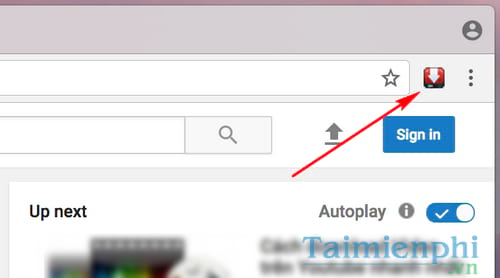
iTubeDownloader works similarly to a web browser, automatically redirecting to the YouTube homepage. Here you can search for and open the videos you want to download, then click the Download button icon in the browser's address bar (as shown below), select the desired video quality, and you're done.
Method 2: Using Chrome
Step 1: Download the software to your computer
- Link to download Youtube Downloader Video
Step 2: Open the YouTube video you want to download, then click on the YouTube Video Downloader plugin icon in the upper right corner of your browser.
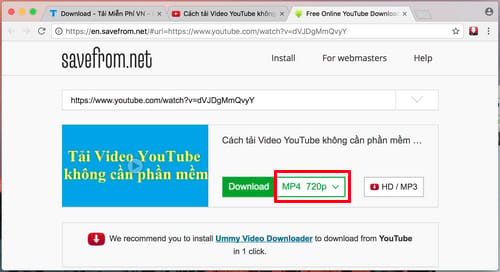
Step 3: The website interface will appear. Here, click on the red circled area as shown below to select the appropriate video format you need, then click Download to download the YouTube video to your computer.
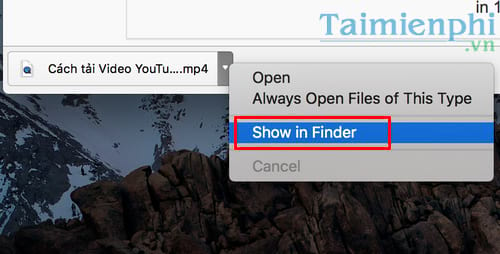
Step 4: After the video download is complete, double-click the downloaded file and select "Show in Finder" to see the location of the downloaded video file. Double-click to play and watch the video.
Method 3: Using Firefox
Step 1: Download NetvideoHunter
Step 2: Open the YouTube video you want to download, then click the NetvideoHunter add-on icon in the upper right corner of your browser.
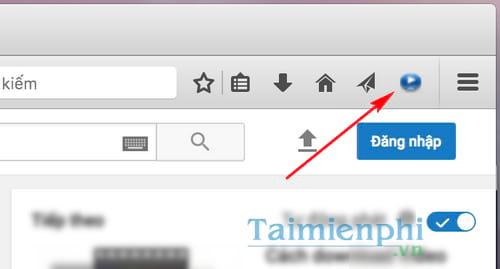
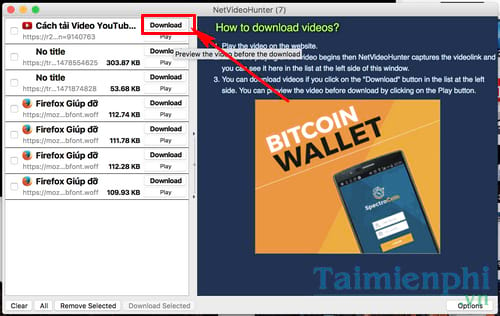
Step 3: Click on the Download button to download it to your device. To be sure, you can click the Play button to preview it.
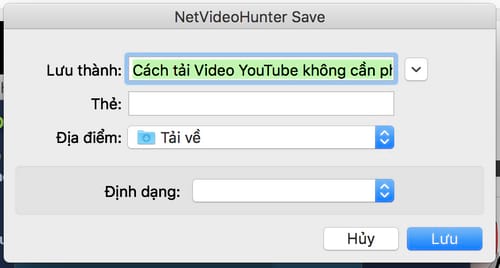
Step 4: A small dialog box will appear where you can rename the YouTube video file, change its save location, and click Save to save the settings.
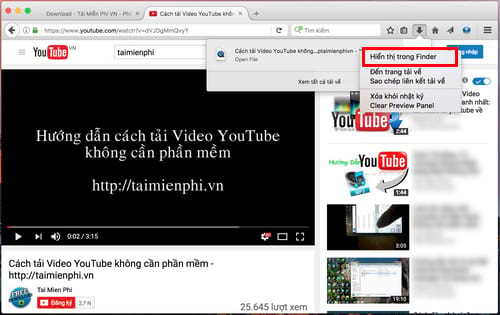
Step 5: Once the video download is complete, click the download arrow icon in your browser, double-click the video file, and select "Show in Finder" when the menu appears to open the folder containing the video file and the downloaded video.
Above are the simplest ways to download YouTube videos on your Macbook . Hopefully, with these simple tips, you will be able to quickly download your favorite videos to your computer.
Related Articles
 How to Download YouTube Videos on Macbook6 minutes read
 10 Ways to Download YouTube Videos Fast and Simple14 minutes read
 How to Download YouTube Videos to Android Phones5 minutes read
 Simple Way to Quickly Download YouTube Videos2 minutes read
 Convert YouTube MP3 Files: What You Need to Know9 minutes read
 Summary of Websites That Download YouTube Videos8 minutes read
Reader Comments 0
Sign in with email or Google to join the discussion.