Table of Contents
The supported way to remove YouTube ads and keep audio playing with the screen off is a YouTube Premium membership. Picture-in-picture (PiP), which keeps a small video over other apps, is also available for many videos without Premium, although eligibility can vary by content and location.
Third-party apps that promise an “ad-free YouTube” experience may stop working when YouTube changes its service. They can also introduce privacy, account, and APK-security risks. If you are deciding whether the official subscription is worthwhile, see our overview of YouTube Premium features and limitations.
Choose the feature you actually need
| Feature | Supported option | What to know |
|---|---|---|
| Watch without YouTube ads | YouTube Premium or Premium Lite where offered | Availability and included features vary by country and plan. |
| Play audio with the screen off | Background play in the YouTube mobile app | Normally requires an eligible paid membership. |
| Watch over another app | Picture-in-picture | Available for many non-music videos; music content may require Premium. |
| Watch without a connection | YouTube’s Download button | Downloads stay inside YouTube and depend on content and regional availability. |
| Browse YouTube while a video plays | YouTube Miniplayer | Works inside the official app or website. |
Turn on background play in the official YouTube app
- Install or update YouTube from Google Play or Apple’s App Store.
- Sign in to the account that has the relevant YouTube membership.
- Tap your profile picture, open Settings, and select Background & downloads.
- Tap Playback and choose Always on or Headphones or external speakers.
- Start a video, leave the app, or lock the screen to test playback.
If audio stops, confirm that the membership is active, update the app, restart the phone, and check whether battery-saving settings are restricting YouTube in the background. Some videos are not eligible for background play or offline downloads. Google’s current troubleshooting steps are available in YouTube Help.
Use picture-in-picture on Android
- Open Android Settings and go to Apps > Special app access > Picture-in-picture. Menu names can differ by phone.
- Select YouTube and allow picture-in-picture.
- In YouTube, open Settings > General and enable Picture-in-picture if that switch appears.
- Play a supported video, then swipe up or press Home. The video should shrink into a movable window.
Use picture-in-picture on iPhone or iPad
- Open iOS or iPadOS Settings > General > Picture in Picture.
- Turn on Start PiP Automatically.
- In the YouTube app, check Settings > General and enable picture-in-picture when the option is shown.
- Play an eligible video and leave the app to open the floating player.
PiP availability depends on the video type, account, country, and YouTube’s current rules. Google explains the feature in its picture-in-picture guide.
Download videos for offline viewing
When a video is eligible, tap Download below the player and select a quality. Find saved items under You or Library > Downloads. These files are managed by YouTube rather than exported as ordinary video files, and the app must periodically reconnect to verify availability.
Creators can download their own uploads through YouTube Studio. For more detail on supported viewing options, read how YouTube downloads work on phones.
Why we no longer recommend “ad-free YouTube” clone apps
The original version of this article recommended Pure Tuber and presented it as a replacement YouTube client. A third-party app can change ownership, permissions, distribution method, or compatibility after an article is published. It may also handle viewing history, search activity, or sign-in data outside Google’s official app.
Before installing any alternative client, check the developer shown in the app store, recent permissions, privacy disclosures, and whether the app asks you to sign in through an embedded or unfamiliar page. Do not install a sideloaded APK merely because a video or website calls it safe. Keep Google Play Protect enabled, and never give an unofficial client unnecessary access to contacts, messages, accessibility controls, or device administration.
If you already used a questionable app, uninstall it, run a Play Protect scan, and review recent Google Account activity. Change your password if you entered it on an untrusted screen or see an unfamiliar session.
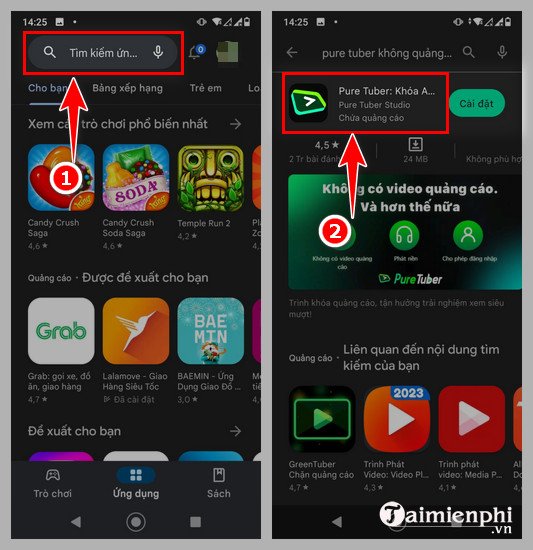
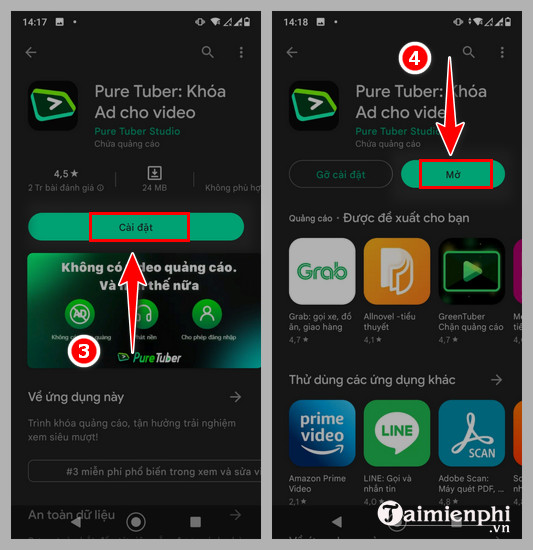
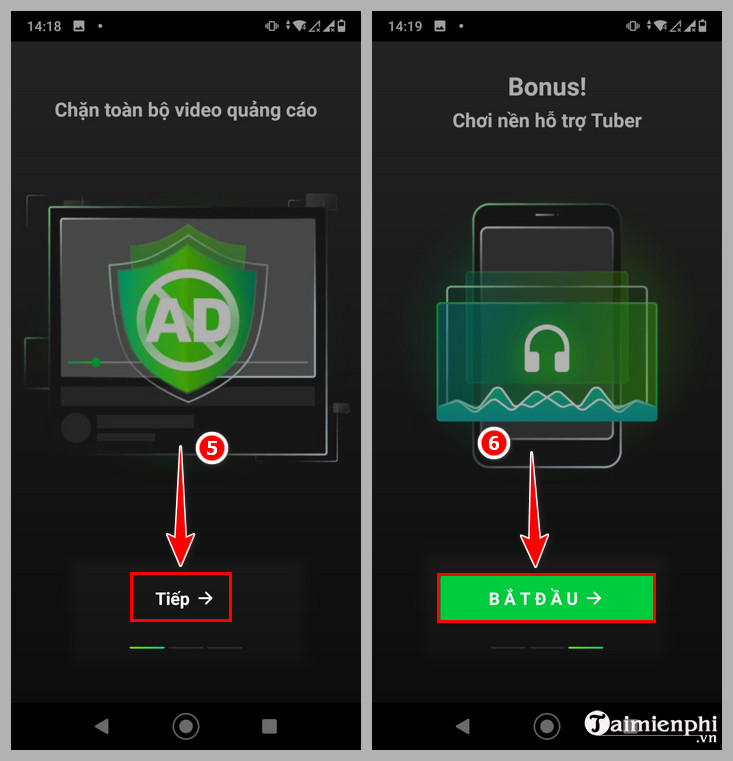
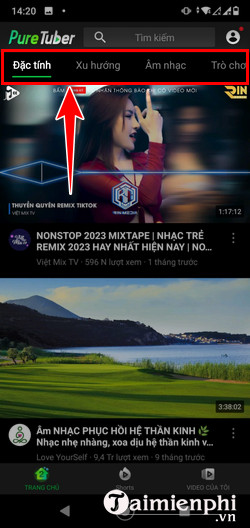
Legacy Pure Tuber screenshots
The screenshots below are retained to identify the older interface discussed in the source article. They do not confirm that the current app is safe or that its menus and behavior remain the same.
Bottom line
Use the official YouTube app for account security and reliable playback. Premium is the straightforward option for ad-free and screen-off listening; picture-in-picture may meet the needs of people who only want to use another app while a video remains visible. Third-party clones trade a subscription fee for uncertain privacy, reliability, and support.
Related Articles
 How to Turn Off Applications That Run in the Background on9 minutes read
 Collection of Free Music Sources to Make YouTube Videos3 minutes read
 How to Turn Off Applications That Run in the Background on4 minutes read
 YouTube Vanced Application with Many Cool Features for Android4 minutes read
 Apple: Turning Off Apps Running in the Background on iPhone Is Useless, It Only5 minutes read
 Fix Windows Error: Complete Guide8 minutes read
Reader Comments 0
Sign in with email or Google to join the discussion.