Table of Contents
You can uninstall Opera or Opera GX through Windows Settings in a few minutes. Before you begin, decide whether you want to remove only the browser or also delete its local profile, which can contain bookmarks, history, extensions, cookies, and saved settings.
If you are switching browsers, install the replacement and import or export the data you need before deleting anything.
Before uninstalling Opera
- Back up bookmarks. Use Opera Sync or export bookmarks to an HTML file, then confirm that the backup opens.
- Move saved passwords carefully. Import them directly into a trusted browser or password manager where possible. A CSV export is unencrypted, so delete it securely after importing.
- Check multiple profiles. Make sure another person’s profile or a work profile does not contain data you still need.
- Close Opera. Exit all Opera windows. If the uninstaller says the browser is running, open Task Manager and end remaining Opera processes.
Uninstalling the application and deleting the user profile are different actions. Keep the profile if you are troubleshooting and may reinstall. Delete it only when you have verified the backup and no longer need the local data.
Method 1: Uninstall Opera in Windows 11 Settings
- Open Start and select Settings.
- Go to Apps > Installed apps.
- Search for Opera. Confirm whether the entry is Opera, Opera GX, Opera beta, or another installed channel.
- Select the three-dot menu beside the correct entry and choose Uninstall.
- Confirm the Windows prompt, then follow Opera’s uninstaller.
Method 2: Uninstall Opera in Windows 10 Settings
- Open Start > Settings > Apps.
- Choose Apps & features.
- Select Opera from the list and choose Uninstall.
- Follow the prompts to finish.
Microsoft’s official Windows removal guide covers both Settings and Start-menu methods.
Method 3: Use Programs and Features
The classic Control Panel route works on Windows 11 and Windows 10 and matches the older screenshots below.
- Press the Windows key, type Control Panel, and open it.
- Select Programs > Programs and Features.
- Find the correct Opera entry, select it, and choose Uninstall.
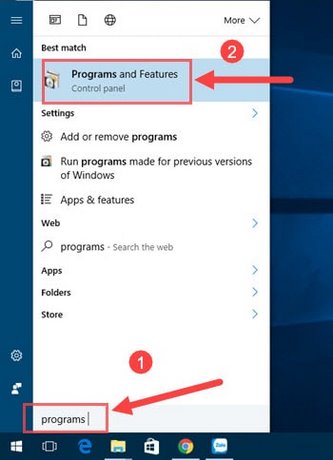
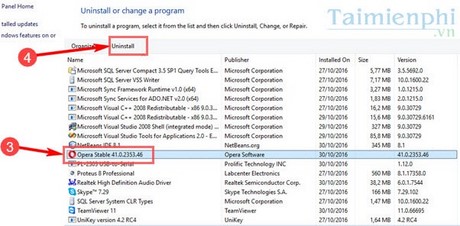
Choose whether to delete Opera user data
Opera’s uninstaller may show a checkbox such as Delete my Opera user data. The wording can vary by version.
- Leave it unchecked if you plan to reinstall, are repairing a problem, or have not verified your backup.
- Check it only if you want to remove the local profile as well as the application and understand that local browser data may not be recoverable.
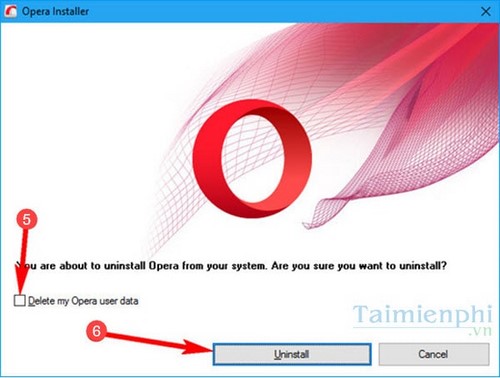
Select Uninstall and wait for the process to finish. Restart Windows if the installer requests it or if files remain locked.
For a clean reinstall
If Opera crashes or will not update, removing the profile is a separate troubleshooting step. Opera’s crash and clean-install guidance recommends backing up needed files, uninstalling the application, deleting the profile data, and installing the latest version.
Before uninstalling, open opera://about and note the exact Profile path. This is safer than assuming every installation uses the same folder. Close Opera before moving or deleting a profile.
A cautious clean-reinstall workflow is:
- Back up bookmarks and any other required data.
- Record the profile path from
opera://about. - Uninstall Opera without deleting the profile on the first attempt.
- Rename the old profile folder so it remains recoverable.
- Install the current Opera build and test it with a fresh profile.
- Delete the renamed folder only after confirming that the new installation and backup are complete.
Renaming the folder is reversible and helps determine whether a corrupt profile caused the problem.
If Opera will not uninstall
- Close background processes: Use Task Manager to end Opera and Opera updater processes, then try again.
- Restart Windows: This releases files held by a failed update or browser process.
- Check the exact edition: Opera, Opera GX, beta, and developer builds can appear as separate entries and may have separate profiles.
- Reinstall the same edition: If the uninstaller is missing or damaged, install the current version over the existing copy, then run Uninstall again.
- Use an administrator account: A system-wide installation may require elevation. On a managed PC, contact the administrator rather than bypassing policy.
- Try Microsoft’s uninstall troubleshooter: Windows may suggest a repair path when an app cannot be removed normally.
Avoid downloading a random “Opera removal tool.” The built-in uninstaller and Windows removal options are safer starting points.
Confirm that removal is complete
- Search Installed apps or Programs and Features again for Opera variants.
- Remove obsolete desktop, Start-menu, or taskbar shortcuts.
- Open the new default browser and confirm that bookmarks and passwords imported correctly.
- Change the default browser in Settings > Apps > Default apps if Windows still points links to Opera.
- If the computer is being transferred to someone else, remove the Opera profile and sign out of any synced account using the account’s security controls.
For other Windows removal methods, see TipsMake’s guide to uninstalling apps in Windows 11. If you are choosing a replacement, compare the current web browsers covered by TipsMake based on privacy, compatibility, extensions, and synchronization rather than popularity alone.
Related Articles
 How to Uninstall Opera3 minutes read
 Learn About Opera Page: of Opera Browser5 minutes read
 What Is Opera One Web Browser? What Can It Do?5 minutes read
 Reviews on Opera VPN: Simple, Fast and Free9 minutes read
 The Brand New Way to Use Opera One4 minutes read
 How to Open a Screenshot Folder on Opera Neon: Install Opera Neon4 minutes read
Reader Comments 0
Sign in with email or Google to join the discussion.