Table of Contents
Meta has officially launched the social network Threads, considered a formidable competitor to Twitter. Threads works similarly to Twitter, allowing you to share your status as text, reply to other accounts, or like and repost other people's content. Notably, Threads allows Instagram users to follow the same account on Threads, which can help increase followers faster. Below is a detailed guide on how to register for the Threads social network.
How to create a new Threads account (latest method)
Step 1:
We can download the Threads app for our phones using the link below.
Download Threads for Android Download Threads for iOS
Step 2:
After that, when you access the Threads app, you will be prompted to log in using the Instagram account you are currently using on your phone. If you want to log in with a different Instagram account , select "Switch account" .
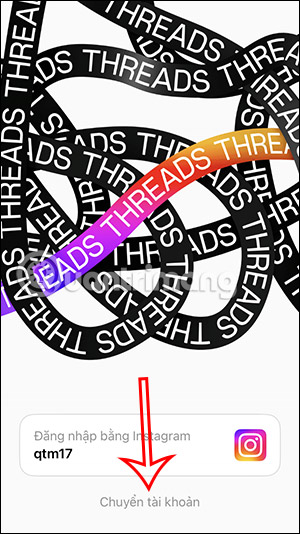
Step 3:
Next, click on "Sign in with another Instagram account ," and then enter the Instagram account you want to use for Threads.
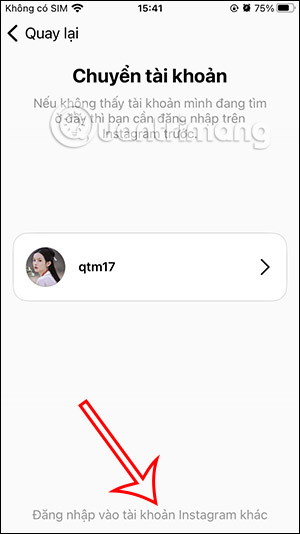
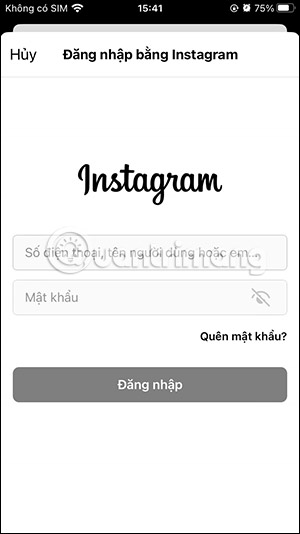
Step 4:
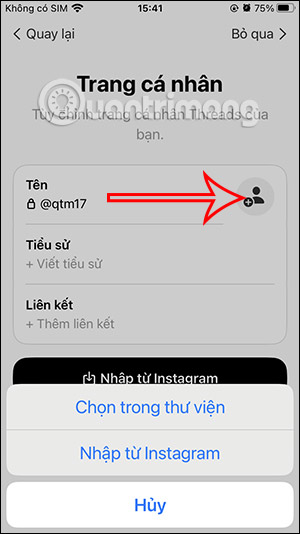
The Threads account information entry screen will appear . For faster access, you can click "Import from Instagram". The Threads account name cannot be changed as it is synced with your Instagram account.
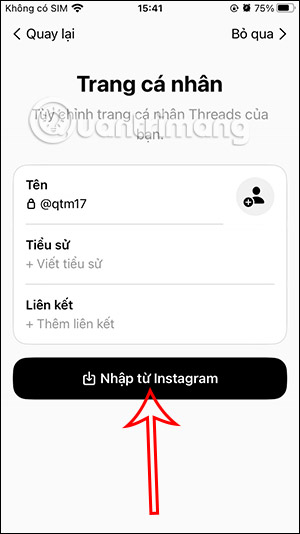
Step 5:
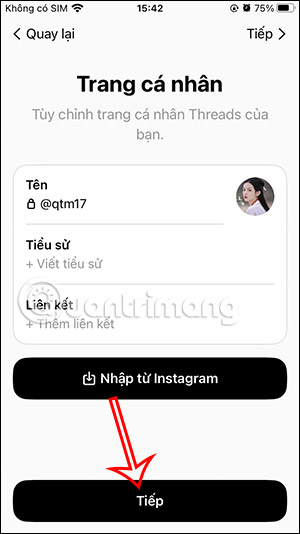
Next, we click on the circular icon to set an avatar for the Threads account . You can use your Instagram avatar or upload a new image.
Please note that because Threads syncs with your Instagram account, if you want to delete your profile and data on Threads, you will have to delete your Instagram account .
Step 6;
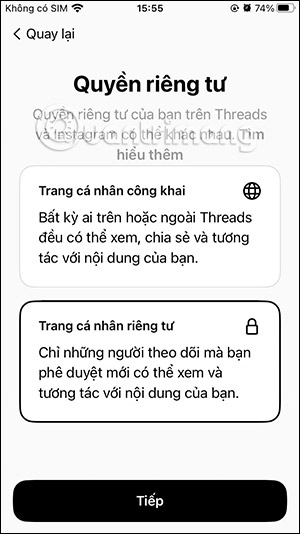
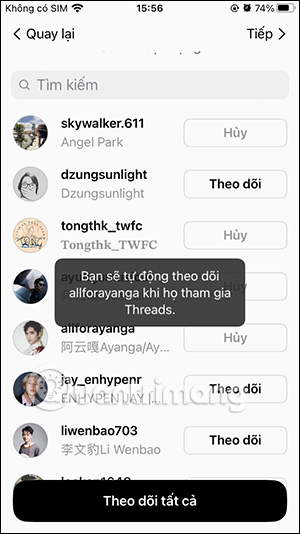
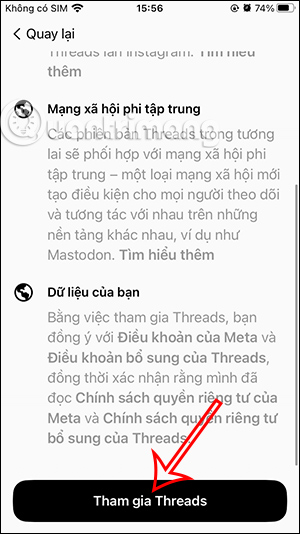
Next, you choose whether to set your Threads as a private or public account . In the new interface, select the people you want to follow on Threads , which will be synchronized from the Instagram account you already follow.
Finally, click Join Threads to complete the Threads registration process.
Step 7:
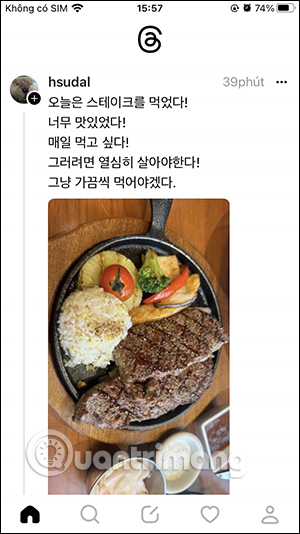
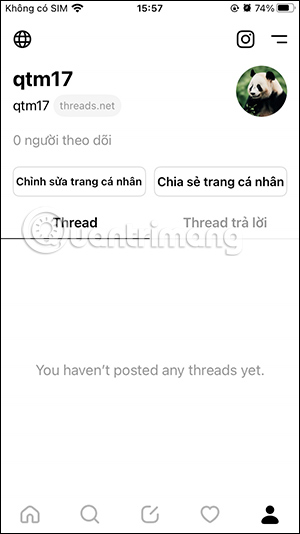
Below is the Home screen in the Threads app. Tap the person icon to access your personal Threads interface .
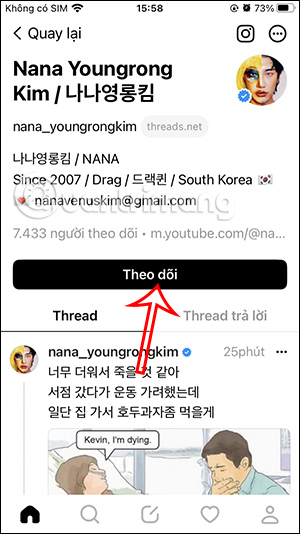
Now you can simply click "Follow" on the Threads account that you want to see displayed.
Video tutorial on how to register a Threads account
How to use Threads
Threads is quite similar to Twitter. However, Threads and Twitter don't work in the same way. Once you've set up your Threads account and are ready to post your first thread, here's how you can do it.
How to create a post on Threads
To create a Threads post, follow these steps:
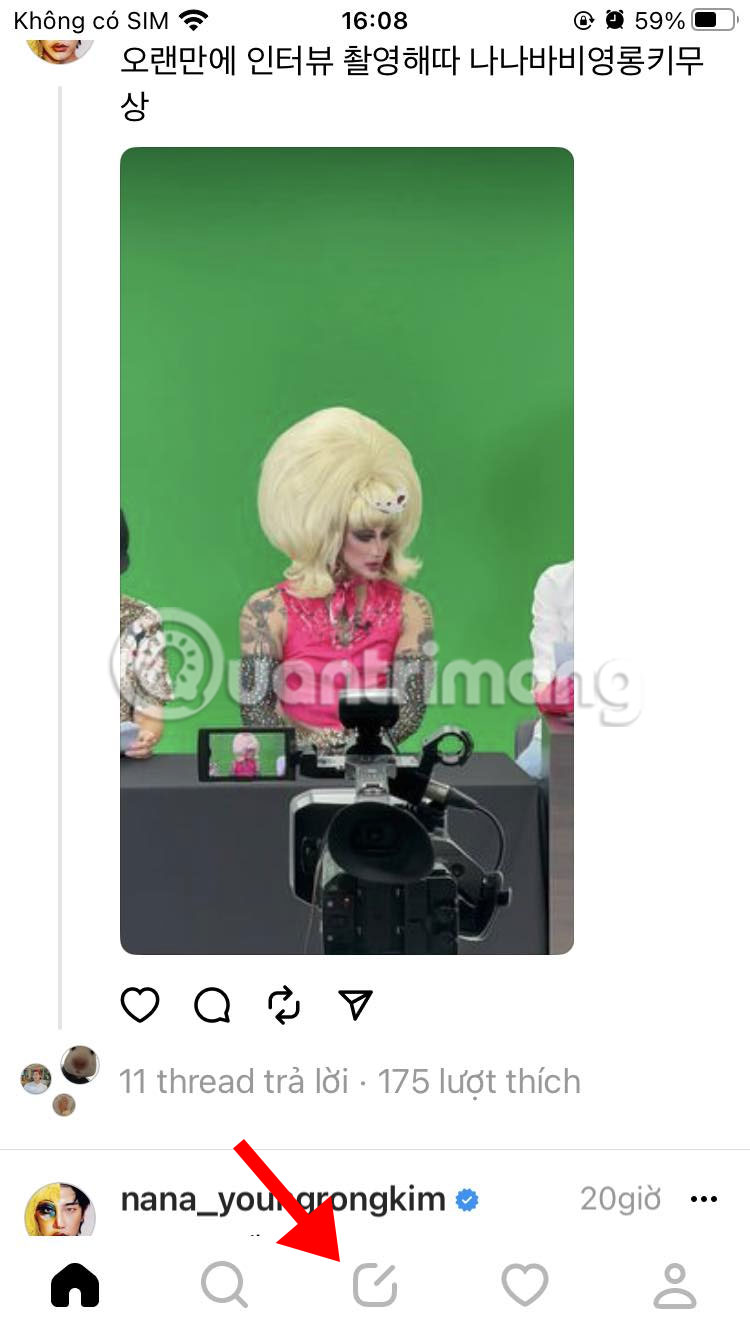
1. From anywhere in the Threads app, simply tap the Create icon in the center at the bottom of the screen to display the Threads creation screen.
2. Begin typing in the text area. If your text doesn't fit in the text area, simply click Add to thread to create a new block of text. Each Threads post has a 500-character limit.
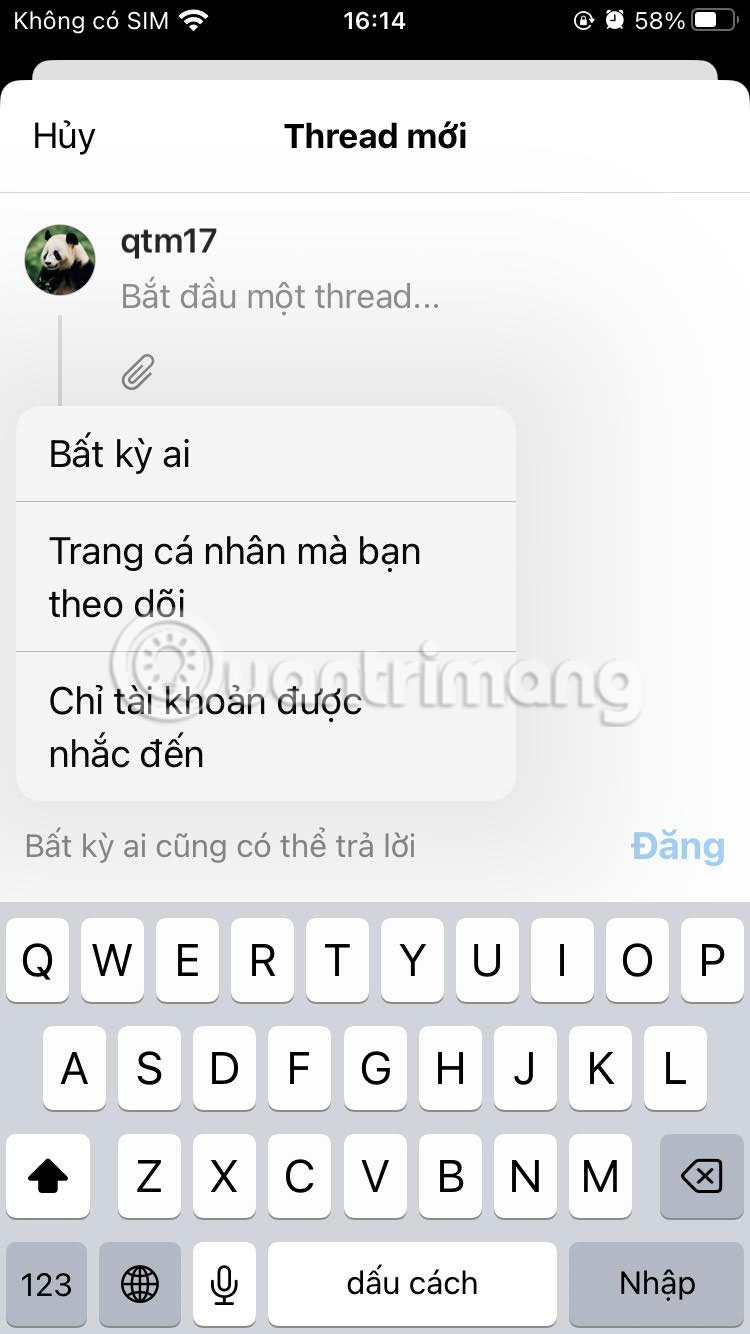
3. Click on "Anyone can reply" in the bottom left corner of the Thread creation screen to select who can reply to your Threads. You can limit replies to only people you follow, people you mention, or leave it open to anyone as the default option.
4. Click Publish in the bottom right corner to publish your post.
How to change username and profile picture on Threads
If you want to change your Threads username or profile picture, there's currently no way to do so independently within the app. Because your Threads profile is linked to your Instagram account, you need to change your Instagram username or profile picture on Instagram to achieve the same change on Threads.
How to follow and unfollow users on Threads
Once you've joined Threads, your timeline might seem a little disjointed. You might be bombarded with the same groups of people you interacted with on Instagram, giving you that "old wine in new bottles" feeling. Or, you might be dealing with too many unfamiliar accounts. Of course, there's a workaround for this – follow more of the other accounts you want to see on your timeline.
To track accounts on Threads:
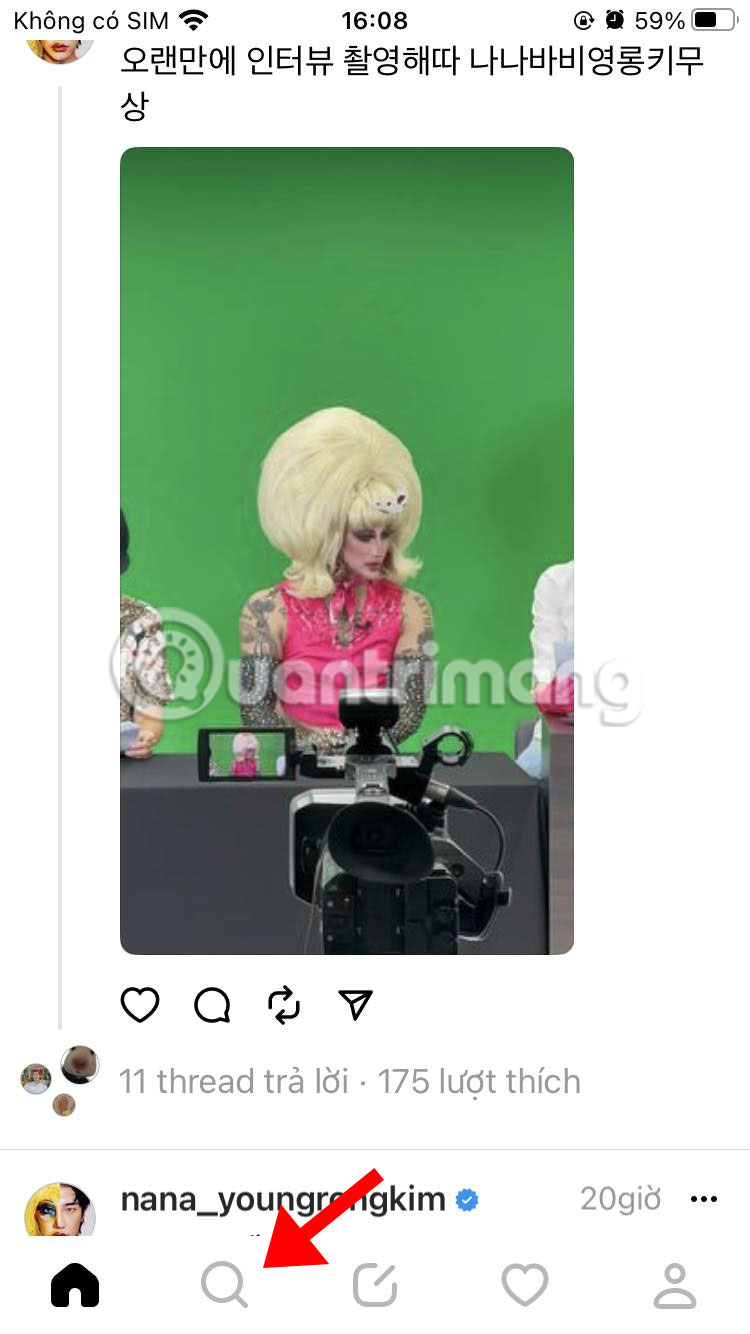
1. Tap the search icon at the bottom of your screen.
2. Follow any of the accounts listed on the search page, or enter the name of any account you wish to follow to search for and track that account.

Related Articles
 How to Create an Instagram Threads Account3 minutes read
 What Are Threads? Everything About Meta.'s New Social Network8 minutes read
 How to Change Threads Account, Threads Account Transfer Instructions4 minutes read
 How to Block Tags from Your Threads Account3 minutes read
 Why Should You Think Carefully Before Logging in with a Social12 minutes read
 Instructions to Change Threads Account Avatar3 minutes read
Reader Comments 0
Sign in with email or Google to join the discussion.