Table of Contents
Facebook's Profile Picture Guard can restrict some ways other people reuse your current profile photo. When the feature is available on your account, turn it on from the photo options on your profile—there is no need to give a browser extension access to your Facebook session.
Turn on Profile Picture Guard
- Open Facebook and go to your profile.
- Tap or click your current profile picture.
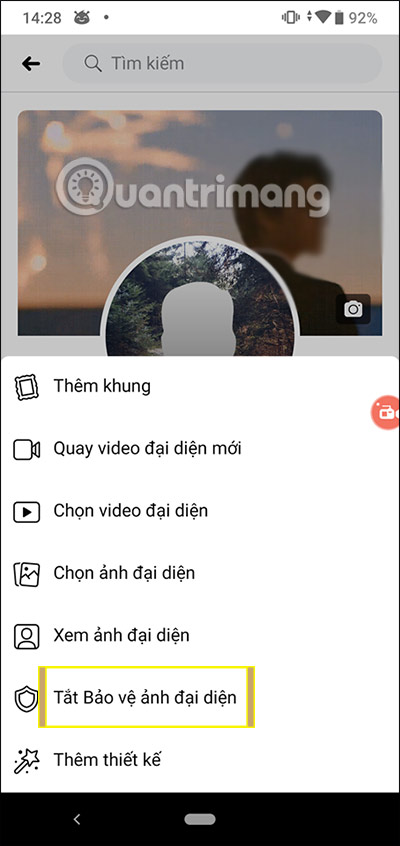
- Choose Turn on profile picture guard. If the option is hidden, open the photo's additional-options menu.
- Review the preview and confirm the change.
Facebook displays a shield marker around a guarded photo. According to Facebook's description, the guard is intended to prevent people from sharing, sending, or saving the current profile picture and to limit tagging by people who are not your friends.
The option is not available for every account or in every region. If it does not appear after you update the Facebook app and check the profile-photo menu, you cannot safely force it on with a hidden setting. Use Facebook's other audience and profile controls instead.
Turn off Profile Picture Guard
- Open your profile and select the guarded profile picture.
- Choose Turn off profile picture guard.
- Confirm when Facebook asks.
What the guard does not protect
Profile Picture Guard discourages casual copying, but it is not digital-rights management. Someone may still capture what appears on a screen or photograph it with another device. Facebook also states that the current profile picture and cover photo are public, so use an image you are comfortable displaying publicly.
For broader privacy, review who can see future posts, your friends list, contact details, and profile information. If Lock profile is available in your country, that separate feature applies a wider set of restrictions to what non-friends can view.
You can check Facebook's current description in the Profile Picture Guard help page.
Do not use old extension-based workarounds
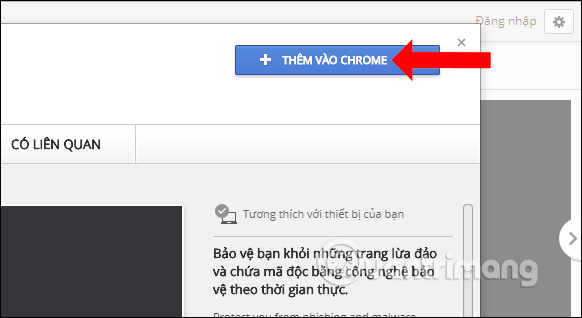
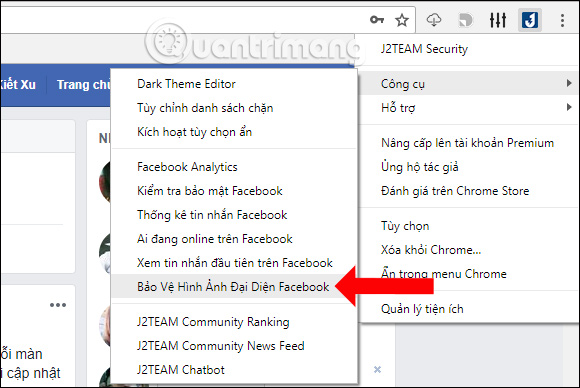
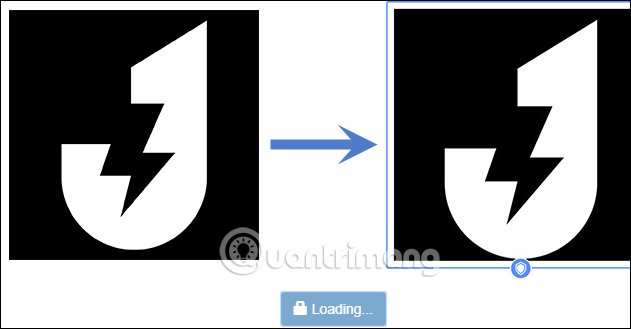
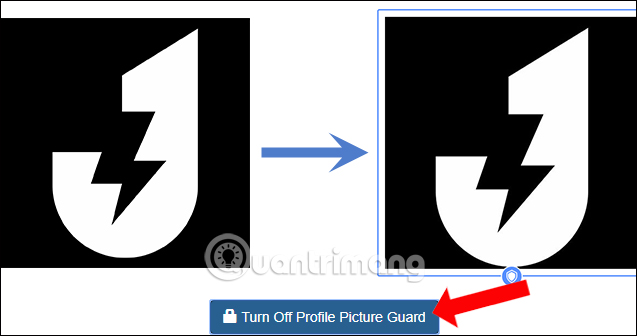
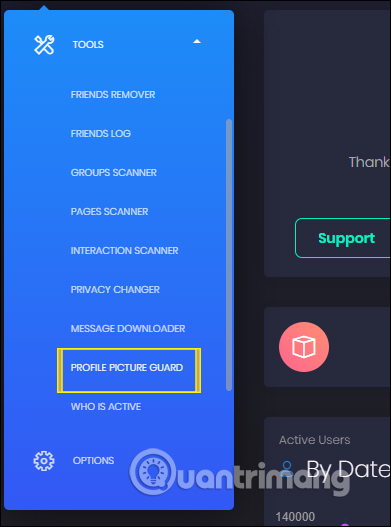
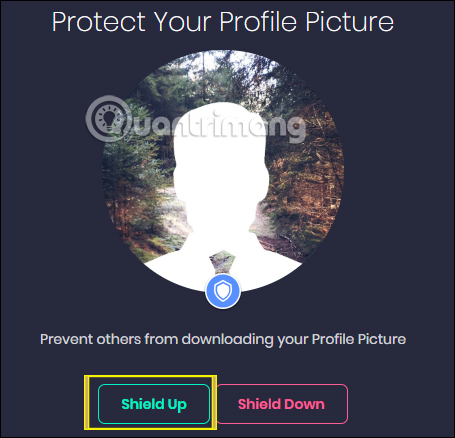
Earlier versions of this tutorial recommended the J2TeaM Security and Multiple Tools for Facebook Chrome extensions to activate the shield in regions where Facebook had not released it. The screenshots below document that older workflow, but the method should no longer be followed.
A third-party extension that operates inside Facebook may be able to read or change data associated with your signed-in session. Extensions can also change ownership, permissions, or behavior after a tutorial is published. Installing one only to expose an unavailable Facebook control creates unnecessary account risk, and Facebook can change the underlying interface at any time.
Archived J2TeaM Security workflow
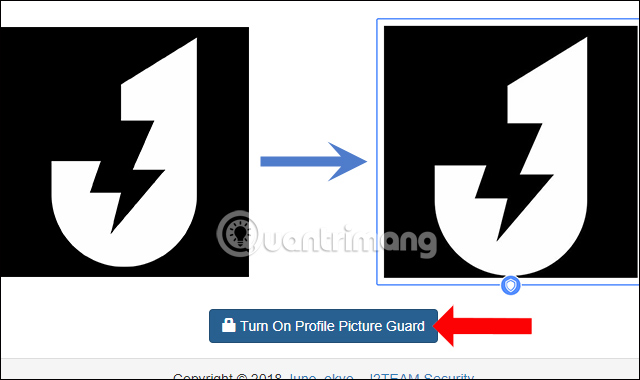

Archived Multiple Tools for Facebook workflow
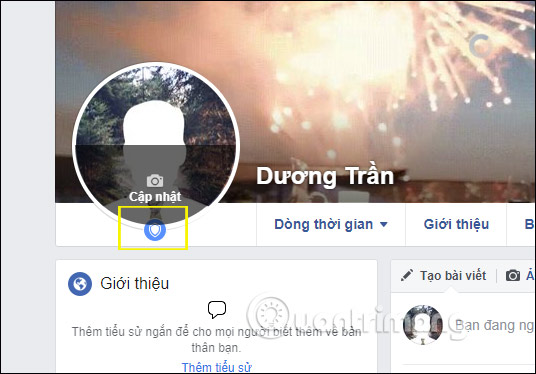
If you previously installed either extension for this purpose, remove it if you no longer use it, then review the extensions page in your browser for any other add-ons with access to Facebook. Change your Facebook password and review active sessions if you notice unfamiliar account activity; do not enter your password into an extension page.
Related Articles
 How to Protect Your Facebook Profile Picture4 minutes read
 Protect Your Facebook Avatar - Did You Try It?3 minutes read
 Create Style for Facebook Avatar with Two Attractive Features6 minutes read
 How to Filter Friends, Change Posts Privacy, Protect Avatar Facebook8 minutes read
 How to Hide Facebook Profile Picture: How to Hide Facebook Avatar2 minutes read
 Guidance on National Flagging on Facebook Profile Picture4 minutes read
Reader Comments 0
Sign in with email or Google to join the discussion.