Table of Contents
YouTube does not provide one universal “block channel” control that removes a channel from search, direct links, recommendations, and every device. The correct method depends on the goal: use Don't recommend channel to reduce recommendations, use YouTube Kids parental controls to block content for a child profile, or block/hide a user to restrict interactions.
Stop a channel from appearing in recommendations
This is the closest native option for a regular YouTube account. On the Home page or beside a recommended video:
- Select the three-dot More menu next to the video's title or thumbnail.
- Select Don't recommend channel.
You must be signed in for the feedback to influence your account. The choice may carry across devices using the same account, but it does not prevent you from finding the channel in search, opening a direct link, or viewing an existing subscription.
If you selected the option by mistake, use the on-screen Undo control immediately. YouTube may also provide ways to clear recommendation feedback in your Google activity settings, but clearing it can remove more than one preference.
Remove a channel from subscriptions
If you subscribed to the channel, open its page and select Subscribed, then confirm Unsubscribe. Unsubscribing removes new uploads from the Subscriptions feed, but YouTube may still recommend the channel unless you also choose Don't recommend channel.
Block a channel in YouTube Kids
For a child's YouTube Kids profile, a parent can block a video or the entire channel. The exact menu varies by device, but the usual process is:
- Open the video or its menu in YouTube Kids.
- Select More or the three-dot menu, then choose Block.
- Choose Block this video or Block entire channel.
- Complete the parent verification step.
Apply the setting to the correct child profile. A blocked channel may still contain videos re-uploaded by another channel, so review the child's approved-content and search settings as well.
What “Block user” actually does on YouTube
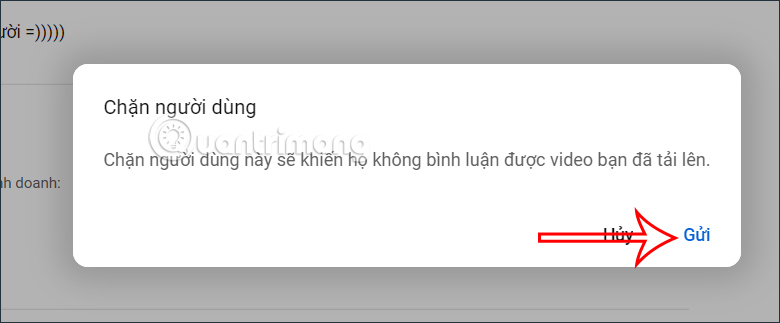
Some versions of YouTube show a Block user or creator-side Hide user from my channel control. This is primarily an interaction and moderation feature. It should not be described as a reliable way to remove all of that channel's videos from your interface.
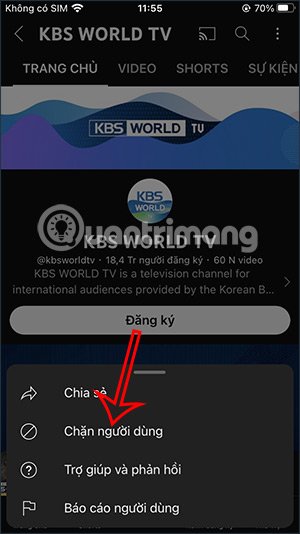
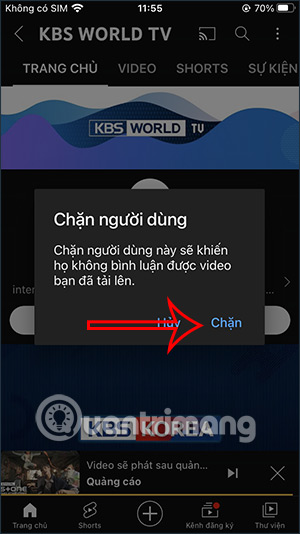
On a phone
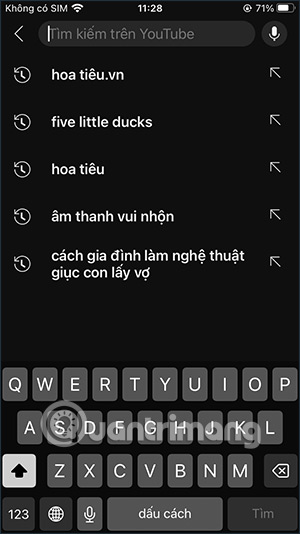
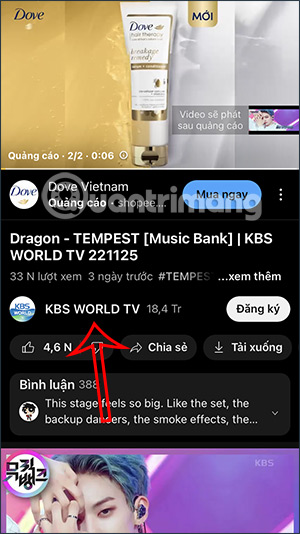
Search for the channel and open its channel page.
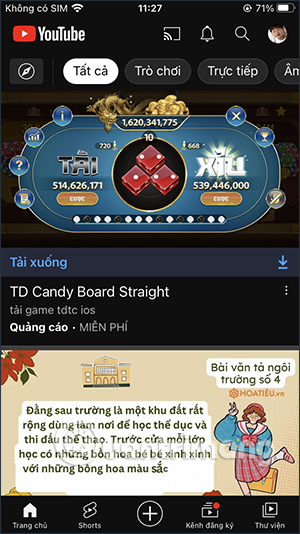
Open the channel menu using the three-dot icon.
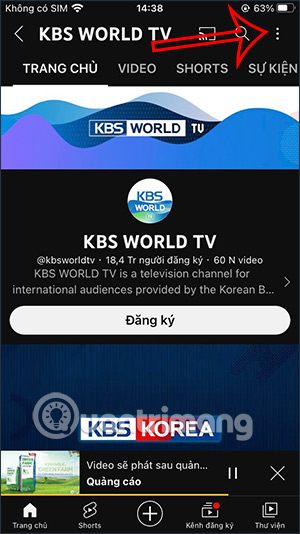
If an interaction-blocking option is available, select it and confirm. Menu wording can differ between app versions.
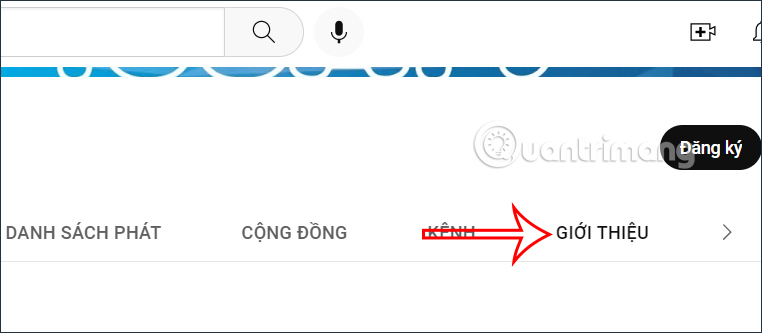
On a computer
Open the channel and look for its profile or channel information menu.
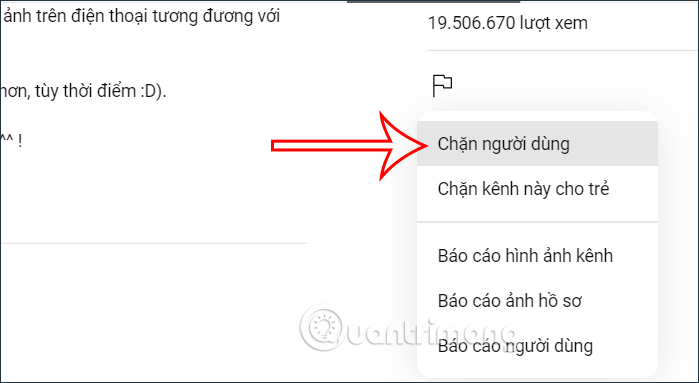
If the flag or report menu includes Block user, select it only when you want to restrict interaction—not as a content filter.
Options on a smart TV
The YouTube TV app may offer Not interested or Don't recommend channel from a video's menu, depending on the device and app version. When unavailable, submit the preference on a phone or computer signed in to the same account.
Restricted Mode is not a channel blocker. It attempts to filter some potentially mature content. A TV's parental controls may be able to lock the entire YouTube app with a PIN, but the steps are specific to the TV brand, model, and operating system.
Why a browser extension is not an all-device solution
A third-party extension can hide channels only inside the browser where it is installed. It will not automatically apply to a phone, smart TV, or another browser, and it may require permission to read or change data on YouTube pages. Review the developer, update history, requested permissions, and privacy policy before installing any content-blocking extension.
Best setup for a young child
Use a dedicated YouTube Kids or supervised child profile, configure its content level and search setting, block specific channels inside that profile, and protect parent controls with a PIN. Recommendation feedback on an adult account is not a substitute for parental controls.
Related Articles
 Instructions on How to Block Videos and YouTube Channels6 minutes read
 How to Watch Youtube on Roku5 minutes read
 How to Block YouTube: Complete Guide14 minutes read
 Top 10 YouTube Channels with the Largest Number of Followers Today, You Know How Many of These7 minutes read
 25+ Best Youtube Vr Channels You Should Not Ignore10 minutes read
 Top 10 Best Technology Channels on Youtube8 minutes read
Reader Comments 0
Sign in with email or Google to join the discussion.