Table of Contents
WhatsApp has a desktop version for convenient communication with friends when the mobile version isn't available. The desktop version can be installed or used as a web browser if you prefer not to install it. The web browser interface is simple and similar to the installed version. Below is a guide on how to use the web browser.
What do I need to run WhatsApp Web?
When setting up WhatsApp Web for the first time, you must meet the following requirements to successfully link your account:
- Your Android phone or iPhone has a working rear camera.
- A laptop or desktop computer with a modern web browser. Internet Explorer is not supported.
- Internet connection is working for both the phone and the PC.
- The latest version of WhatsApp.
How WhatsApp Web works
For many years after its launch, WhatsApp Web required both the phone and the computer to be connected to the internet to sync accounts. Moving the smartphone away from the computer or turning off the internet would break the connection and stop account syncing.
Now, Meta has streamlined the process, making it easier to use WhatsApp from your browser. You just need to meet the setup requirements when linking your account. Once set up, you can use WhatsApp Web when your phone is offline. You can access WhatsApp on your computer anytime.
using WhatsApp on the web
Step 1:
First, access WhatsApp on the web using the link below.
- Access WhatsApp via the web.
https://web.whatsapp.com/Step 2:
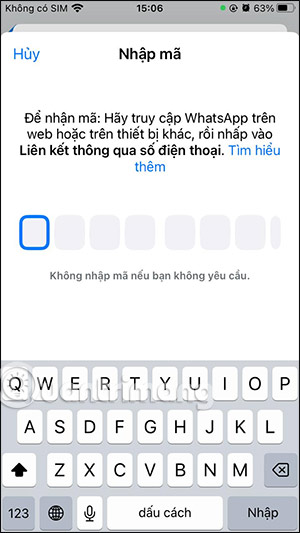
On this interface, you have two options to log in to WhatsApp via the web: using a QR code or using your phone number to enter the login code sent to you. If using a QR code, you will need the app on your phone to scan the displayed code. If using your phone number, you will enter the displayed code into the WhatsApp app on your phone.
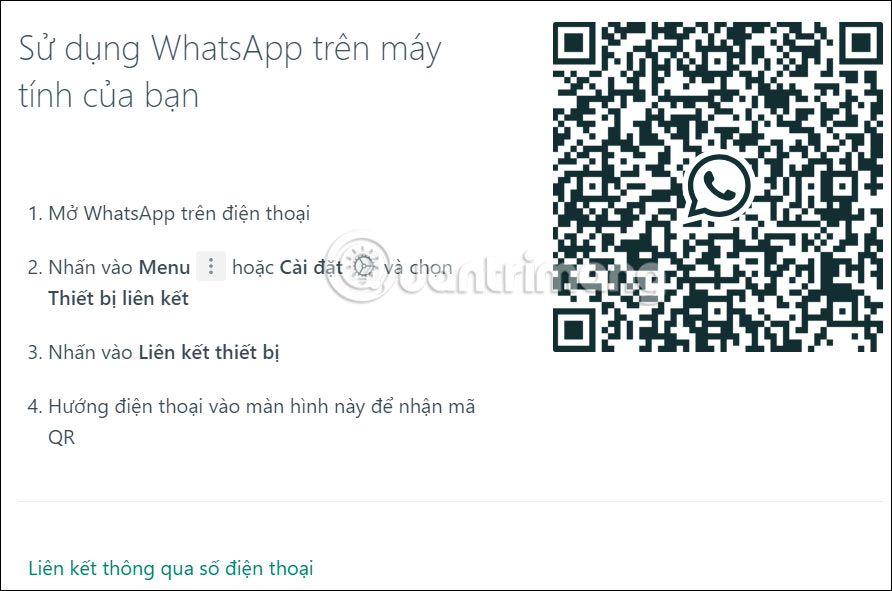
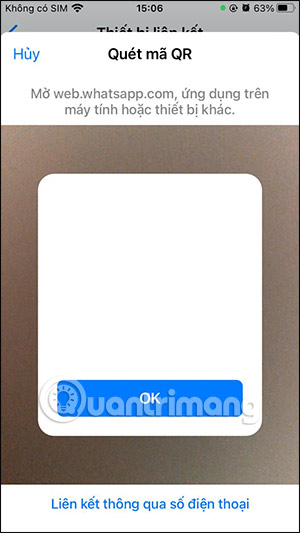
We tap on the app, select Settings, then select Linked Devices to link it with the web version of WhatsApp. Follow the instructions below for detailed steps on how to log in to the web version of WhatsApp.
Step 3:
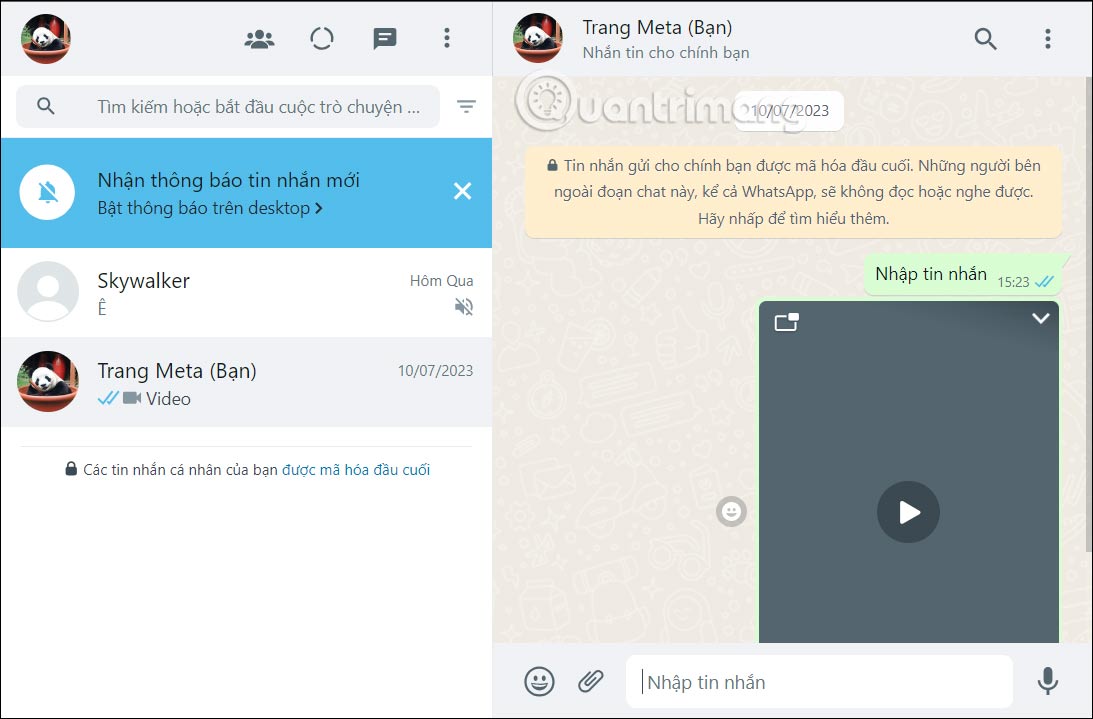
You've instantly logged into WhatsApp web on your computer. The WhatsApp web interface is very simple; the left column shows a list of messages, and next to it is your WhatsApp chat content.
Step 4:
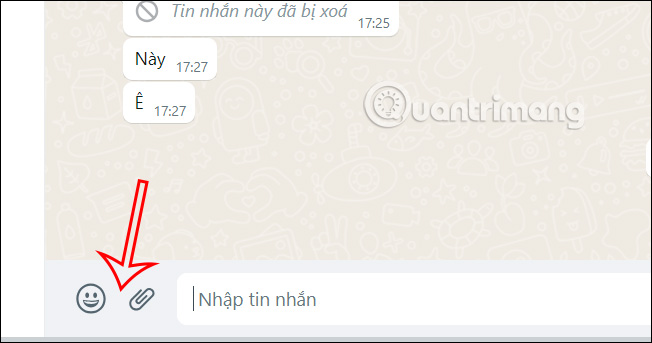
Now we can send messages on WhatsApp web as usual. In the messaging window, we have emoji icons and an attachment icon to use.
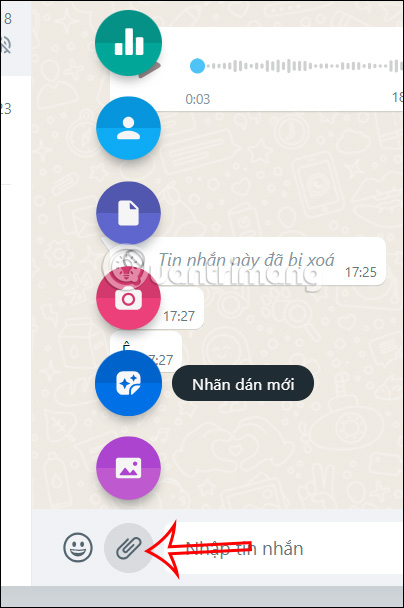
The supported file types for sending on WhatsApp web are shown below. To send a specific file type, click on its icon.
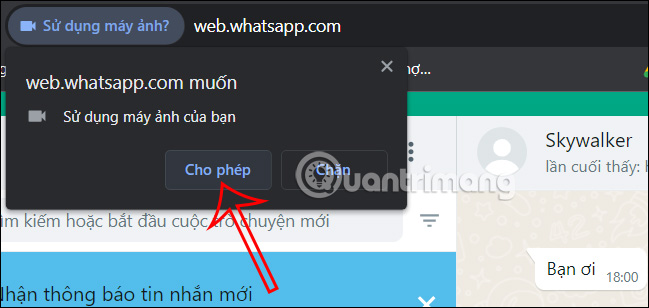
For example, you can take photos directly to send on WhatsApp web browser using your computer's webcam. First, you need to agree to let WhatsApp use your computer's webcam, and then you can simply take photos to send.
Step 5:
WhatsApp's sticker sending option also offers a wide variety of icon themes for you to choose from.
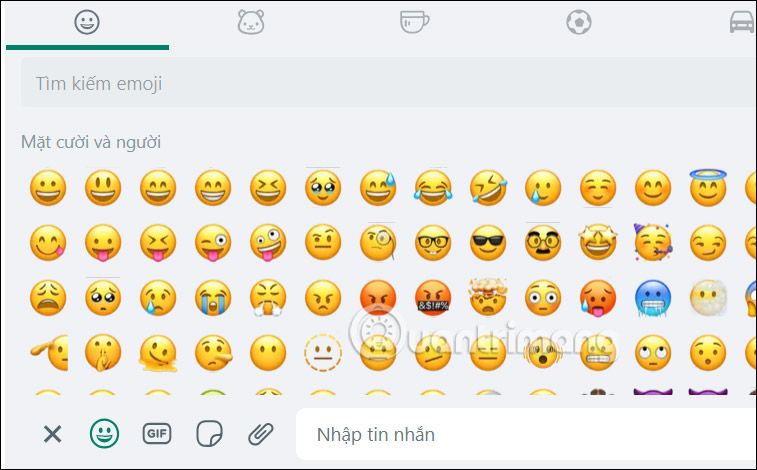
Additionally, we can also send animated GIFs on WhatsApp web if desired, using the same GIF search method as with the WhatsApp app on mobile phones.
Step 6:
To log out of your WhatsApp web account, tap the three-dot icon and then select Log out from the list that appears.
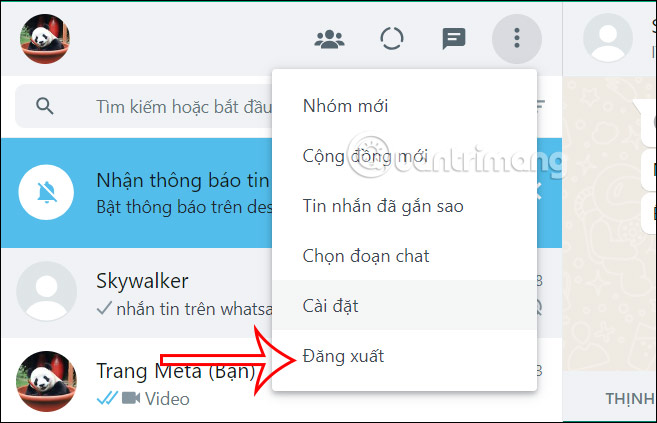
Overall, the web-based WhatsApp interface is relatively simple and also has basic messaging features for you to use.
What can I do with WhatsApp Web?
WhatsApp Web allows you to do most of what's possible on the mobile app, but there are some differences.
Some of the beneficial features of WhatsApp Web include:
- Use the keyboard to type.
- Access media content (photos, videos, audio) online. You can also directly download any media content to your PC. However, you cannot download multiple media files at once; you must download them manually one by one.
- Start a new conversation with any contact or search through existing conversations.
- View contact information.
- Connect multiple computers to your phone and save them for future use. You can also remotely disconnect any browser from your phone.
- Share photos and videos, documents and contacts.
- Send emojis, GIFs, stickers, and voice notes.
- View WhatsApp status updates from any contact.
- Edit your profile.
What can't be done with WhatsApp Web?
There are some features that are not available in WhatsApp Web, including:
- Send a WhatsApp broadcast.
- Make or receive voice or video calls on WhatsApp. A desktop application is required for this.
- Post a new WhatsApp status update.
- Share a map or your current location.
How to use multiple WhatsApp accounts with WhatsApp Web
Some people have two phone numbers linked to two different WhatsApp accounts. You can still control WhatsApp online for both on one PC.
To do that, you need to open WhatsApp Web on two different browsers, such as Chrome and Opera. Alternatively, you can open WhatsApp Web in incognito mode, but that window will automatically log you out after an hour.
How secure is the WhatsApp website?
WhatsApp features end-to-end encryption for all messages, including those on WhatsApp Web. This means you don't need to worry about your phone calls and messages being intercepted or read by WhatsApp or Meta.
However, it's advisable to follow WhatsApp's best security practices for greater safety. Avoid leaving your computer unattended while WhatsApp is open, and if using it in an office environment, always lock your account before leaving your desk.
How to lock WhatsApp web with a password
To set up a screen lock on WhatsApp Web, click the gear icon in the bottom left corner to open settings. From there, navigate to Privacy > App lock. Select the box next to App lock, enter your desired password, confirm it, and click OK.
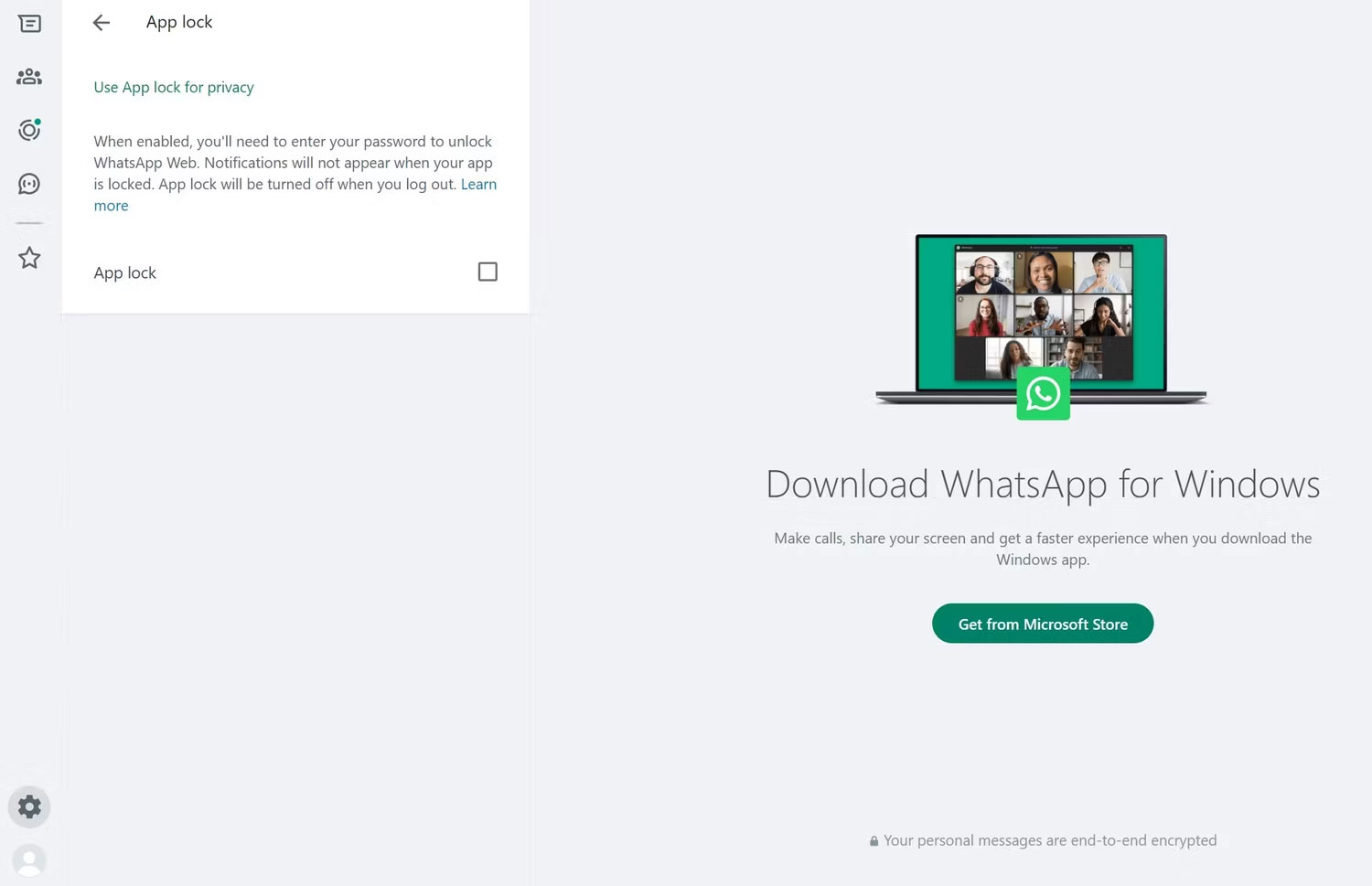
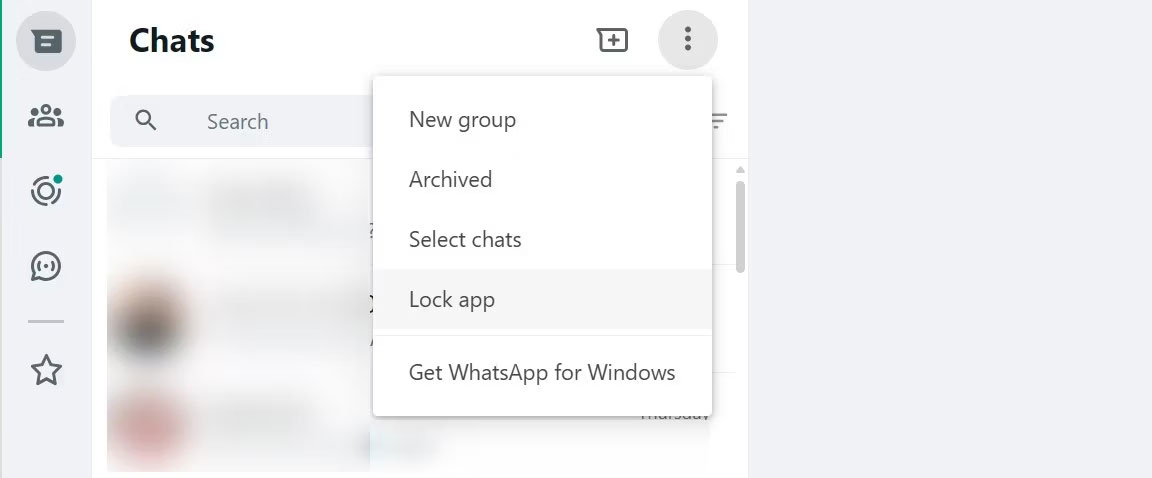
Next, select the time interval for automatic screen lock activation (1 minute, 15 minutes, or 1 hour) in case of inactivity. You can also activate the lock manually: Click the three vertical dots in the upper right corner of the chat list and select Lock app.
How to log out of the WhatsApp website
If you're using WhatsApp Web on a computer, you can remain logged in even after you're finished. How convenient!
If you're using it on someone else's computer, remember to log out after you're finished using WhatsApp online. It's best to do this on both the computer and the mobile app.
- To log out of WhatsApp Web via your phone, tap the three dots on Android or the gear icon on iPhone. From there, select Linked devices, press and hold the device you want to disconnect, and then tap Log out.
- To log out of WhatsApp Web via a computer, open WhatsApp settings and click Log out.
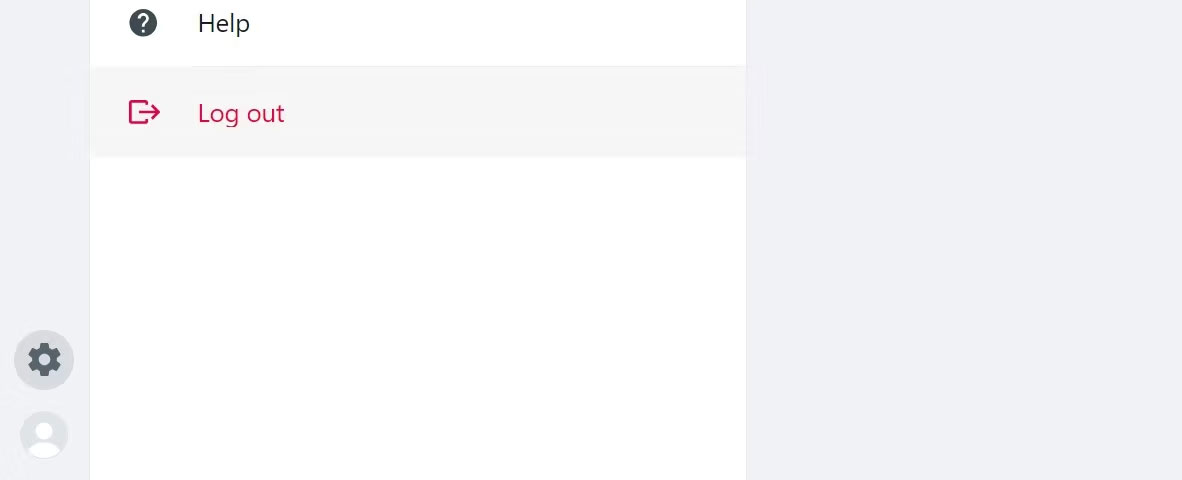
After logging out, you will need to scan the WhatsApp Web QR code again to reconnect to your device.
The more you know about WhatsApp Web, the more surprised you'll be by what it can do. While third-party extensions can unlock extra features not available by default, they should be avoided due to the security risks they pose.
Related Articles
 These Features Make It Easier to Master Whatsapp16 minutes read
 How to Use Whatsapp to Chat, Call, Message Your Friends3 minutes read
 How to Restore the Old Version of WhatsApp on Windows 10 and Windows 116 minutes read
 8 Tips to Enhance Security for WhatsApp7 minutes read
 How to Quote Messages When Chatting on Whatsapp3 minutes read
 WhatsApp Can Become a Web Browser3 minutes read
Reader Comments 0
Sign in with email or Google to join the discussion.