Table of Contents
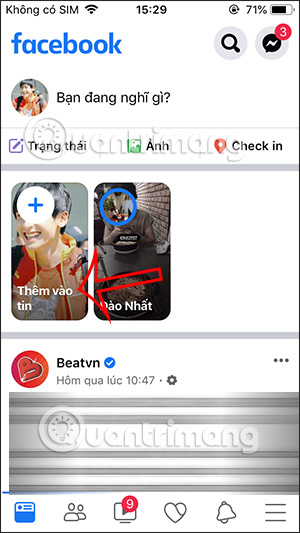
A Facebook Story is a photo, video, text card, or other temporary post shown to the audience you select for 24 hours. The Facebook mobile app provides the most creation tools, while the desktop website offers a simpler workflow. Controls can move between app versions, but the publishing sequence remains the same.
Create a Facebook Story on a phone
- Open the Facebook app and tap Create story or Add to story near the top of the Feed.
- Select a photo or video from the camera roll, use the camera to capture one, or choose an available story type such as Text or Music. The choices offered can vary by device, account, and region.
- Edit the story, check its audience, then tap Share to story.
Meta's current overview is available in Share a photo or video to your story.
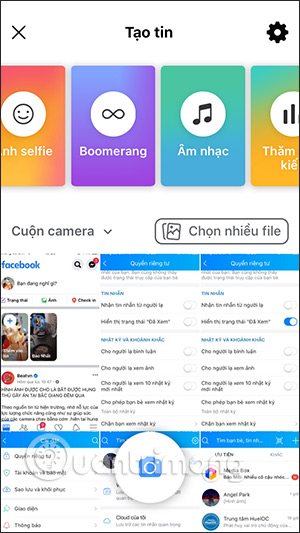
Edit the photo or video
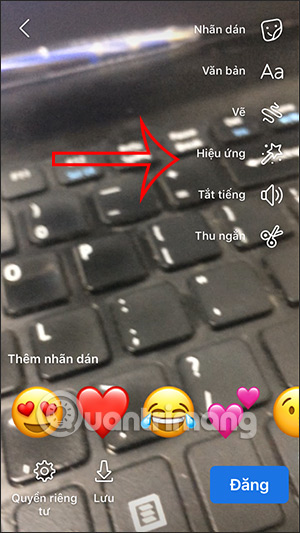
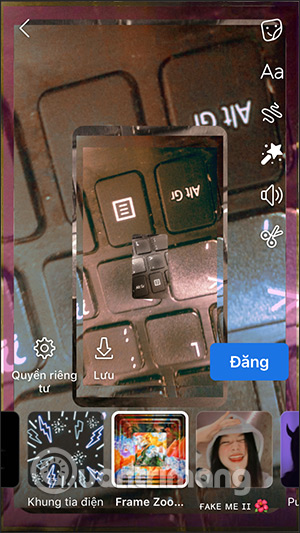
After selecting or recording media, Facebook opens the story editor. Depending on the content and app version, the editor may let you add text, stickers, music, drawing, effects, links, or other interactive elements. Tap an object to select it; drag to reposition it, pinch to resize it, or use the displayed delete control to remove it.
Add stickers and interactive elements
Open Stickers to see the options available for the selected media. These may include GIFs, location tags, mentions, polls, or other prompts. Avoid placing important elements close to the top and bottom edges, where the Facebook interface can cover them.


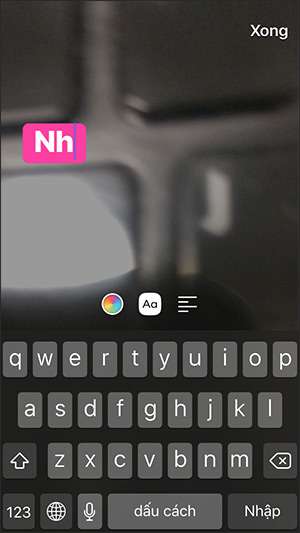
Add and format text
Choose the text tool, type the caption, and use the on-screen options to change its font, color, alignment, or background. Keep the message brief and use enough contrast to make it readable over the image.
Draw on a story
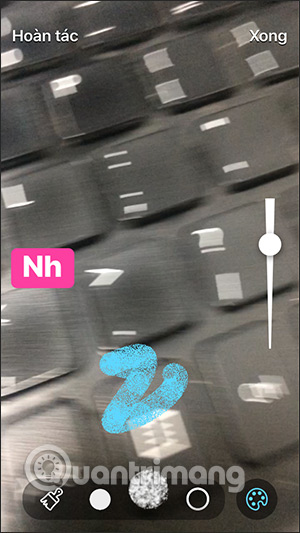
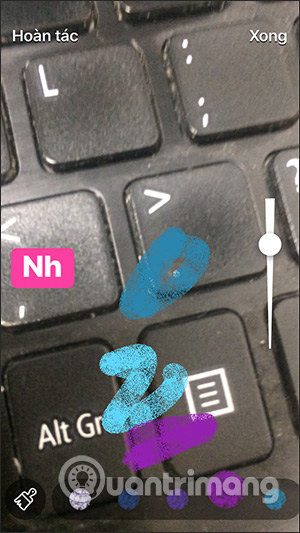
The drawing tool lets you mark the image with a finger. Select a color and available brush size, draw, and use Undo if a stroke is misplaced.
Use effects, sound, and trimming
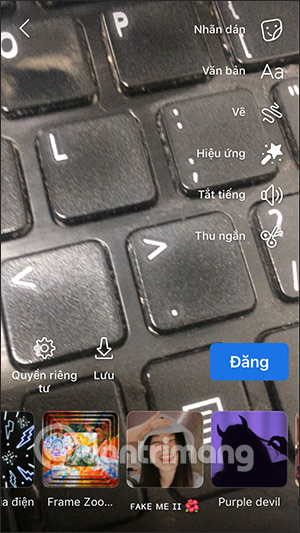
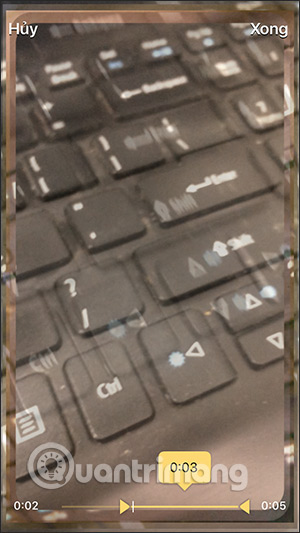
Effects can change the color, framing, or appearance of supported photos and videos. For video, preview the story with sound before posting and use the trim control when it is available. Facebook may not offer every tool for every file type.
Choose who can see the story
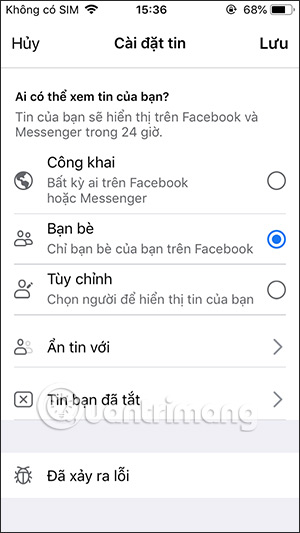
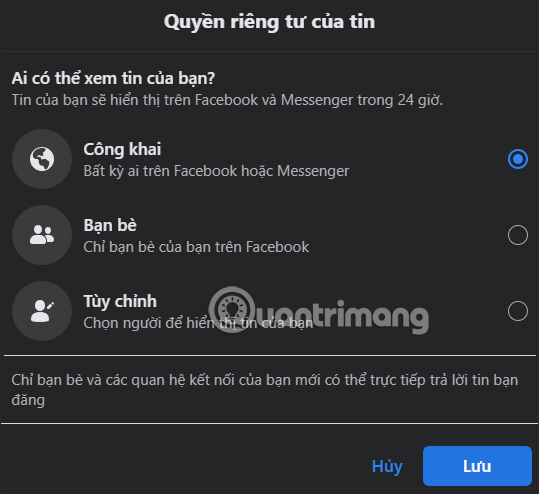
Before sharing, open the audience or privacy control and verify who will receive the story. The available choices can include Public, Friends, Custom, or a setting that hides the story from selected people. This is especially important when a story contains a location, a child, workplace information, or another person's image.
Changing story privacy can affect the audience for current and future stories, so read the confirmation screen before saving. Meta documents the options in Change your story's privacy setting.
Publish and use Story Archive
Preview the complete story, then tap Share to story. A normal story remains available to its selected audience for 24 hours. If Story Archive is enabled, Facebook privately saves an expired story so you can view or reuse it later; it is not correct to assume every story is archived automatically.

To check the archive, open your profile, open its options, and choose Archive > Story archive. Menu wording varies by platform. See Meta's Story Archive guide and archive setting instructions.
Create a Facebook Story on a computer
- Open Facebook in a desktop browser and select Create story in the Stories area.
- Choose a photo story or text story if those options are shown.
- Add the available text or formatting, check the story audience, and select Share to story.
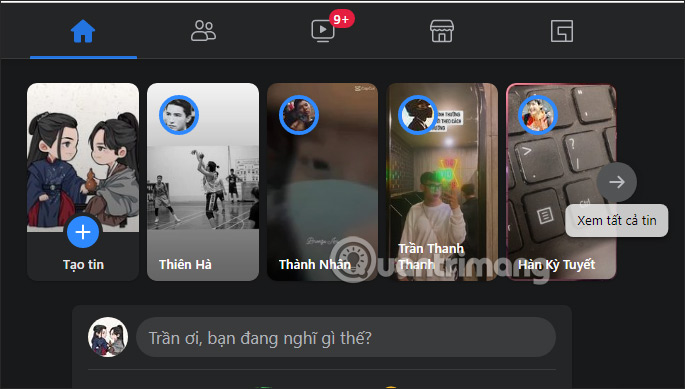
The desktop editor may provide fewer effects and camera tools than the mobile app. Its choices also change over time, so use the controls shown on your account rather than relying on an exact historical menu.
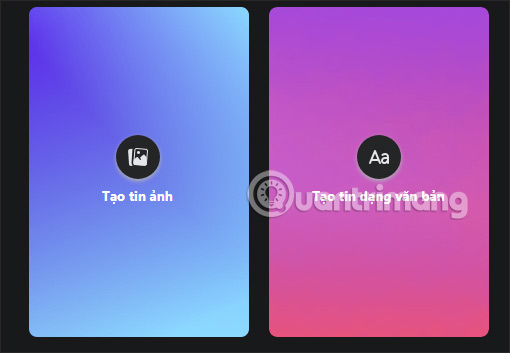
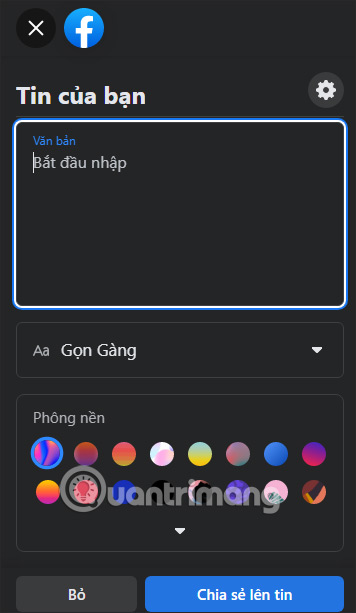
A photo story can offer basic positioning, cropping, rotation, and text tools.
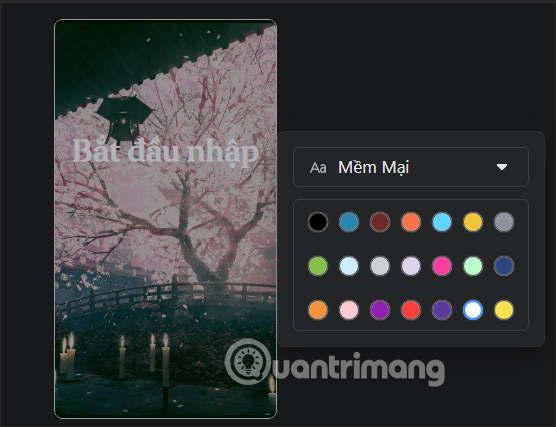
A text story generally lets you enter a short message and select a font or background.
Always review the audience control before publishing from a computer.
If a Story will not upload
- Confirm the internet connection by loading another page.
- Try a shorter or smaller media file if processing repeatedly fails.
- Restart and update the Facebook app or refresh the desktop browser.
- Check that Facebook has permission to access Photos, Camera, and Microphone when those features are needed.
- Remove one effect or sticker at a time if the failure began during editing.
Related Articles
 How to Insert Music into Photos and Videos on Facebook4 minutes read
 How to Add Multiple Photos to Facebook and Messenger Story8 minutes read
 Facebook Added New Features to Save Stories, Share Voice Messages and Store Them in the Cloud3 minutes read
 Facebook Launches Birthday Stories Feature, Which Helps Create Greeting Cards for Friends3 minutes read
 Facebook Messenger Has a New Minimalist Design, Dark Mode and3 minutes read
 How to Use Story Archive on Facebook: Story Archive Feature6 minutes read
Reader Comments 0
Sign in with email or Google to join the discussion.