Table of Contents
Messenger normally places messages from people you are not connected with in Message requests instead of your main chat list. To stop eligible groups of strangers from sending requests, open Messenger's privacy settings and change their message-delivery option to Don't receive requests. The exact categories available depend on your account, age, region, and Meta's current interface.
Stop requests in the Messenger mobile app
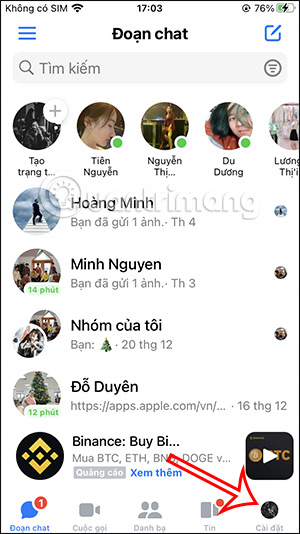
- Open Messenger and tap Menu.
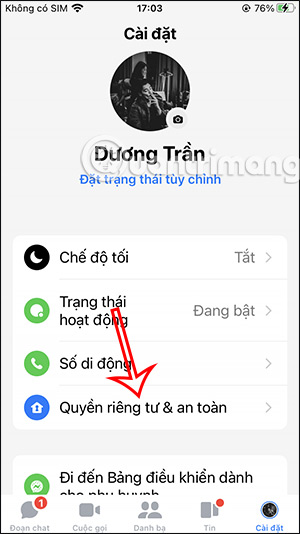
- Tap Settings, then Privacy & safety.
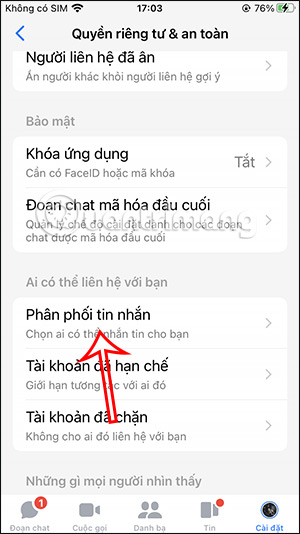
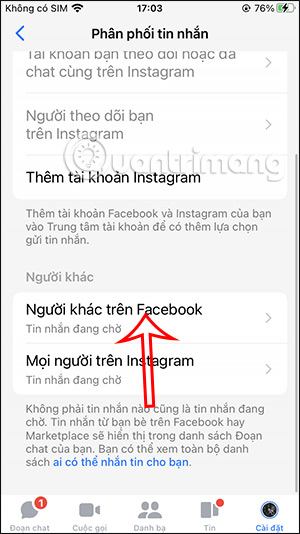
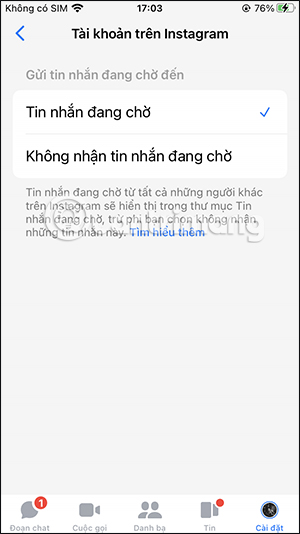
- Open Message delivery or Message delivery controls.
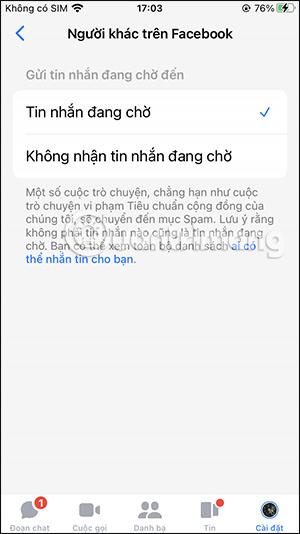
- Select a category such as Friends of friends on Facebook or Others on Facebook.
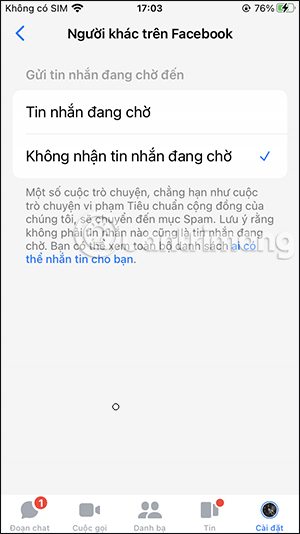
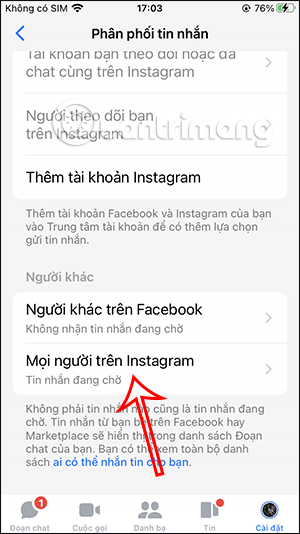
- Choose Don't receive requests. Repeat for each category you want to block.
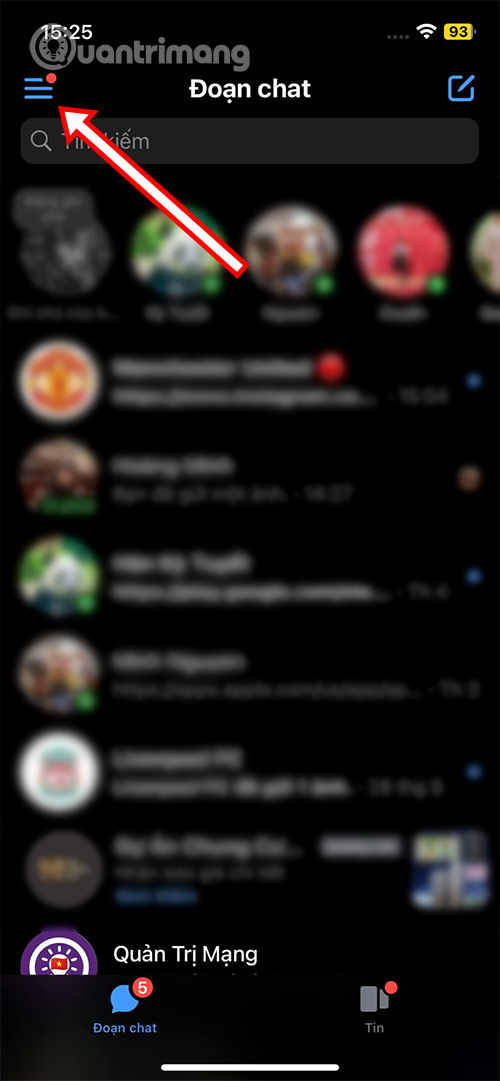
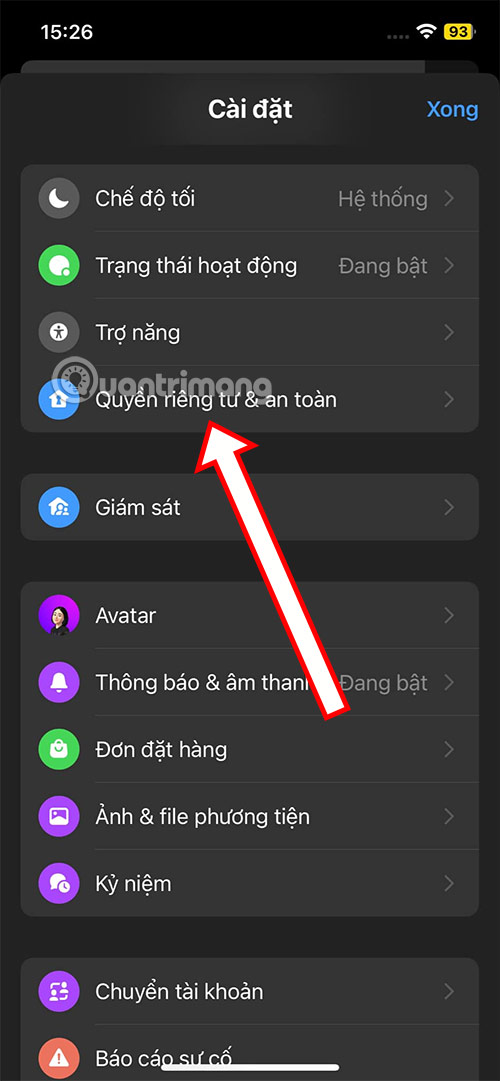
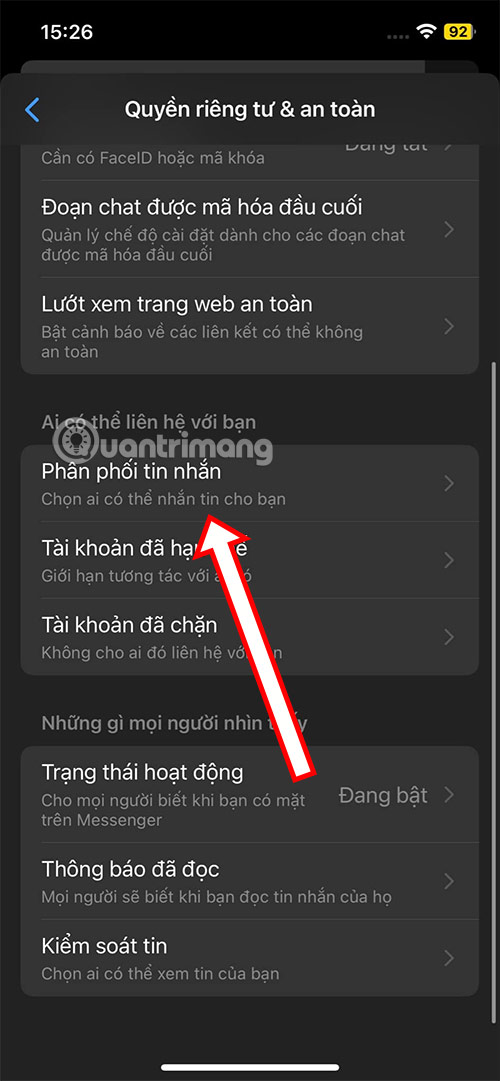
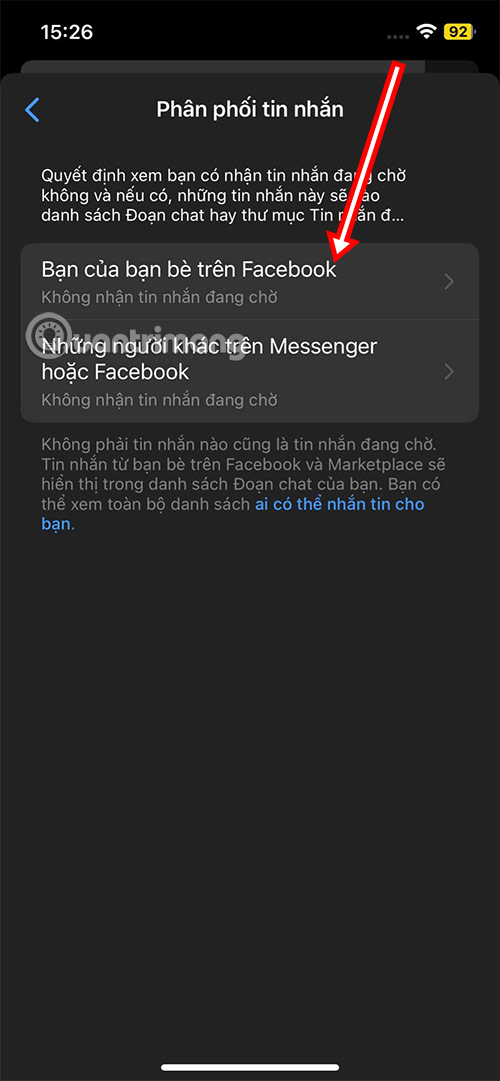
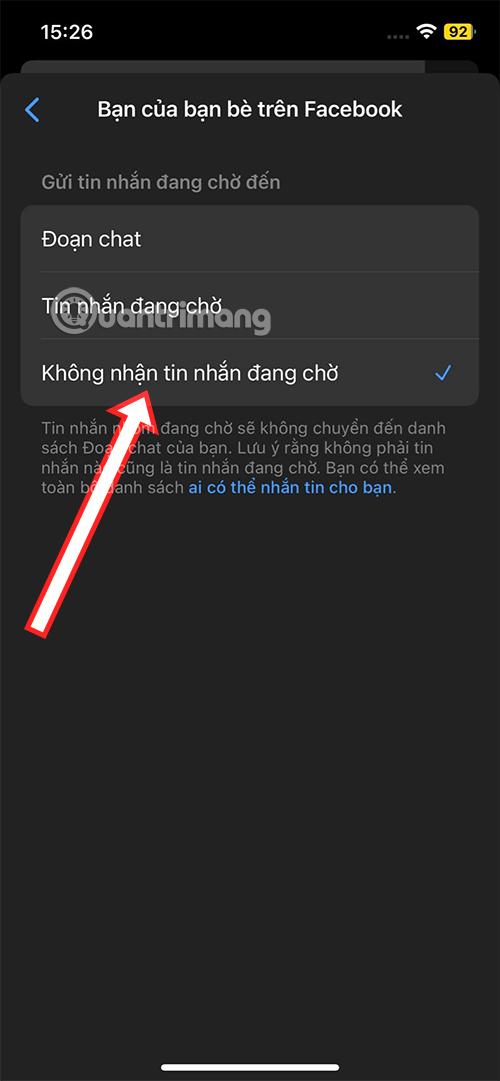
If you do not see Message delivery, update Messenger and check Privacy & safety again. Teen Accounts can have stricter defaults and may not offer every adult-account option.
Older Messenger mobile layout
Some versions used the profile picture instead of the Menu button. The equivalent route was profile picture > Privacy & safety > Message delivery. The screenshots below show that earlier layout; use them only to identify the same settings if your app still resembles it.
Change message delivery on a computer
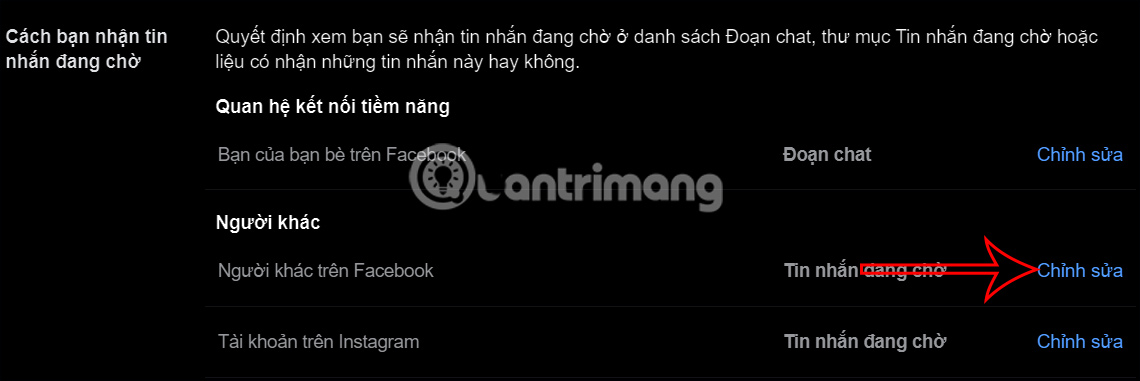
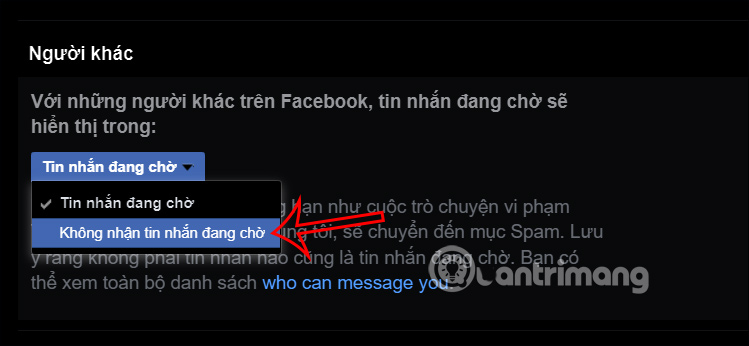
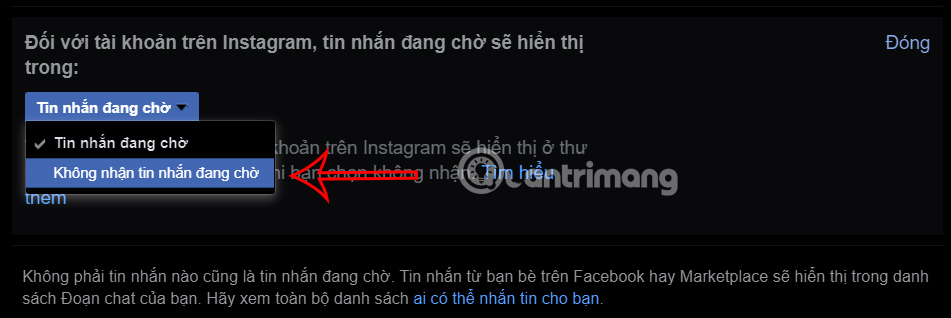
Meta moves settings periodically between Facebook and Messenger. In the current desktop interface, open Facebook or Messenger settings, search for Message delivery, and open the control under privacy. Choose Don't receive requests for the available stranger categories.
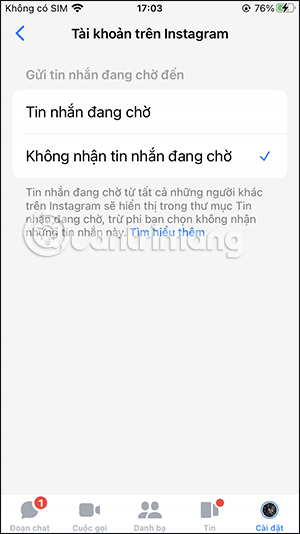
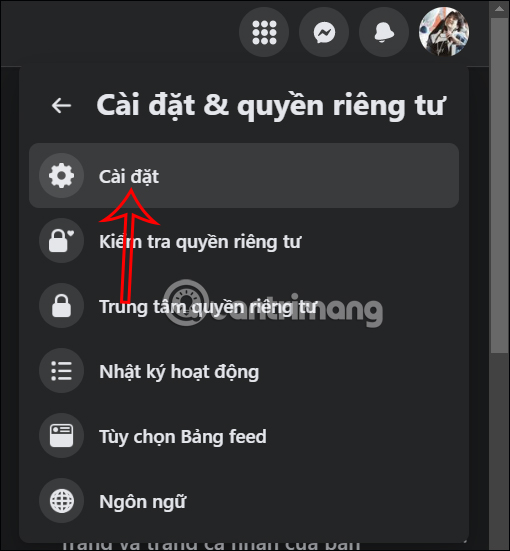
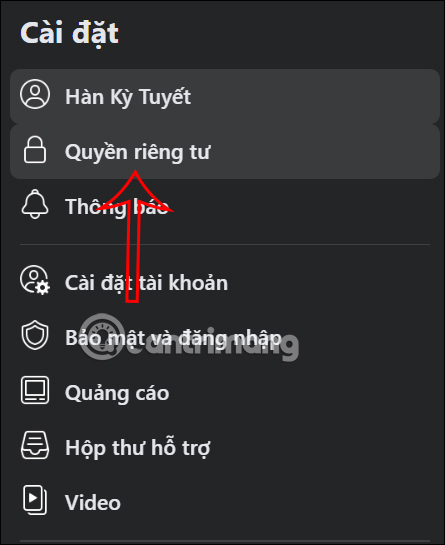
The following screenshots show the previous Facebook route through Settings & privacy > Settings > Privacy. If your desktop interface differs, use Settings search instead of relying on the old left-hand menu.
Check requests and spam before disabling them
Blocking requests can also hide legitimate contact from Marketplace buyers, group members, clients, or people who received your contact details. If that matters, leave requests enabled and review them periodically instead.
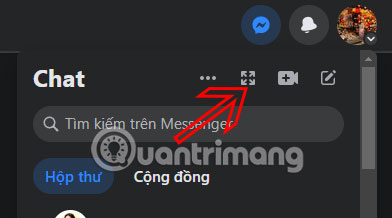
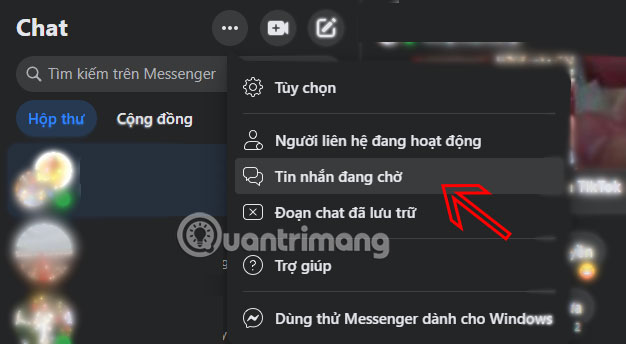
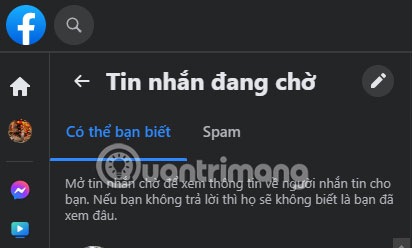
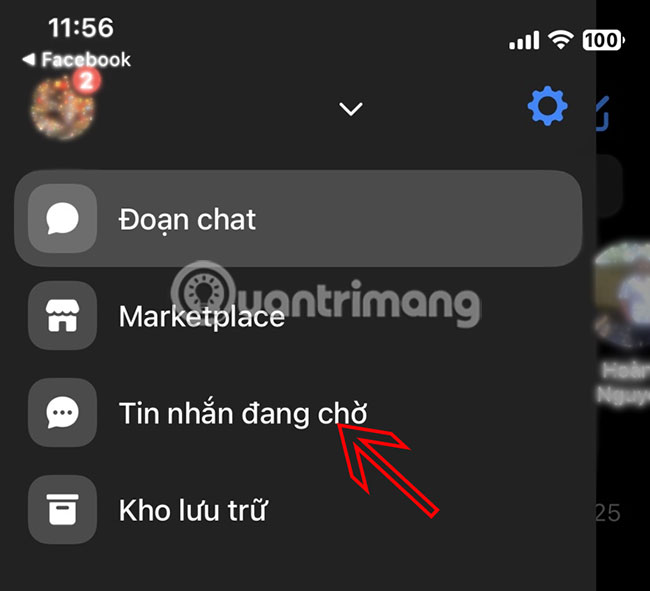
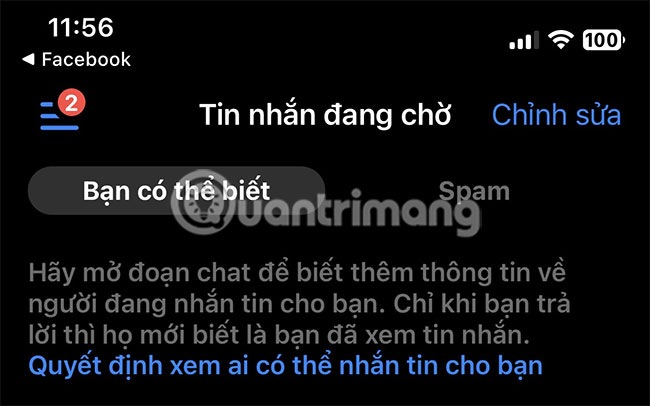
In Messenger, open Menu > Message requests. Depending on the interface, requests are separated into You may know and Spam. Filtering is not perfect: treat unexpected links, payment requests, account-recovery claims, and urgent demands as suspicious regardless of the folder.
For one specific person, block or report the chat
Message-delivery controls apply to categories. To stop one account, open the conversation or request, tap the person's name, and choose Block. Use Report for impersonation, threats, scams, or other policy violations. Do not reply or open attachments merely to determine whether a suspicious sender is genuine.
Meta's message-control help page and message-request guide reflect the latest supported options.
Related Articles
 How to Fix Some Common Errors on Facebook Messenger5 minutes read
 How to Block Messages from Someone on Facebook Messenger?2 minutes read
 The Way to 'Hunt Down' Hidden Messages in Facebok Messenger4 minutes read
 How to Chat with Chatible Strangers on Facebook Messenger4 minutes read
 Instructions on How to Not Receive Messages from Strangers on Zalo3 minutes read
 How to Unarchive Messenger Chats on Mobile and Desktop9 minutes read
Reader Comments 0
Sign in with email or Google to join the discussion.