Table of Contents
To stop notifications from one Facebook group, open the group, select Joined or the group's menu, choose Manage notifications, and set the group to Off. You remain a member and can still open the group whenever you want.
Facebook normally sets a newly joined group's notifications to Highlights, not necessarily every post. Available labels and menu positions can differ between iPhone, Android, desktop, and app versions.
Choose the right notification level
| Setting | What it usually does |
|---|---|
| All posts | Notifies you about each new group post. |
| Highlights | Sends selected notifications based on activity Facebook considers relevant. |
| Friends' posts | Focuses on posts from your Facebook friends in the group. |
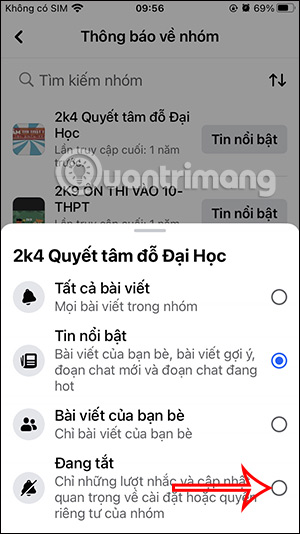
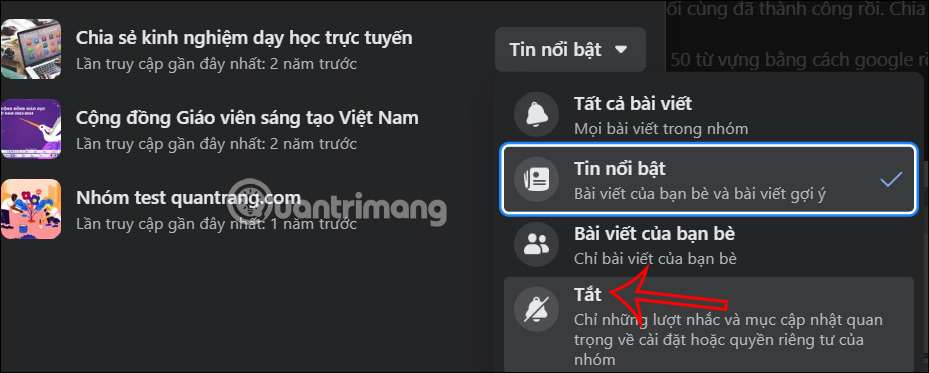
| Off | Stops ordinary post notifications from that group. |
Turning a group's post notifications off may not disable every Facebook alert connected with direct replies, tags, moderation, account security, or separate batch-mention settings.
Turn off notifications for one group in the Facebook app
- Open Facebook and go to the group.
- Tap Joined or the menu near the group name.
- Select Manage notifications.
- Choose Off.
If that menu is not visible, use the Groups notification list below.
Manage several group notifications on a phone
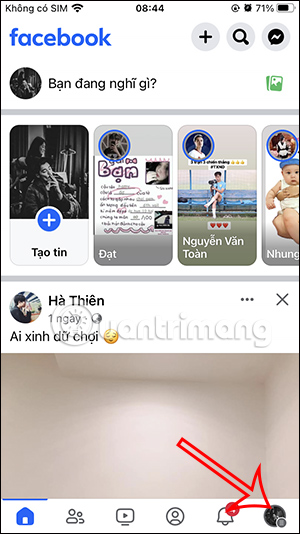
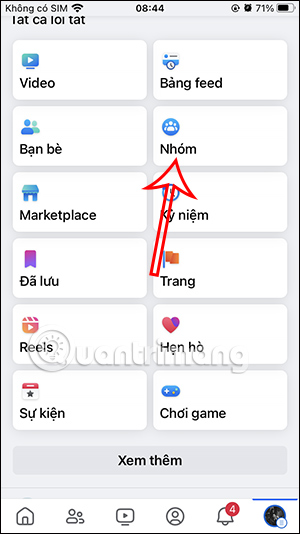
Step 1: In the Facebook app, tap the Menu icon. Its position can be at the top or bottom of the screen. Select Groups.
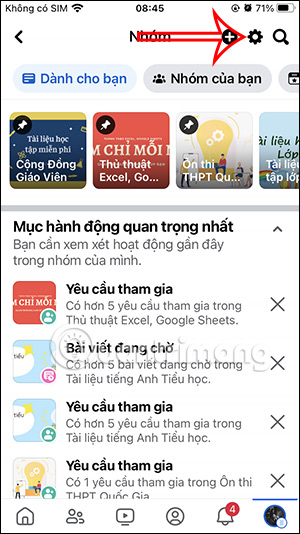
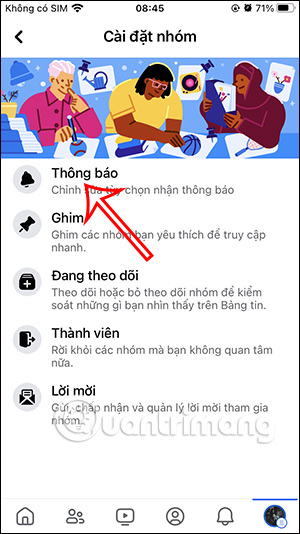
Step 2: Open the Groups settings using the gear icon, then choose Notifications or Manage notifications.
Step 3: Use the filter or sorting control if you have many groups. This helps locate groups by their current notification setting or recent activity.
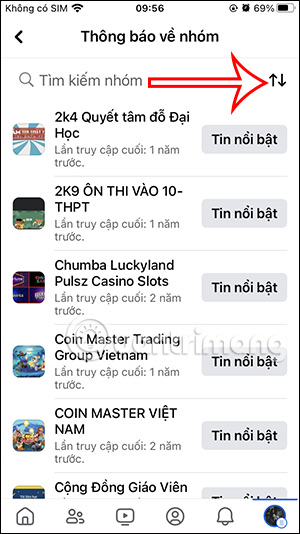
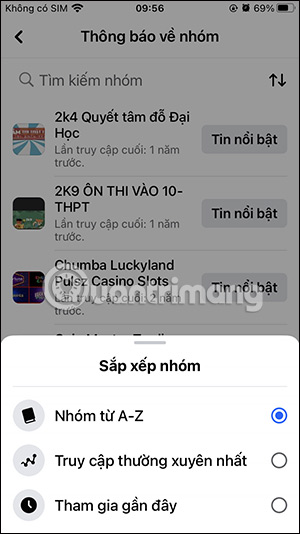
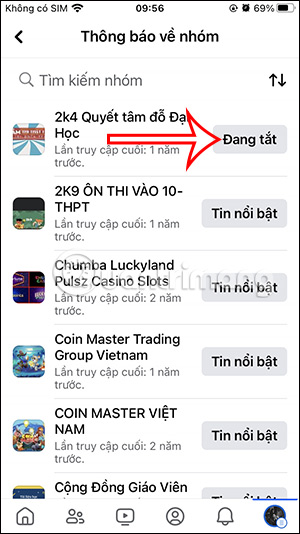
Step 4: Select the group, open its current notification level, and choose Off. Repeat only for the other groups you want to mute.
Turn off group notifications on Facebook desktop
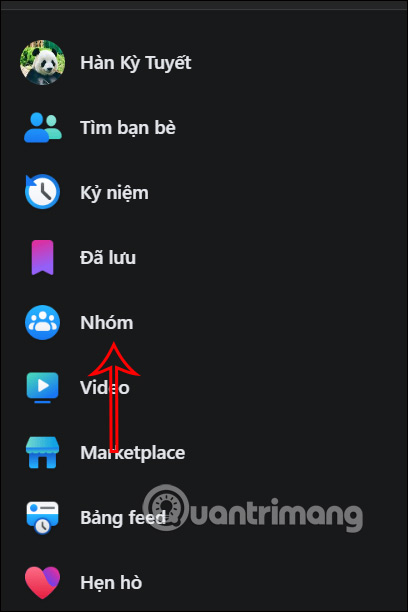
Step 1: Open Facebook in a desktop browser and select Groups from the left menu. If it is hidden, select See more first.
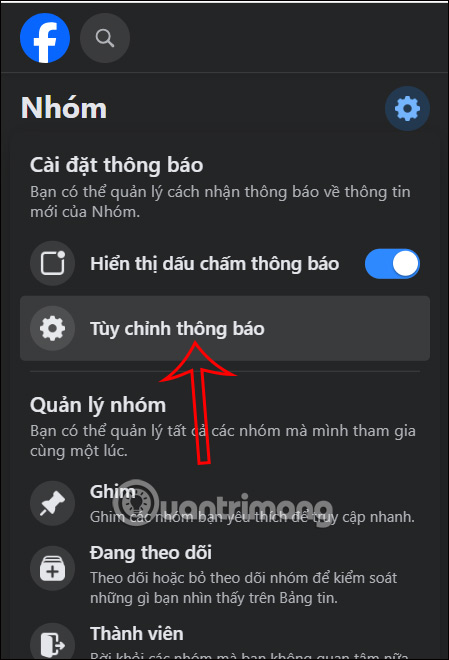
Step 2: Select the Groups settings gear, then choose Customize notifications.
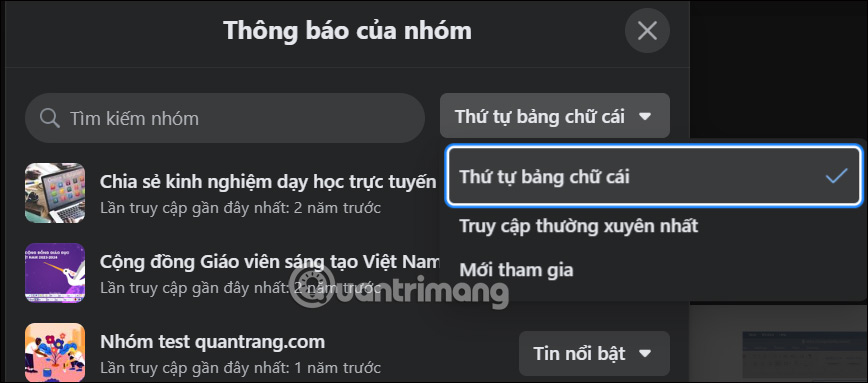
Use the filter control if needed to narrow or sort the group list.
Step 3: Open the setting shown next to the group, such as Highlights, and select Off or Mute.
If notifications continue
- Confirm that you muted the correct group and saved the new setting.
- Check Facebook's separate Tags or batch-mention controls if the alerts contain @everyone or another group mention.
- Review Settings & privacy > Settings > Notifications for push, email, and SMS channels.
- Open the phone's system notification settings if you want to silence all Facebook push notifications. This affects more than groups.
- Update and reopen the Facebook app if its displayed setting does not match the alerts you receive.
Mute, unfollow, or leave?
- Mute notifications when you still want membership and access without alerts.
- Unfollow the group when you also want fewer group posts in Feed.
- Leave the group only when you no longer need membership or access to members-only content.
Related Articles
 How to Turn Off All Notifications from Groups on Facebook4 minutes read
 How to Turn Off Group Notifications by App on iPhone or iPad5 minutes read
 How to Turn on Facebook Notifications on Google Chrome5 minutes read
 How to Mute Whatsapp Chat Group Notifications on Iphone and Android4 minutes read
 How to Turn Off Birthday Notifications on Facebook?5 minutes read
 How to Turn on and Off the General Facebook Notification on the4 minutes read
Reader Comments 0
Sign in with email or Google to join the discussion.