Table of Contents
Facebook provides one place to review the groups you have joined, but it does not always offer a single “leave all selected groups” command. The practical bulk-cleanup method is to open the membership list and leave unwanted groups one by one without repeatedly searching for each group.
Leaving removes your membership and may remove access to private content. If notifications are the only problem, mute or unfollow the group instead.
Before leaving a group
- Save any posts, files, or contacts you still need.
- Check whether the group is private and whether you could rejoin later.
- If you manage the group, transfer or resolve your role before leaving.
- Do not use browser extensions or scripts that request broad Facebook access merely to automate group removal.
Review and leave groups in the Facebook mobile app
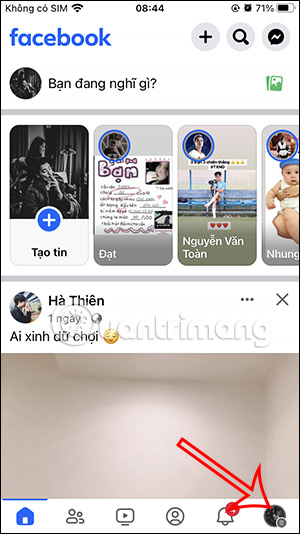
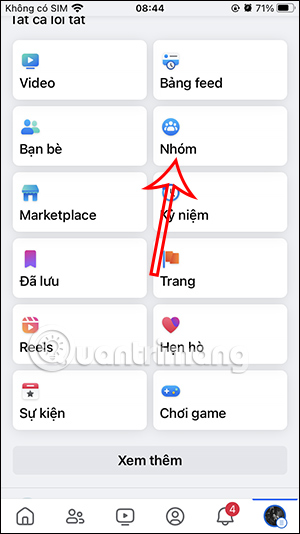
Step 1: Tap the Facebook Menu icon, which can appear at the top or bottom depending on the app and device. Select Groups.
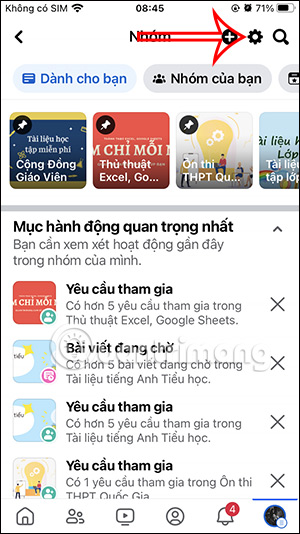
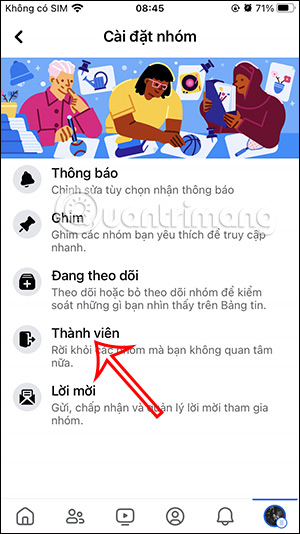
Step 2: Tap the gear icon to open Groups settings. Choose the section that lists groups you have joined, which may be labelled Membership, Member, or similar.
Step 3: Find an unwanted group and tap Leave. Read the confirmation carefully, then choose Leave group.
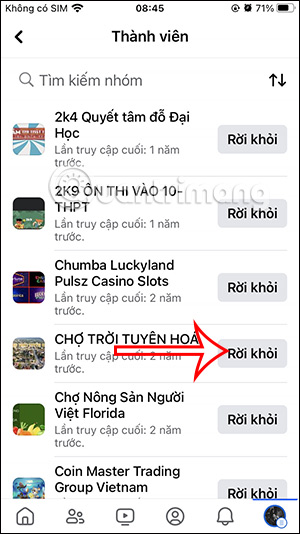
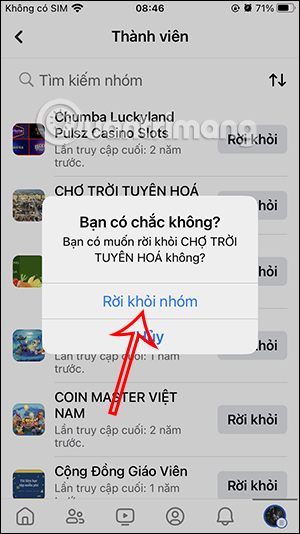
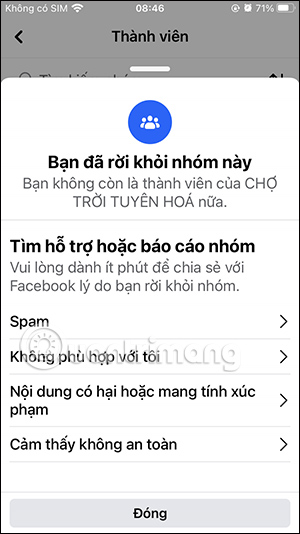
Wait for the success message, then repeat for the next group. The interface streamlines the process, but each membership still requires a separate confirmation.
Review and leave groups on Facebook desktop
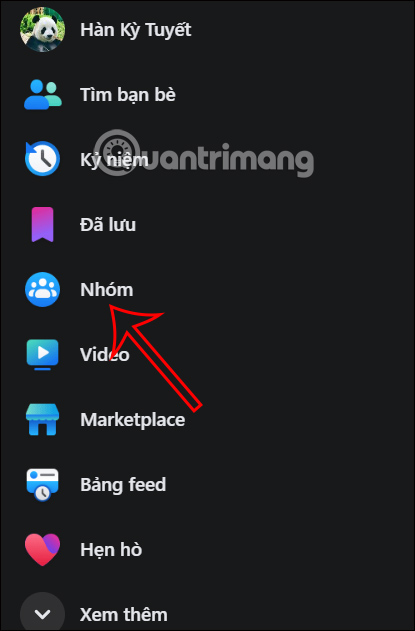
Step 1: Open Facebook in a browser and select Groups from the left menu. Select See more first if Groups is hidden.
Step 2: Select the Groups settings gear.
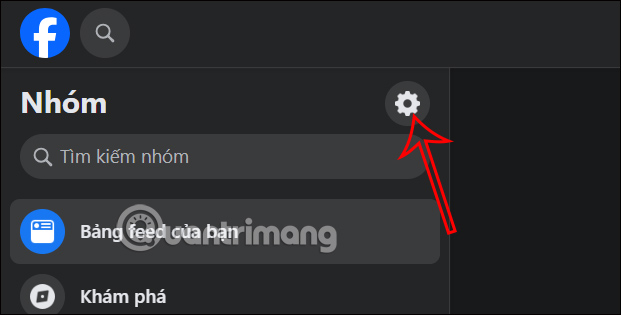
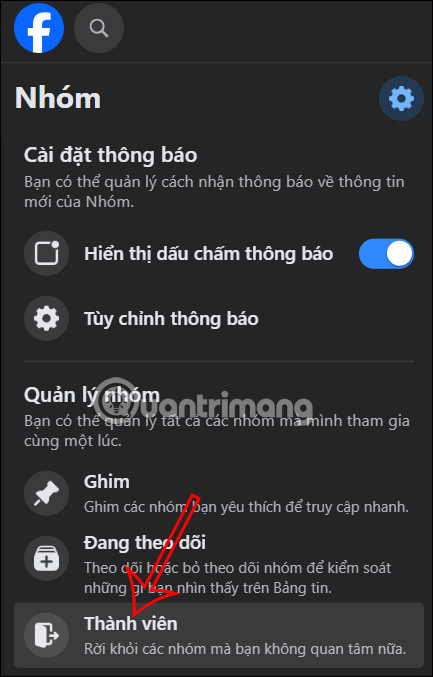
Open the membership or joined-groups section.
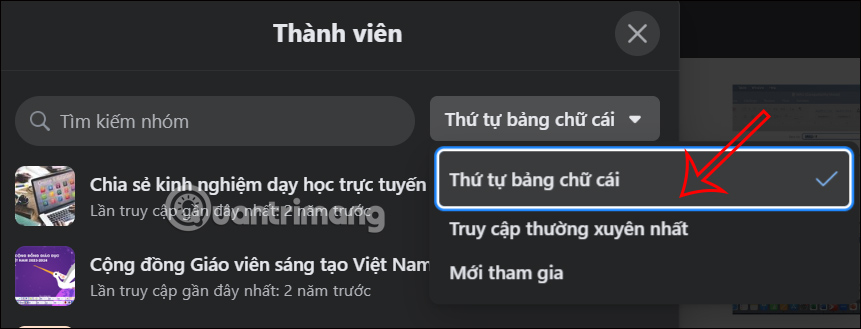
Step 3: If available, use the filter to sort or narrow the list. A filter changes what you see; it does not leave the groups automatically.
Step 4: Select Leave group next to an unwanted group.
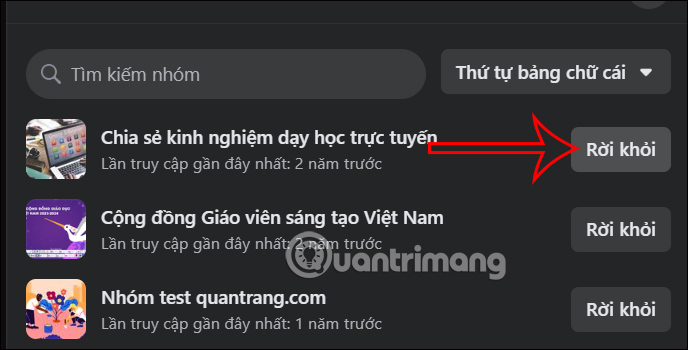
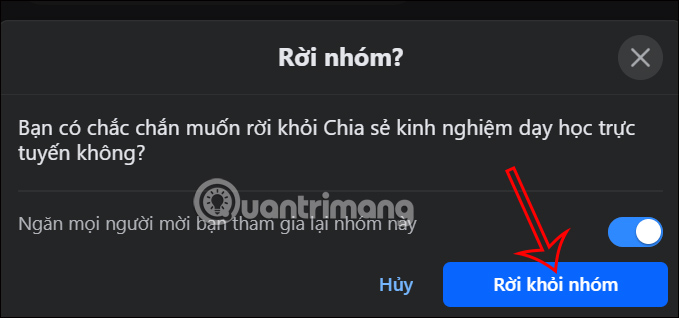
Review the confirmation. Facebook may offer an option that prevents other members from adding you back. Enable it only if you do not want invitations or re-additions from that group, then confirm Leave group.
Mute, unfollow, or leave?
| Action | Membership | Notifications and Feed |
|---|---|---|
| Mute notifications | Kept | Stops or reduces alerts; Feed can remain unchanged |
| Unfollow | Kept | Reduces group posts in Feed; notification setting can be separate |
| Leave | Removed | Stops ordinary member notifications and may remove private access |
If a group cannot be left
- Refresh Facebook or update the mobile app.
- Open the group directly and use its Joined menu.
- Check whether you are the only administrator and must assign another admin first.
- Try the desktop site if the mobile membership list is incomplete.
- Avoid rapid repeated actions if Facebook temporarily limits account activity; stop and try later rather than using automation.
Related Articles
 The Fastest Way to Leave the Facebook Group7 minutes read
 Everything You Need to Know About Facebook Groups27 minutes read
 How to Turn Off All Notifications from Groups on Facebook4 minutes read
 Why Don't Some Groups Show up Under Your Facebook Profile?3 minutes read
 How to Set Nicknames in Facebook Groups4 minutes read
 How to Unfriend Multiple People on Facebook5 minutes read
Reader Comments 0
Sign in with email or Google to join the discussion.