Table of Contents
By default, the iPhone has Tap to Wake enabled. However, this feature is basically unnecessary because it can drain the iPhone battery when the screen is constantly on.
The iPhone will turn on Tap to Wake mode so you can immediately monitor notifications or other information on the screen. However, this feature is basically not really necessary because it can drain the iPhone battery when the screen is constantly on. Below are instructions to turn off the iPhone screen automatically when touched.
Instructions to turn off iPhone screen auto-brightness
Step 1:
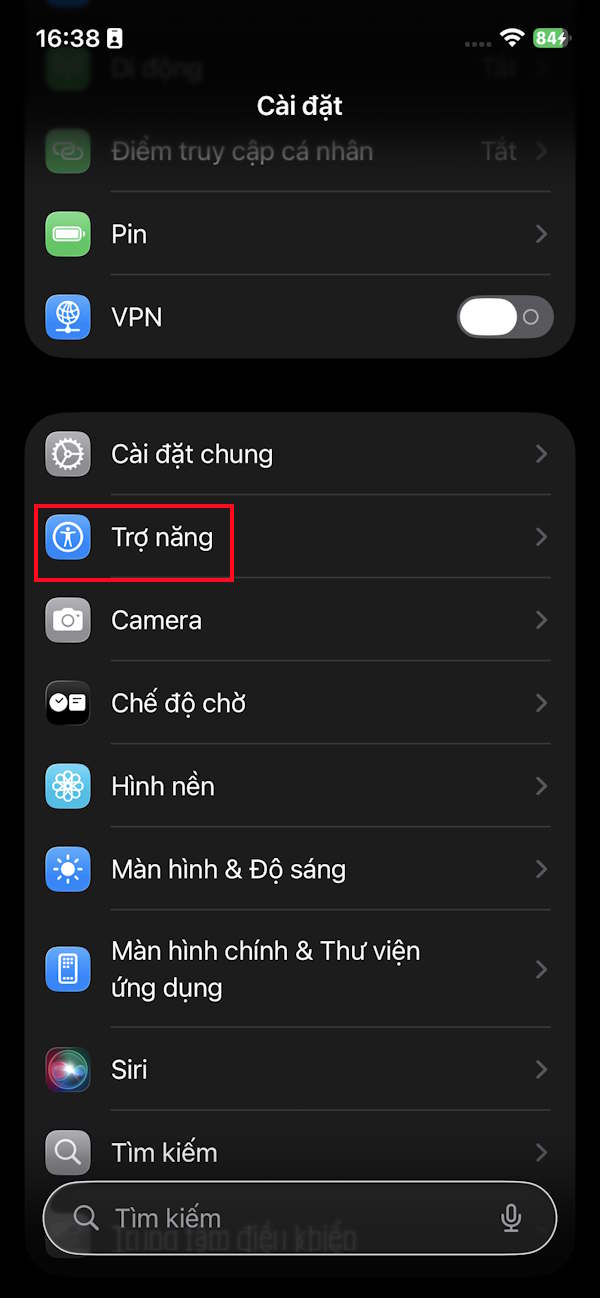
Go to Settings on your iPhone then tap Accessibility To make adjustments.
Step 2:
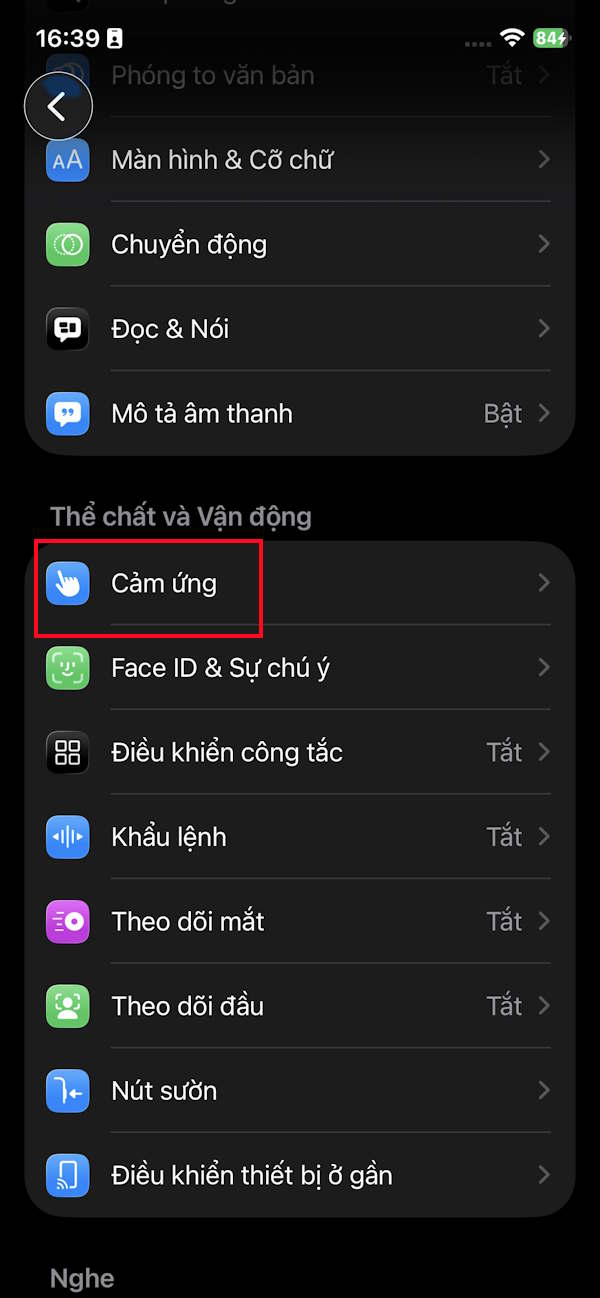
Moving to the next interface, the user clicks on The Touch item To proceed with adjusting the touch mode on the iPhone.
Step 3:
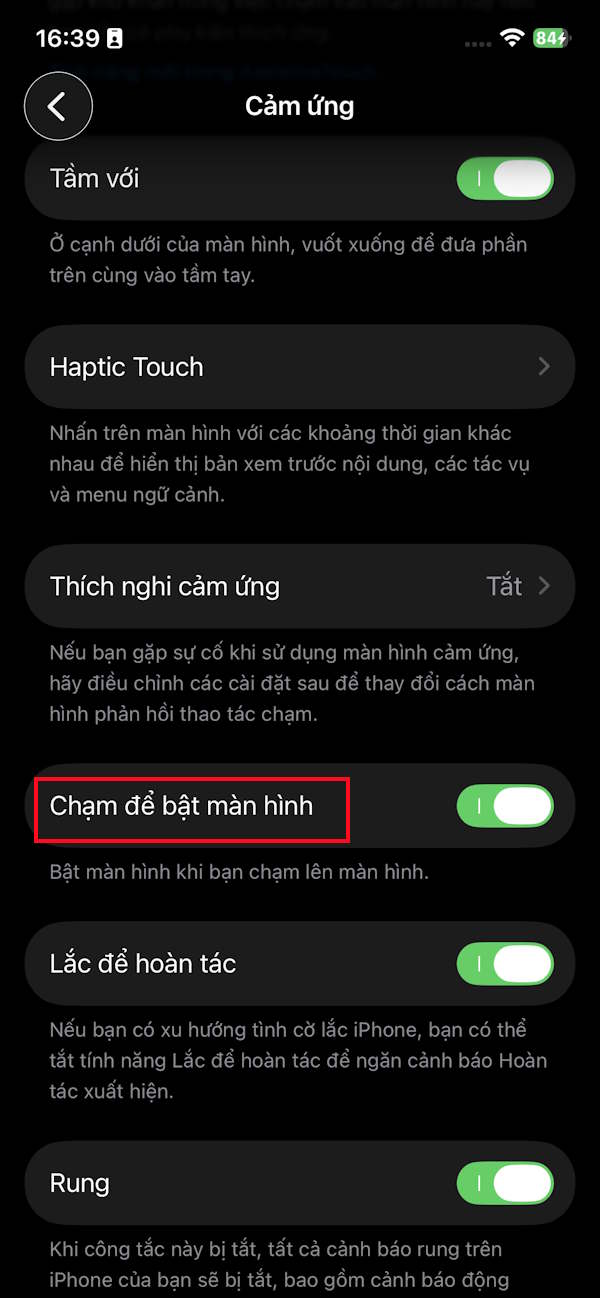
In this settings interface, you will see the default Tap to Wake mode turned on. Anything that touches the screen will automatically light up the iPhone, even if you didn't touch it. Turn off Tap To Wake mode To stop the iPhone from automatically lighting up the screen.
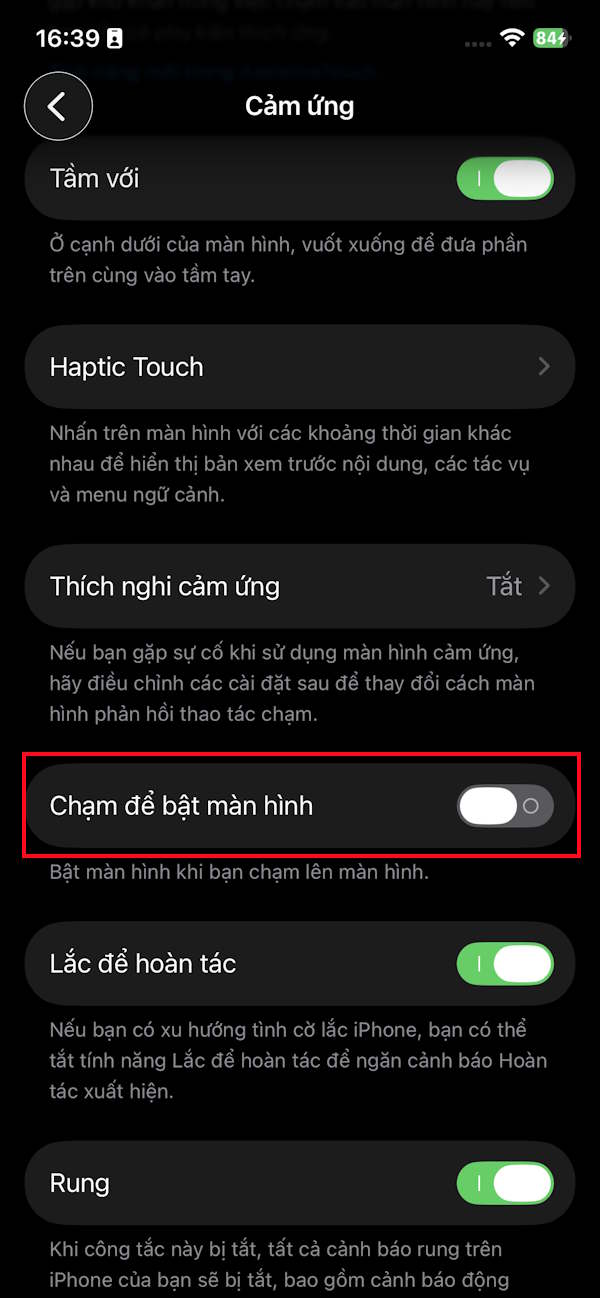
IPhone screen tap mode is applied on iPhone X and later.
FAQ
How do you turn off iPhone screen auto-brightness when touched: how-to guide?
In practical terms, by default, the iPhone has Tap to Wake enabled. However, this feature is basically unnecessary because it can drain the iPhone battery when the screen is constantly on.
What should you check before getting started?
Review the requirements, compatible device or software version, and any warnings described in the guide before making changes.
What should you do if the steps do not work?
Repeat the steps in order, confirm that your app or system is up to date, and review the troubleshooting details provided above.
Related Articles
 How to Disable Auto-brightness on Iphone3 minutes read
 How to Turn Off Auto-light on iOS 114 minutes read
 Steps to Turn Off the Windows 10 Screen Brightness8 minutes read
 Automatic Shutdown Increases the Screen Brightness of Windows 106 minutes read
 How to Turn Off the Automatic Screen Brightness Change4 minutes read
 Turn Off Windows 10 Screen Brightness Auto-adjustment5 minutes read
Reader Comments 0
Sign in with email or Google to join the discussion.