Table of Contents
If files on a USB drive disappear but its used space remains, they may be hidden rather than deleted. First show hidden items in File Explorer, then check file attributes if necessary. If unfamiliar shortcuts have appeared, treat the drive as suspicious and scan it before opening those shortcuts.
Unhiding files does not remove malware and cannot recover files that have actually been deleted or damaged. Do not format the drive just because Explorer looks empty.
1. Avoid opening suspicious shortcuts
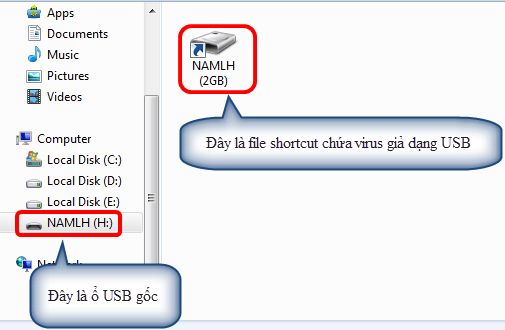
A shortcut can launch commands as well as open a folder. Do not double-click an unfamiliar shortcut to “restore” your files. Use a trusted, updated Windows computer and scan the removable drive with its security software.
In Windows Security-supported configurations, right-click the drive or item, choose Show more options if needed, and select Scan with Microsoft Defender. Use the equivalent custom scan in another trusted security product. See Microsoft's item-scanning instructions.
If the same problem returns after cleaning, investigate the computer as well as the USB. Repeatedly clearing hidden attributes will not fix an active infection.
2. Show hidden items in File Explorer
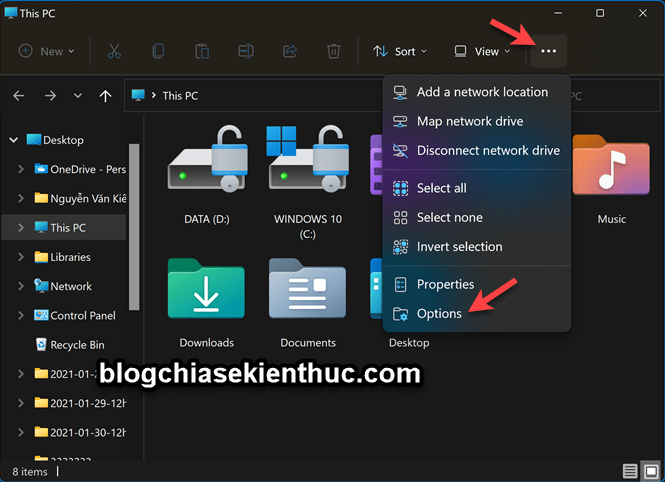
- Windows 11: open File Explorer and select View > Show > Hidden items.
- Windows 10 and 8/8.1: use the View ribbon's Hidden items option.
- Folder Options method: press Windows + R, enter
control folders, open View, and choose Show hidden files, folders, and drives.
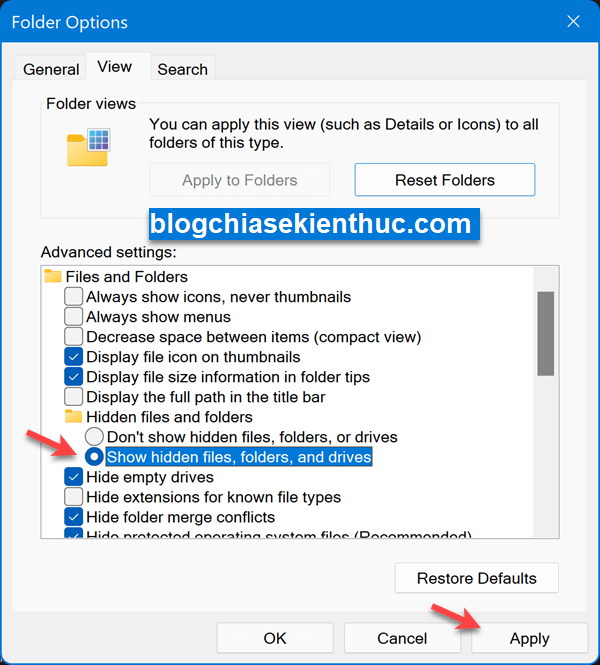
The older screenshots below show the equivalent XP and Windows 7 Folder Options controls. These are legacy interfaces, not a recommendation to connect suspicious storage to an unsupported system.
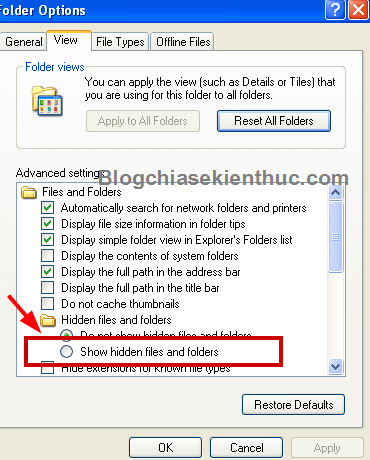
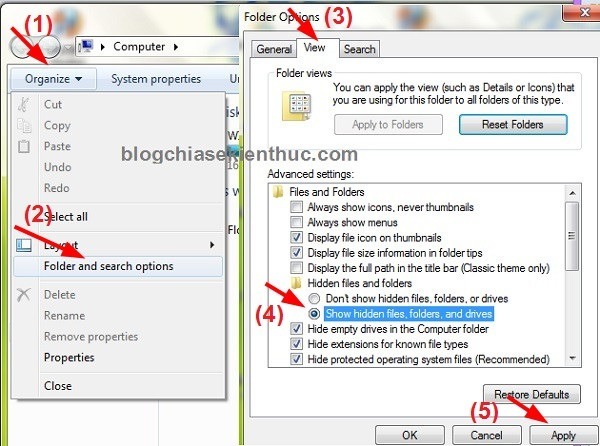
Showing hidden items changes Explorer's display. It does not necessarily remove the Hidden attribute from each file.
3. Check or clear the Hidden attribute
For a known file or folder, open Properties and clear Hidden where appropriate. The screenshot illustrates that checkbox; setting it hides an item, while clearing it unhides it.
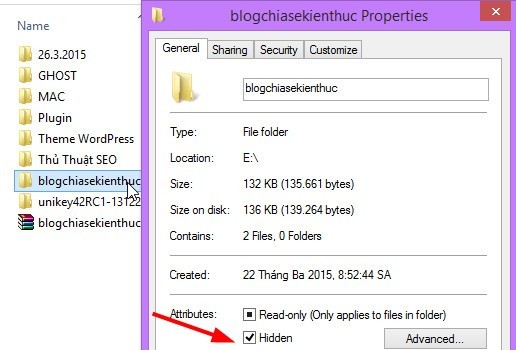
The Hidden checkbox controls an item's attribute.
Do not change protected operating-system files just to make them visible. This task concerns your removable drive's data.
4. Use attrib on the verified USB path
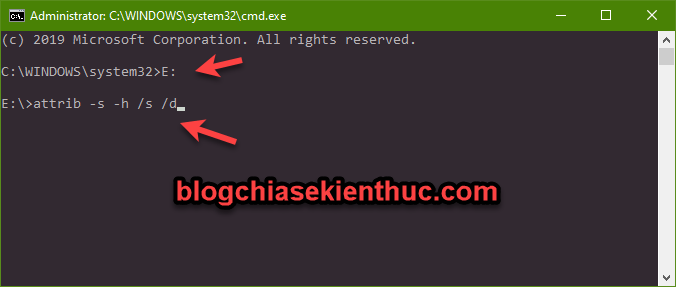
If your data has both Hidden and System attributes, the Windows attrib command can clear them. Confirm the USB's actual drive letter first. The following example assumes it is E:, not your Windows disk.
Open Command Prompt and inspect the drive without opening its contents:
dir E: /aIf you have identified a particular data folder, target that folder rather than the whole drive. For example:
attrib -s -h "E:Documents"
attrib -s -h "E:Documents*" /s /d
Replace the example folder with the actual one. For a personal data USB where you deliberately need to clear those attributes throughout the drive, the broader command is:
attrib -s -h E:* /s /d-s clears System, -h clears Hidden, /s processes matching files in subfolders, and /d includes directories. It does not disinfect or reconstruct files. Consult the attrib reference if a command reports an error.
About older unhide utilities
The original guide used FixAttrb, shown below, and mentioned USB Show. Their role is attribute repair, not proof that a drive is malware-free. If using any such utility, verify its publisher and download source and inspect the selected path before applying changes.
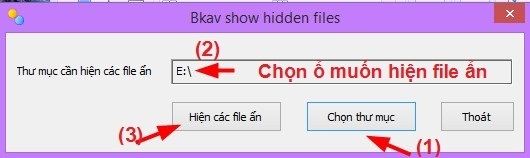
In the pictured Vietnamese interface, Chọn thư mục means “Choose folder” and Hiện các file ẩn means “Show hidden files.” Built-in Windows controls may be sufficient without installing another program.
If files are still missing
Check whether the data is in an unexpected folder or quarantine, and whether the drive reports errors or disconnects. If the files were deleted or the drive is failing, stop writing to it and consider recovery from a backup or professional assistance for irreplaceable data.
After scanning, copy needed documents to a separate backup location and verify them. Keep unfamiliar executables and scripts separate. Showing file extensions and following the downloaded-file checks helps you inspect what you are about to open.
Related Articles
 How to show hidden files and folders on the USB drive
 How to show hidden files on Windows 11
 How to Show Hidden Files and File Extensions in Windows
 How to show or hide files in Windows 7
 Download Fixattrb - Restore, Show hidden files due to Virus
 Top software to show hidden files in USB you should not miss
Reader Comments 0
Sign in with email or Google to join the discussion.