Table of Contents
For most general-purpose computers, 512GB is a practical starting point; 1TB is more comfortable for gaming, creative work, or keeping many files locally. A 256GB SSD can still suit a lightweight web-and-office system, while 2TB or more makes sense for a large game library, video projects, virtual machines, or other space-heavy workloads.
The right answer depends on what is already stored on your computer and how quickly that total grows. Check current usage before buying, then include room for Windows, applications, updates, temporary files, and future data.
Why the displayed capacity is lower
Drive makers use decimal units: 1TB is 1,000,000,000,000 bytes. Windows traditionally reports that byte count using binary units while labeling the result as GB, so a marketed 1TB drive appears as roughly 931GB before formatting and system partitions. This is a difference in measurement, not missing storage.
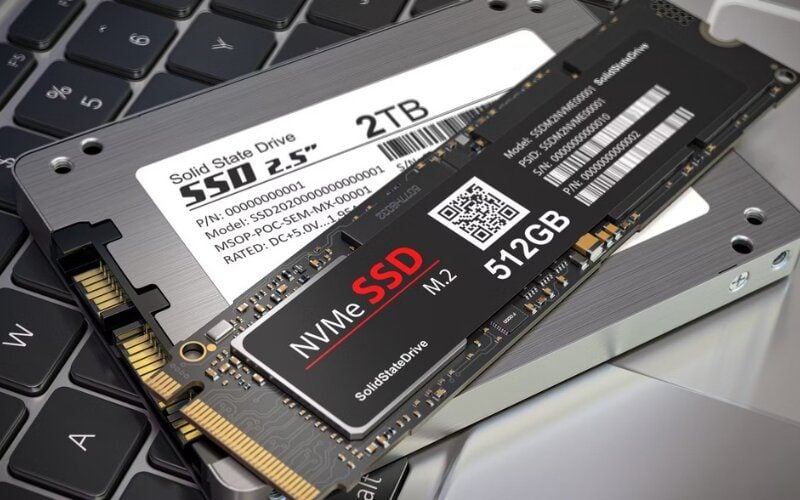
Formatting and hidden system partitions reduce the space shown to the user slightly further.
Allow space for the system and normal growth
Windows usage varies with the version, update history, optional features, installed drivers, hibernation file, page file, and restore points. Applications also create caches and temporary data. Instead of relying on a single fixed figure, examine Settings > System > Storage on the existing PC and add a sensible margin.
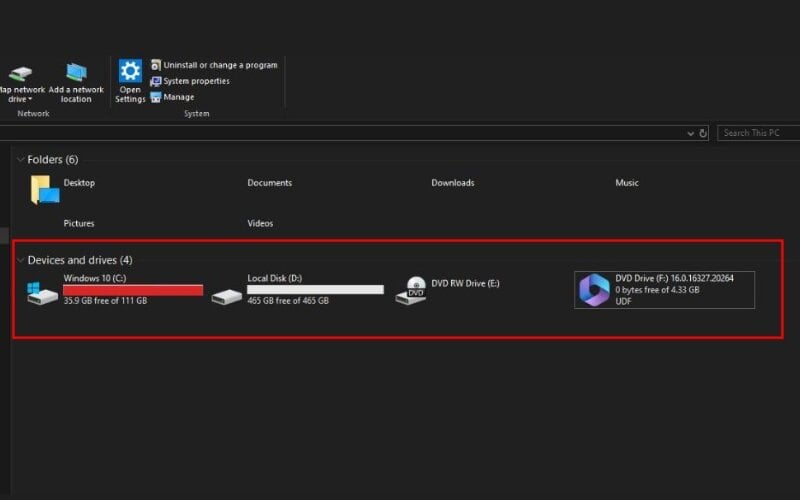
System files, updates, caches, and virtual memory all share the SSD's available space.
An SSD does not instantly become unusable at a particular percentage, but nearly filling it leaves Windows little working space and can reduce sustained write performance on some models. Keeping roughly 10–20% available is a useful planning target, not a universal technical rule. The controller also has factory-reserved spare area that is separate from free filesystem space.
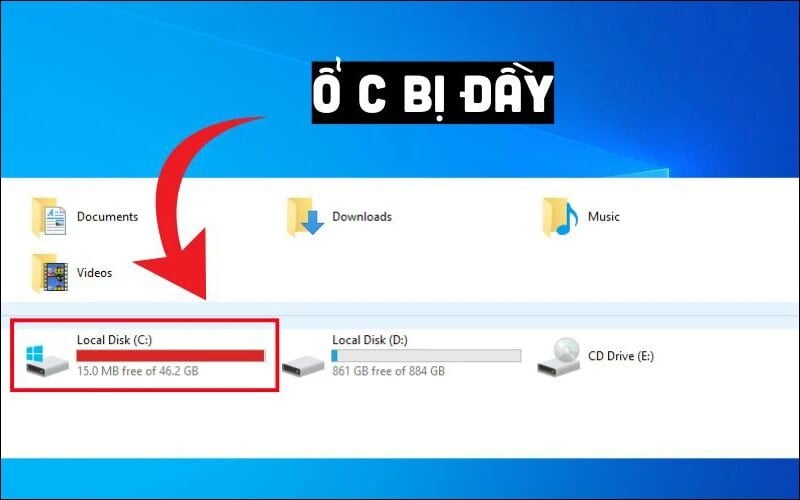
Leave room for updates, temporary files, new applications, and workload growth.
SSD capacity recommendations
256GB: light, tightly managed use
A 256GB SSD can handle Windows, a browser, office applications, and modest personal files. It works best when large photos, videos, and backups live elsewhere. It leaves limited flexibility for major games, development tools, or long-term growth, so check your present usage carefully.
512GB: a practical baseline for many users
Choose 512GB for a mainstream study, office, or home PC with a moderate collection of applications and local documents. It offers more breathing room than 256GB without forcing every user to pay for capacity they will not use. It can also support a few games, but actual game sizes vary widely.

1TB: gaming and creative work
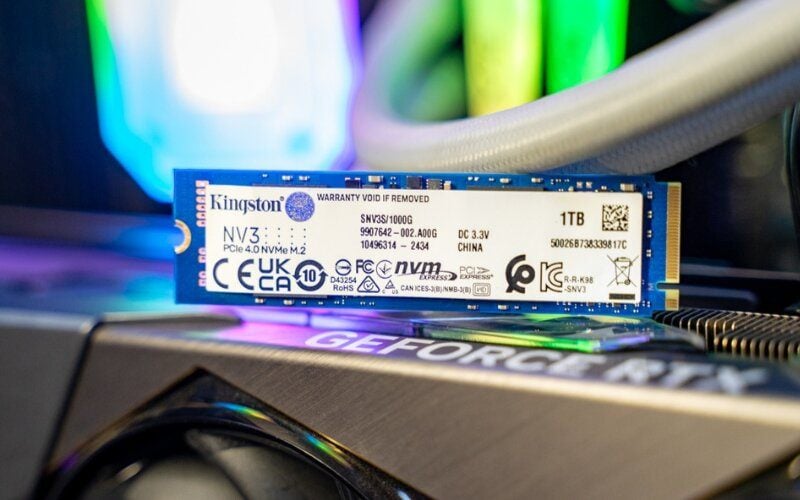
A 1TB drive is a strong default for a gaming PC, a photo-editing workstation, or a laptop expected to keep several years of files locally. Before deciding how many games will fit, check the current storage requirements of the specific titles you play, including downloadable content and update space.
2TB or more: large active datasets
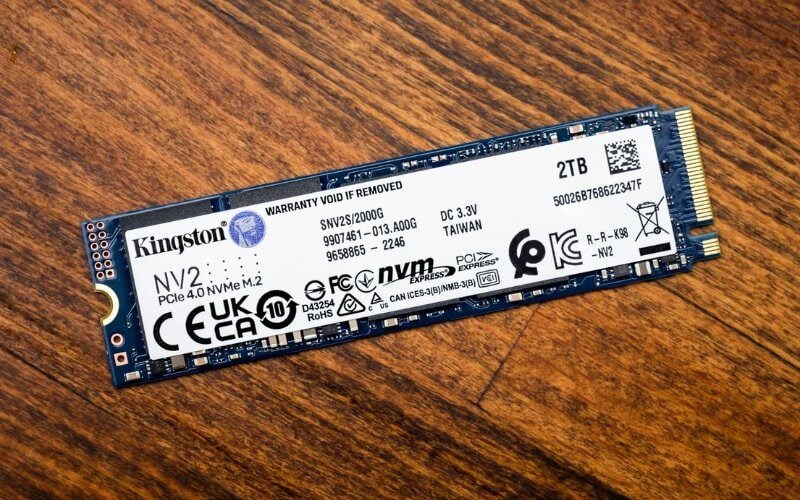
Consider 2TB or more for a large installed-game library, high-resolution media, multiple virtual machines, local AI models, or substantial project caches. It is useful rather than mandatory: professionals with a fast network or separate storage system may need less internal capacity, while some home users may need more.
| Capacity | Good fit for | Main limitation |
|---|---|---|
| 256GB | Web, office work, cloud-first storage, secondary systems | Requires active space management |
| 512GB | General home, study, and office use; a modest app or game collection | Can fill quickly with large games or media |
| 1TB | Gaming, photo work, development, and comfortable everyday use | May still be small for extensive video or VM storage |
| 2TB+ | Large game libraries, media production, VMs, and big active datasets | Higher purchase cost; backup needs also increase |
How to calculate your own requirement
- Measure the used space on the current computer, excluding files you deliberately plan to delete.
- Add the stated installation sizes of new applications and games you expect to keep installed.
- Estimate project-file, photo, video, or virtual-machine growth over the period you intend to keep the drive.
- Add working room for updates, caches, and temporary exports, then choose the next standard capacity above the total.
- Plan a separate backup. A larger SSD protects neither against drive failure nor accidental deletion.
One large drive or multiple drives?
A fast primary SSD plus a larger secondary drive can be economical in a desktop. Keep Windows, applications, current games, and active projects on the SSD; use a secondary SSD or hard drive for archives that do not need maximum speed. A hard drive is slower but may still be cost-effective for bulk local storage and backups.
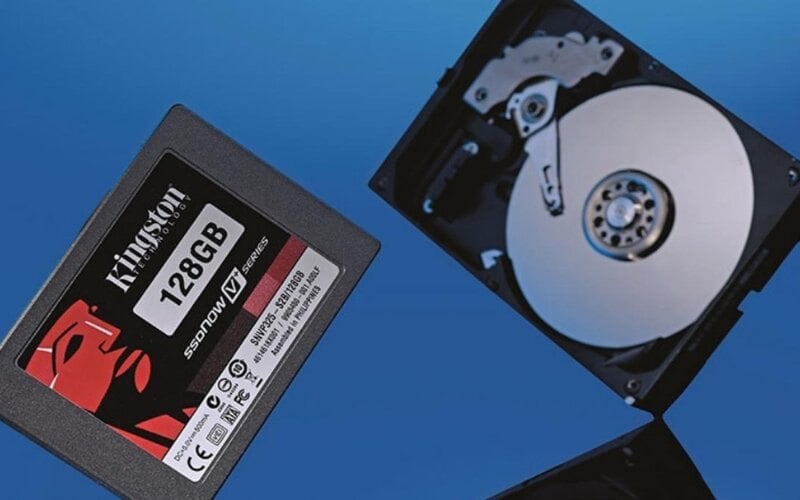
Split storage by access needs rather than placing every file on the fastest drive.
On a laptop, first confirm that a second slot or bay actually exists. Some models provide only one storage connector, making the capacity of the replacement drive more important. The guide to checking laptop M.2 support explains what to verify.
Capacity is not the only specification
Confirm the physical size and interface before buying: 2.5-inch SATA, M.2 SATA, and M.2 NVMe drives are not interchangeable in every computer.
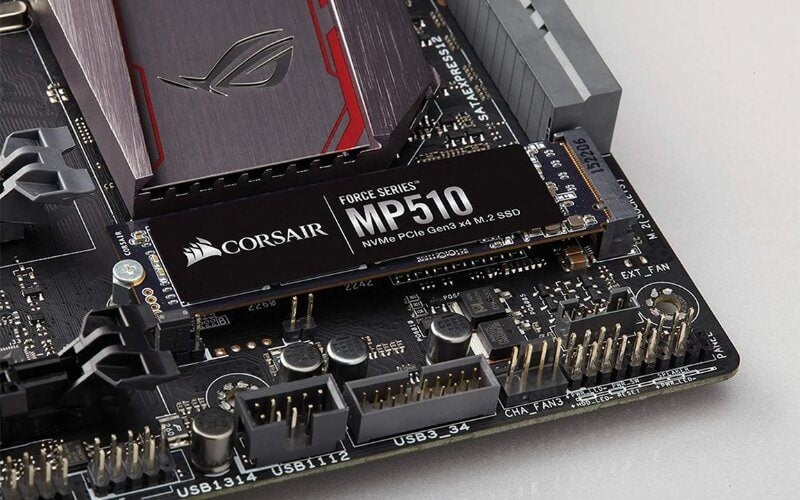
Match form factor, interface, key, and supported length to the computer.
Performance also depends on the controller, NAND type, firmware, cache design, and workload. A DRAM-equipped drive can be helpful for sustained or write-heavy use, but modern DRAM-less NVMe models with host-memory-buffer support can perform well in everyday workloads. TLC often provides a useful balance of performance and endurance; QLC can be reasonable for read-heavy or budget use when its limitations are understood.
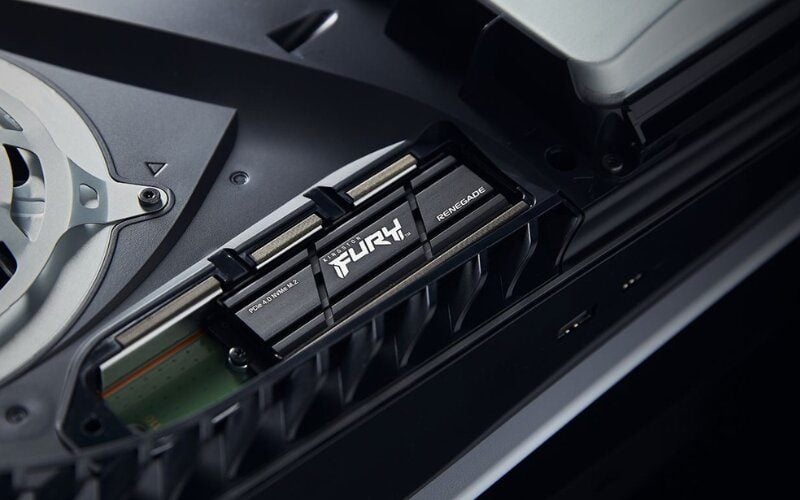
Cooling needs are model- and workload-dependent. Use the motherboard or laptop's designed heatsink when provided, especially for a fast drive under sustained transfers, but do not assume every PCIe 4.0 drive needs an oversized cooler. Thermal throttling protects the device; it is not overclocking.

Follow the computer and SSD manufacturers' thermal-installation instructions.
A simple buying rule
If your calculation is close to the limit of one capacity, move up to the next size. Otherwise, spend the budget on a reliable, compatible model and a sound backup rather than unused capacity. After installation, use Windows' built-in SSD maintenance features and review storage periodically instead of applying aggressive optimization tweaks.
Related Articles
 What Is DAS? Concept and How Direct Attached Storage Works7 minutes read
 Static Storage Class in C // C ++: Storage Class in C // C ++4 minutes read
 How to Use Storage Sense Windows to Free up Disk Space4 minutes read
 Data Storage: That Day and Now7 minutes read
 Learn to Use Lesson Computer 14 - Learn About Cloud Storage6 minutes read
 How to Free up ChatGPT Storage3 minutes read
Reader Comments 0
Sign in with email or Google to join the discussion.