Table of Contents
No single test can prove that a downloaded file is safe. Before opening an unfamiliar download, confirm that it came from the developer’s official site, then combine several checks: inspect the real file type, scan it, verify available publisher information, and stop if the evidence conflicts.
If the source is an unsolicited message, a copied download site, a shortened link, or a page that pressures you to disable security tools, do not open the file. Download the software again from a trusted source instead.
1. Scan the file with Microsoft Defender
Keep Windows Security and its threat definitions up to date. In File Explorer, right-click the downloaded file and choose Scan with Microsoft Defender. On Windows 11, you may need to select Show more options before the scan command appears. Microsoft documents this process in its Windows Security guidance.
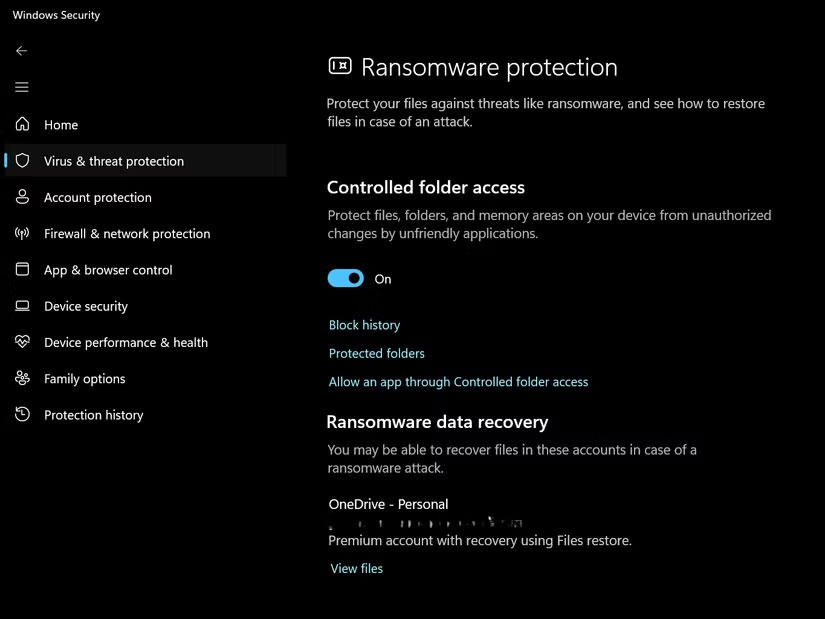
A clean result means that the scanner did not detect a known threat at that time; it is not a guarantee. Do not open a file merely because one scanner reports no detection, especially if the source, filename, or requested permissions still look suspicious.
2. Reveal and inspect the full file extension
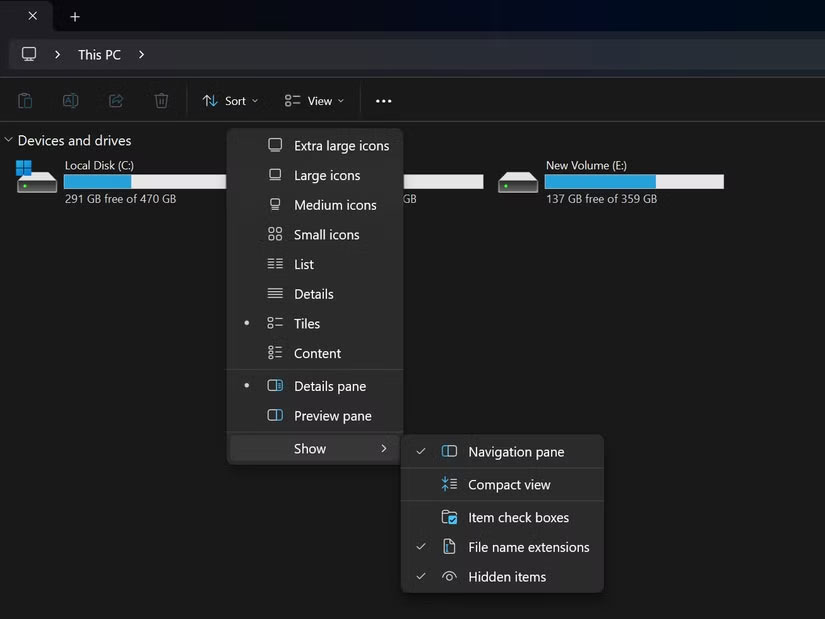
Attackers can use misleading names such as invoice.pdf.exe or video.mp4.scr. If File Explorer hides known extensions, the final executable suffix may be easy to miss. In Windows 11 File Explorer, open View > Show > File name extensions.
Be cautious with files that can execute code, including .exe, .msi, .bat, .cmd, .ps1, .vbs, .js, .wsf, and .scr. Macro-enabled Office formats such as .docm and .xlsm also deserve extra scrutiny. The extension alone does not identify every threat, but a double extension or unexpected file type is a strong reason to stop.
For more context on how Windows displays and handles suffixes, see the guide to viewing and changing file extensions. Renaming an extension does not convert a file or make it safe.
3. Get a second opinion without exposing private data
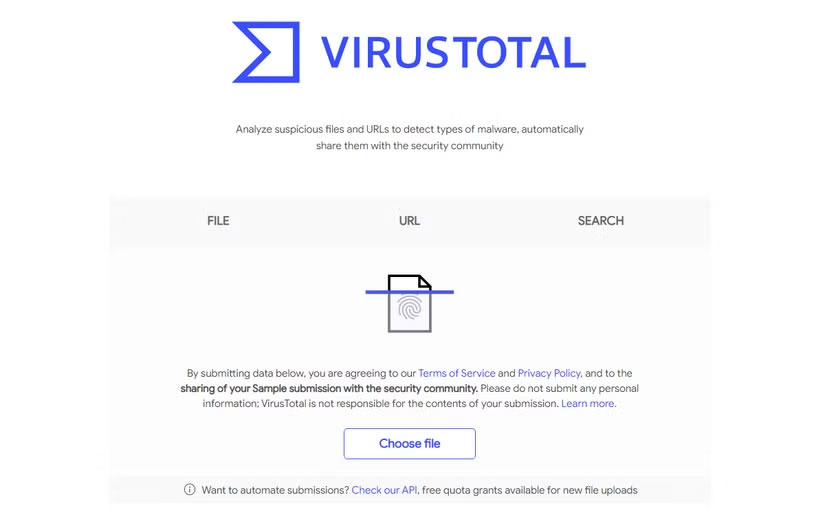
A multi-engine service such as VirusTotal can show whether different security products flag the same file. A few important limits apply:
- Do not upload confidential, personal, licensed, or company-internal files to a public analysis service.
- A detection can be a false positive, while zero detections can still miss new or targeted malware.
- Check the file’s hash first when possible; the service may already have a report, which avoids uploading the file itself.
- Interpret the detection names and behavior details rather than relying only on a red or green count.
If a file contains sensitive data, use an approved private security process or ask the organization’s security team to analyze it.
4. Verify the digital signature and published checksum
For signed Windows software, right-click the file, choose Properties, and inspect the Digital Signatures tab. Select the signature and view its details. Confirm that Windows reports it as valid and that the signer matches the expected developer. A missing signature is not proof of malware, but it removes one useful trust signal.
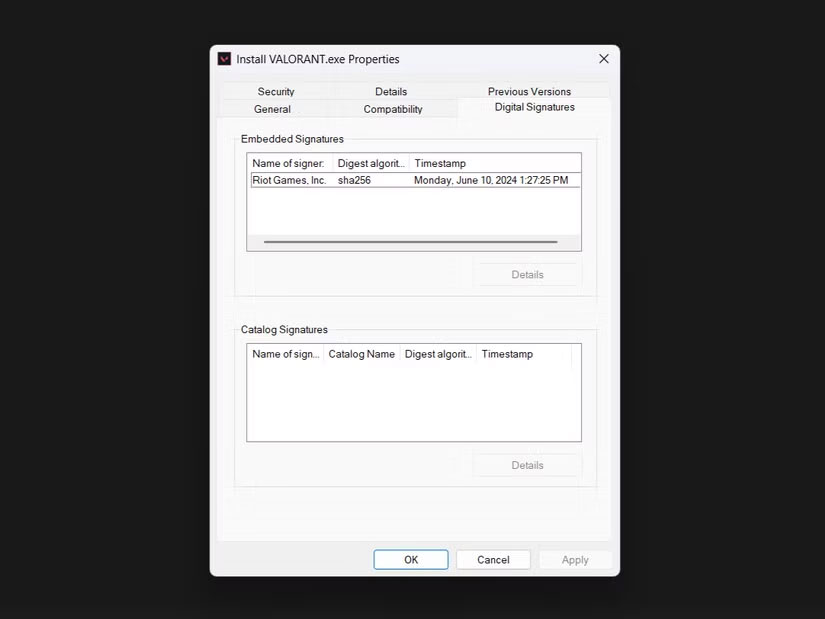
If the official developer publishes a SHA-256 checksum, calculate the downloaded file’s hash in PowerShell:
Get-FileHash -Algorithm SHA256 "C:path odownloaded-file.exe"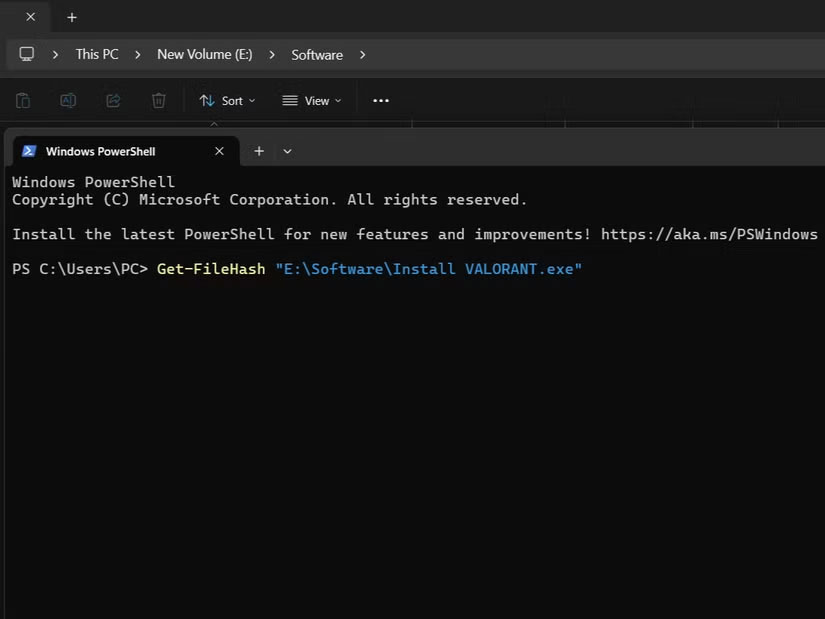
Compare the entire output with the checksum shown on the developer’s official HTTPS page or another authenticated release channel. The values must match exactly. A matching hash shows that you have the same bytes as the published file; it does not help if the checksum itself came from an untrusted page.
5. Isolate advanced analysis
A sandbox or disposable virtual machine can limit what an unknown program reaches, but isolation is not a reason to run obvious malware. Use this approach only when you understand the environment and still have a legitimate need to inspect the file.
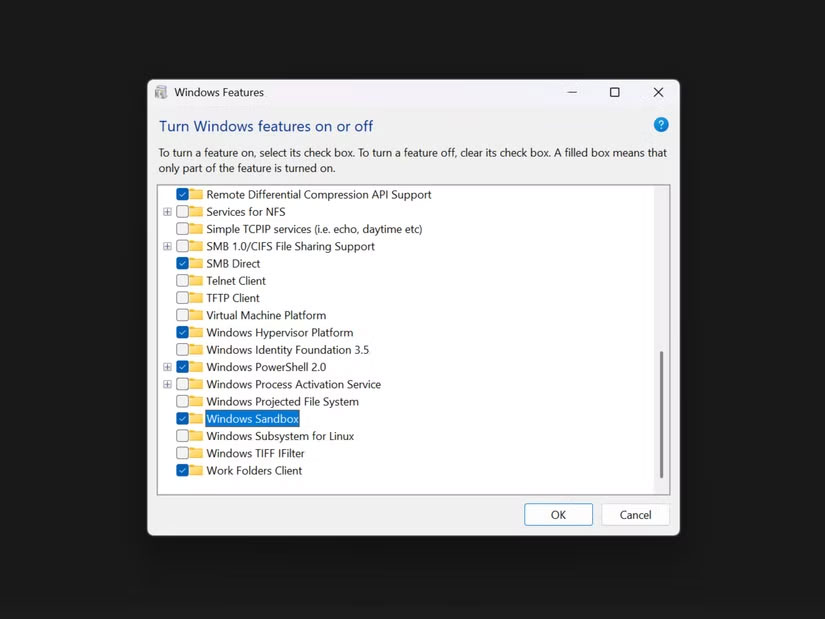
Windows Sandbox is included with supported Pro, Enterprise, and Education editions and discards its environment when closed. Microsoft’s Windows Sandbox documentation lists edition and hardware requirements. Avoid signing in to personal accounts, mounting sensitive folders, or entering credentials in an analysis environment.
Windows Home users can compare Windows Sandbox alternatives, but any isolation tool needs careful configuration. If the file may be malicious and the consequences matter, send it to a qualified security professional instead of experimenting on a personal computer.
6. Do not dismiss SmartScreen or reputation warnings
Microsoft Defender SmartScreen evaluates the reputation of apps and files downloaded from the web. A warning is a reason to recheck the source, signature, and scan results—not a nuisance to bypass automatically.
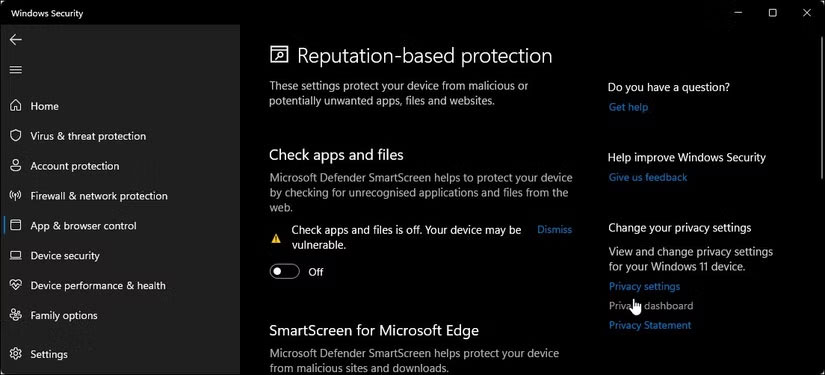
If Windows blocks an unfamiliar file, do not select Run anyway until you can independently explain why the file is trustworthy. Multiple warning signs—an unexpected executable, invalid signature, antivirus detection, and pressure to disable protection—are sufficient reasons to delete the download and obtain it from a safer source.
A practical decision rule
Open the file only when its origin is trustworthy, the file type is expected, security scans are clean, and any available signature or official checksum checks out. If one of those signals is missing, investigate further. If the signals conflict, do not run the file.
Related Articles
 How to Check the Code MD5 and SHA1 to Check the Integrity of the File7 minutes read
 How to Scan Virus Files Downloaded on Chrome4 minutes read
 3 Ways to View Download History on Chrome: View the Download History3 minutes read
 Check MD5 Code, Check MD5 Code of Any File on the Computer Quickly and5 minutes read
 Check the Safety of Files from Windows 10 Desktop Easily with4 minutes read
 How to Find Downloaded File Location on Chromebook4 minutes read
Reader Comments 0
Sign in with email or Google to join the discussion.