This guide explains how to see the Wi-Fi Password Is Connected on the Computer and Phone, with clear steps, practical tips, and important checks before you begin.
I. Instructions to view the Wi-Fi password on the computer
See Wi-Fi password on Windows
There are many ways to view the Wi-Fi password saved on the computer, but I only introduce one way, which can be applied to see the Wi-Fi password quickly on different operating systems such as Win XP, Windows 7. and Win 10.
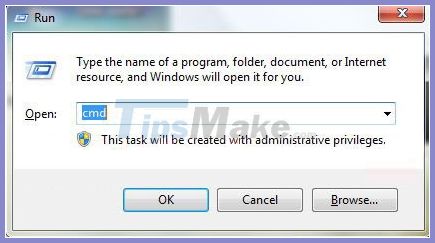
Step 1: Use the key combinationWindows + R.
Step 2: Type: cmd
-> Press Enter or OK to open a command prompt.
Step 3: Type the following command:
In there change 'freetuts' to the name of the Wi-Fi you are connecting
For example: The name of the Wi-Fi I am connecting to is named Long_oanh, we will enter the following command:

You can see that the Key content item is the password.
In addition to the password, this command line provides us with a lot of other information about the Wi-Fi we are connecting to.
View Wi-Fi passwords on Mac OS X
Similar to Windows, however, for Mac OS X the command-line software is not called cmd, but rather Terminal.
To start viewing the saved Wi-Fi passwords on Mac OS, follow these steps:
Step 1: Open Spotlight using the key combinationCmd + Space.
Enter: terminal -> open Terminal.
Step 2: The command prompt window appears, enter the following command line:
In it please change the name 'freetuts' to the name of the Wi-Fi you are connecting to.
Next, a window appears, log in with your Mac's username and password into it.
View saved Wi-Fi passwords on Linux Supported operating systems
Like a Mac, open Terminal and enter the following command and change 'freetuts' to the name of the Wi-Fi you are connecting to.
If you are unsure the name of the Wi-Fi, enter this command line:
Instructions to see the Wi-Fi password on the phone
View saved Wi-Fi passwords on Android phone
For Android before, it was required to root in order to view saved Wi-Fi passwords, but in the new updates there has been a Wi-Fi sharing feature by QR code, so a simple way to view Wi-Fi passwords If you have saved it on your Android device, you can just translate this QR code. Please follow these steps:
Step 1: Access Settings on phone.
Step 2: Click on Wi-Fi settings.
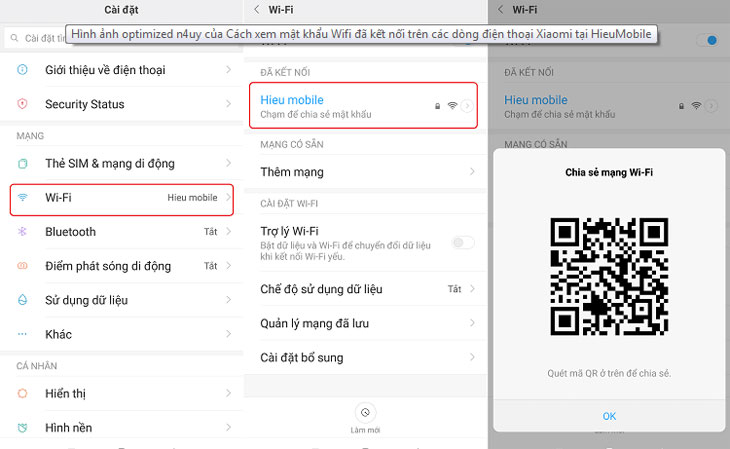
Step 3: Select Wi-Fi connected -> Click Touch to share password.
Step 4: Take a photo of the QR code shown on the screen with the screen capture feature.
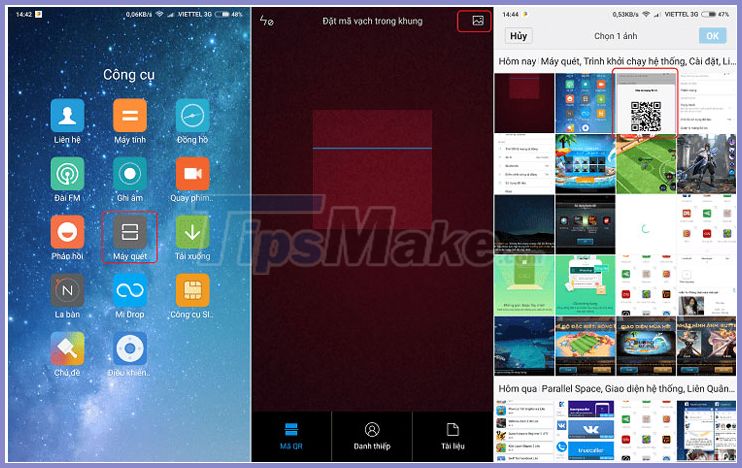
Step 5: Using QR code scanning software (QR code has just been captured with the screen capture feature), there are 3 popular ways to scan QR codes:
* Method 1 : Device has been installed with Scanner application - Scan QR Code / Scan QR Code.
Result.
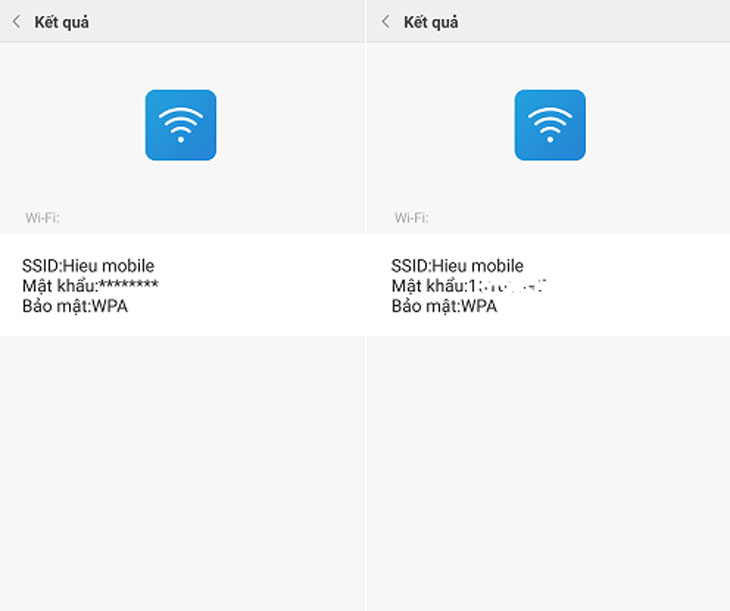
* Method 2 : Use the built-in QR code scanning feature in Zalo.
* Method 3 : If the QR code scanning application is not available on your phone, you can search it on Play Store.
View the Wi-Fi password saved on your iOS phone
* Method 1: View password via Modem - Router Wi-Fi setting
This is simply to log in to the IP address of the Wi-Fi Router via Safari browser, in the Wi-Fi settings there are all the details about Wi-Fi. However, in order to apply this method, you must have access to the Wi-Fi Modem / Router to have the ID and Password to login, but using this way you can also change the password and the Wi-Fi name, which can be applied above. both computer and phone.
Step 1: Turn over the Modem / Router Wi-Fi to see the IP address and password for login.
Below is the location of IP, User and Password of some Modem types for your reference.
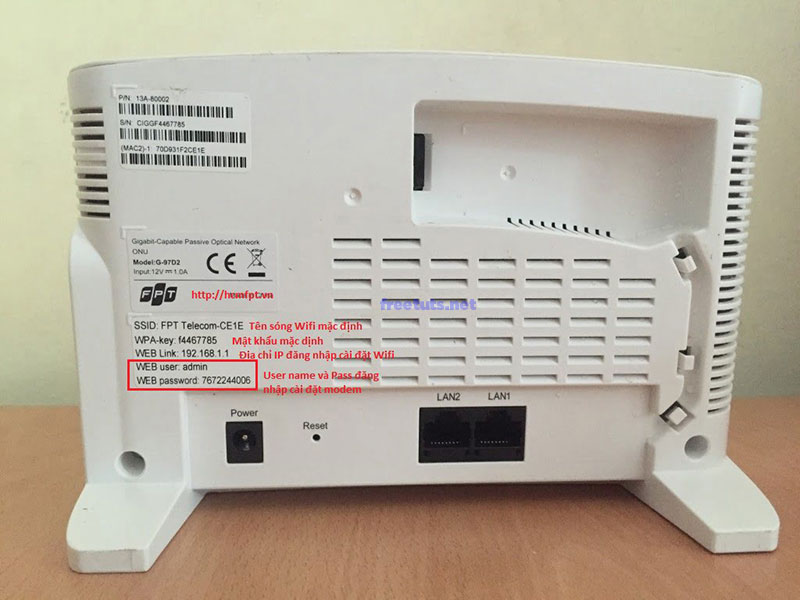
Wi-Fi Modem Of FPT

Wi-Fi Modem Viettel (ZTE)
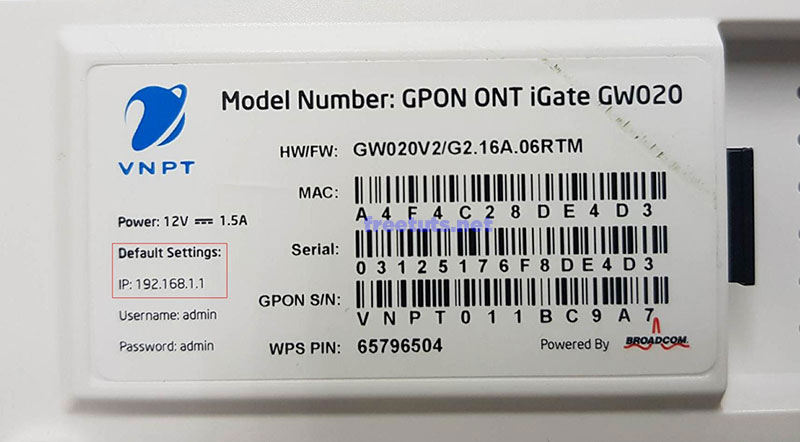
VPNT's modem

TP-Link Wi-Fi Router
Step 2: Open the browser on iPhone / iOS (Safari, Google Chrome.)
Step 3: Log in to the Wi-Fi Modem / Router with the IP, User and corresponding password on the device.
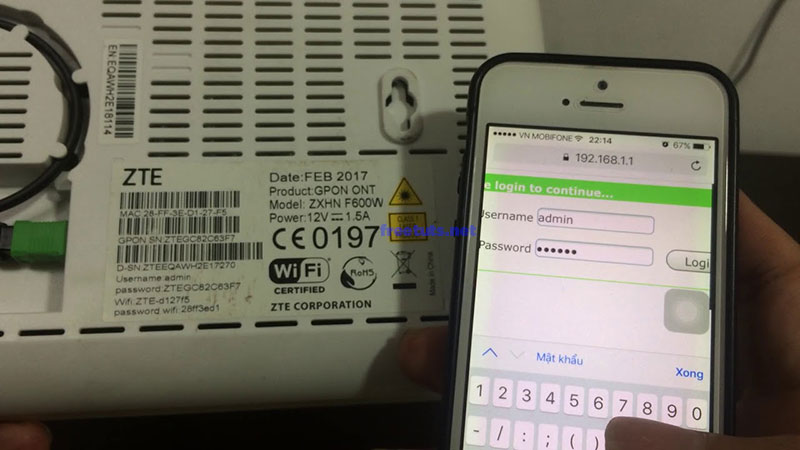
Step 4: After logging in, go to Wlan / Secutity to see the Wi-Fi password , here you can also change the password.
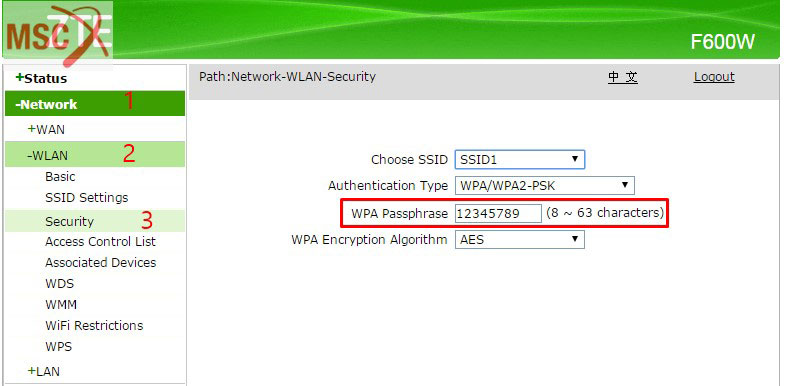
* Method 2: View passwords saved on iPhone by Jaibreak
This way is quite complicated but will definitely see the Wi-Fi password saved on the iPhone 100% successful
Step 1: Refer to this article to Jailbreak your iPhone.
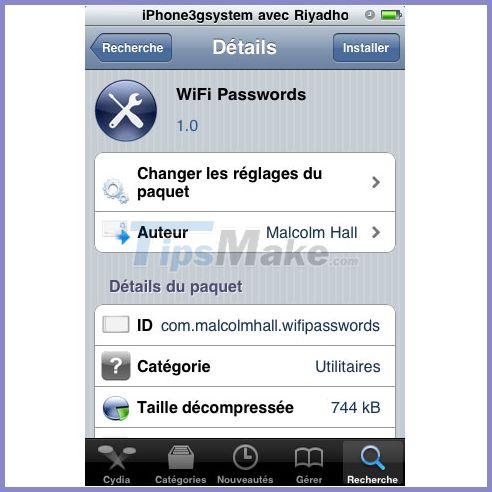
Step 2: Access Cydia and search for the software with the keyword 'Password Wi-Fi'
In the example below I have selected and downloaded the software Wi-Fi Password 2.0.2.
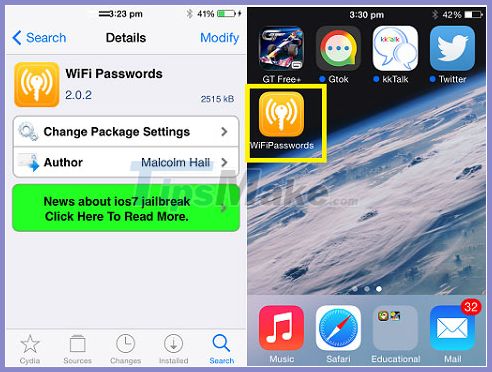
Step 3: Run the software, you will see immediately the passwords of the Wi-Fi connected on the iPhone, extremely simple!!!

Conclude
Above is the whole way to view the saved Wi-Fi passwords on Windows / iOS / Linux computers and Android and iOS phones. I firmly believe that with these simple instructions anyone can see the Wi-Fi password saved on their device, wish you success!





Reader Comments 0
Sign in with email or Google to join the discussion.